> ## Documentation Index
> Fetch the complete documentation index at: https://nango.dev/docs/llms.txt
> Use this file to discover all available pages before exploring further.
# Workday - How do I link my account?
# Overview
To authenticate with Workday, you need:
1. **Hostname** - The base URL for the Workday Web Services endpoint.
2. **Tenant** - The unique identifier for your Workday instance, often included in the URL.
3. **Username** - The Workday Integration System User (ISU) username.
4. **Password** – The password for the ISU user, used in combination with the ISU username to authenticate API requests to Workday.
This guide will walk you through finding or generating these credentials within Workday.
### Prerequisites:
* You must have an account with Workday with administrator access.
#### Step 1: Finding your Hostname
1. Log in to your Workday instance.
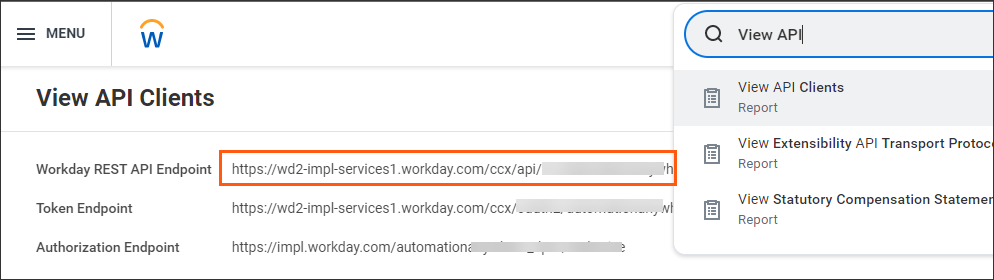
2. In your Workday homepage, go to the search bar and type **View API Clients** then select it.
3. Look for the **Workday REST API Endpoint** field.
4. The **Hostname** is everything after `https://` and before `/ccx/api/v1/`.
* Example: If the endpoint is `https://wd2-impl-services1.workday.com/ccx/api/v1/acme`, the hostname is `wd2-impl-services1.workday.com`.
 #### Step 2: Finding your Tenant
1. In the same **Workday REST API Endpoint** field from the **View API Clients** report, the **Tenant** is the final part of the URL after **/v1/**.
* Example: If the endpoint is `https://wd2-impl-services1.workday.com/ccx/api/v1/acme`, the **Tenant** is `acme`.
#### Step 3: Create Integration System User (ISU)
1. Log into your Workday instance.
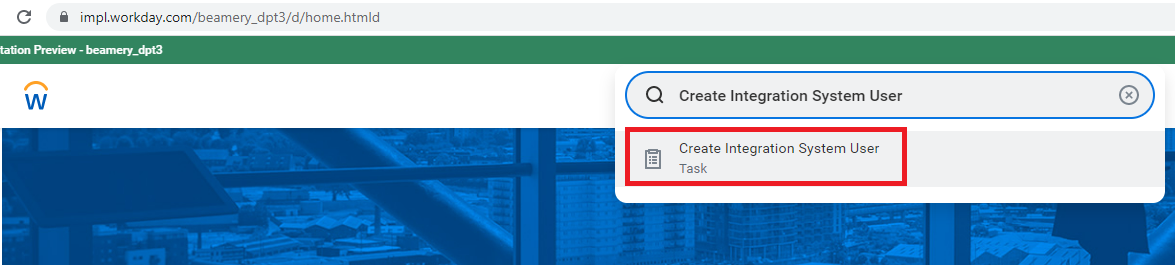
2. In your Workday homepage, go to the search bar and type **Create Integration System User** then select it.
#### Step 2: Finding your Tenant
1. In the same **Workday REST API Endpoint** field from the **View API Clients** report, the **Tenant** is the final part of the URL after **/v1/**.
* Example: If the endpoint is `https://wd2-impl-services1.workday.com/ccx/api/v1/acme`, the **Tenant** is `acme`.
#### Step 3: Create Integration System User (ISU)
1. Log into your Workday instance.
2. In your Workday homepage, go to the search bar and type **Create Integration System User** then select it.
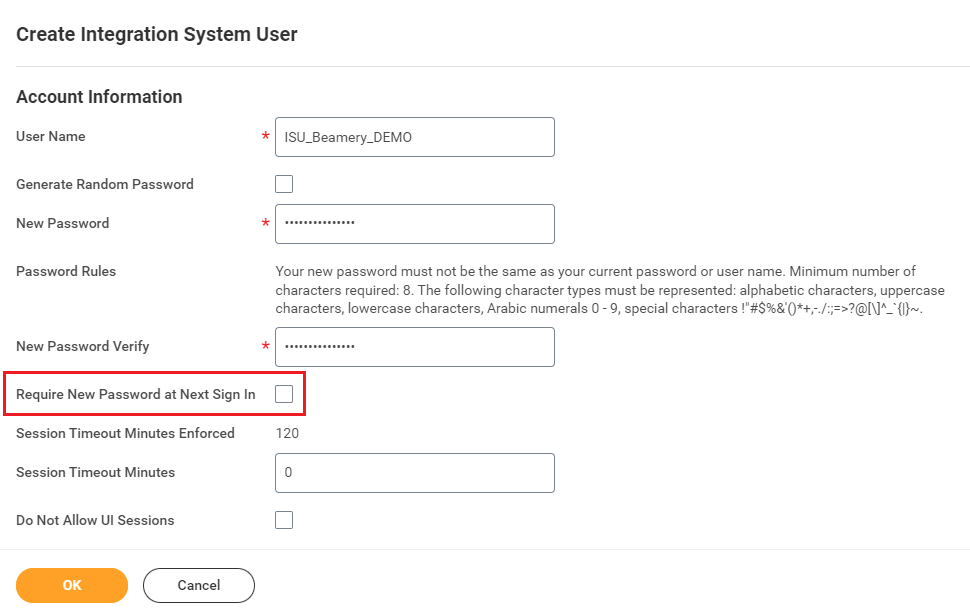
 3. Add in a **Username** and type in a secure **Password** of your choosing. Uncheck the box: **Require New Password at Next Sign In**, then click **Done**.
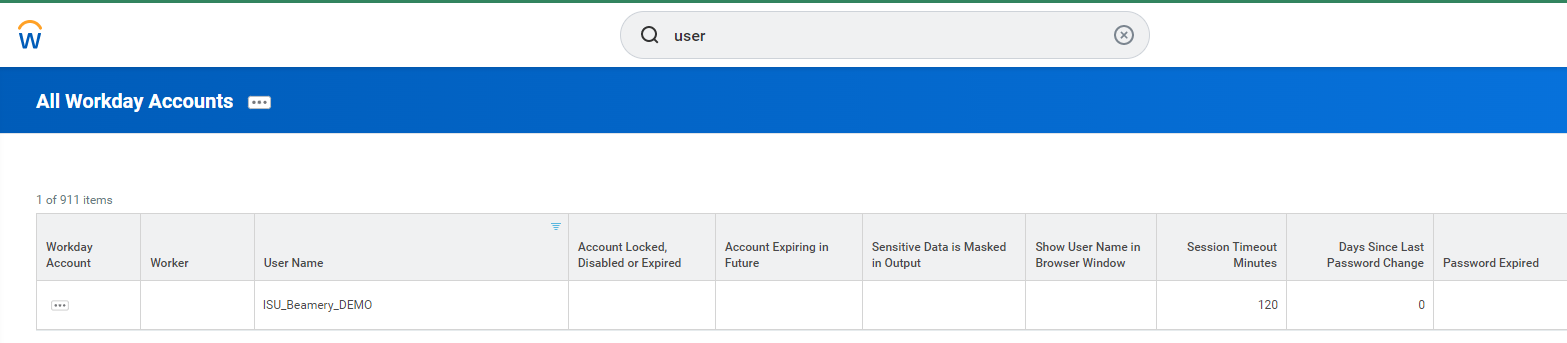
 4. Confirm the ISU account has been created by viewing **All Workday Accounts** and filter on the **Username** you created.
 5.Go to the search bar and type **Create Security Group** then select it.
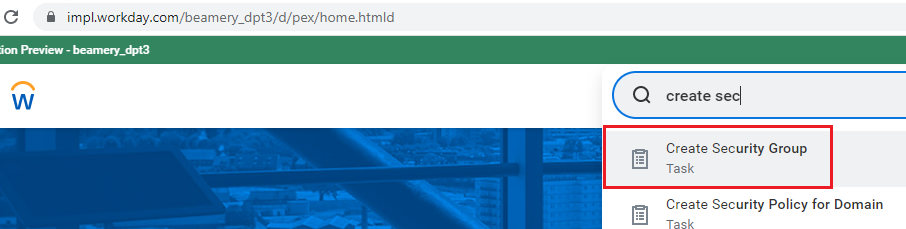 Creating a security group allows you to assign the necessary permissions to the ISU account
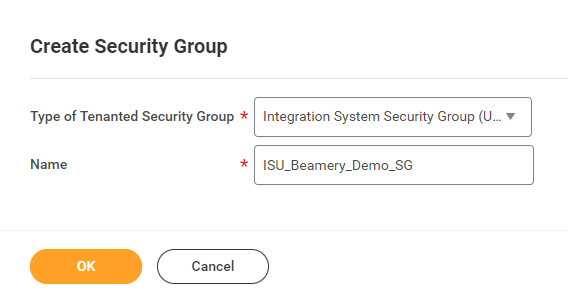
6\. When creating the group, the group must be of type **Integration System Security Group (Unconstrained)**. Add in a **Name** for the group and click **OK**.
Creating a security group allows you to assign the necessary permissions to the ISU account
6\. When creating the group, the group must be of type **Integration System Security Group (Unconstrained)**. Add in a **Name** for the group and click **OK**.
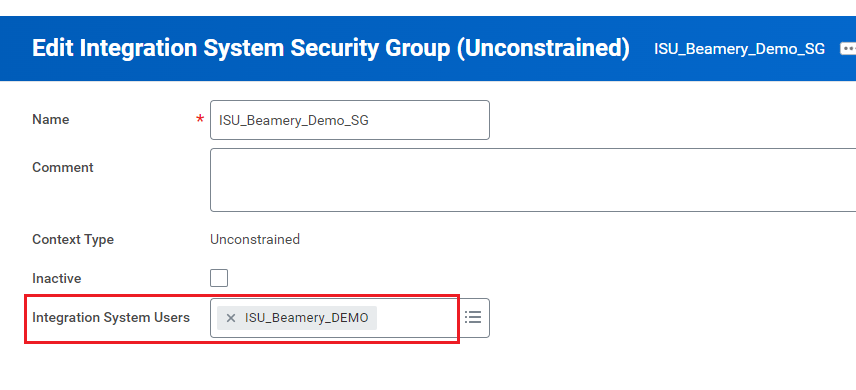
 7. Assign the ISU account we created in step 3 above to your new security group and click **OK**.
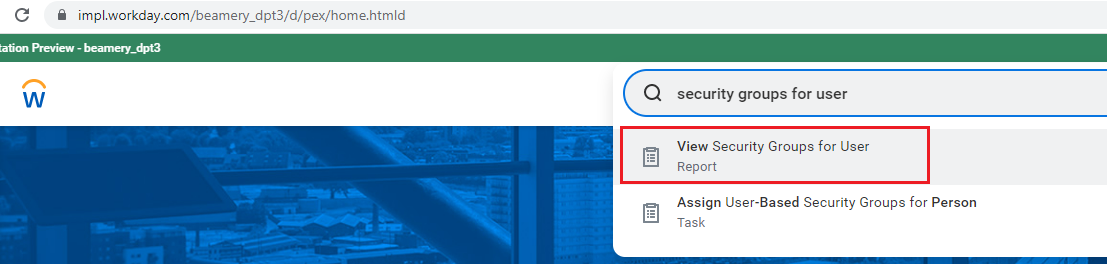
 8. Go to the search bar and type **View Security Groups for User** then select it.
 9. In the Person field, search for the ISU username we created above and click **OK**.
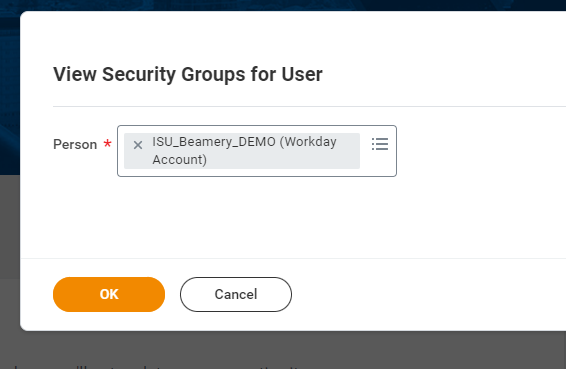 10. You should see the security groups associated with the ISU account, including the one you just created (**Integration System Security Group (Unconstrained)**). Scroll down to find this security group, then click on it.
11. Navigate to **ellipses** > **Security Group** > **Maintain Domain Permissions for Security Group**.
10. You should see the security groups associated with the ISU account, including the one you just created (**Integration System Security Group (Unconstrained)**). Scroll down to find this security group, then click on it.
11. Navigate to **ellipses** > **Security Group** > **Maintain Domain Permissions for Security Group**.
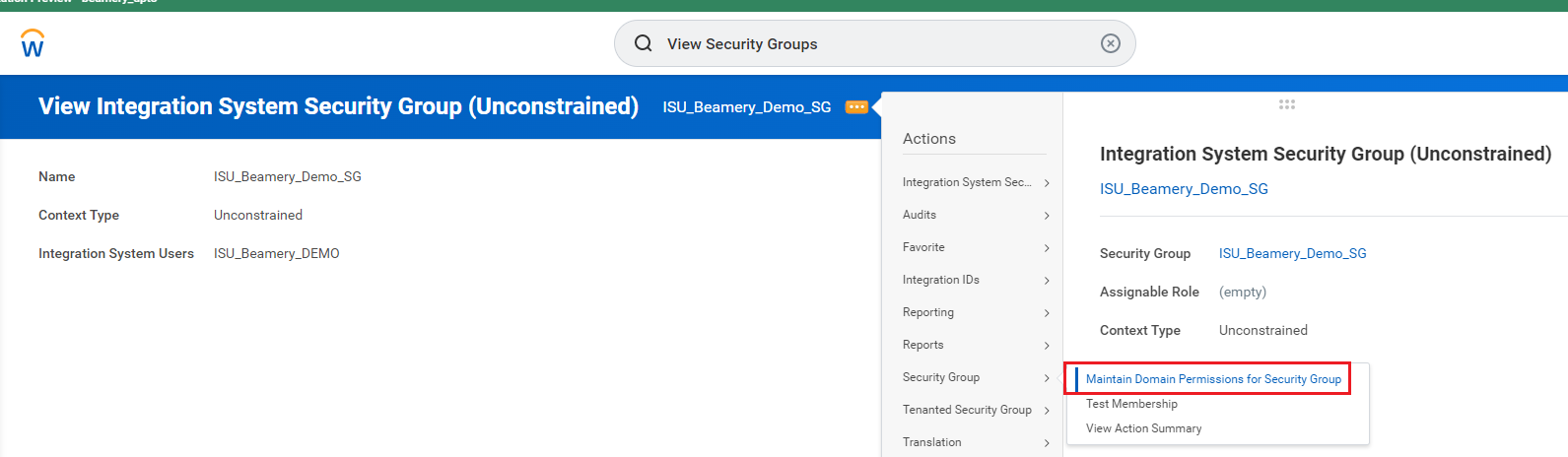 12. Add all of the required domain security policies with the proper view/modify access for the **Integration Permissions**.
In Workday, all security changes remain **pending** until they are activated by a user with the appropriate permissions.
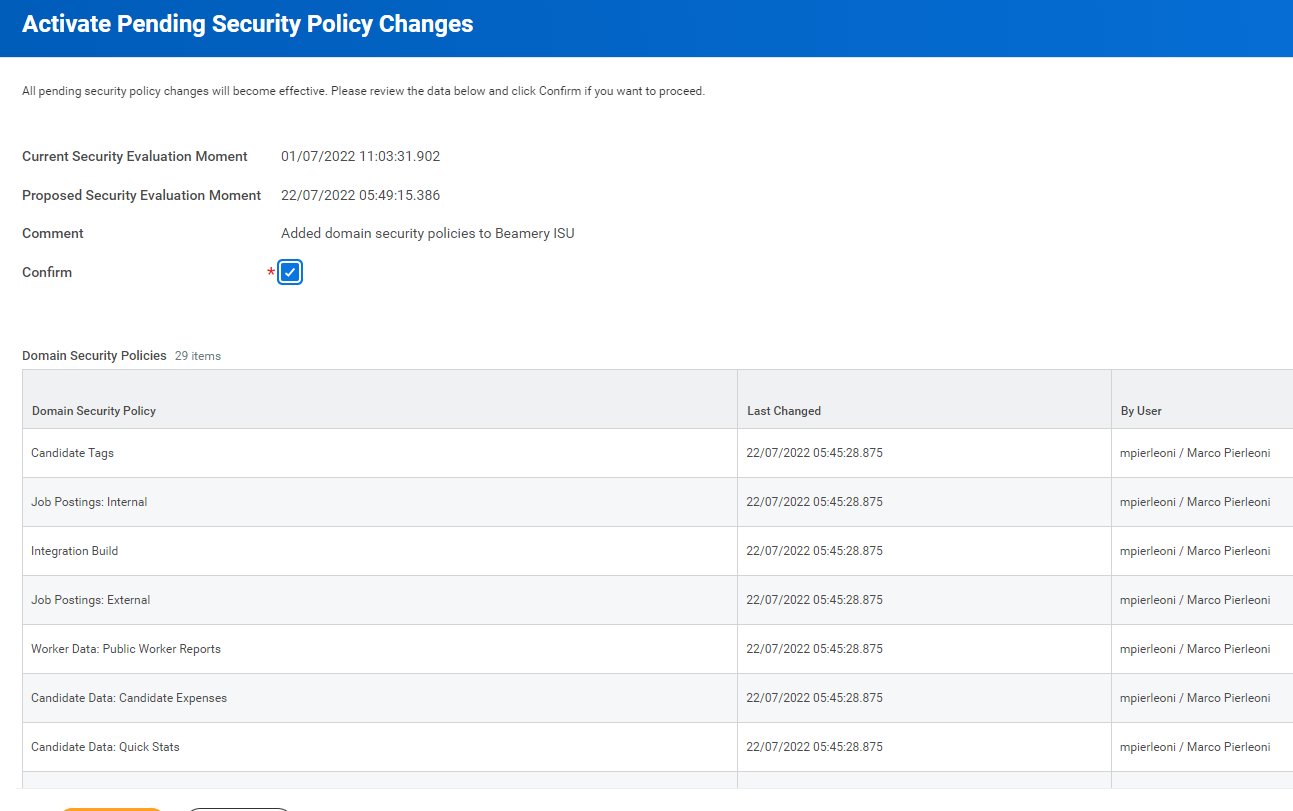
13. Activate your security policy changes by;
* Go to the search bar and type **Activate Pending Security Policy Changes** then select it.
12. Add all of the required domain security policies with the proper view/modify access for the **Integration Permissions**.
In Workday, all security changes remain **pending** until they are activated by a user with the appropriate permissions.
13. Activate your security policy changes by;
* Go to the search bar and type **Activate Pending Security Policy Changes** then select it.
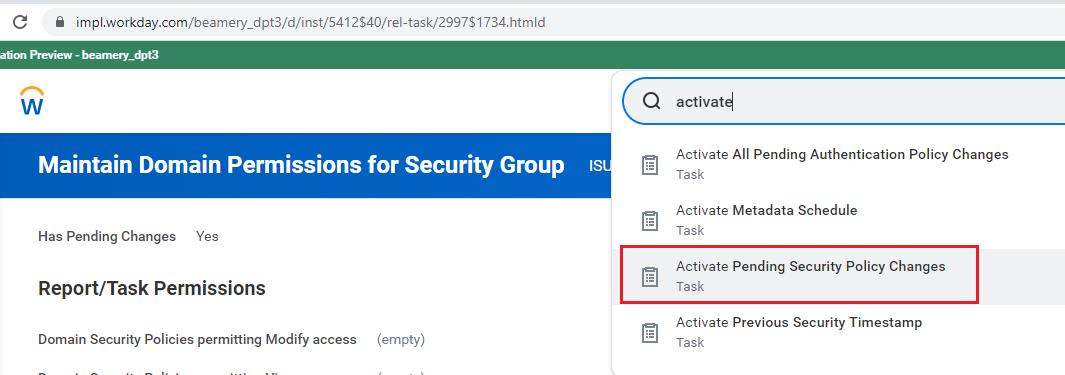 * Enter a comment and click **OK**.
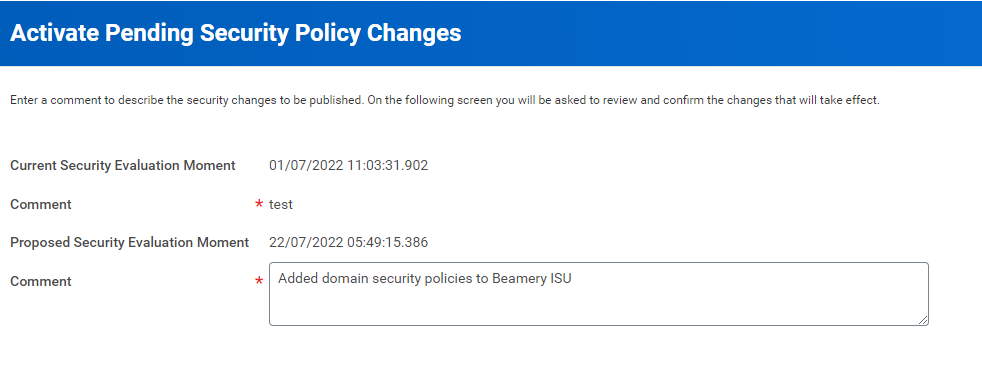 * You will see a list of changes that were made. You must check the **Confirm** box and click **OK**.
 #### Step 4: Generating your Username
* This is the **Username** from the Integration System User (ISU) you created above, followed by `@` and your **Workday tenant** name from above.
* **Format:** `username@yourtenant`
* **Example:** `ISU Nango@acme`
#### Step 5: Finding your Password
* This is the **Password** you set when creating the Integration System User (ISU) above.
#### Step 6: Enter credentials in the Connect UI
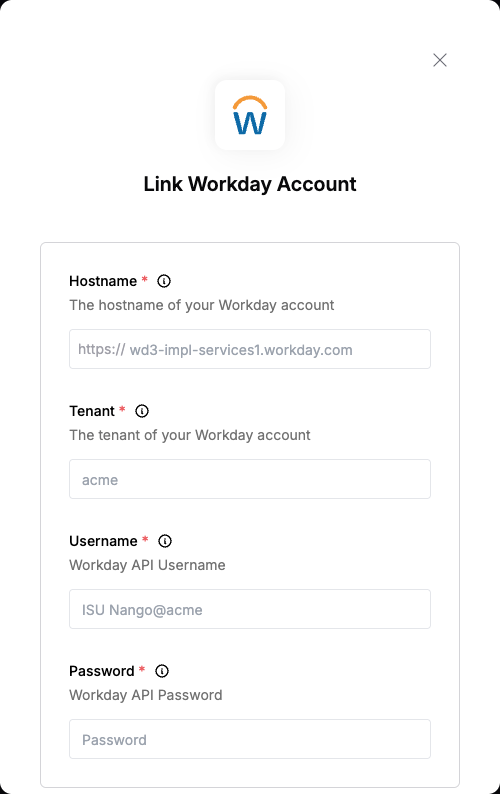
Once you have your **Hostname**, **Tenant**, **Username** and **Password**:
1. Open the form where you need to authenticate with Workday.
2. Enter your **Hostname**, **Tenant**, **Username** and **Password** in their designated fields.
3. Submit the form, and you should be successfully authenticated.
#### Step 4: Generating your Username
* This is the **Username** from the Integration System User (ISU) you created above, followed by `@` and your **Workday tenant** name from above.
* **Format:** `username@yourtenant`
* **Example:** `ISU Nango@acme`
#### Step 5: Finding your Password
* This is the **Password** you set when creating the Integration System User (ISU) above.
#### Step 6: Enter credentials in the Connect UI
Once you have your **Hostname**, **Tenant**, **Username** and **Password**:
1. Open the form where you need to authenticate with Workday.
2. Enter your **Hostname**, **Tenant**, **Username** and **Password** in their designated fields.
3. Submit the form, and you should be successfully authenticated.
 You are now connected to Workday.