> ## Documentation Index
> Fetch the complete documentation index at: https://nango.dev/docs/llms.txt
> Use this file to discover all available pages before exploring further.
# SAP Fieldglass - How do I link my account?
# Overview
To authenticate with SAP Fieldglass, you need:
1. **Client ID** - A unique identifier for your application in SAP Fieldglass.
2. **Client Secret** - A confidential key used to authenticate the identity of the application.
3. **Application Key** - An application-specific key provided for your application.
4. **Domain** - Your SAP Fieldglass environment URL, this determines which data center your API requests will be sent to.
This guide will walk you through obtaining these credentials within SAP Fieldglass.
### Prerequisites:
* You must have an active SAP Fieldglass account with API access enabled
* Your account must have the necessary permissions to generate API Credentials
## Instructions
### Step 1: Generating an Application
1. Log in to your [SAP Fieldglass account](https://www.fieldglass.net/)
2. Go to the linked accounts of the signed-in user as **Configuration Manager**
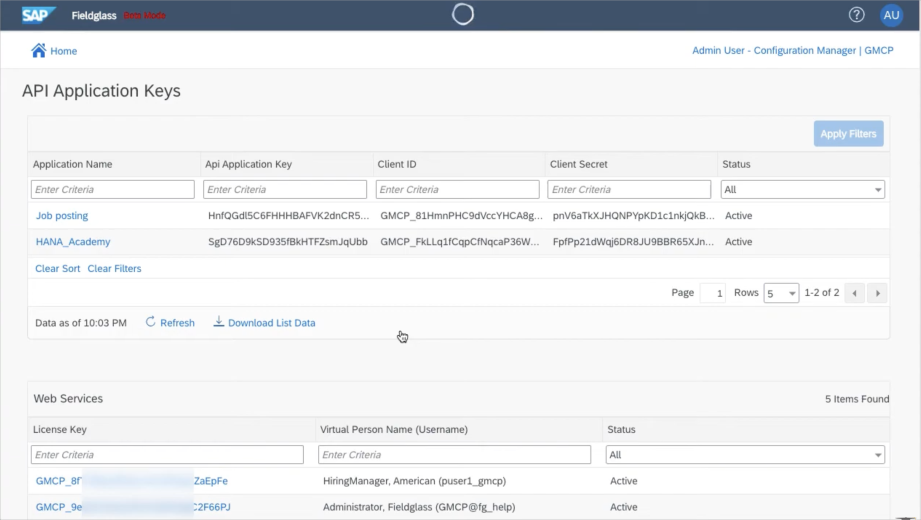 3. Select the **API Application Key** tile
4. Select **New**, enter your **Application Name** and **Description**
3. Select the **API Application Key** tile
4. Select **New**, enter your **Application Name** and **Description**
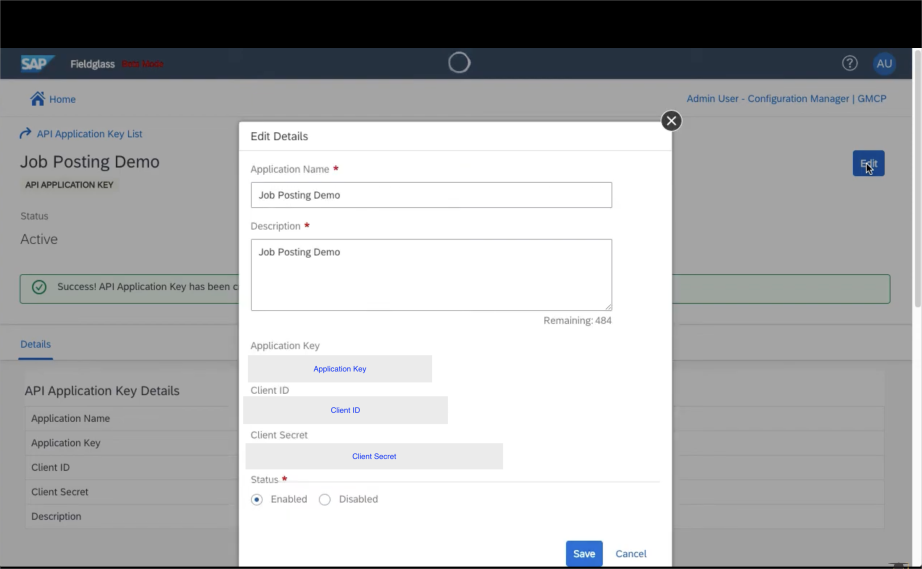 5. Select **Create** and you will now see the details as **Client ID**, **Client Secret**, and **Application Key**.
6. Select **New** to create a new Web service for the created **Application Key**
7. Set the Status as Enabled and select **Save**
### Step 2: Determining Your Domain
The **Domain** is your SAP Fieldglass environment URL.
**Common SAP Fieldglass Domains:**
* **US Production**: `auth.fieldglass.net`
* **EU Production**: `sso.fieldglass.eu`
* **Test Environment**: `-auth.fgvms.com` (e.g., `xuat-auth.fgvms.com`)
Not all test environments are configured. You may need to submit a request to have it configured.
### Step 3: Enter credentials in the Connect UI
Once you have your credentials:
1. Open the form where you need to authenticate with SAP Fieldglass
2. Enter your **Client ID**, **Client Secret**, **Application Key**, and **Domain** in their designated fields
3. Submit the form, and you should be successfully authenticated
5. Select **Create** and you will now see the details as **Client ID**, **Client Secret**, and **Application Key**.
6. Select **New** to create a new Web service for the created **Application Key**
7. Set the Status as Enabled and select **Save**
### Step 2: Determining Your Domain
The **Domain** is your SAP Fieldglass environment URL.
**Common SAP Fieldglass Domains:**
* **US Production**: `auth.fieldglass.net`
* **EU Production**: `sso.fieldglass.eu`
* **Test Environment**: `-auth.fgvms.com` (e.g., `xuat-auth.fgvms.com`)
Not all test environments are configured. You may need to submit a request to have it configured.
### Step 3: Enter credentials in the Connect UI
Once you have your credentials:
1. Open the form where you need to authenticate with SAP Fieldglass
2. Enter your **Client ID**, **Client Secret**, **Application Key**, and **Domain** in their designated fields
3. Submit the form, and you should be successfully authenticated
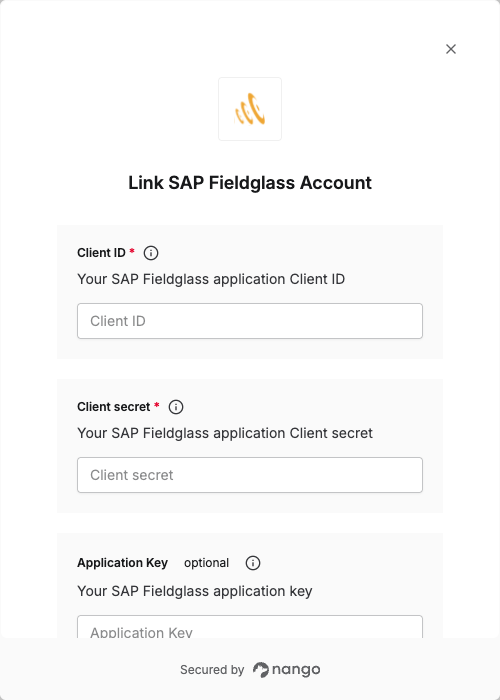 You are now connected to SAP Fieldglass.