> ## Documentation Index
> Fetch the complete documentation index at: https://nango.dev/docs/llms.txt
> Use this file to discover all available pages before exploring further.
# SAP Business One - How do I link my account?
# Overview
To authenticate with SAP Business One, you need:
1. **Service Layer URL** - The base URL for your SAP Business One Service Layer
2. **Company Database** - The name of your SAP Business One company database
3. **Database Instance** (Optional) - The database server instance name
4. **Username** - Your SAP Business One API access username
5. **Password** - Your SAP Business One API access password
This guide will walk you through obtaining these credentials from your SAP Business One environment.
### Prerequisites:
* You must have an active SAP Business One account with **manager or administrative privileges**
* Your SAP Business One Service Layer must be installed and configured
* Access to the SAP Control Center
* The server URL must be publicly accessible (public IP address or registered domain name, not a hostname)
## Instructions
### Step 1: Obtaining your Credentials
Your **Username** and **Password** are your SAP Business One login credentials. Make sure that this account has manager or administrator privileges.
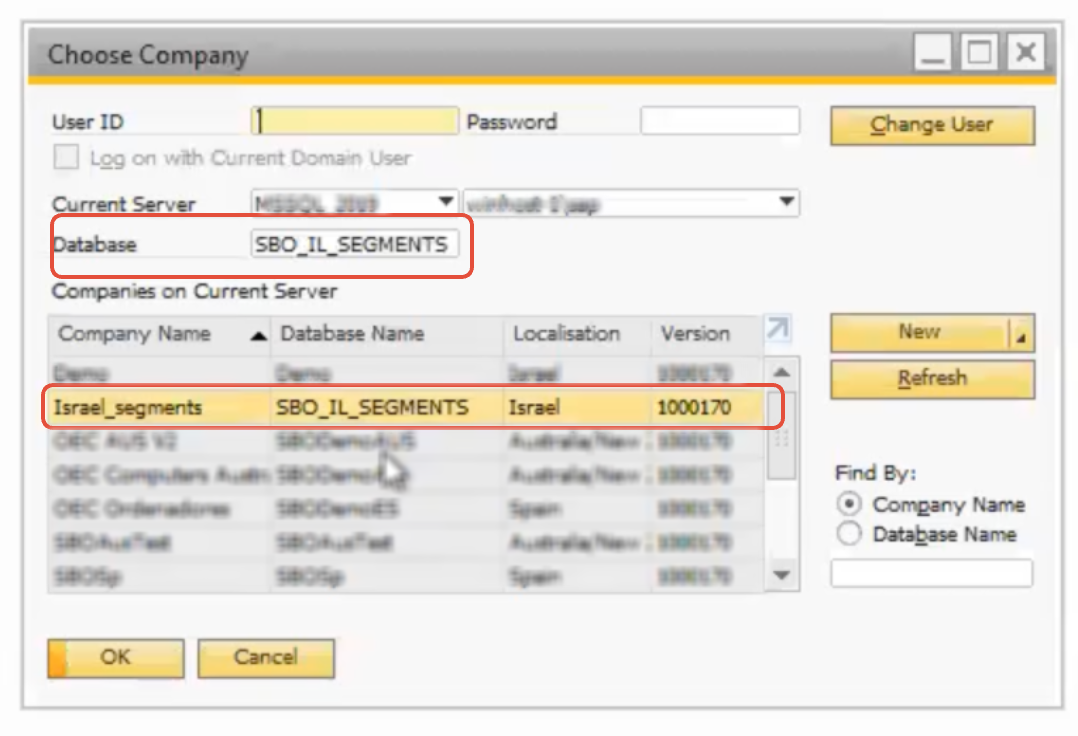
### Step 2: Identifying Your Company Database
1. Log in to SAP Business One using the credentials identified above
2. Navigate to **Administration** > **Choose Company / Log In screen** > **Change Company**
3. Find and note the **Database Name** for your company (or companies)
4. Each company has its own database name - choose the one you wish to connect to
 ### Step 3: Finding Your Service Layer URL
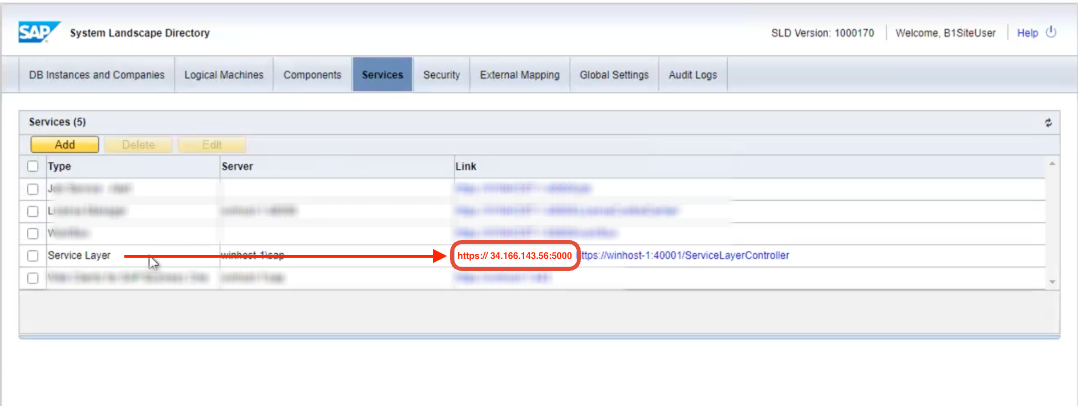
The Service Layer URL consists of the server address and port where your SAP B1 Service Layer is hosted.
1. Access the **SAP Control Center** as an administrator or system manager
2. Navigate to **Services** > **Service Layer**
3. Copy the **server URL** (usually the IP address of the server)
### Step 3: Finding Your Service Layer URL
The Service Layer URL consists of the server address and port where your SAP B1 Service Layer is hosted.
1. Access the **SAP Control Center** as an administrator or system manager
2. Navigate to **Services** > **Service Layer**
3. Copy the **server URL** (usually the IP address of the server)
 The Service Layer URL must include the API base path, typically `/b1s/v1` — for example, `my-server.com:50000/b1s/v1`.
### Step 4: Finding Your Database Instance
1. Access the **SAP Control Center** as an administrator or system manager
2. Navigate to **Landscape** > **Database Instances**.
3. Locate the instance used by your SAP Business One system.
### Step 5: Enter Credentials in the Connect UI
Once you have all your credentials:
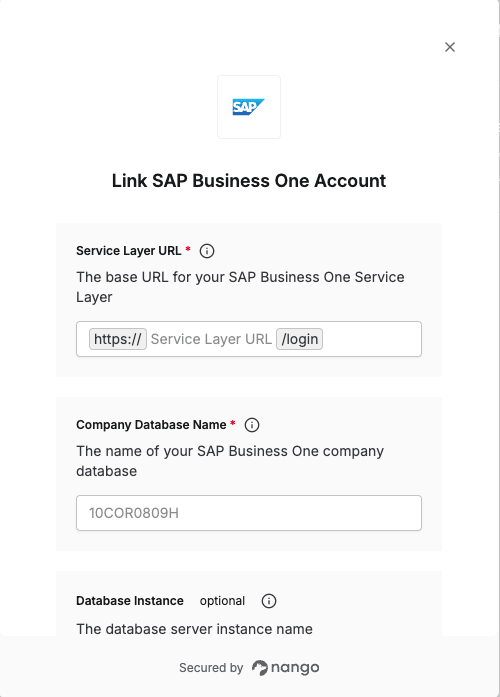
1. Open the form where you need to authenticate with SAP Business One
2. Enter your **Service Layer URL**, **Company Database**, **Database Instance**, **Username**, and **Password** in their designated fields
3. Submit the form, and you should be successfully authenticated
The Service Layer URL must include the API base path, typically `/b1s/v1` — for example, `my-server.com:50000/b1s/v1`.
### Step 4: Finding Your Database Instance
1. Access the **SAP Control Center** as an administrator or system manager
2. Navigate to **Landscape** > **Database Instances**.
3. Locate the instance used by your SAP Business One system.
### Step 5: Enter Credentials in the Connect UI
Once you have all your credentials:
1. Open the form where you need to authenticate with SAP Business One
2. Enter your **Service Layer URL**, **Company Database**, **Database Instance**, **Username**, and **Password** in their designated fields
3. Submit the form, and you should be successfully authenticated
 You are now connected to SAP Business One.