> ## Documentation Index
> Fetch the complete documentation index at: https://nango.dev/docs/llms.txt
> Use this file to discover all available pages before exploring further.
# Sage People - How do I link my account?
# Overview
To authenticate with Sage People, you need:
1. **Sage People API User** - A user account with the necessary API permissions to access Sage People data.
This guide will walk you through creating a user with the necessary permissions and connecting to Sage People.
### Prerequisites:
* You must have an account with Sage People and the **Sage People API** package installed, which is normally done on your behalf by Sage People support.
### Instructions:
## Step 1: Create a Sage People API User
To access the Sage People API, you need to create a user with the correct permission sets.
### Creating the User
1. Go to **Setup** > **Administration** > **Users**
2. Click **New User**
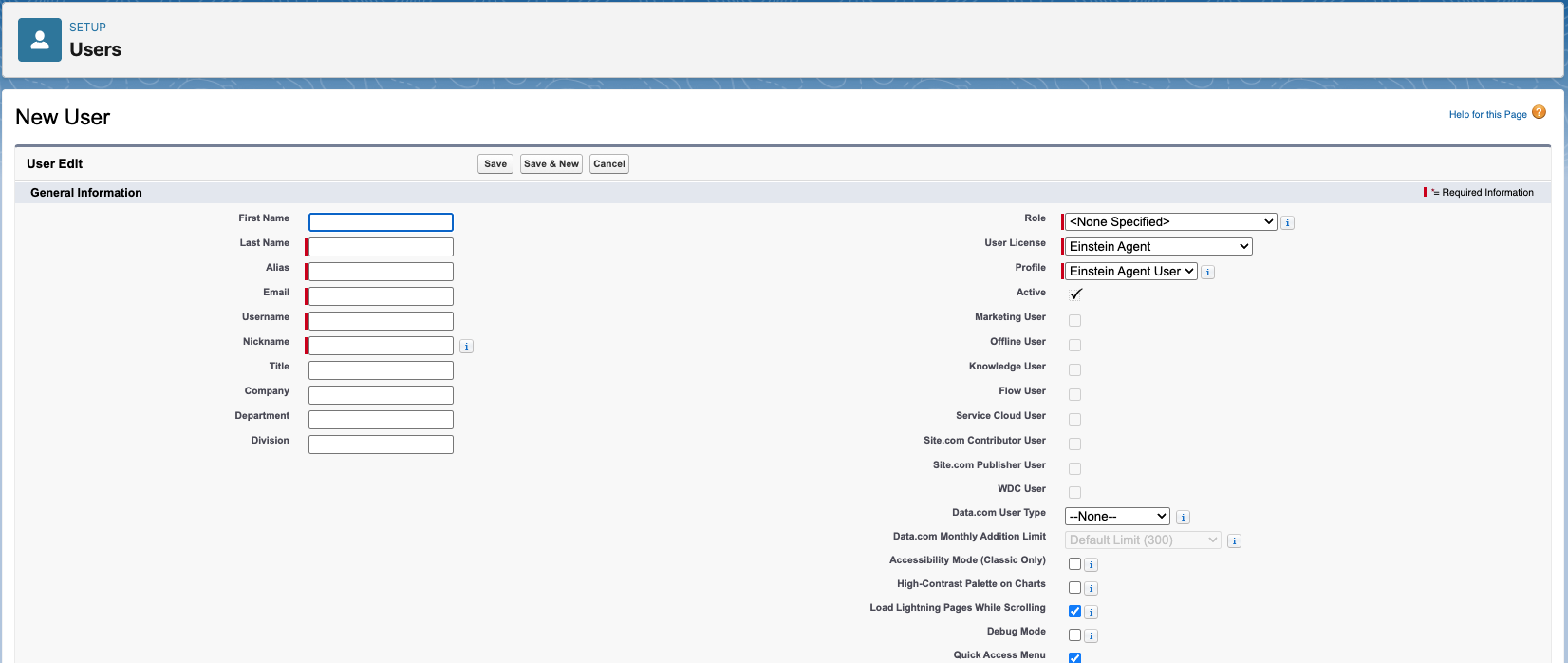 3. Fill in the required user information:
* **First Name**: Enter the user's first name
* **Last Name**: Enter the user's last name
* **Email**: Enter a valid email address
* **Username**: Create a unique username
* **Nickname**: Enter a nickname (optional)
* Leave the other fields default as they are.
4. Click **Save**
### Set Required Permissions
After creating the user, we will now edit the Permission Set Assignments and set the required [permissions](https://developer.sage.com/people/get-started/#api-permission-set-mapping) based on the API endpoints you plan to use:
| API Endpoint | Permission Set Name |
| ------------------------------------ | -------------------------------- |
| `/employees` | Sage People Employees API |
| `/employees/{employeeID}/payDetails` | Sage People Pay Details API |
| `/salaries` | Sage People Salaries API |
| `/bonuses` | Sage People Bonuses API |
| `/absences` | Sage People Absences API |
| `/absenceBalances` | Sage People Absence Balances API |
| `/timesheets` | Sage People Timesheets API |
### Assign Permission Sets
1. Go back to **Setup** > **Administration** > **Users**
2. Select your API user from the list
3. Scroll down to the **Permission Set Assignments** Related List
3. Fill in the required user information:
* **First Name**: Enter the user's first name
* **Last Name**: Enter the user's last name
* **Email**: Enter a valid email address
* **Username**: Create a unique username
* **Nickname**: Enter a nickname (optional)
* Leave the other fields default as they are.
4. Click **Save**
### Set Required Permissions
After creating the user, we will now edit the Permission Set Assignments and set the required [permissions](https://developer.sage.com/people/get-started/#api-permission-set-mapping) based on the API endpoints you plan to use:
| API Endpoint | Permission Set Name |
| ------------------------------------ | -------------------------------- |
| `/employees` | Sage People Employees API |
| `/employees/{employeeID}/payDetails` | Sage People Pay Details API |
| `/salaries` | Sage People Salaries API |
| `/bonuses` | Sage People Bonuses API |
| `/absences` | Sage People Absences API |
| `/absenceBalances` | Sage People Absence Balances API |
| `/timesheets` | Sage People Timesheets API |
### Assign Permission Sets
1. Go back to **Setup** > **Administration** > **Users**
2. Select your API user from the list
3. Scroll down to the **Permission Set Assignments** Related List
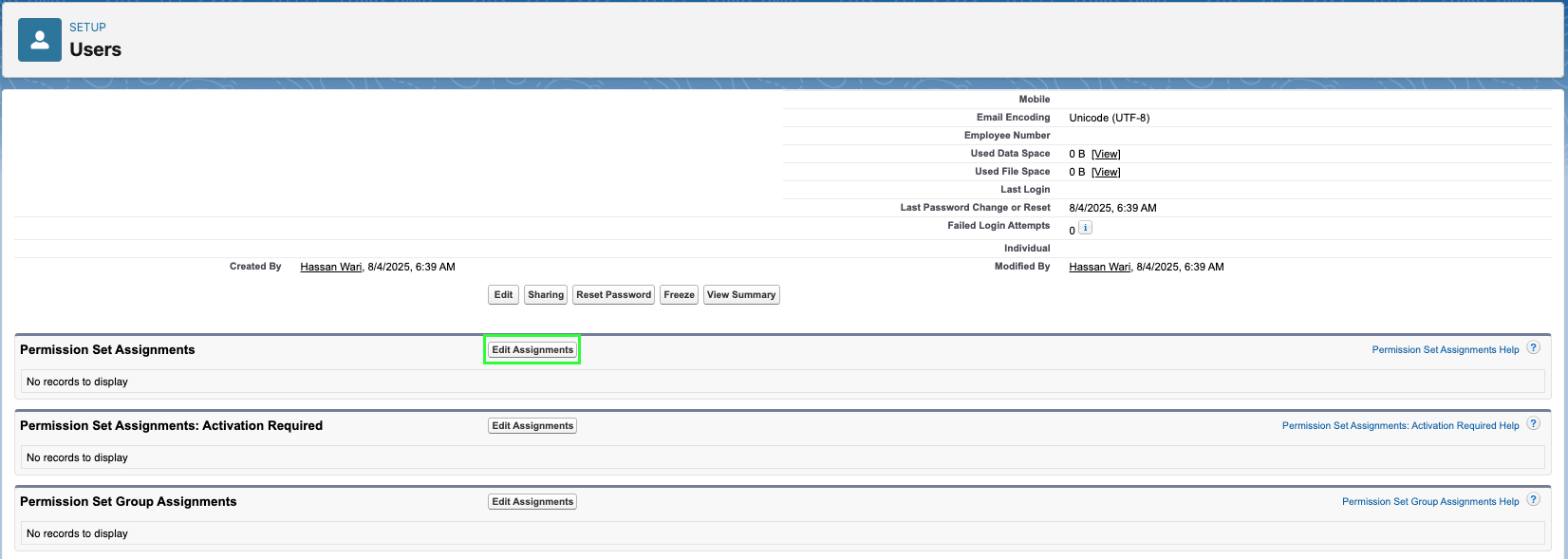 4. Click **Edit Assignments**
5. Select the appropriate permission sets based on the API endpoints you need
6. Click **Save**
### Important Note on Permissions
In the Object Settings of a permission set, note the difference between:
* **`Read` permission**: User can view records they created and records shared with them
* **`View All` permission**: Ignores sharing rules and allows access to records across the organization
## Step 2: Connect to Sage People
1. Open the form where you need to authenticate with Sage People, click **Connect**.
2. Enter the credentials for the **API User** you created in Step 1.
3. Click **Login** and you should be successfully connected to Sage People.
4. Click **Edit Assignments**
5. Select the appropriate permission sets based on the API endpoints you need
6. Click **Save**
### Important Note on Permissions
In the Object Settings of a permission set, note the difference between:
* **`Read` permission**: User can view records they created and records shared with them
* **`View All` permission**: Ignores sharing rules and allows access to records across the organization
## Step 2: Connect to Sage People
1. Open the form where you need to authenticate with Sage People, click **Connect**.
2. Enter the credentials for the **API User** you created in Step 1.
3. Click **Login** and you should be successfully connected to Sage People.
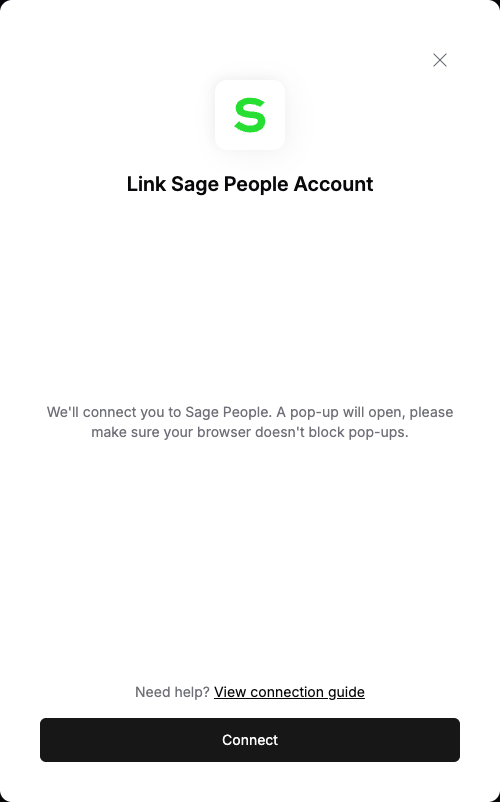 You are now connected to Sage People.