> ## Documentation Index
> Fetch the complete documentation index at: https://nango.dev/docs/llms.txt
> Use this file to discover all available pages before exploring further.
# PingOne - How do I link my account?
# Overview
To authenticate with PingOne, you need:
1. **Environment ID** - The unique identifier (UUID) for your PingOne environment
2. **Top Level Domain** - The regional domain extension for your PingOne instance (e.g., `com`, `eu`, `asia`, `ca`)
This guide will walk you through obtaining your **Environment ID** and **Top Level Domain** within PingOne.
### Prerequisites:
* An active PingOne account.
### Instructions:
#### Step 1: Finding Your Environment ID
1. Log in to the PingOne admin console.
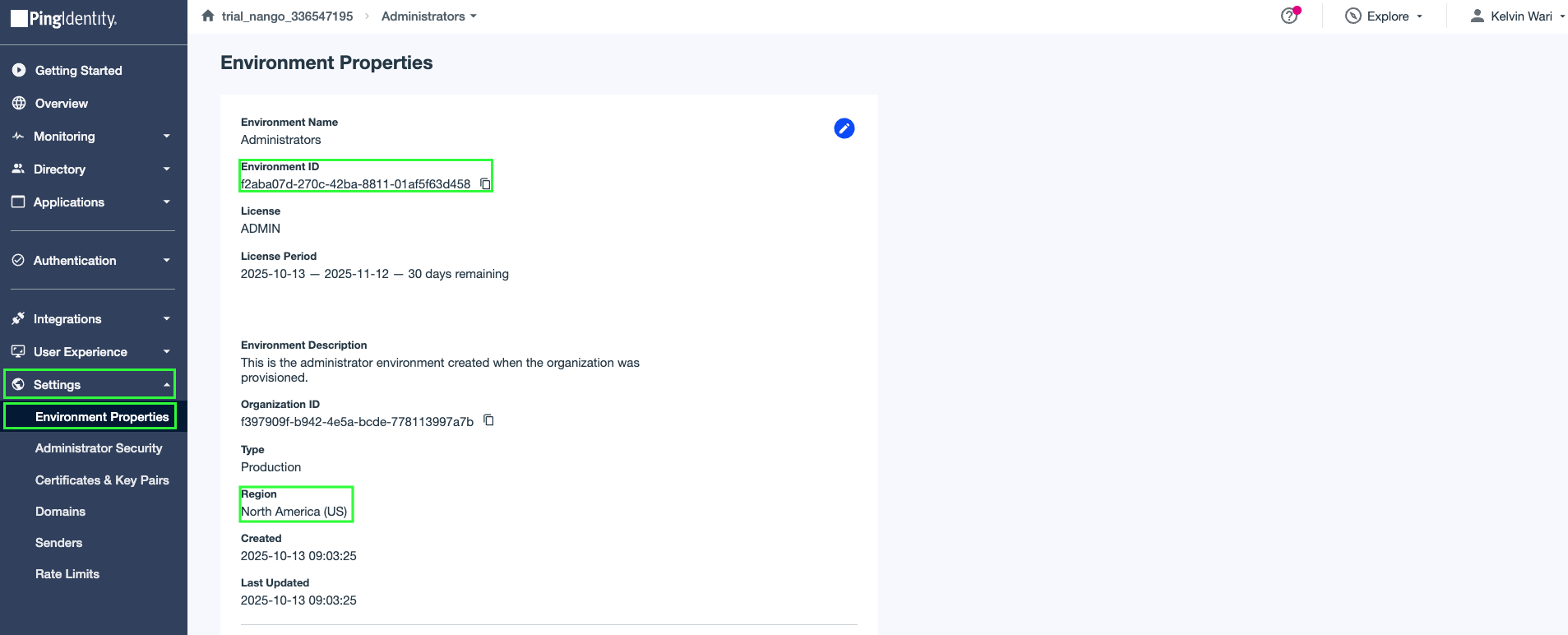
2. In the admin console, select **Settings** → **Environment Properties**.
3. Locate your **Environment ID** from this page.
 #### Step 2: Finding Your Top Level Domain
From the same page, locate your environment's **Region** and compare it with the following table to obtain the Top Level Domain.
| Region | Top Level Domain |
| --------------------------------------- | ---------------- |
| North America region (excluding Canada) | `com` |
| Canada region | `ca` |
| European Union region | `eu` |
| Australia region | `com.au` |
| Singapore region | `sg` |
| Asia-Pacific region | `asia` |
#### Step 3: Enter credentials in the Connect UI
Once you have your **Environment ID** and **Top Level Domain**:
1. Open the form where you need to authenticate with PingOne.
2. Enter your **Environment ID** and **Top Level Domain** in their respective fields.
3. Submit the form to complete the authentication.
#### Step 2: Finding Your Top Level Domain
From the same page, locate your environment's **Region** and compare it with the following table to obtain the Top Level Domain.
| Region | Top Level Domain |
| --------------------------------------- | ---------------- |
| North America region (excluding Canada) | `com` |
| Canada region | `ca` |
| European Union region | `eu` |
| Australia region | `com.au` |
| Singapore region | `sg` |
| Asia-Pacific region | `asia` |
#### Step 3: Enter credentials in the Connect UI
Once you have your **Environment ID** and **Top Level Domain**:
1. Open the form where you need to authenticate with PingOne.
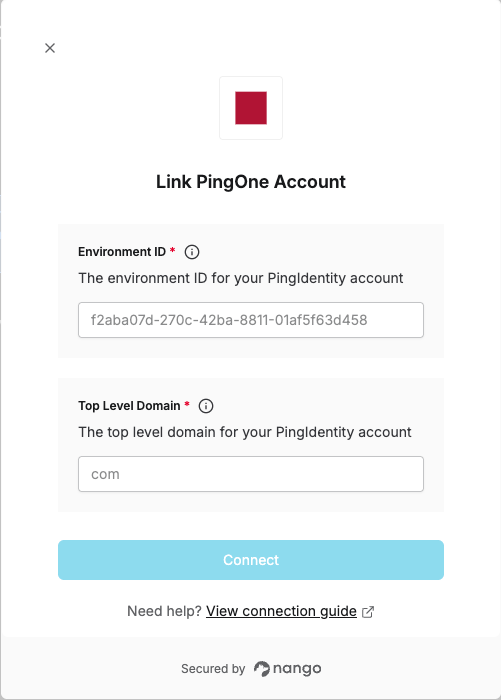
2. Enter your **Environment ID** and **Top Level Domain** in their respective fields.
3. Submit the form to complete the authentication.
 You are now connected to PingOne.