> ## Documentation Index
> Fetch the complete documentation index at: https://nango.dev/docs/llms.txt
> Use this file to discover all available pages before exploring further.
# PingOne (Client Credentials) - How do I link my account?
# Overview
To authenticate with PingOne (Client Credentials), you need:
1. **Client ID** - The unique identifier for your Worker app.
2. **Client Secret** - A confidential key used to authenticate the identity of your Worker app.
3. **Environment ID** - The unique identifier (UUID) for your PingOne environment.
4. **Top Level Domain** - The regional domain extension for your PingOne instance (e.g., `com`, `eu`, `asia`, `ca`)
This guide will walk you through creating a Worker app and obtaining all the necessary credentials within PingOne.
### Prerequisites:
* An active PingOne account.
### Instructions:
#### Step 1: Create a Worker App
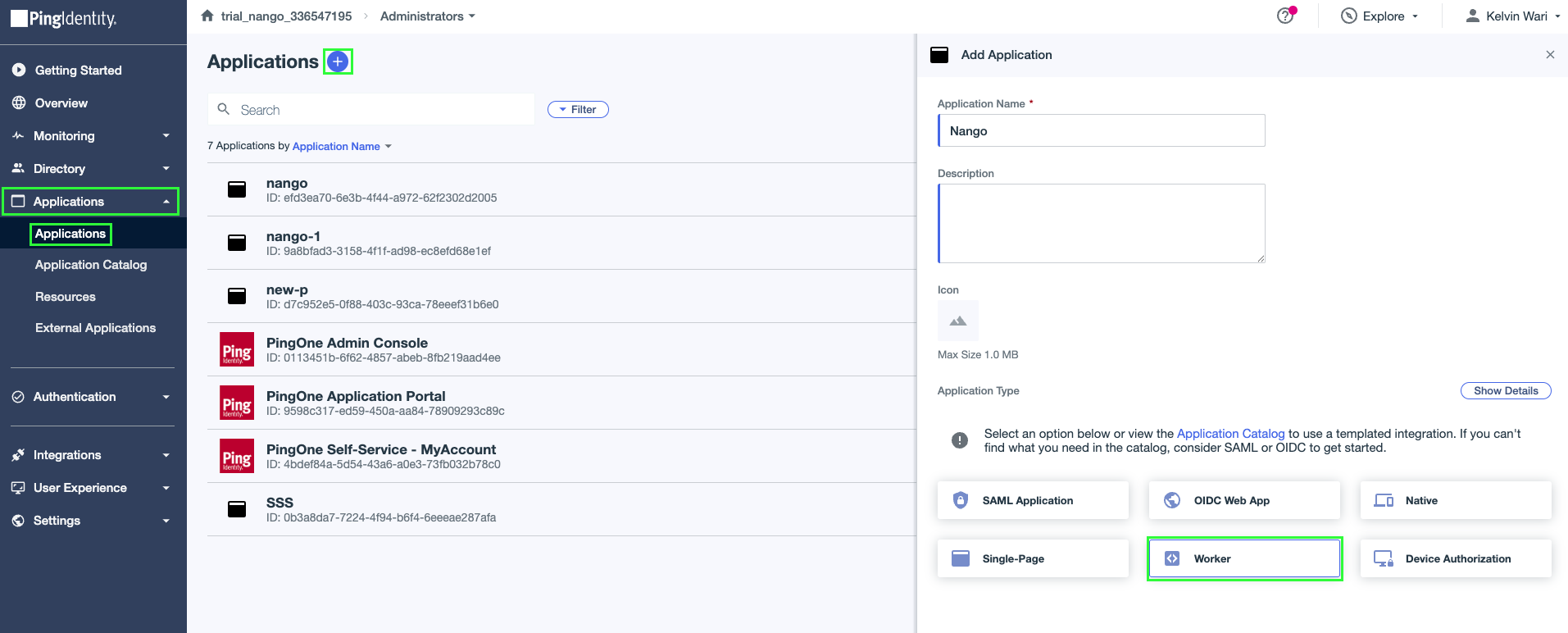
1. Log in to your PingOne admin console, then select **Applications** → **Applications**.
2. Click the **+** icon next to Applications to add a new app.
3. In the **Application Name** field, enter a name for your application.
4. Select **Worker** as the **Application Type**.
5. Click **Save**.
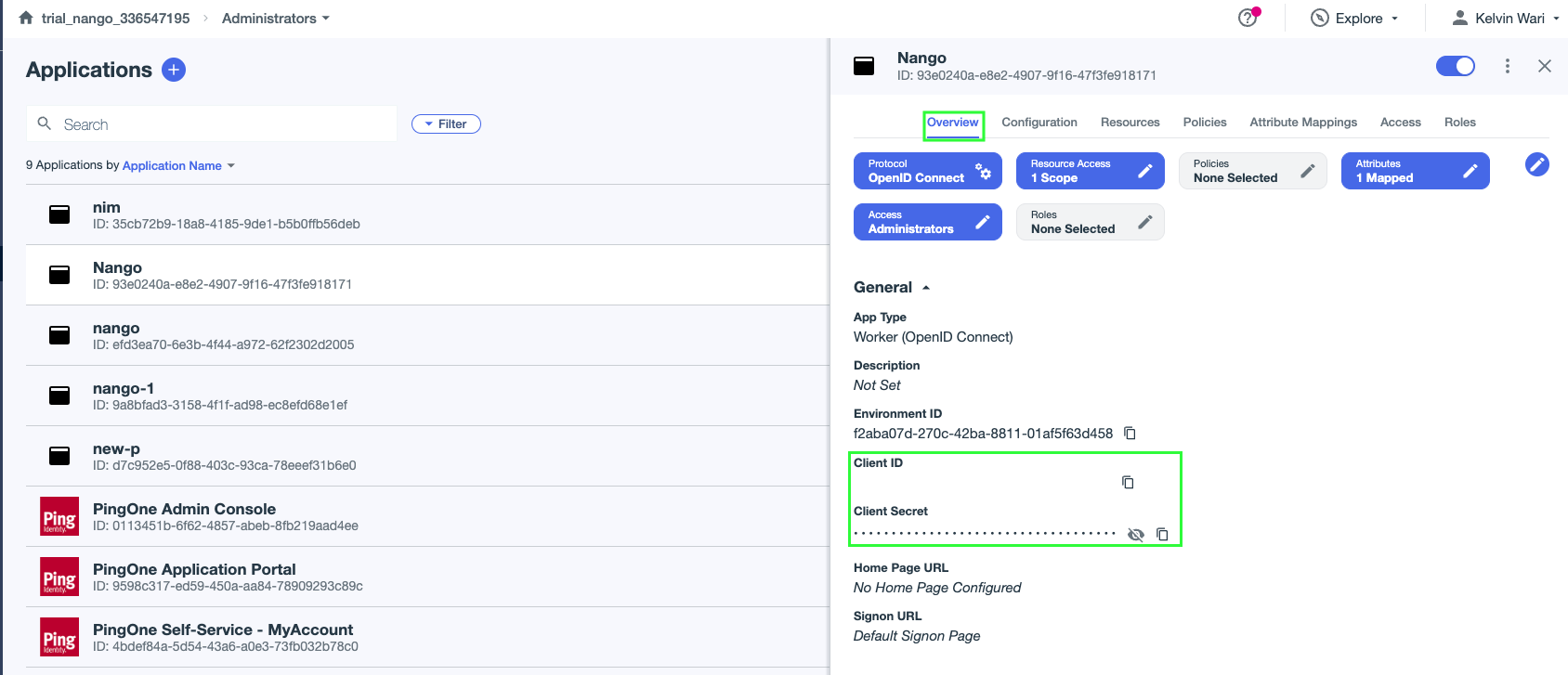
 6. Navigate to the **Overview** tab in your Worker app.
7. Copy your **Client ID** and **Client Secret**. Store them securely as you'll need them when configuring your integration in Nango.
6. Navigate to the **Overview** tab in your Worker app.
7. Copy your **Client ID** and **Client Secret**. Store them securely as you'll need them when configuring your integration in Nango.
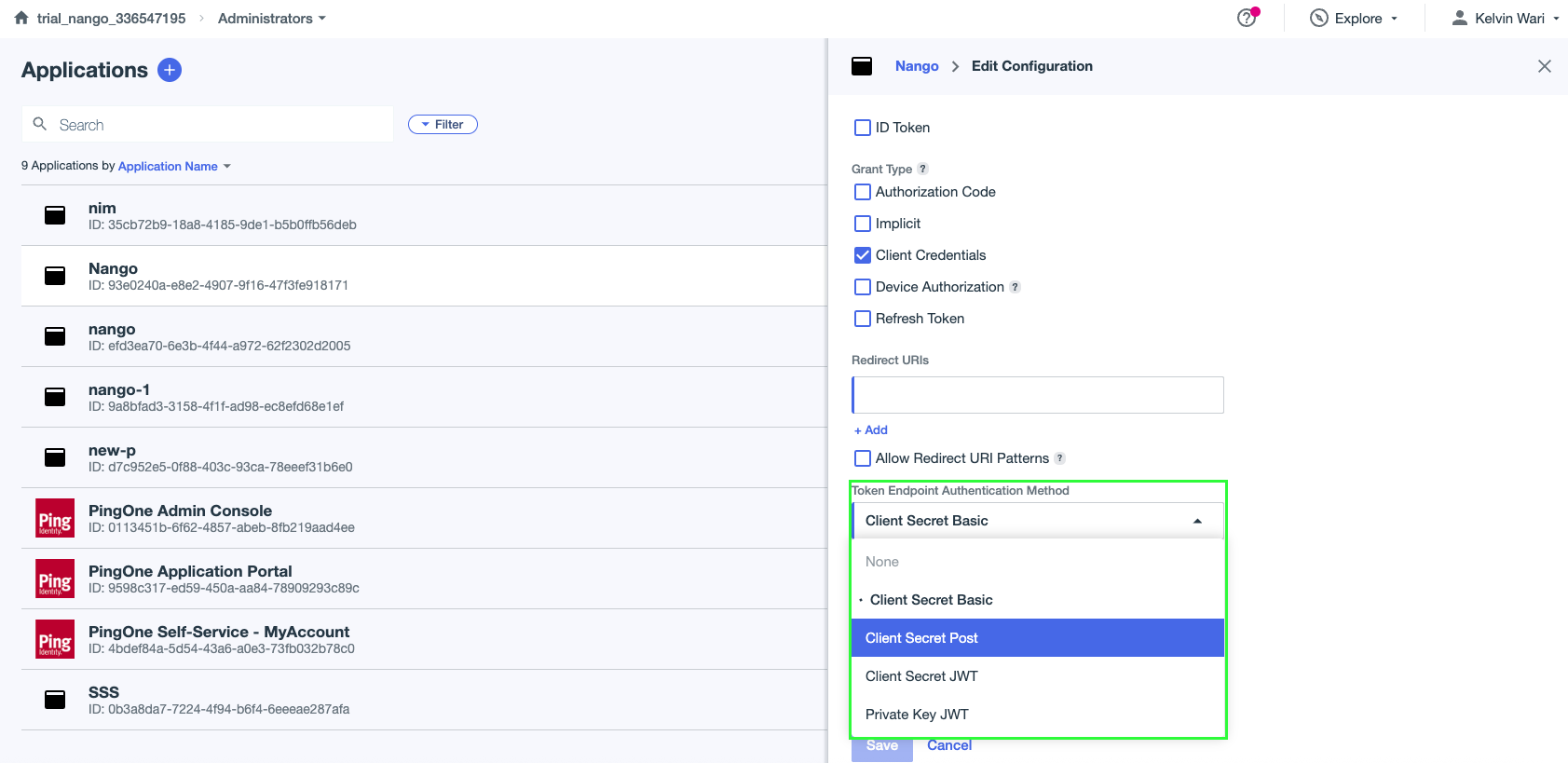
 8. Click the toggle button at the upper right corner to enable the application.
9. Navigate to the **Configuration** tab. From the **Token Endpoint Authentication Method** dropdown, select **Client Secret Post** and click **Save**.
8. Click the toggle button at the upper right corner to enable the application.
9. Navigate to the **Configuration** tab. From the **Token Endpoint Authentication Method** dropdown, select **Client Secret Post** and click **Save**.
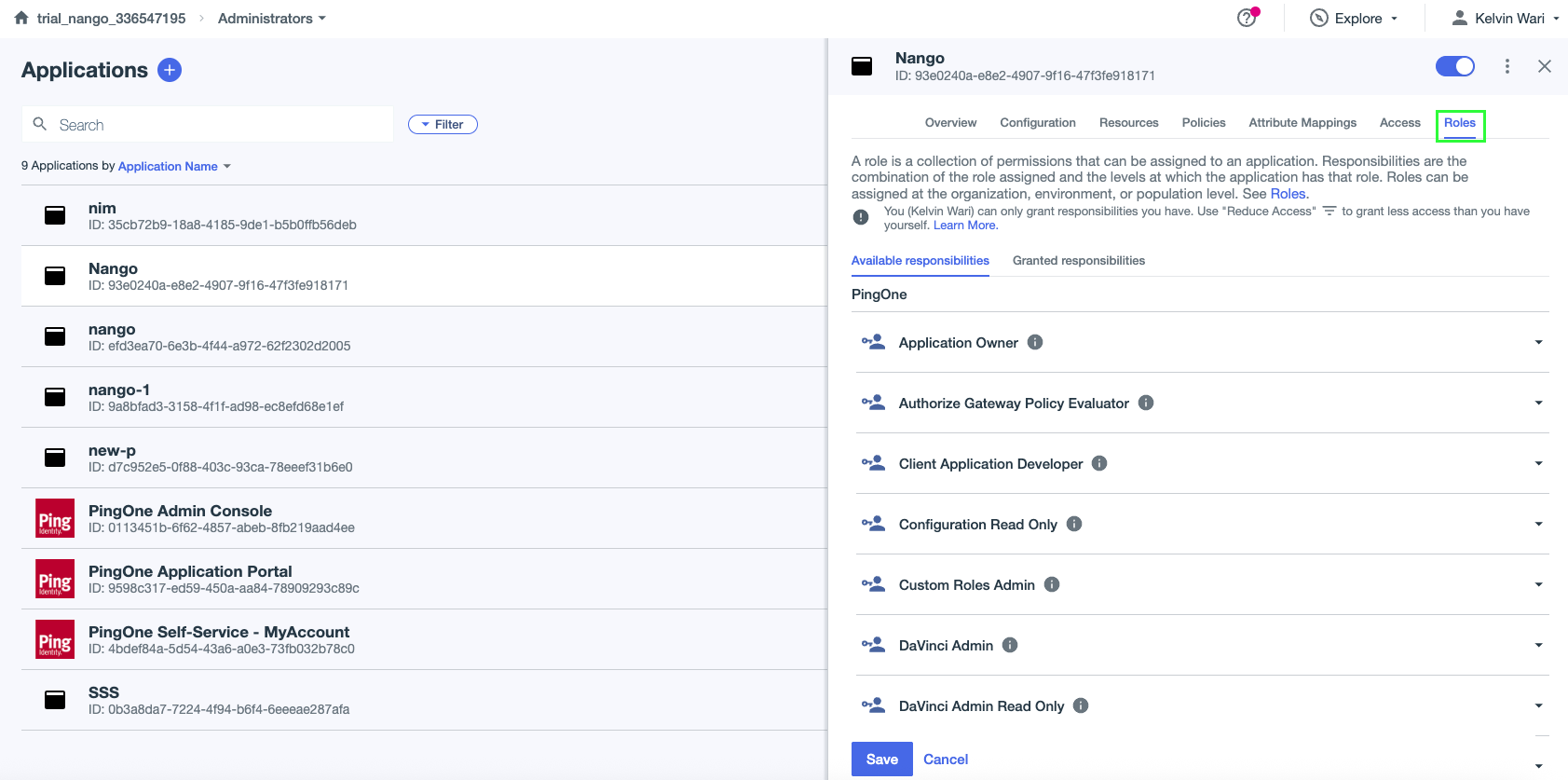
 10. Navigate to the **Roles** tab, click **Grant Roles** then assign the appropriate [application roles](https://apidocs.pingidentity.com/pingone/getting-started/v1/api/#step-3-assign-roles-to-the-worker-app) for your Worker app.
 #### Step 2: Finding Your Environment ID
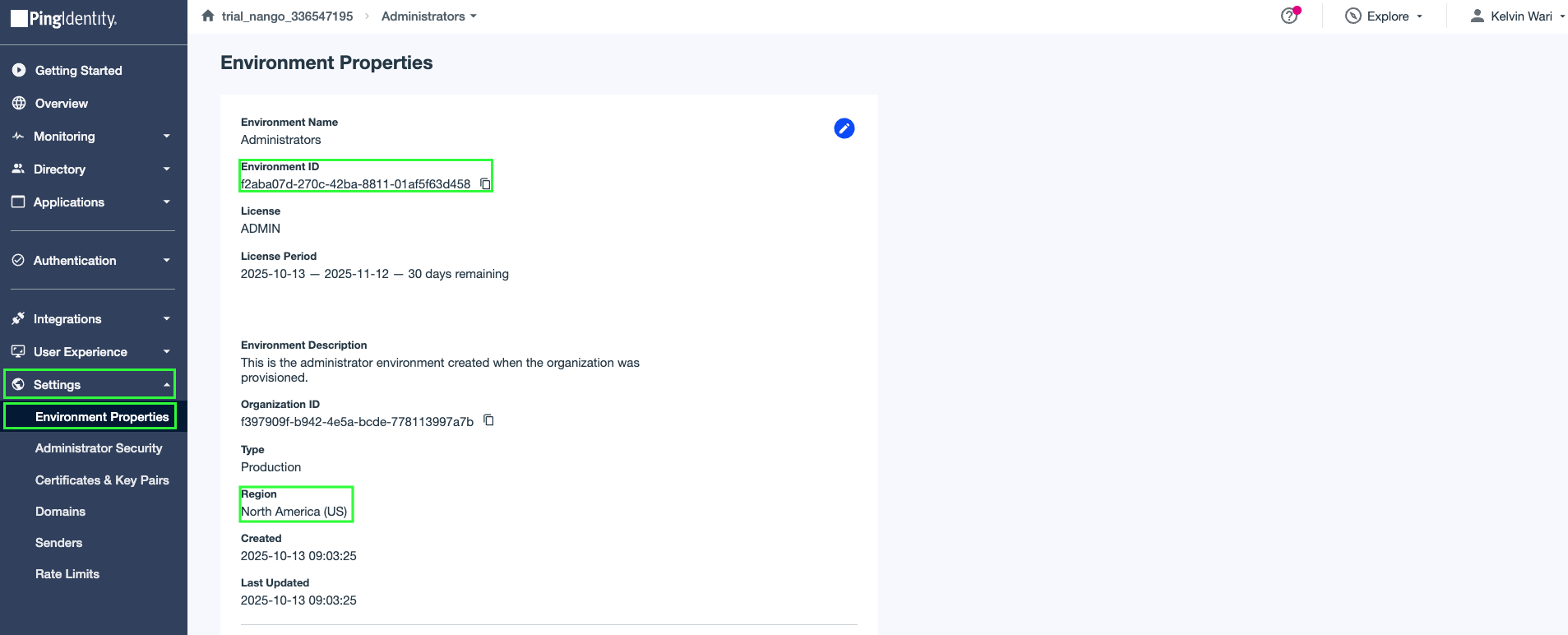
1. In the admin console, select **Settings** → **Environment Properties**.
2. Locate and copy your **Environment ID** from this page.
#### Step 2: Finding Your Environment ID
1. In the admin console, select **Settings** → **Environment Properties**.
2. Locate and copy your **Environment ID** from this page.
 #### Step 3: Finding Your Top Level Domain
1. From the same **Environment Properties** page, locate your environment's **Region** and compare it with the following table to determine the Top Level Domain.
| Region | Top Level Domain |
| --------------------------------------- | ---------------- |
| North America region (excluding Canada) | `com` |
| Canada region | `ca` |
| European Union region | `eu` |
| Australia region | `com.au` |
| Singapore region | `sg` |
| Asia-Pacific region | `asia` |
#### Step 4: Enter credentials in the Connect UI
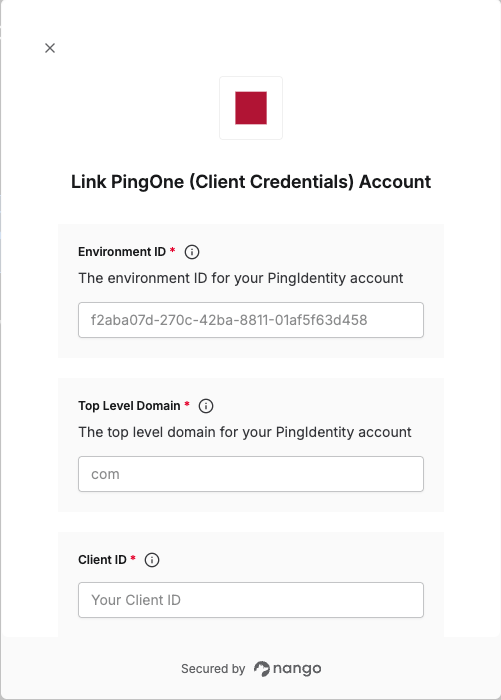
Once you have your **Environment ID**, **Top Level Domain**, **Client ID**, and **Client Secret**:
1. Open the form where you need to authenticate with PingOne (Client Credentials).
2. Enter your credentials in their respective fields.
3. Submit the form to complete the authentication.
#### Step 3: Finding Your Top Level Domain
1. From the same **Environment Properties** page, locate your environment's **Region** and compare it with the following table to determine the Top Level Domain.
| Region | Top Level Domain |
| --------------------------------------- | ---------------- |
| North America region (excluding Canada) | `com` |
| Canada region | `ca` |
| European Union region | `eu` |
| Australia region | `com.au` |
| Singapore region | `sg` |
| Asia-Pacific region | `asia` |
#### Step 4: Enter credentials in the Connect UI
Once you have your **Environment ID**, **Top Level Domain**, **Client ID**, and **Client Secret**:
1. Open the form where you need to authenticate with PingOne (Client Credentials).
2. Enter your credentials in their respective fields.
3. Submit the form to complete the authentication.
 You are now connected to PingOne (Client Credentials).