> ## Documentation Index
> Fetch the complete documentation index at: https://nango.dev/docs/llms.txt
> Use this file to discover all available pages before exploring further.
# Pennylane (Company API) - How do I link my account?
# Overview
To authenticate with Pennylane, you need:
1. **API Token** - A token that grants Nango permission to interact with Pennylane's API resources and services.
This guide will walk you through generating your Company API token within Pennylane.
### Prerequisites:
* You must have an account with Pennylane with a Company linked to it.
### Instructions:
#### Step 1: Generating your Company API token
1. Log into your [Pennylane account](https://app.pennylane.com/auth/login).
2. Navigate to **Company settings** → **Connectivity** → **Developers**.
3. Click **Generate an API Token**.
4. Give the token a descriptive name.
5. Select the scopes you want the token to give access to based on your integration needs.
6. Set an expiration date for the token.
7. Click **Generate token**.
8. Copy your token and save it somewhere safe.
For security purposes, tokens aren't stored on your Pennylane workspace, so this is your only chance to copy it.
9. Check the box confirming that you have saved your Company API token elsewhere and click **Continue**.
#### Step 2: Enter credentials in the Connect UI
Once you have your **API Token**:
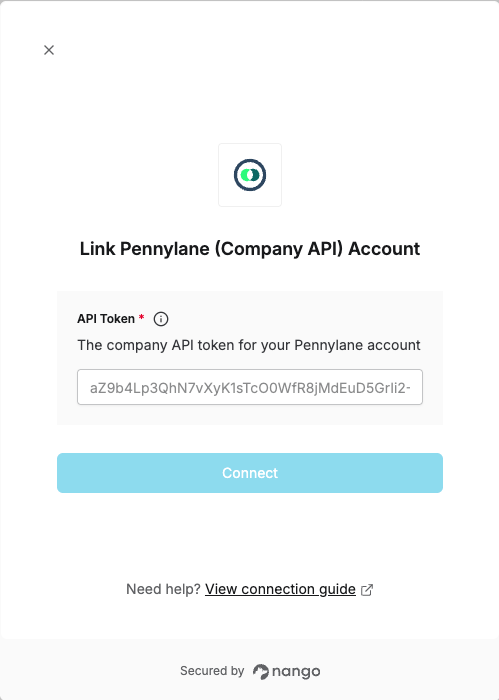
1. Open the form where you need to authenticate with Pennylane (Company API).
2. Enter your **API Token** in its respective field.
3. Submit the form, and you should be successfully authenticated.
 You are now connected to Pennylane (Company API).