> ## Documentation Index
> Fetch the complete documentation index at: https://nango.dev/docs/llms.txt
> Use this file to discover all available pages before exploring further.
# Passportal - How do I link my account?
# Overview
To authenticate with Passportal, you need:
1. **API Access Key ID** – Your Passportal API Access Key ID.
2. **HMAC Token** – A pre-generated HMAC-SHA256 hash token (base64 encoded).
3. **Content String** – The plain text message used to compute the HMAC token.
4. **Base URL** – Your Passportal instance domain (e.g., `mycompany.passportalmsp.com`).
This guide walks you through generating your API credentials and HMAC token for Passportal.
### Prerequisites:
* Access to your Passportal account with API permissions.
### Step 1: Find your Passportal base URL
Log into your Passportal dashboard and check the URL at your browser address bar.
If your URL is `https://mycompany.passportalmsp.com/dashboard` → Your Base URL is
`mycompany.passportalmsp.com`
### Step 2: Generate API Access Key ID and Secret Access Key
1. Log into your Passportal dashboard.
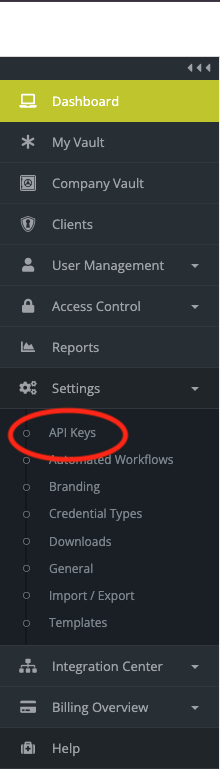
2. In the left pane, go to **Settings** > **API Keys**.
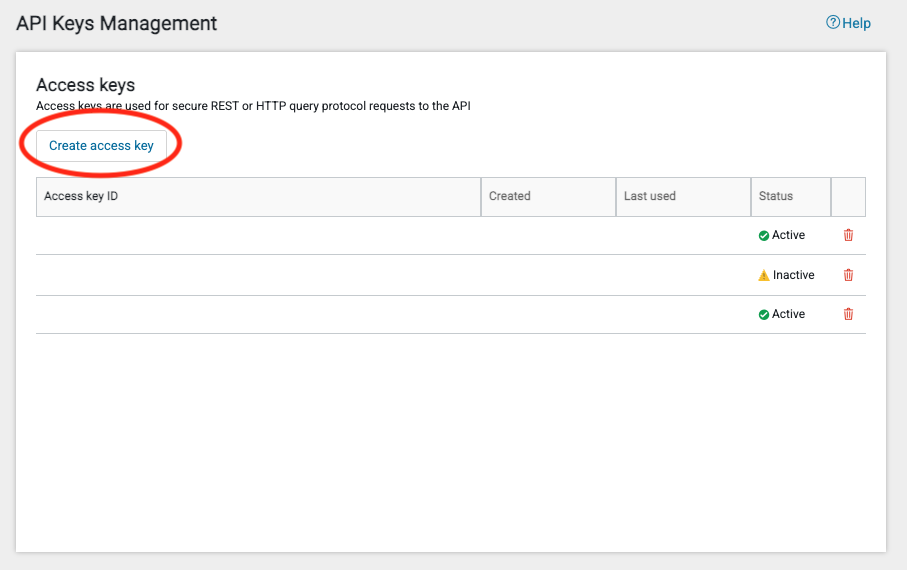
 3. Click **Create access key**.
 4. View the **Access key ID**, then click **Show key** to reveal the **Secret access key**.
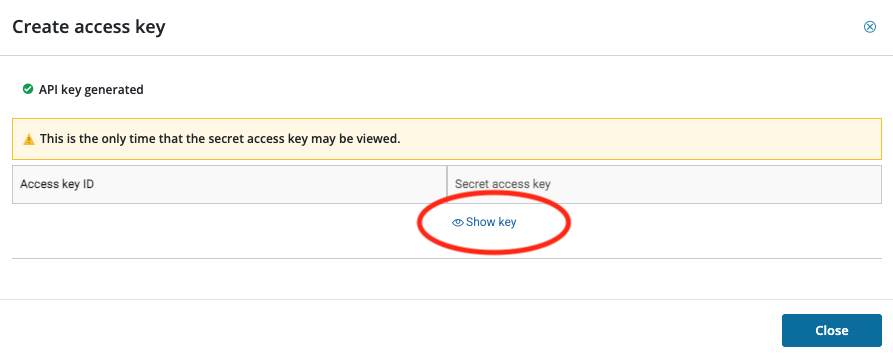 5. Copy both the **Access key ID** and **Secret access key** to a secure location.
**Important**: The Secret access key is only viewable once in the Create access key dialog. After closing this dialog, it cannot be retrieved again.
See: [API Key Management Guide](https://documentation.n-able.com/passportal/userguide/Content/api/api_key_management.htm)
### Step 3: Generate HMAC Token
You need to create an HMAC-SHA256 token using:
* **Plain text message**: Choose a content string (e.g., `api-content-hash`). This text is not considered sensitive
* **Secret key**: Your Secret access key from Step 2
* **Algorithm**: SHA-256
Generate the HMAC token using Python:
```python theme={null}
import hmac
import hashlib
secret_key = "YOUR_SECRET_ACCESS_KEY"
content = "api-content-hash"
hmac_token = hmac.new(secret_key.encode(), content.encode(), hashlib.sha256).hexdigest()
print(hmac_token)
```
Store both the **HMAC token** and the **content string** you used – you'll need both.
See: [Create HMAC Token Guide](https://documentation.n-able.com/passportal/userguide/Content/api/api_create_hmac.htm)
### Step 4: Enter your details in the Connect UI
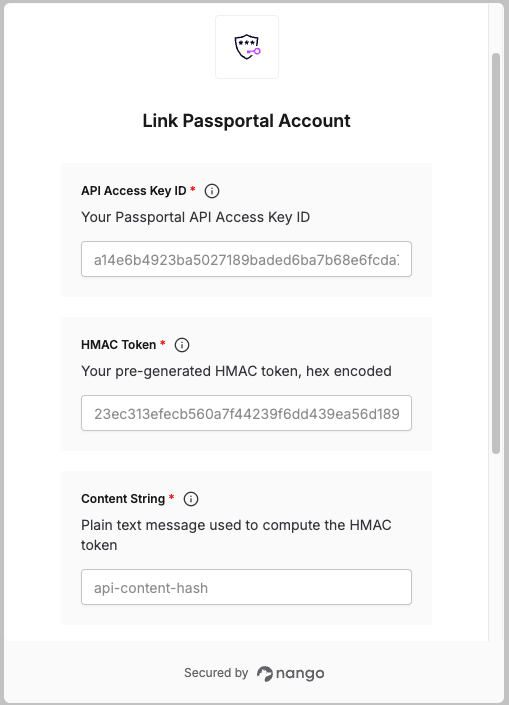
Once you have your **API Access Key ID**, **HMAC Token**, **Content String**, and **Base URL**:
1. Open the form where you connect to Passportal.
2. Enter your **API Access Key ID**.
3. Enter your **HMAC Token** (the hexadecimal hash you generated).
4. Enter your **Content String** (the same text you used to generate the HMAC token, e.g., `api-content-hash`).
5. Enter your **Base URL** (e.g., `mycompany.passportalmsp.com`).
6. Click **Connect**.
5. Copy both the **Access key ID** and **Secret access key** to a secure location.
**Important**: The Secret access key is only viewable once in the Create access key dialog. After closing this dialog, it cannot be retrieved again.
See: [API Key Management Guide](https://documentation.n-able.com/passportal/userguide/Content/api/api_key_management.htm)
### Step 3: Generate HMAC Token
You need to create an HMAC-SHA256 token using:
* **Plain text message**: Choose a content string (e.g., `api-content-hash`). This text is not considered sensitive
* **Secret key**: Your Secret access key from Step 2
* **Algorithm**: SHA-256
Generate the HMAC token using Python:
```python theme={null}
import hmac
import hashlib
secret_key = "YOUR_SECRET_ACCESS_KEY"
content = "api-content-hash"
hmac_token = hmac.new(secret_key.encode(), content.encode(), hashlib.sha256).hexdigest()
print(hmac_token)
```
Store both the **HMAC token** and the **content string** you used – you'll need both.
See: [Create HMAC Token Guide](https://documentation.n-able.com/passportal/userguide/Content/api/api_create_hmac.htm)
### Step 4: Enter your details in the Connect UI
Once you have your **API Access Key ID**, **HMAC Token**, **Content String**, and **Base URL**:
1. Open the form where you connect to Passportal.
2. Enter your **API Access Key ID**.
3. Enter your **HMAC Token** (the hexadecimal hash you generated).
4. Enter your **Content String** (the same text you used to generate the HMAC token, e.g., `api-content-hash`).
5. Enter your **Base URL** (e.g., `mycompany.passportalmsp.com`).
6. Click **Connect**.
 You are now connected to Passportal.