> ## Documentation Index
> Fetch the complete documentation index at: https://nango.dev/docs/llms.txt
> Use this file to discover all available pages before exploring further.
# OneLogin - How do I link my account?
# Overview
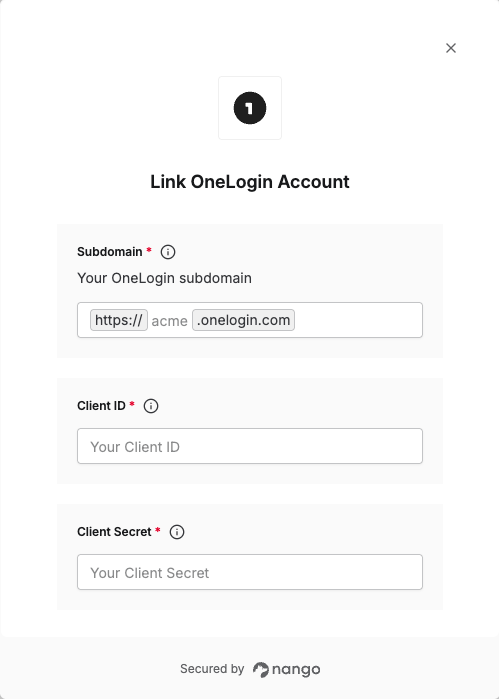
To authenticate with OneLogin using OAuth2 Client Credentials, you need:
1. **Subdomain** - Your OneLogin account subdomain.
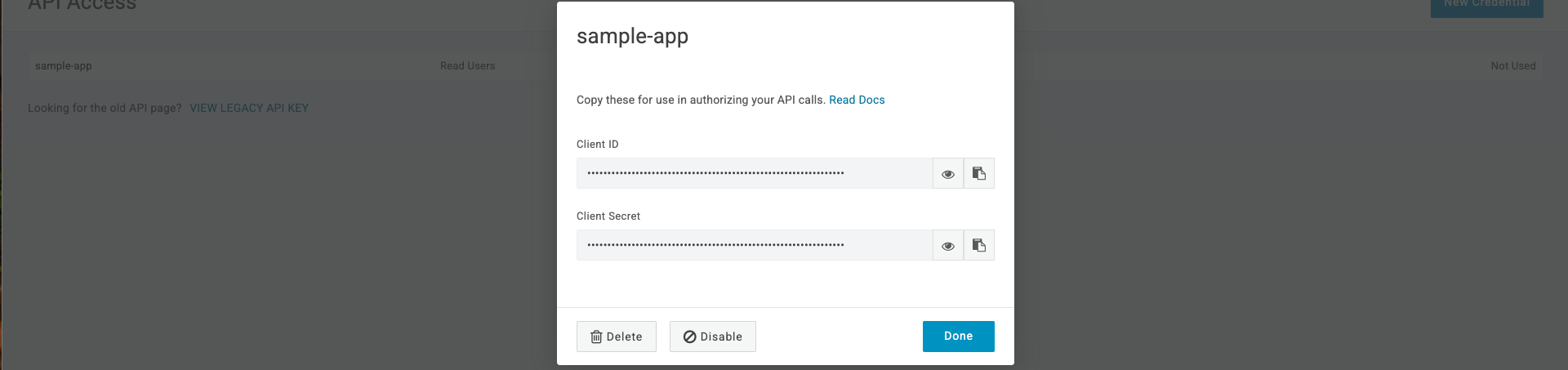
2. **Client ID** - A unique identifier for your API Credential Pair.
3. **Client Secret** - A confidential key used to authenticate your API Credential Pair.
This guide will walk you through generating these credentials within OneLogin.
### Prerequisites:
* You must have a OneLogin account with administrator access.
### Instructions:
#### Step 1: Finding Your Subdomain
1. Log in to your OneLogin account.
2. Look at the browser’s address bar at the top of the page.
3. Your **Subdomain** is the value between `https://` and `.onelogin.com`. If you're logged in and the URL in your browser is: `https://acme.onelogin.com/portal`, your subdomain is `acme`.
#### Step 2: Generating API Credentials
1. Log in to your OneLogin Admin Console as an account owner or administrator.
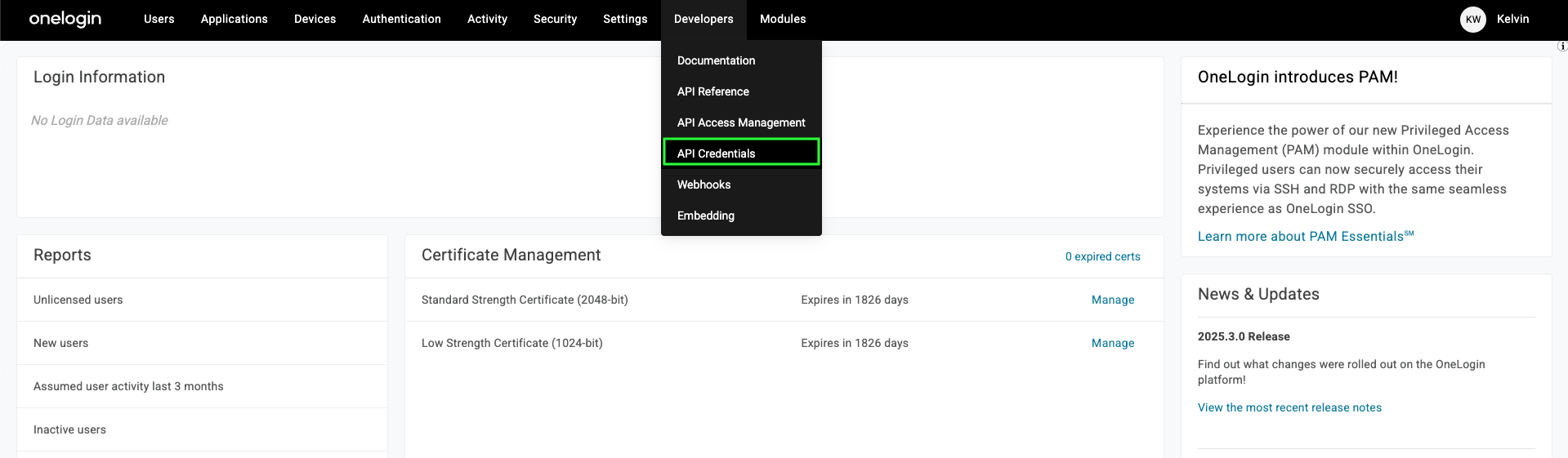
2. Navigate to **Developers** > **API Credentials**.
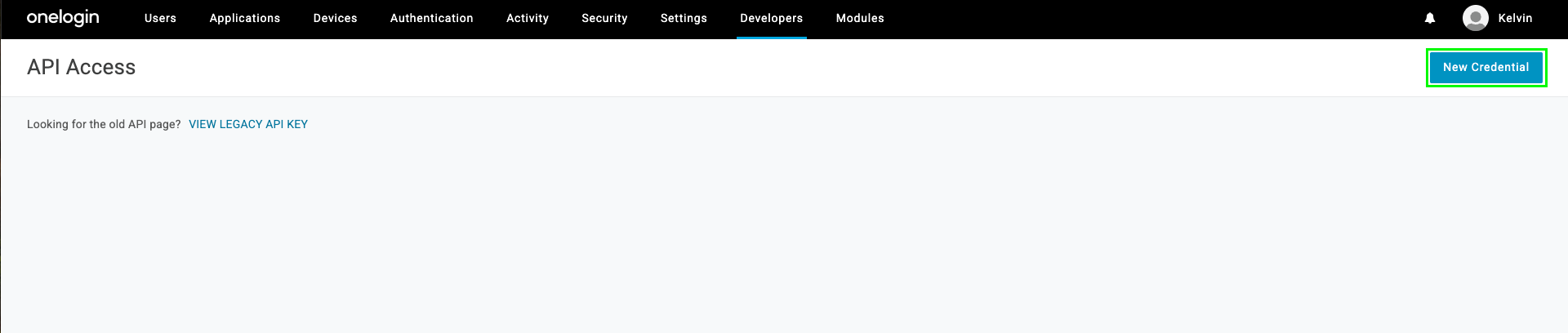
 3. On the API Access page, click the **New Credential** button in the top right.
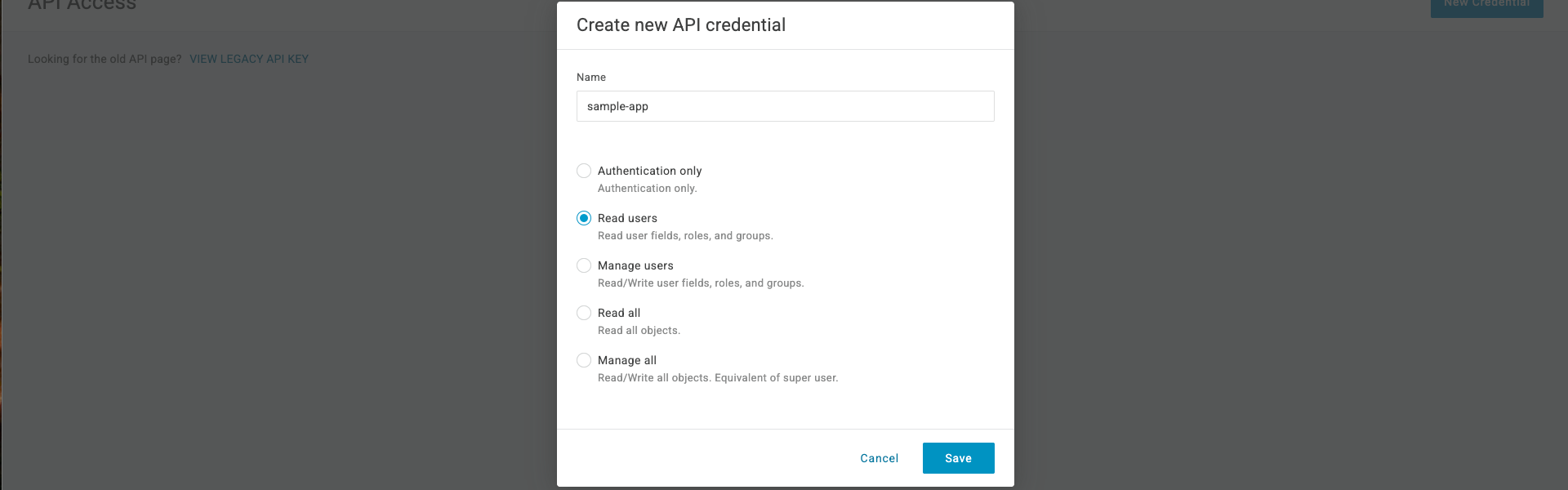
 4. Give your credentials a meaningful **Name**, select the appropriate **Scope** for your integration and click **Save** to generate your client credentials.
 #### Step 3: Enter Credentials in the Connect UI
Once you have your **Subdomain**, **Client ID** and **Client Secret**:
1. Open the form where you need to authenticate with OneLogin.
2. Enter your **Subdomain**, **Client ID** and **Client Secret** in their respective fields.
3. Submit the form, and you should be successfully authenticated.
#### Step 3: Enter Credentials in the Connect UI
Once you have your **Subdomain**, **Client ID** and **Client Secret**:
1. Open the form where you need to authenticate with OneLogin.
2. Enter your **Subdomain**, **Client ID** and **Client Secret** in their respective fields.
3. Submit the form, and you should be successfully authenticated.
 You are now connected to OneLogin.