> ## Documentation Index
> Fetch the complete documentation index at: https://nango.dev/docs/llms.txt
> Use this file to discover all available pages before exploring further.
# Mimecast - How do I link my account?
# Overview
To authenticate with Mimecast, you need:
1. **Client ID** – Your Mimecast API 2.0 application's Client ID
2. **Client Secret** – Your Mimecast API 2.0 application's Client Secret
This guide walks you through creating an API 2.0 application in Mimecast Cloud Gateway.
### Prerequisites:
* Admin access to your Mimecast Administration Console.
* Access to the Cloud Gateway section.
### Instructions:
#### Step 1: Create an API Application
1. Log in to your Mimecast Administration Console and navigate to **Administration** > **Services** > **Cloud Gateway** > **API and Platform Integrations** > **API 2.0 Applications**.
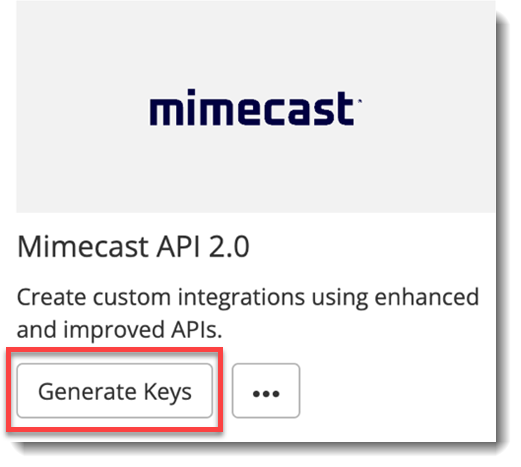
2. Click **Generate Keys**.
 3. Configure your application:
* **Application Name**: Enter a descriptive name for your integration
* **Application Description**: Provide details about what this integration will do
* **Authentication Type**: Select **Client Credentials** (OAuth 2.0)
4. Select the appropriate **API permissions/scopes** that your integration requires based on the Mimecast APIs you plan to use.
5. Click **Create** or **Save** to register the application.
#### Step 2: Copy your credentials
1. After creating the application, the **Client ID** and **Client Secret** will be displayed.
3. Configure your application:
* **Application Name**: Enter a descriptive name for your integration
* **Application Description**: Provide details about what this integration will do
* **Authentication Type**: Select **Client Credentials** (OAuth 2.0)
4. Select the appropriate **API permissions/scopes** that your integration requires based on the Mimecast APIs you plan to use.
5. Click **Create** or **Save** to register the application.
#### Step 2: Copy your credentials
1. After creating the application, the **Client ID** and **Client Secret** will be displayed.
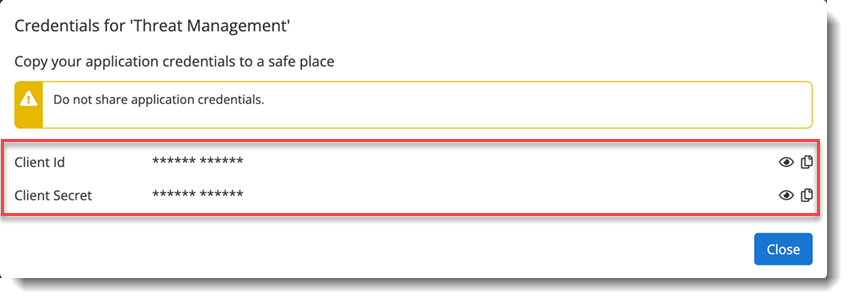 Copy and securely store both values immediately in a credentials vault. The Client Secret is only displayed once during the registration/configuration process and cannot be retrieved later. If you lose the Client Secret, you will need to regenerate it or create a new application.
#### Step 3: Enter credentials in the Connect UI
Once you have your **Client ID** and **Client Secret**:
1. Open the form where you need to authenticate with Mimecast.
2. Enter your **Client ID** and **Client Secret** in their respective fields.
3. Submit the form, and you should be successfully authenticated.
Copy and securely store both values immediately in a credentials vault. The Client Secret is only displayed once during the registration/configuration process and cannot be retrieved later. If you lose the Client Secret, you will need to regenerate it or create a new application.
#### Step 3: Enter credentials in the Connect UI
Once you have your **Client ID** and **Client Secret**:
1. Open the form where you need to authenticate with Mimecast.
2. Enter your **Client ID** and **Client Secret** in their respective fields.
3. Submit the form, and you should be successfully authenticated.
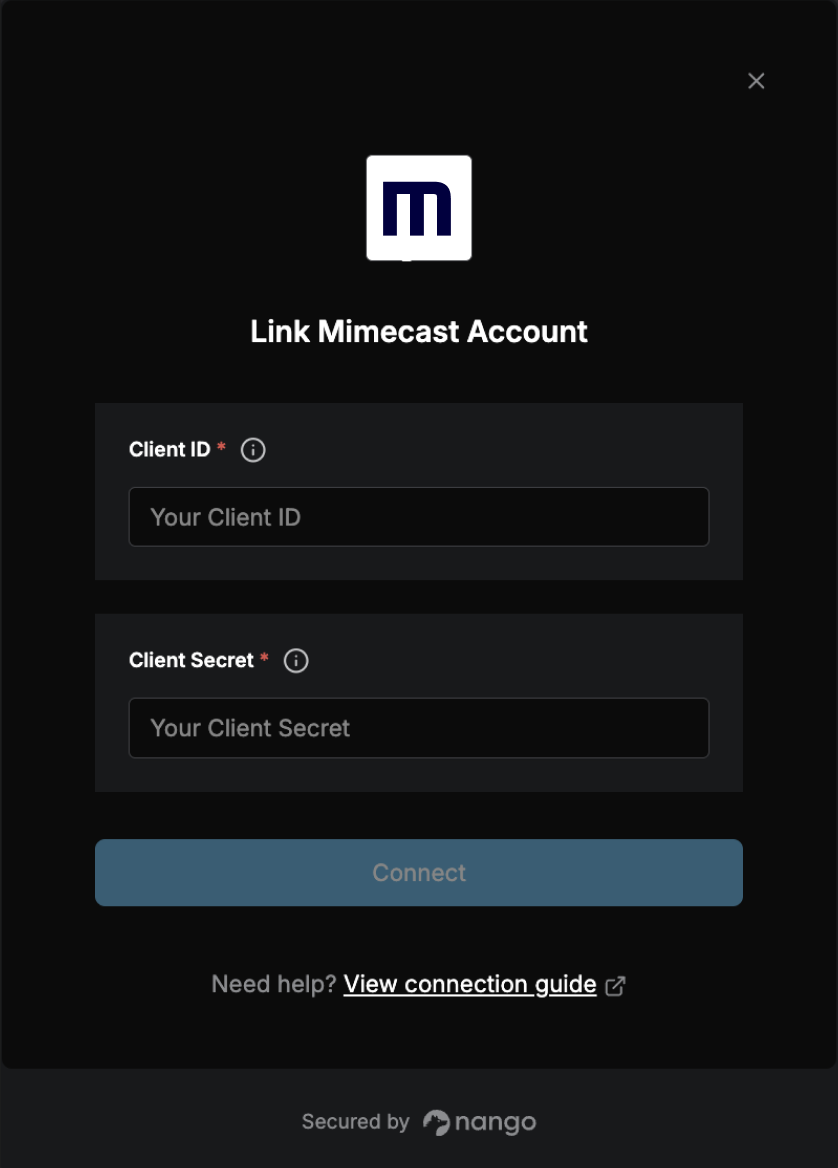 You are now connected to Mimecast.
***
### Additional Information
* **Token Expiration**: Access tokens obtained through the Client Credentials flow have a Time To Live (TTL) of 30 minutes. Nango will automatically refresh the token when it expires.
* **Security Best Practices**: Store your Client ID and Client Secret securely. Never commit these credentials to source control or expose them in client-side code.
You are now connected to Mimecast.
***
### Additional Information
* **Token Expiration**: Access tokens obtained through the Client Credentials flow have a Time To Live (TTL) of 30 minutes. Nango will automatically refresh the token when it expires.
* **Security Best Practices**: Store your Client ID and Client Secret securely. Never commit these credentials to source control or expose them in client-side code.