> ## Documentation Index
> Fetch the complete documentation index at: https://nango.dev/docs/llms.txt
> Use this file to discover all available pages before exploring further.
# Medallia - How to Connect Your Account
# Overview
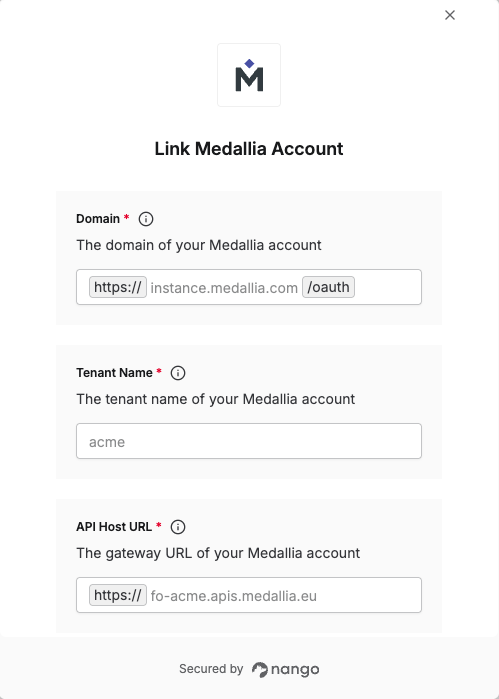
Medallia Experience Cloud APIs use OAuth 2.0 to authenticate access to data and API endpoints. To establish a connection with Medallia, you will need the following:
1. **Domain** - The base domain for your Medallia instance
2. **Tenant Name** - The tenant name of your Medallia account.
3. **API Host URL** - The base API endpoint (gateway URL) for your Medallia account.
4. **Client ID** - A unique identifier for your client.
5. **Client Secret** - A confidential key used to authenticate the identity of the application (client).
This guide will walk you through generating and finding these credentials within Medallia.
***
### Prerequisites
* Admin access to your Medallia Experience Cloud instance.
### Step 1: Generating OAuth Credentials
To obtain your Client ID and Client Secret:
1. Log into your Medallia Experience Cloud instance.
2. Navigate to **Integrations** → **OAuth**.
3. Find the client you want to use (or create a new one if you don't have one) and copy your **Client ID**.
4. If you don't have a client secret for the selected client, generate a new client secret and copy it securely.
5. Navigate to **Company** → **Users**.
6. Go to the **User Edit Roles** tab and ensure the client has sufficient permissions to access the data and actions you need.
Each environment (production, sandbox, developer) requires separate credentials.
### Step 2: Identifying Your Domain
1. Look at the URL you use to access Medallia Web reporting.
2. The URL format is: `https://../`
3. Your **Domain** is the `..` portion.
4. Example: If your URL is `https://instance.medallia.com/acme`, your Domain is `instance.medallia.com`
### Step 3: Identifying Your Tenant Name
1. Your **Tenant Name** is the `` portion in your Medallia Web reporting URL.
2. Using the URL format: `https://../`
3. Example: If your URL is `https://instance.medallia.com/acme`, your Tenant Name is `acme`
### Step 4: Identifying Your API Host URL
The **API Host URL** varies based on your environment:
1. **Production**: `https://-.apis.medallia.`
* Example: `https://fo-acme.apis.medallia.eu`
2. **Sandbox**: `https://-.apis.sbx..medallia.`
* Example: `https://dev-acme.apis.sbx.usw1.medallia.com`
3. **GovCloud Production**: `https://-.apis.medalliafederal.`
* Example: `https://fo-acme.apis.medalliafederal.com`
4. **GovCloud Sandbox**: `https://-.apis.sbx.fedw1.medalliafederal.com`
* Example: `https://dev-acme.apis.sbx.fedw1.medalliafederal.com`
Host URLs with the form `https://.apis.medallia.` are deprecated and only valid for legacy clients.
### Step 5: Enter credentials in the Connect UI
Once you have your credentials:
1. Open the form where you need to authenticate with Medallia.
2. Enter your **Domain**, **Tenant Name**, **API Host URL**, **Client ID**, and **Client Secret** in their designated fields.
3. Submit the form, and you should be successfully authenticated.
 You are now connected to Medallia.