> ## Documentation Index
> Fetch the complete documentation index at: https://nango.dev/docs/llms.txt
> Use this file to discover all available pages before exploring further.
# Mailgun - How do I link my account?
# Overview
To authenticate with Mailgun, you need the following:
1. **Region** - The region of your Mailgun account (e.g., `us`, `eu`).
2. **API Key** - A unique key that provides programmatic access to your Mailgun account.
This guide will walk you through generating your API Key and finding your Mailgun region.
***
## Prerequisites
* You must have a Mailgun account.
* Ensure you have administrative access to manage API keys.
***
## Step 1: Finding Your Mailgun Region
Your Mailgun region determines the base URL used for API requests. To find your region:
1. Log in to the **Mailgun Control Panel**.
2. Navigate to the **Domains** section under the **Send** product.
3. Identify the region associated with your domain (e.g., `us` for United States or `eu` for Europe).
***
## Step 2: Generating an API Key
### Steps to Generate a Mailgun API Key:
1. Log in to the **Mailgun Control Panel**.
2. Click on your **Profile Menu** in the top-right corner and select **API Security** from the dropdown.
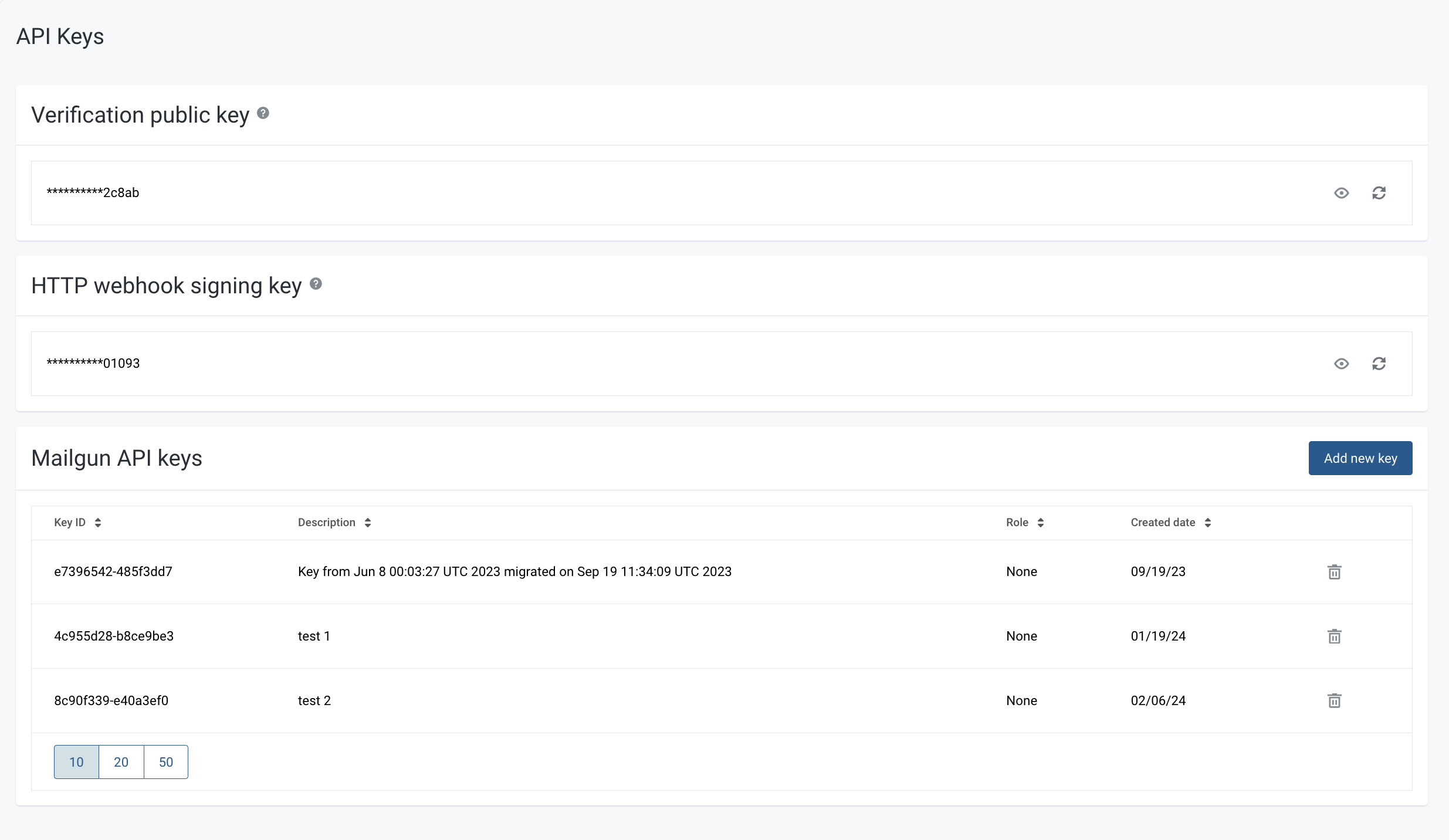 3. Under the **API Keys** section, click **Add new key**.
4. Provide a description for your key (e.g., "Nango Integration Key") and select the appropriate **role** (Admin or Sending).
5. Click **Create Key**.
6. Copy the generated API Key and store it securely. **You won’t be able to see the key again.**
***
## Step 3: Connecting Your Mailgun Account
To link your Mailgun account:
1. Navigate to the Mailgun authentication form in Nango.
2. Enter the following details:
* **User Name**: Enter your Mailgun user name.
* **Password**: Paste the API Key you generated in Step 2.
* **Region**: Enter your Mailgun region (e.g., `us`, `eu`).
3. Under the **API Keys** section, click **Add new key**.
4. Provide a description for your key (e.g., "Nango Integration Key") and select the appropriate **role** (Admin or Sending).
5. Click **Create Key**.
6. Copy the generated API Key and store it securely. **You won’t be able to see the key again.**
***
## Step 3: Connecting Your Mailgun Account
To link your Mailgun account:
1. Navigate to the Mailgun authentication form in Nango.
2. Enter the following details:
* **User Name**: Enter your Mailgun user name.
* **Password**: Paste the API Key you generated in Step 2.
* **Region**: Enter your Mailgun region (e.g., `us`, `eu`).
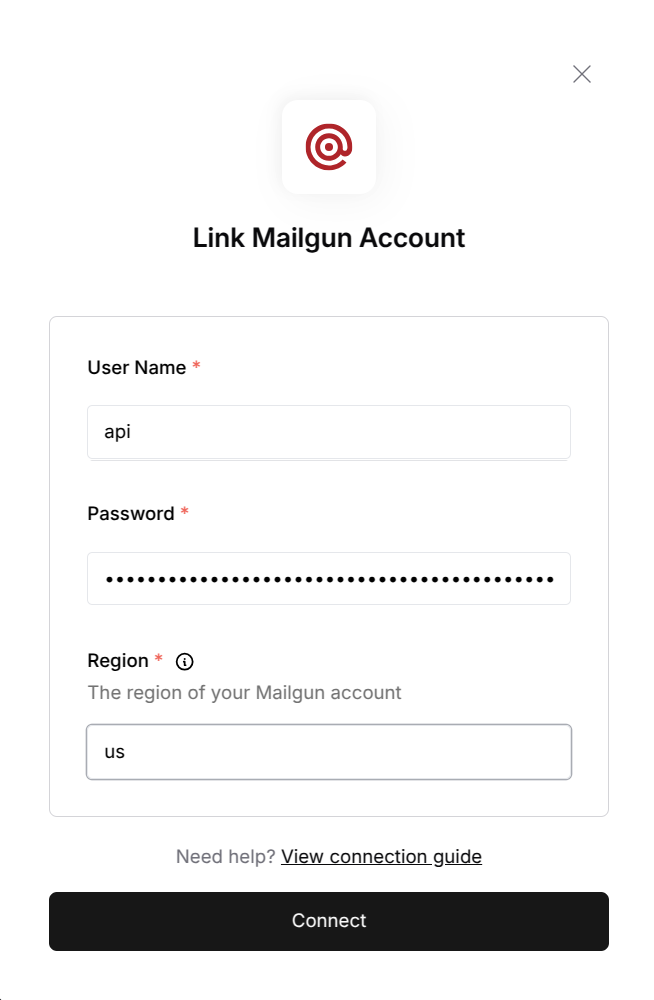 3. Click **Connect** to complete the authentication process.
***
## Notes
* **API Key**: Keep your API Key secure to prevent unauthorized access to your Mailgun account.
* **Region**: Ensure you enter the correct region for your Mailgun account to avoid connection issues.
* **Permissions**: The role assigned to the API Key will determine the permissions for API actions.
For further assistance, refer to the [Mailgun documentation](https://documentation.mailgun.com/).
3. Click **Connect** to complete the authentication process.
***
## Notes
* **API Key**: Keep your API Key secure to prevent unauthorized access to your Mailgun account.
* **Region**: Ensure you enter the correct region for your Mailgun account to avoid connection issues.
* **Permissions**: The role assigned to the API Key will determine the permissions for API actions.
For further assistance, refer to the [Mailgun documentation](https://documentation.mailgun.com/).