> ## Documentation Index
> Fetch the complete documentation index at: https://nango.dev/docs/llms.txt
> Use this file to discover all available pages before exploring further.
# Guru - How do I link my account?
# Overview
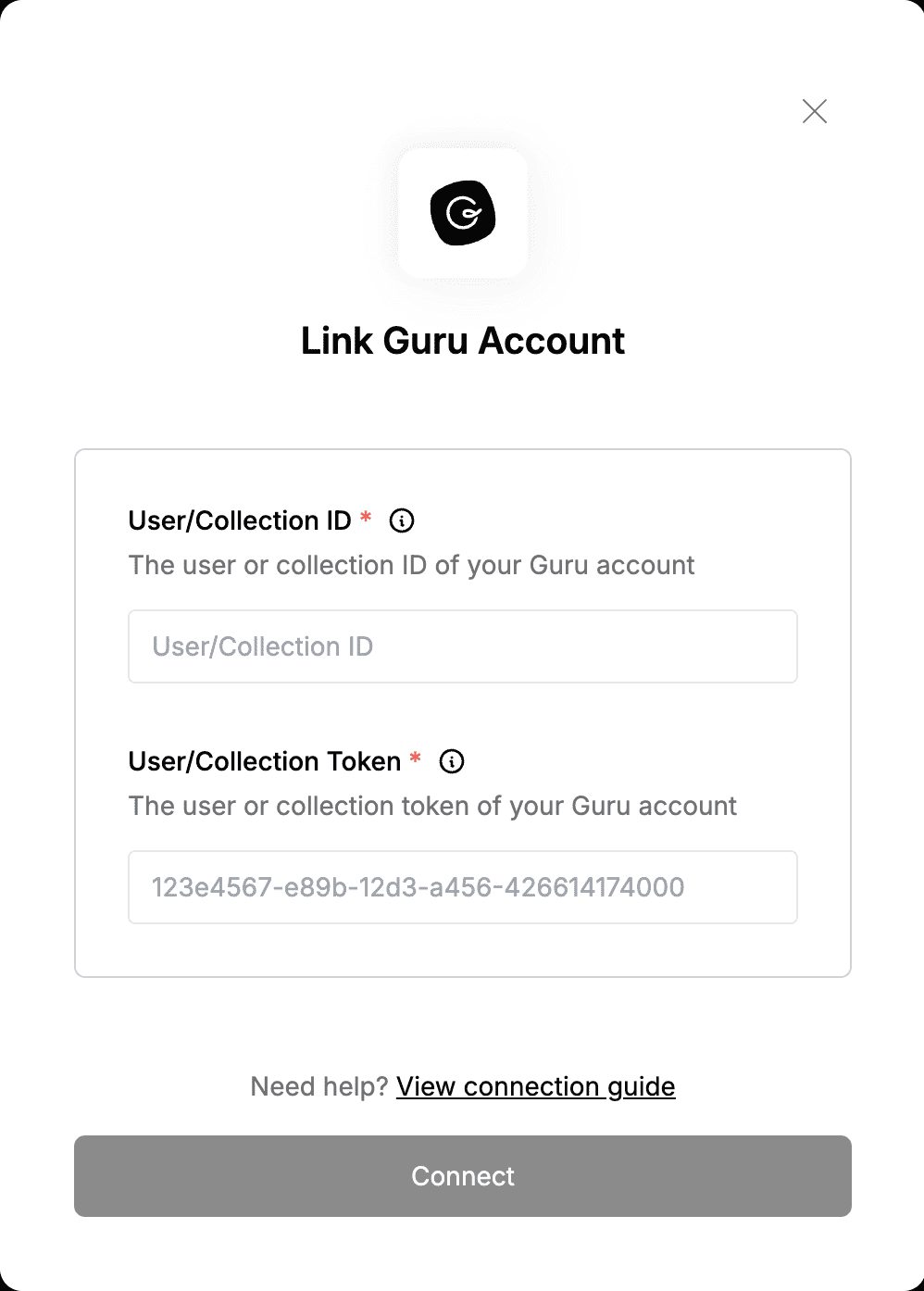
To authenticate with Guru, you will need:
1. **User/Collection ID** - The user or collection ID of your Guru account.
2. **User/Collection Token** - The user or collection token of your Guru account.
This guide will walk you through finding the **User/Collection ID** and generating your **User/Collection Token** within Guru.
### Prerequisites:
* You must have an account with Guru.
### Instructions:
#### Step 1: Finding your User/Collection ID
a. Finding your User ID
* Your **User ID** is the username you use to sign in to your account.
b. Finding your Collection ID
* You can obtain your **Collection ID** by perfoming a curl request with your **USER ID and Token** to get a [list of all collections](https://developer.getguru.com/reference/getv1collectionsgetcollections) on your team.
```
curl -u USER:TOKEN https://api.getguru.com/api/v1/collections -D -
```
* If your credentials are correct, you will receive a list of collections along with their IDs, which you can use as your Collection ID.
#### Step 2: Generating Your User/Collection token
* There are two types of tokens for using the Guru API: a `Collection token` (read-only), and a `User token` (read/write). This guide will demonstrate how to obtain both.
a. Generating your User token
1. Login to your [Guru](https://app.getguru.com/) account.
2. Navigate to the [Apps & Integrations](https://app.getguru.com/manage/integrations/apps) page under the **Manage** menu.
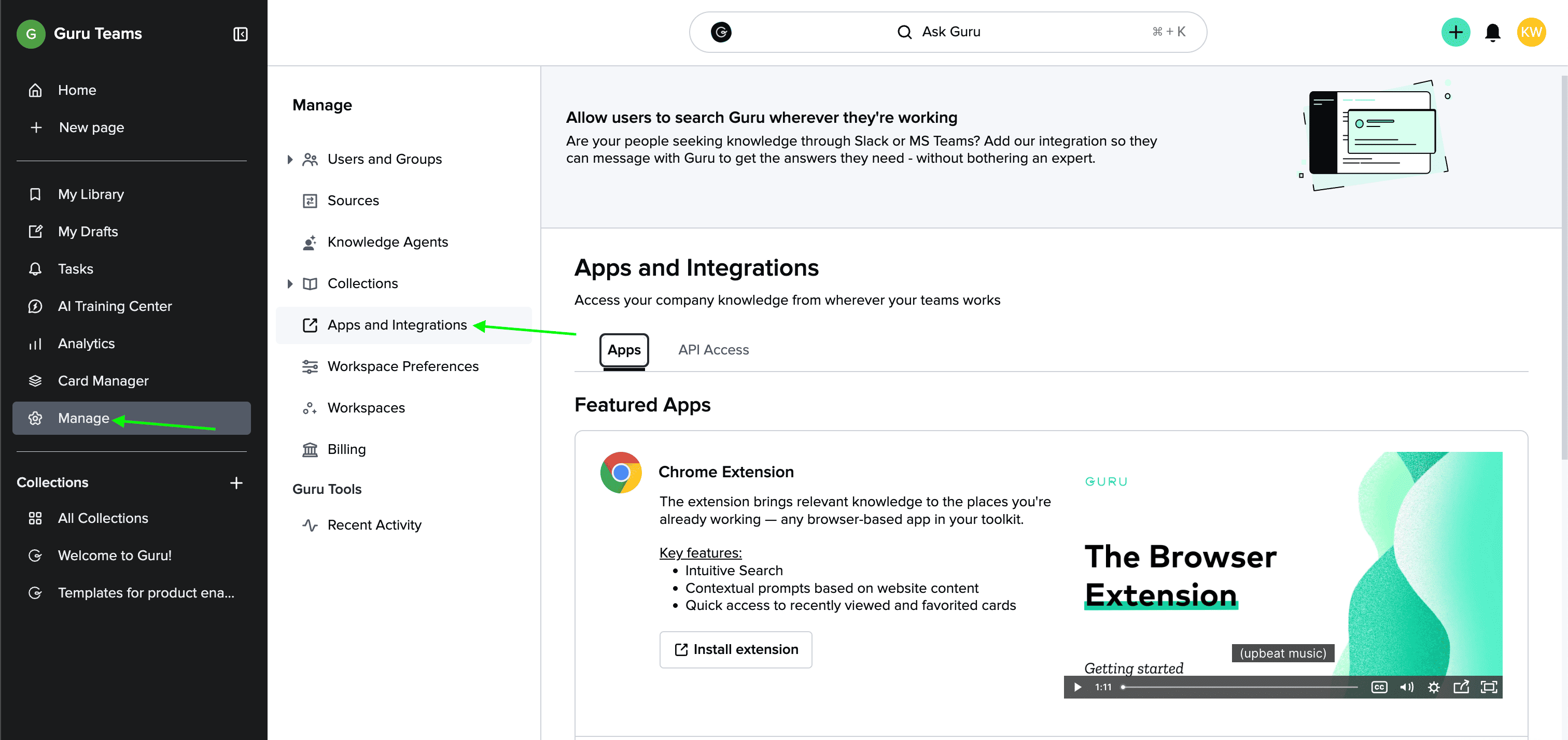 3. Click on the [API Access](https://app.getguru.com/settings/integrations/api-access) tab to manage your tokens.
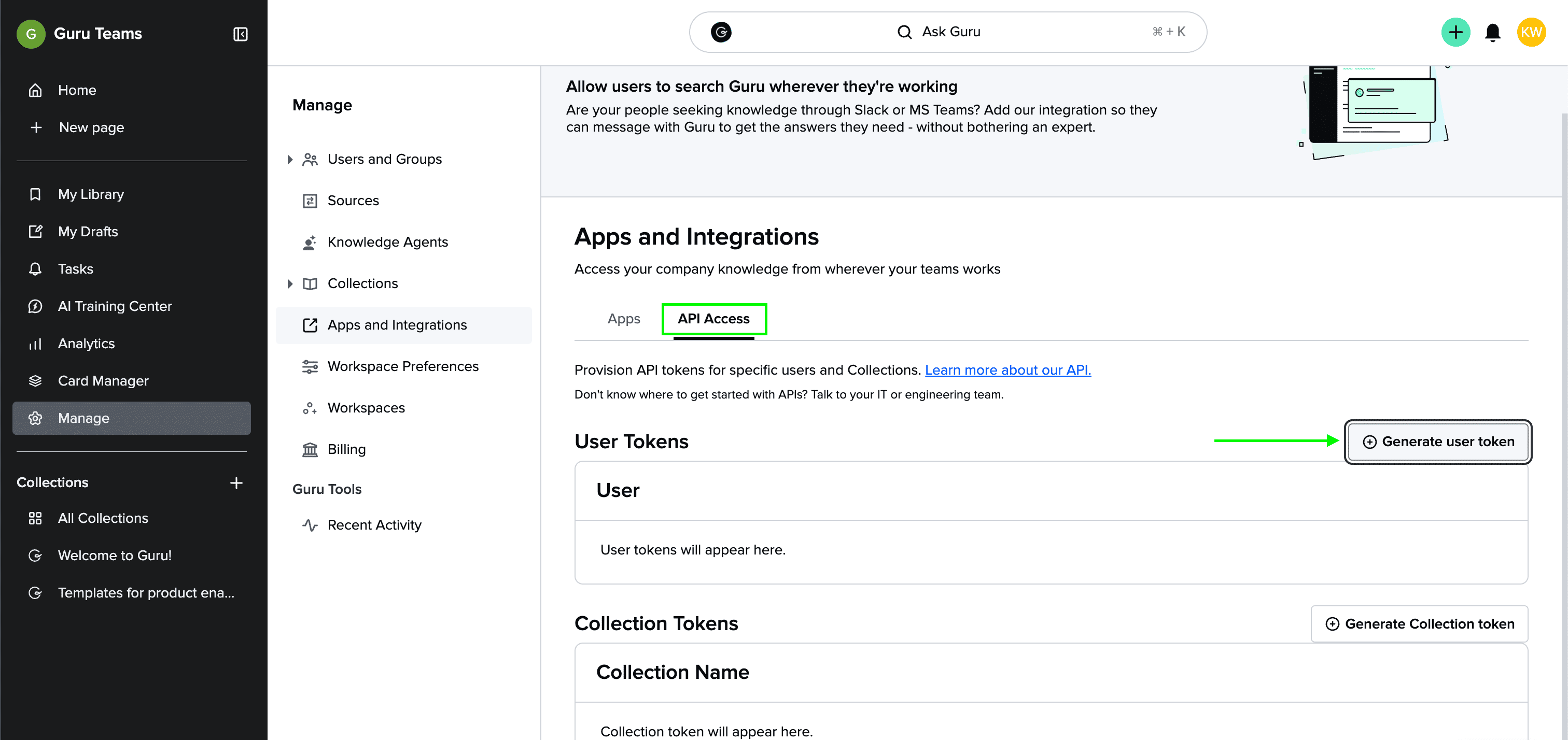
4. Generate an API token for yourself by selecting **Generate User Token** and entering your name. You can also generate API tokens for your teammates by selecting **Generate a new user token**.
3. Click on the [API Access](https://app.getguru.com/settings/integrations/api-access) tab to manage your tokens.
4. Generate an API token for yourself by selecting **Generate User Token** and entering your name. You can also generate API tokens for your teammates by selecting **Generate a new user token**.
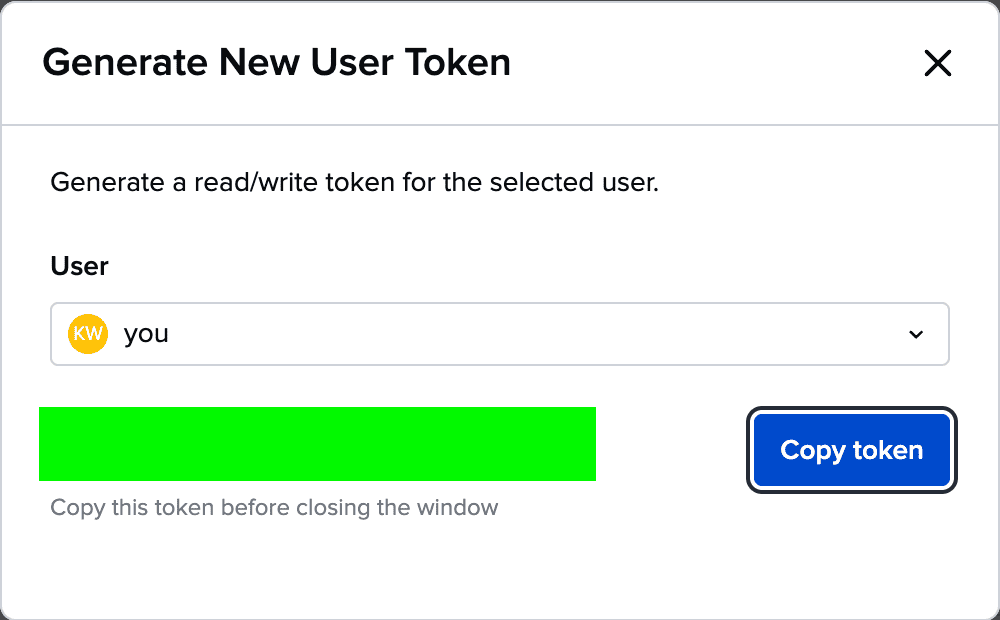 4. You can reissue a token using the **circular arrow icon** on the right side of the dashboard next to the corresponding user. You can also revoke a user's token using the **trash can icon**.
b. Generating your Collection token
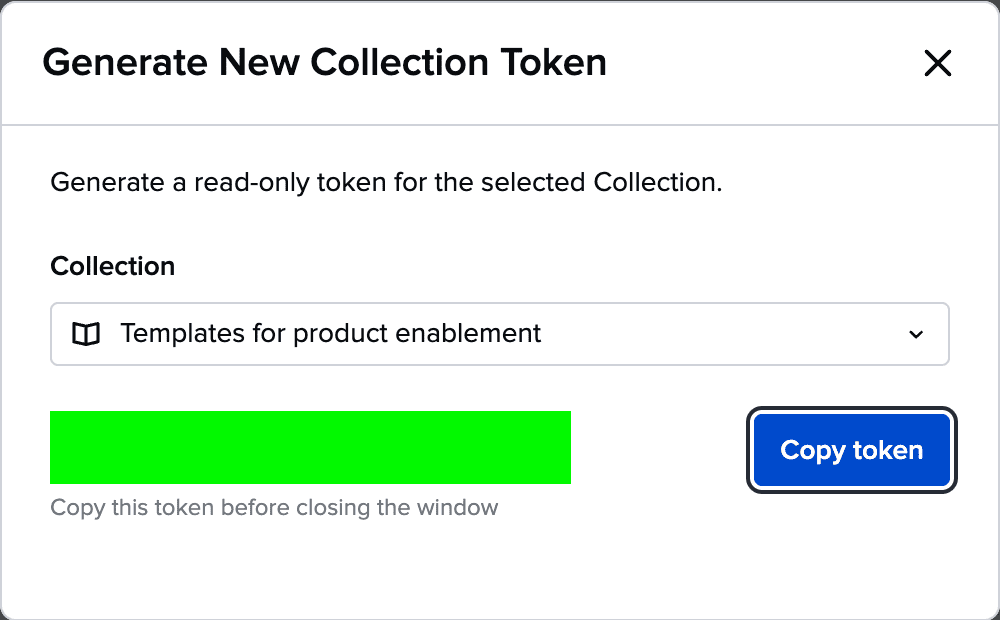
1. You can also generate Collection-based read-only tokens by selecting **Generate a New Collection Token** and then selecting your desired Collection from the dropdown.
4. You can reissue a token using the **circular arrow icon** on the right side of the dashboard next to the corresponding user. You can also revoke a user's token using the **trash can icon**.
b. Generating your Collection token
1. You can also generate Collection-based read-only tokens by selecting **Generate a New Collection Token** and then selecting your desired Collection from the dropdown.

 #### Step 3: Enter credentials in the Connect UI
Once you have your **User/Collection ID** and **User/Collection Token**:
1. Open the form where you need to authenticate with Guru.
2. Enter the **User/Collection ID** and **User/Collection Token** in their respective fields.
3. Submit the form, and you should be successfully authenticated.
#### Step 3: Enter credentials in the Connect UI
Once you have your **User/Collection ID** and **User/Collection Token**:
1. Open the form where you need to authenticate with Guru.
2. Enter the **User/Collection ID** and **User/Collection Token** in their respective fields.
3. Submit the form, and you should be successfully authenticated.
 You are now connected to Guru.