> ## Documentation Index
> Fetch the complete documentation index at: https://nango.dev/docs/llms.txt
> Use this file to discover all available pages before exploring further.
# Guru (SCIM) - How do I link my account?
# Overview
To authenticate with Guru (SCIM), you need:
1. **SCIM Username** - Your SCIM username for your Guru account.
2. **SCIM Token** - Your SCIM token for your Guru account
This guide will walk you through finding or creating those credentials within Guru.
### Prerequisites:
* You must set up an administrator account with Guru.
#### Step 1: Finding Guru SCIM Credentials
1. Log into your Guru account.
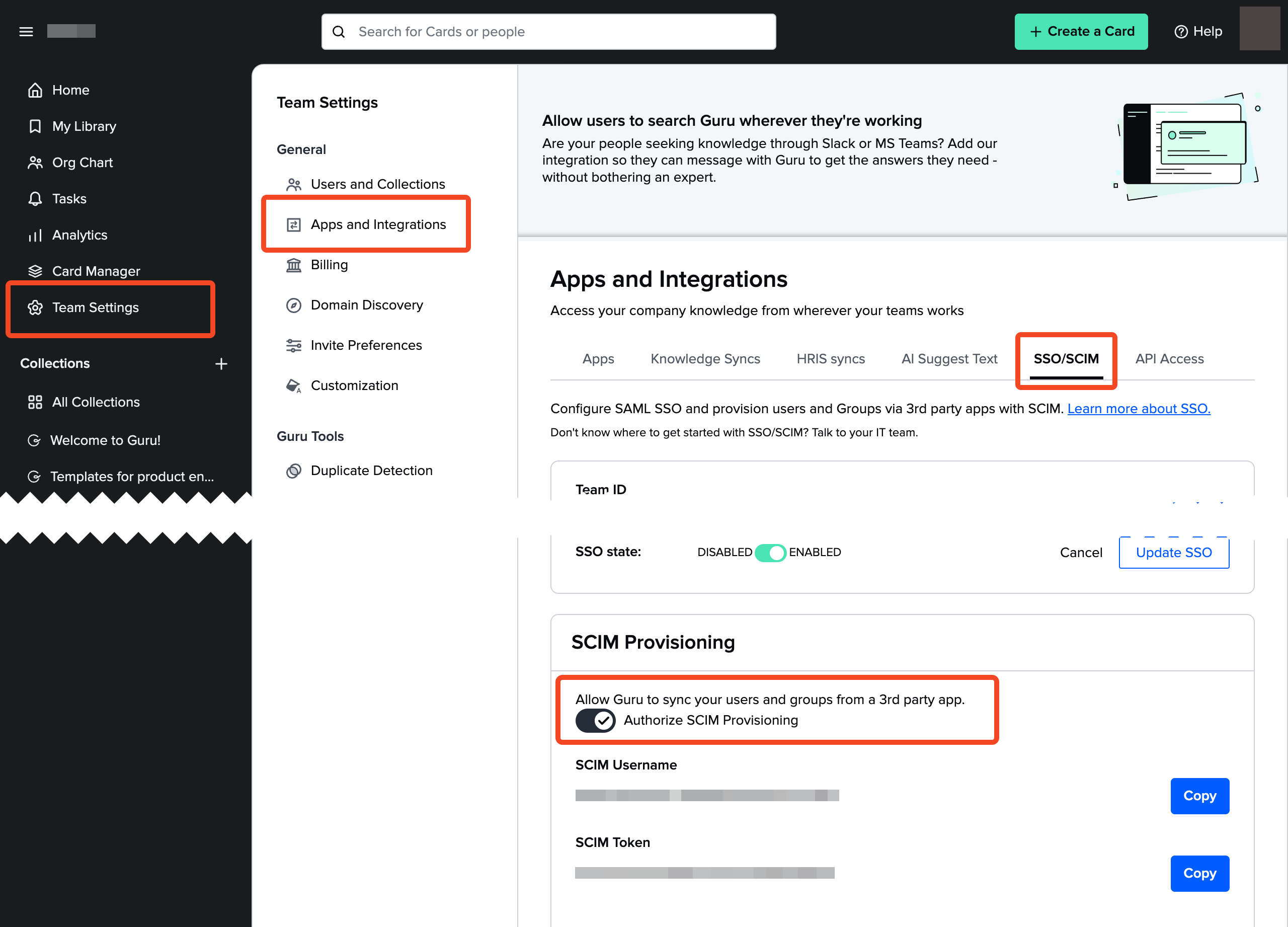
2. Navigate to **Team Settings** > **Apps and Integrations** > **SSO/SCIM** tab.
3. Ensure SSO is enabled. SCIM provisioning can only be turned on after enabling SSO.
4. Turn on the **Authorize SCIM Provisioning** switch.
5. Note the generated SCIM credentials,**SCIM Username** and **SCIM Token**.
 #### Step 2: Enter credentials in the Connect UI
Once you have your **SCIM Username** and **SCIM Token**:
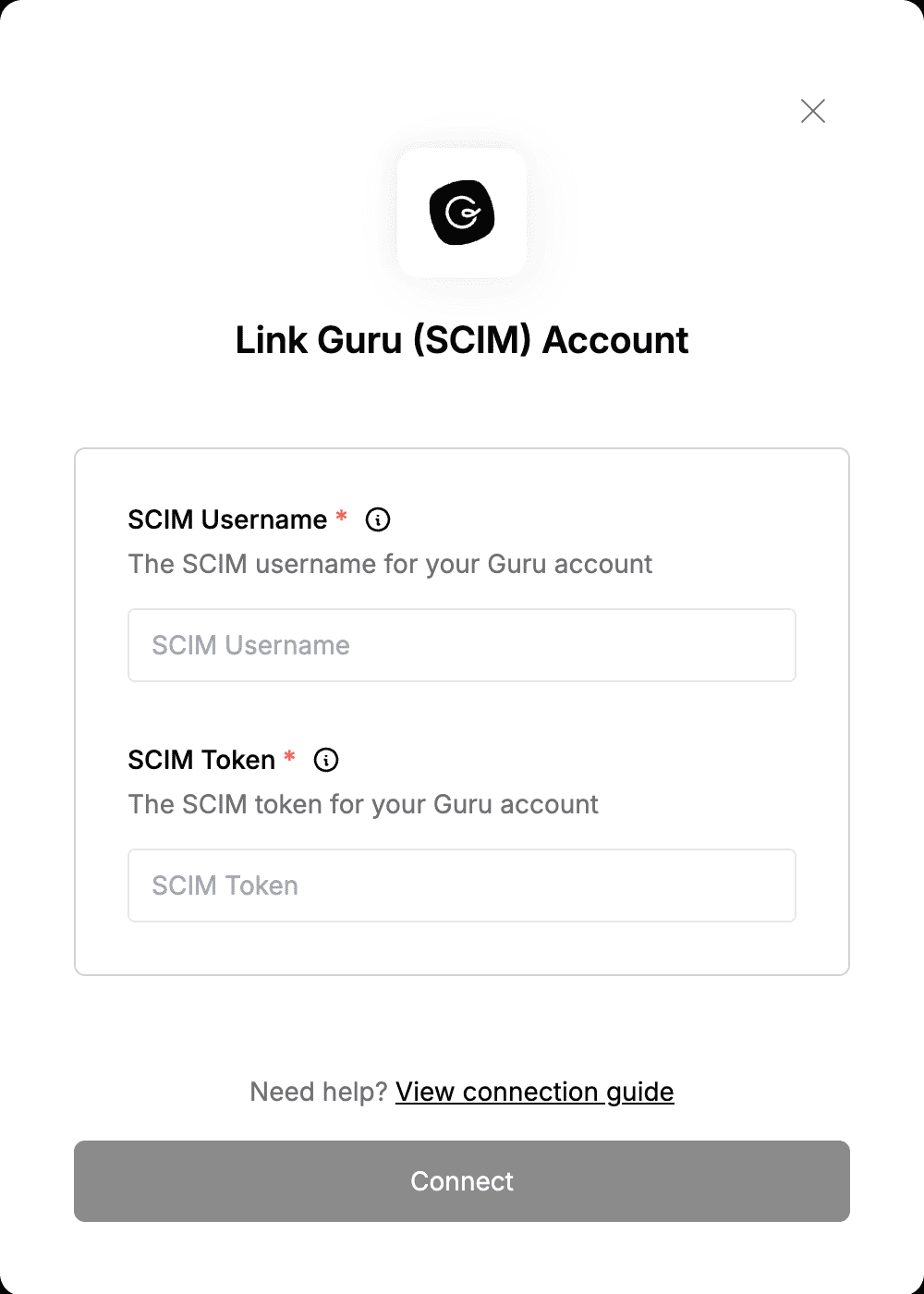
1. Open the form where you need to authenticate with Guru (SCIM).
2. Enter your **SCIM Username** and **SCIM Token** in their respective fields.
3. Submit the form, and you should be successfully authenticated.
#### Step 2: Enter credentials in the Connect UI
Once you have your **SCIM Username** and **SCIM Token**:
1. Open the form where you need to authenticate with Guru (SCIM).
2. Enter your **SCIM Username** and **SCIM Token** in their respective fields.
3. Submit the form, and you should be successfully authenticated.
 You are now connected to Guru (SCIM).