> ## Documentation Index
> Fetch the complete documentation index at: https://nango.dev/docs/llms.txt
> Use this file to discover all available pages before exploring further.
# Commercetools - How do I link my account?
# Overview
To authenticate with Commercetools, you will need:
1. **Client ID** - The unique identifier for your API client, used to authenticate API requests.
2. **Client Secret** - A secure key linked to your API client, required for authentication.
3. **Project Key** - The unique identifier for your Commercetools project.
4. **Region** - The full region identifier for your Commercetools project (e.g., `europe-west1` for GCP or `eu-central-1` for AWS).
5. **Cloud Provider** - The cloud provider hosting your Commercetools project (e.g., `gcp` or `aws`).
This guide will walk you through creating an API client and retrieving the necessary credentials to connect to Commercetools.
### Prerequisites:
* You must have a registered account with Commercetools.
* You need administrative access to your Commercetools project to create an API client.
### Instructions:
#### Step 1: Create an API Client
1. Log in to your Commercetools account and navigate to the **Merchant Center**.
2. Go to **Settings** > **Developer settings**.
3. On the **API clients** tab, click **Create new API client**.
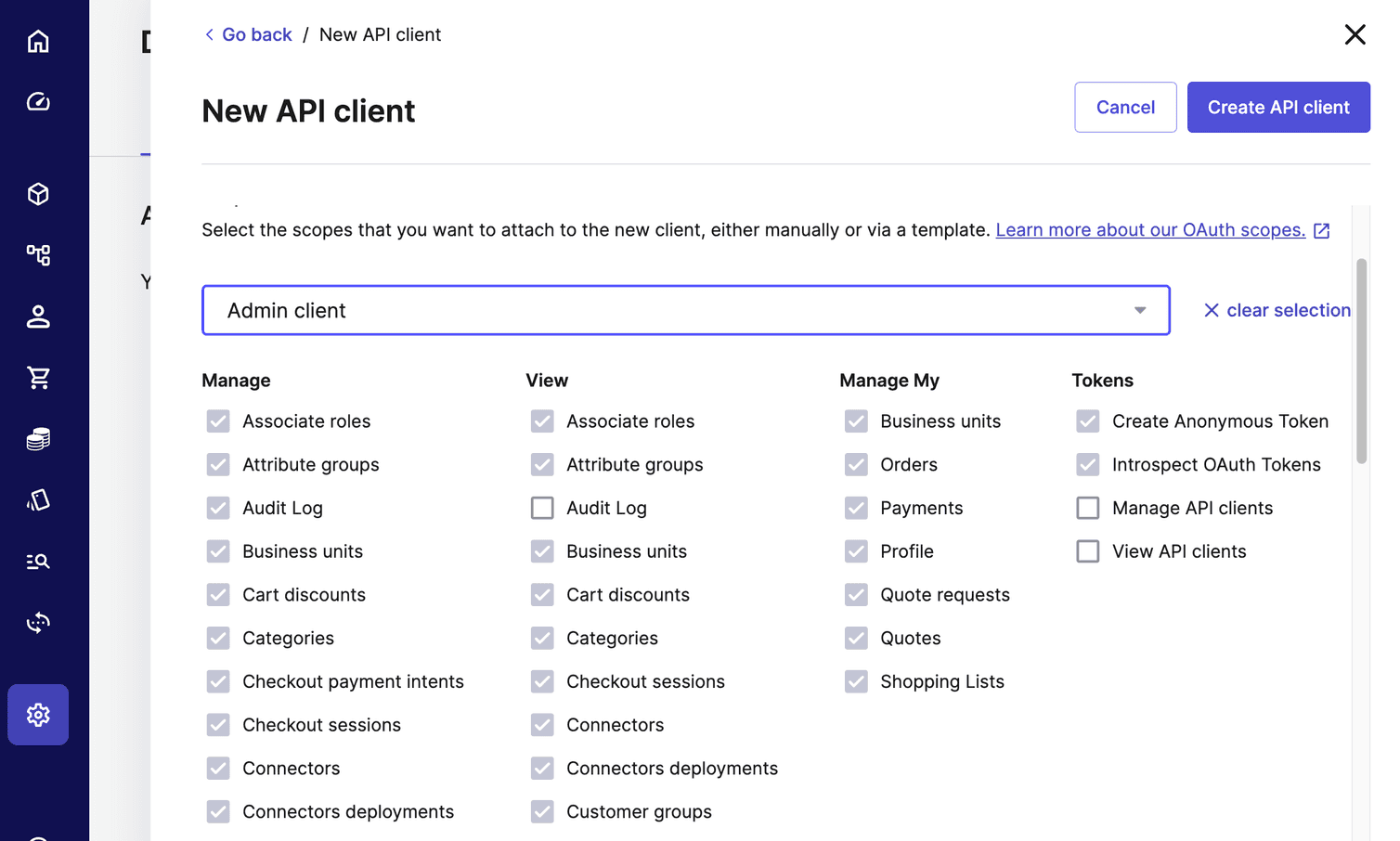
4. On the **New API client** page:
* Enter a name for your API client. The name does not affect how the API functions.
* Select the scopes for your API client. To provide complete access, select **Admin client**. For security best practices, limit the scopes to the minimum required for your use case.
* Click **Create API client**.
5. After creation, your API client information will be displayed in the **Client credential flow** section. This includes:
* **Project Key**
* **Client ID**
* **Client Secret**
* **Scope**
* **API URL**
* **Auth URL**
**Important**: This information is only displayed once. Save it securely before leaving or closing the page.
 #### Step 2: Save the API Environment Variables
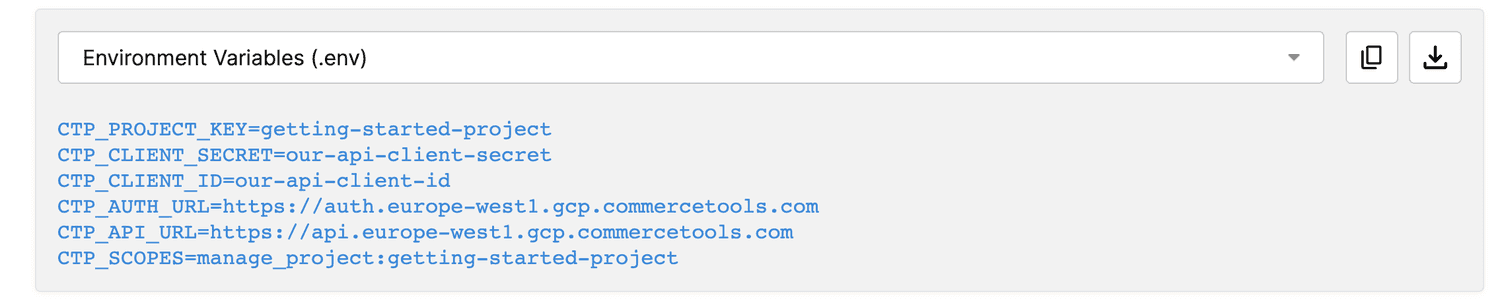
1. After creating the API client, you can save the credentials in an environment variables file for easy integration.
2. From the drop-down menu, select **Environment Variables (.env)** and click the download icon.
3. The file will be downloaded with a placeholder name based on your **Project Key** and the name of your API client (e.g., `project-key_API-client-name.env`).
4. Rename the downloaded file to `.env` and open it with a text or code editor to view the credentials.
#### Step 2: Save the API Environment Variables
1. After creating the API client, you can save the credentials in an environment variables file for easy integration.
2. From the drop-down menu, select **Environment Variables (.env)** and click the download icon.
3. The file will be downloaded with a placeholder name based on your **Project Key** and the name of your API client (e.g., `project-key_API-client-name.env`).
4. Rename the downloaded file to `.env` and open it with a text or code editor to view the credentials.
 #### Step 3: Identify Your Region and Cloud Provider
You can identify your **region** and **cloud provider** in one of two ways:
##### Option 1: From the Browser URL
1. Log in to your Commercetools account and look at the URL in your browser. For example:
[https://ak.europe-west1.gcp.commercetools.com/nango-test/welcome](https://ak.europe-west1.gcp.commercetools.com/nango-test/welcome)
* **Region**: `europe-west1` (the part after `ak.` and before `.gcp` or `.aws`).
* **Cloud Provider**: `gcp` (the part after the region and before `.commercetools.com`).
##### Option 2: From the API URL in the API Client Information
1. After creating the API client, the **API URL** will be displayed in the **Client credential flow** section. For example:
[https://api.europe-west1.gcp.commercetools.com](https://api.europe-west1.gcp.commercetools.com)
* **Region**: `europe-west1` (the part after `api.` and before `.gcp` or `.aws`).
* **Cloud Provider**: `gcp` (the part after the region and before `.commercetools.com`).
#### Step 4: Enter Credentials in the Connect UI
Once you have the **Client ID**, **Client Secret**, **Project Key**, **Region**, and **Cloud Provider**:
1. Open the form where you need to authenticate with Commercetools.
2. Enter the **Client ID**, **Client Secret**, **Project Key**, **Region**, and **Cloud Provider** in their respective fields.
3. Submit the form, and you should be successfully authenticated.
You are now connected to Commercetools.
Need help getting started? Get help in the [community](https://nango.dev/slack).
Contribute improvements to this guide by [editing this page](https://github.com/nangohq/nango/tree/master/docs/integrations/all/commercetools.mdx).
#### Step 3: Identify Your Region and Cloud Provider
You can identify your **region** and **cloud provider** in one of two ways:
##### Option 1: From the Browser URL
1. Log in to your Commercetools account and look at the URL in your browser. For example:
[https://ak.europe-west1.gcp.commercetools.com/nango-test/welcome](https://ak.europe-west1.gcp.commercetools.com/nango-test/welcome)
* **Region**: `europe-west1` (the part after `ak.` and before `.gcp` or `.aws`).
* **Cloud Provider**: `gcp` (the part after the region and before `.commercetools.com`).
##### Option 2: From the API URL in the API Client Information
1. After creating the API client, the **API URL** will be displayed in the **Client credential flow** section. For example:
[https://api.europe-west1.gcp.commercetools.com](https://api.europe-west1.gcp.commercetools.com)
* **Region**: `europe-west1` (the part after `api.` and before `.gcp` or `.aws`).
* **Cloud Provider**: `gcp` (the part after the region and before `.commercetools.com`).
#### Step 4: Enter Credentials in the Connect UI
Once you have the **Client ID**, **Client Secret**, **Project Key**, **Region**, and **Cloud Provider**:
1. Open the form where you need to authenticate with Commercetools.
2. Enter the **Client ID**, **Client Secret**, **Project Key**, **Region**, and **Cloud Provider** in their respective fields.
3. Submit the form, and you should be successfully authenticated.
You are now connected to Commercetools.
Need help getting started? Get help in the [community](https://nango.dev/slack).
Contribute improvements to this guide by [editing this page](https://github.com/nangohq/nango/tree/master/docs/integrations/all/commercetools.mdx).