> ## Documentation Index
> Fetch the complete documentation index at: https://nango.dev/docs/llms.txt
> Use this file to discover all available pages before exploring further.
# Azure Blob Storage - How do I link my account?
# Overview
To authenticate with Azure Blob Storage, you need:
1. **Account Name** - The Account name of the storage account you want to connect to.
This guide will walk you through obtaining this within Azure Blob Storage.
### Prerequisites:
* You must have access to an Azure account with a Storage Account created.
### Instructions:
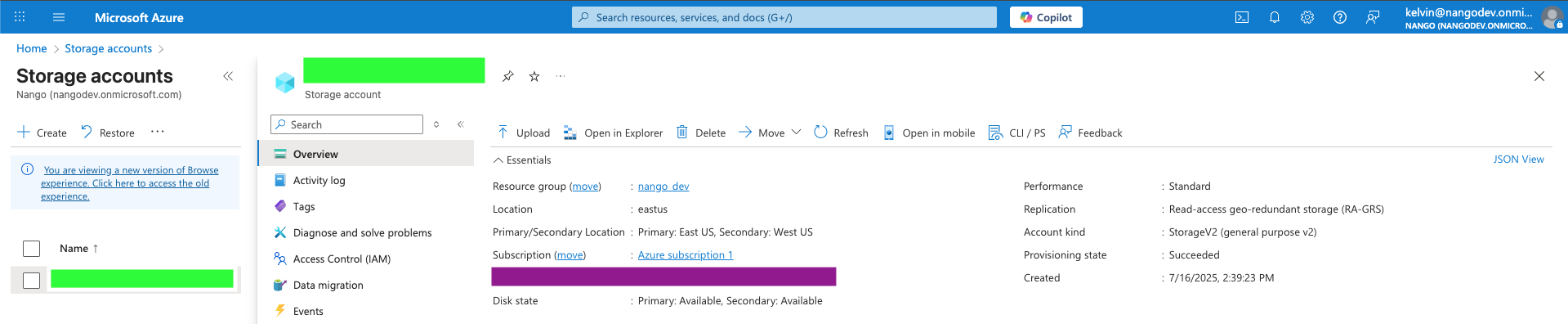
#### Step 1: Finding Your Account Name
1. Go to the [Azure Portal](https://portal.azure.com/).
2. From the search bar at the top, search for **Storage accounts** and select it.
3. Click on the storage account you want to connect to.
4. At the top of the **Overview** page, copy the **Storage account name**.
 #### Step 2: Enter credentials in the Connect UI
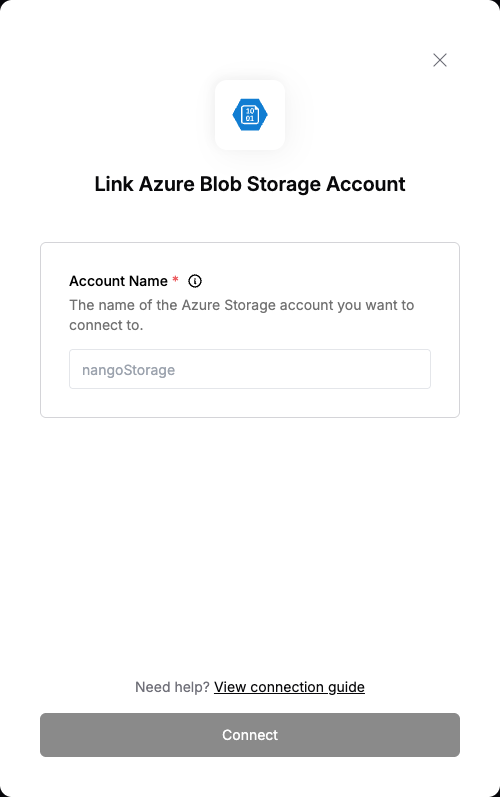
Once you have your **Account Name**:
1. Open the form where you need to authenticate with Azure Blob Storage.
2. Enter your Account Name in its respective field.
3. Submit the form, and you should be successfully authenticated.
#### Step 2: Enter credentials in the Connect UI
Once you have your **Account Name**:
1. Open the form where you need to authenticate with Azure Blob Storage.
2. Enter your Account Name in its respective field.
3. Submit the form, and you should be successfully authenticated.
 You are now connected to Azure Blob Storage.