> ## Documentation Index
> Fetch the complete documentation index at: https://nango.dev/docs/llms.txt
> Use this file to discover all available pages before exploring further.
# Auth0 (Client Credentials) - How do I link my account?
# Overview
To authenticate with Auth0 (Client Credentials), you need one key piece of information:
1. **Client ID** - A unique identifier for your client.
2. **Client Secret** - A confidential key used to authenticate the identity of the application (client).
3. **HostName** - The domain associated with your Auth0 tenant.
4. **Audience** - The audience for the token, which is your API.
5. **Organization** - The organization name or identifier you want the request to be associated with.
This guide will walk you through finding or generating these credentials within Auth0.
### Prerequisites:
* You must have an Auth0 account.
#### Step 1: Finding Your Client Credentials
1. Log in to your [Auth0](https://auth0.com/docs/authenticate/login) account.
2. Navigate to the [Application's Settings](https://manage.auth0.com/?_gl=1*1shsko2*_gcl_au*MzYwMDE4ODE4LjE3NDU5OTY3NDA.*_ga*NTkyOTQ4NzA5LjE3NDU5OTY3NDE.*_ga_QKMSDV5369*MTc0NTk5Njc0MC4xLjEuMTc0NTk5OTI5My42MC4wLjA.#/applications) page.
3. Click the **Create Application** button.
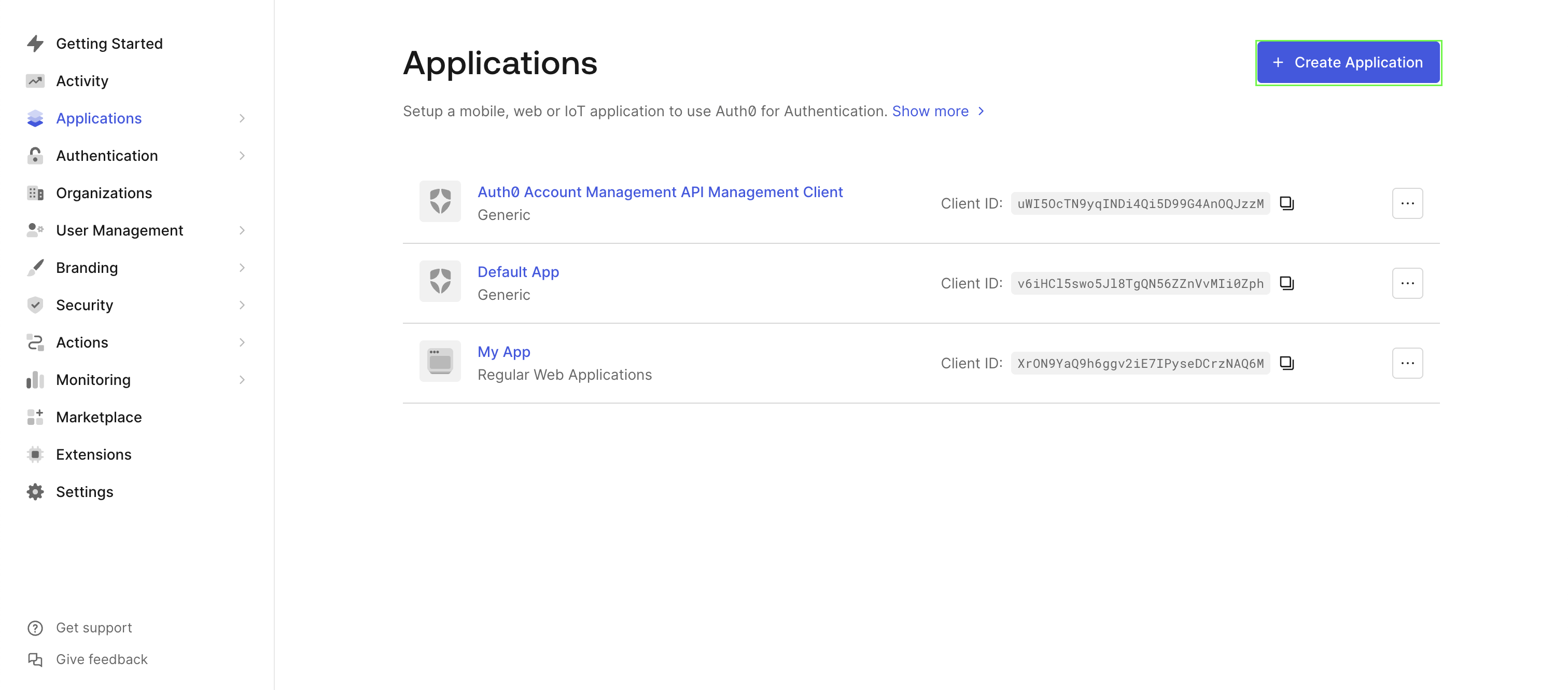 4. Add a unique name for your application and select **Machine to Machine Applications**
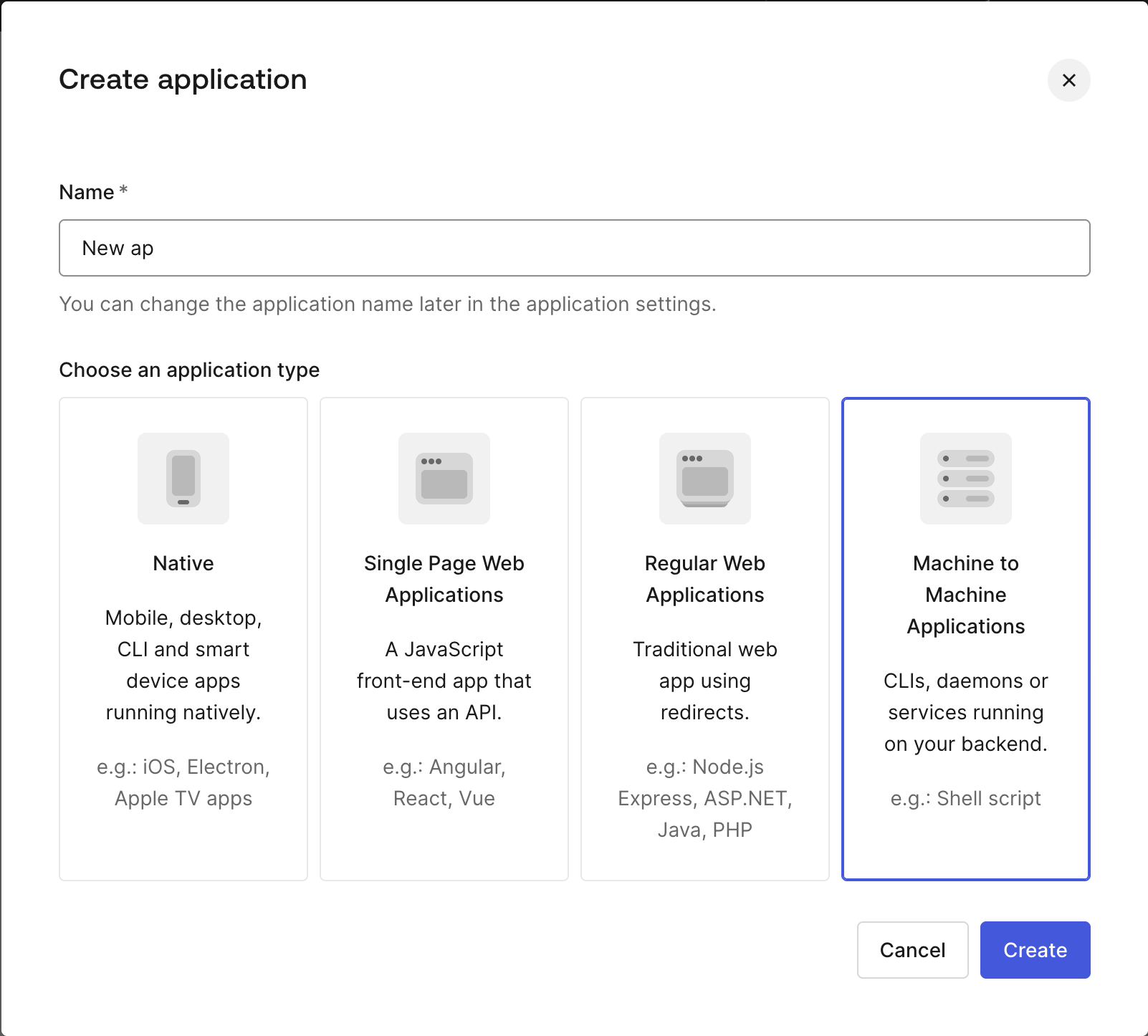 5. From the dropdown menu, choose the API you wish to authorize for invocation by your application, and select the required **Permissions**.
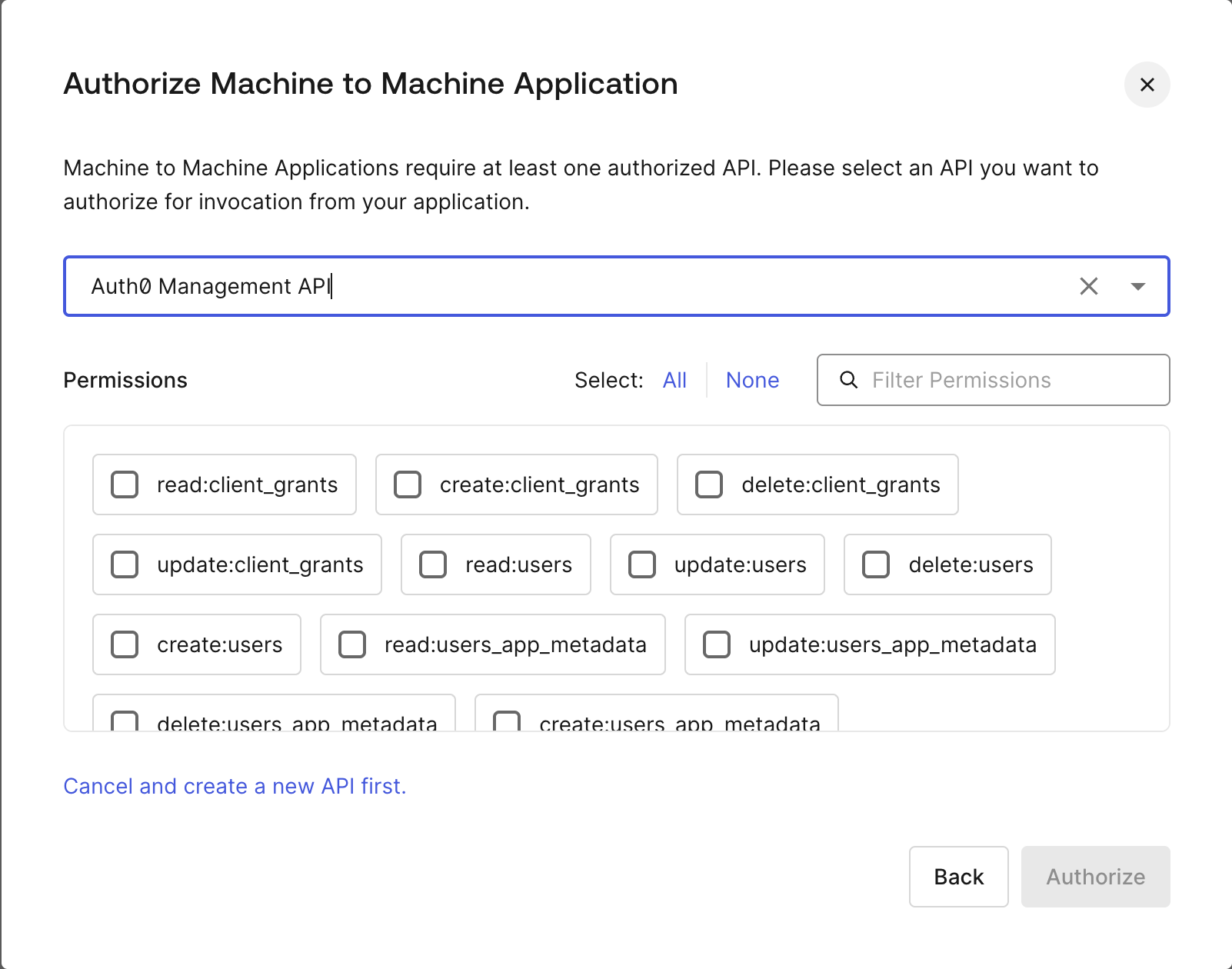 6. Click **Authorize** to create your new application.
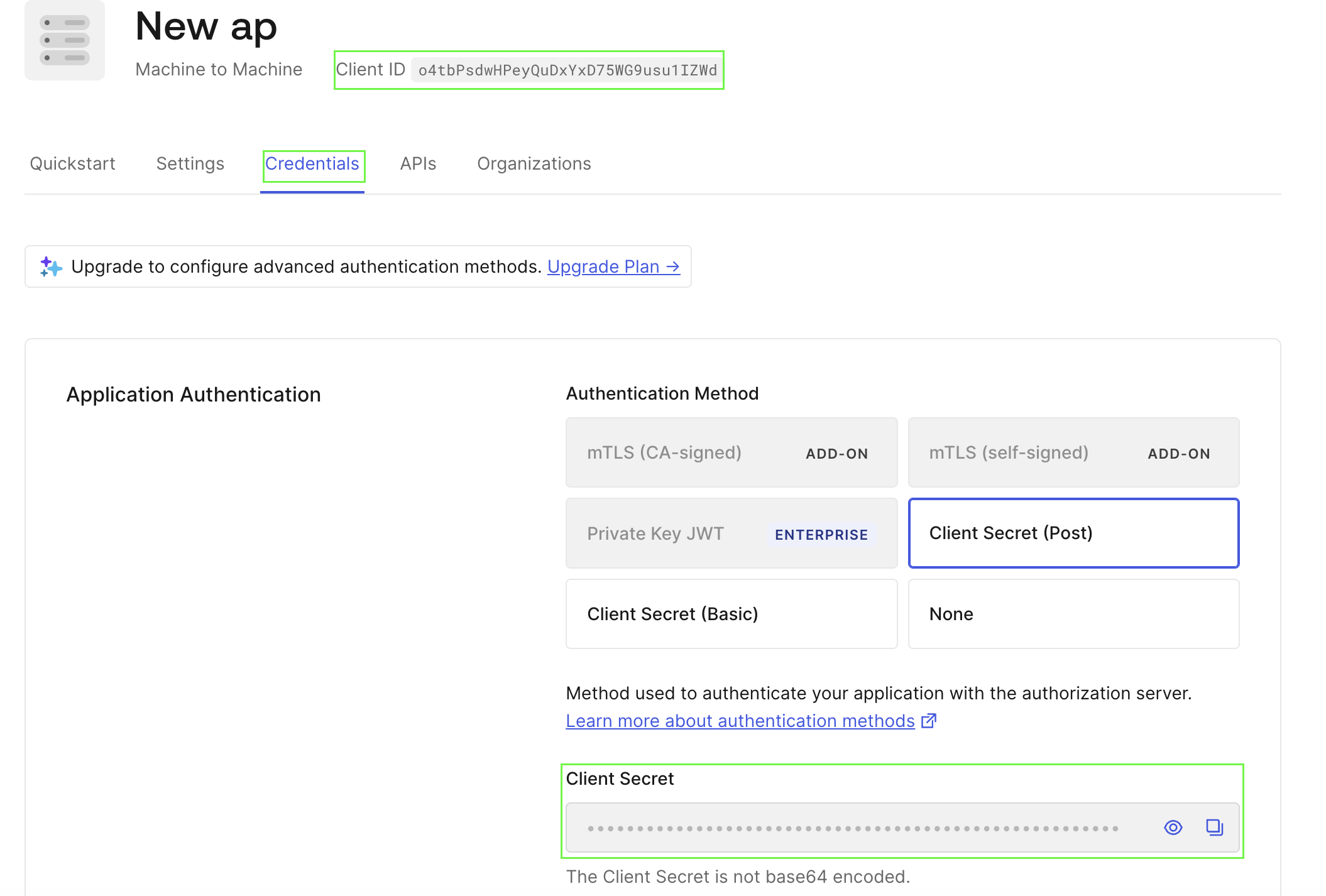
7. On the Application page, navigate to the **Credentials** section. Your **Client Secret** will be displayed here, and the **Client ID** can be found at the top of the page.
6. Click **Authorize** to create your new application.
7. On the Application page, navigate to the **Credentials** section. Your **Client Secret** will be displayed here, and the **Client ID** can be found at the top of the page.
 #### Step 2: Finding Your HostName
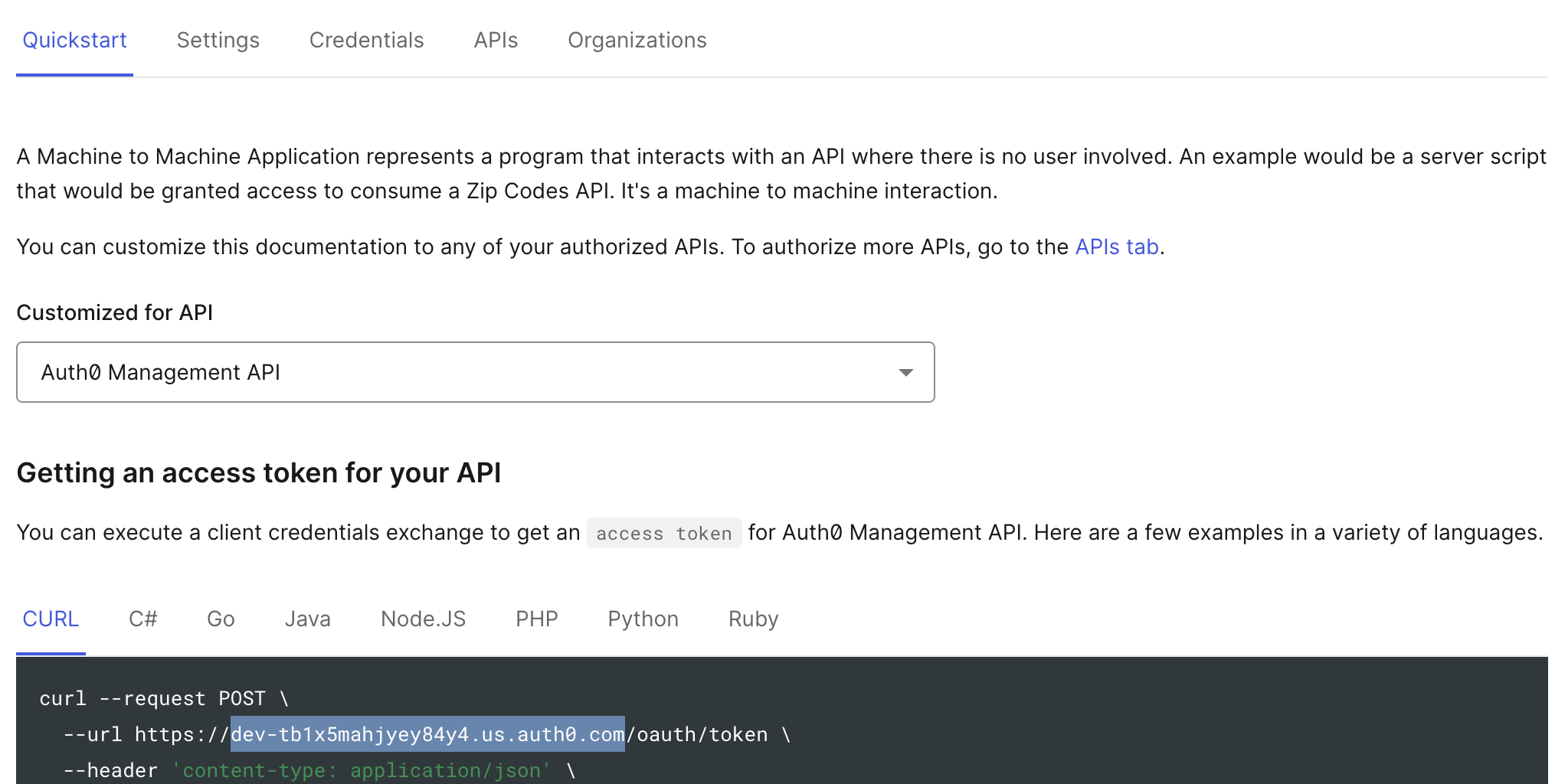
* From the **Quickstart** tab of your newly created application, Auth0 provides an example request for obtaining an access token. Your **HostName** is the text that appears after `https://` and before `/oauth/token`.
* In the example below, the HostName is `dev-tb1x5mahjyey84y4.us.auth0.com`.
#### Step 2: Finding Your HostName
* From the **Quickstart** tab of your newly created application, Auth0 provides an example request for obtaining an access token. Your **HostName** is the text that appears after `https://` and before `/oauth/token`.
* In the example below, the HostName is `dev-tb1x5mahjyey84y4.us.auth0.com`.
 #### Step 3: Finding Your Audience
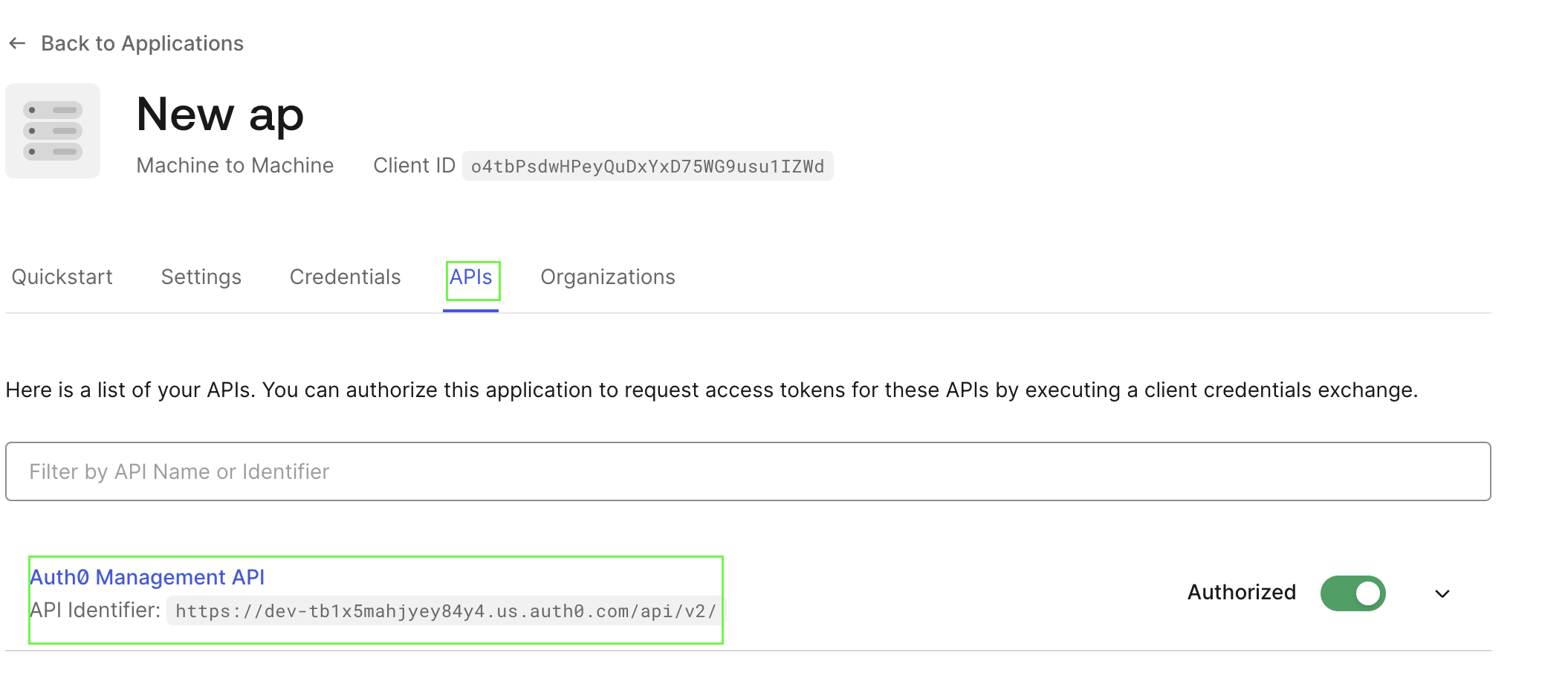
* You can find this in the **Identifier** field of your newly created application under the **APIs** tab.
#### Step 3: Finding Your Audience
* You can find this in the **Identifier** field of your newly created application under the **APIs** tab.
 #### Step 4: Finding Your Organization
* This is optional and can be obtained from the **Organizations** page of your newly created application if your tenant is configured to use **Organizations**.
#### Step 5: Enter credentials in the Connect UI
Once you have your **Client ID**, **Client Secret**,**HostName**, **Audience** and **Organization**:
1. Open the form where you need to authenticate with Auth0 (Client Credentials).
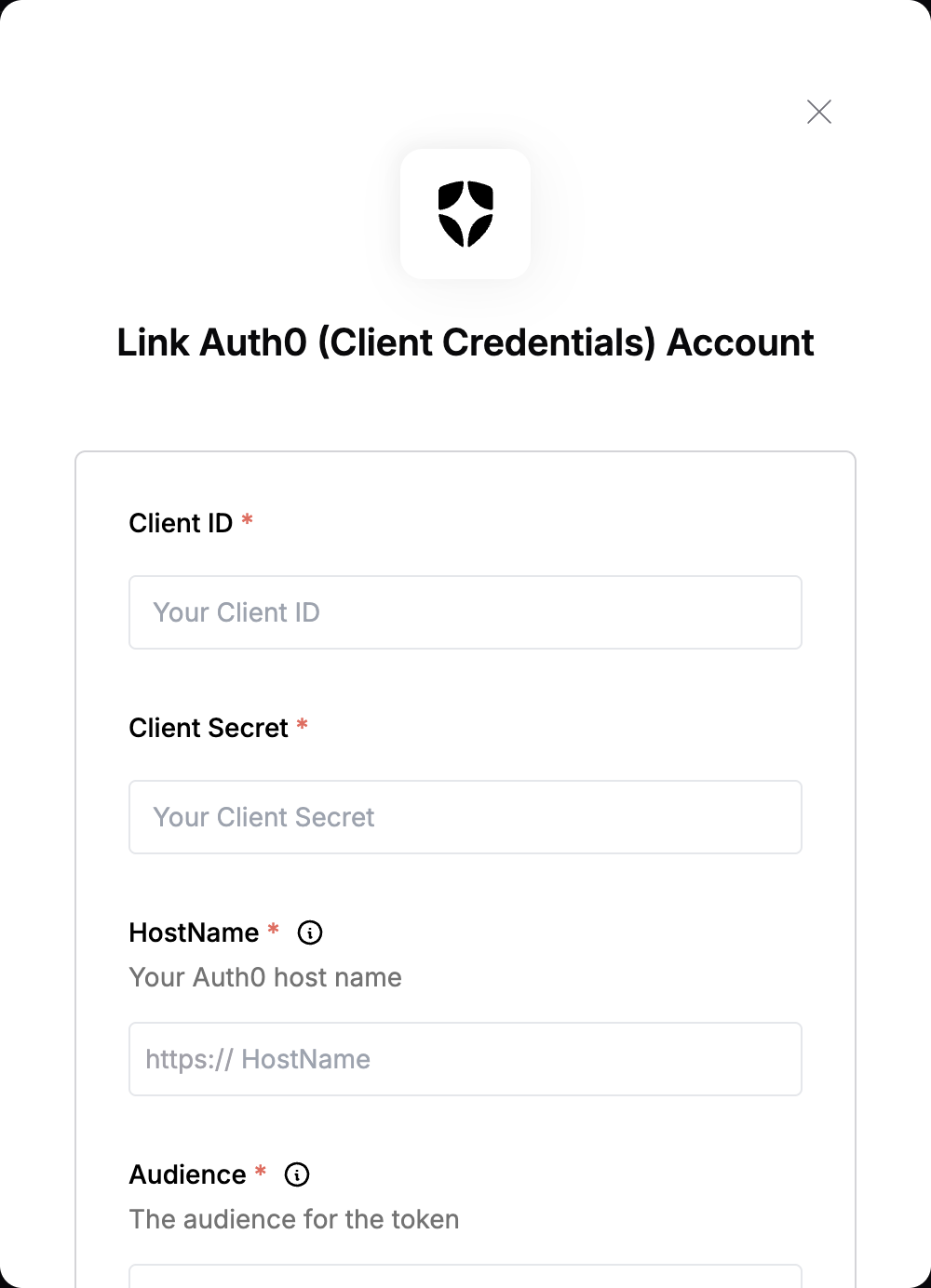
2. Enter your **Client ID**, **Client Secret**, **HostName**, **Audience** and **Organization** in their respective fields.
3. Submit the form, and you should be successfully authenticated.
#### Step 4: Finding Your Organization
* This is optional and can be obtained from the **Organizations** page of your newly created application if your tenant is configured to use **Organizations**.
#### Step 5: Enter credentials in the Connect UI
Once you have your **Client ID**, **Client Secret**,**HostName**, **Audience** and **Organization**:
1. Open the form where you need to authenticate with Auth0 (Client Credentials).
2. Enter your **Client ID**, **Client Secret**, **HostName**, **Audience** and **Organization** in their respective fields.
3. Submit the form, and you should be successfully authenticated.
 You are now connected to Auth0 (Client Credentials).