> ## Documentation Index
> Fetch the complete documentation index at: https://nango.dev/docs/llms.txt
> Use this file to discover all available pages before exploring further.
# ADP Lyric - How do I link my account?
# Overview
To authenticate with ADP Lyric, you need:
1. **Client ID** - A unique identifier for your client.
2. **Client Secret** - A confidential key used to authenticate the identity of the application (client).
3. **Client Public Certificate** - The public certificate (in PEM format) used for Mutual TLS (mTLS) authentication.
4. **Client Private Key** - The private key (in PEM format) associated with the client certificate, used for establishing a secure TLS connection.
This guide will walk you through obtaining these credentials within ADP Lyric.
### Prerequisites:
* You must have an account with ADP Lyric and access to [ADP API Central (ADP Lyric app)](https://apps.adp.com/en-US/apps/419897)
### Instructions:
#### Step 1: Finding Your Client Credentials
1. Purchase and access the ADP API Central portal.
2. Log in to your ADP account.
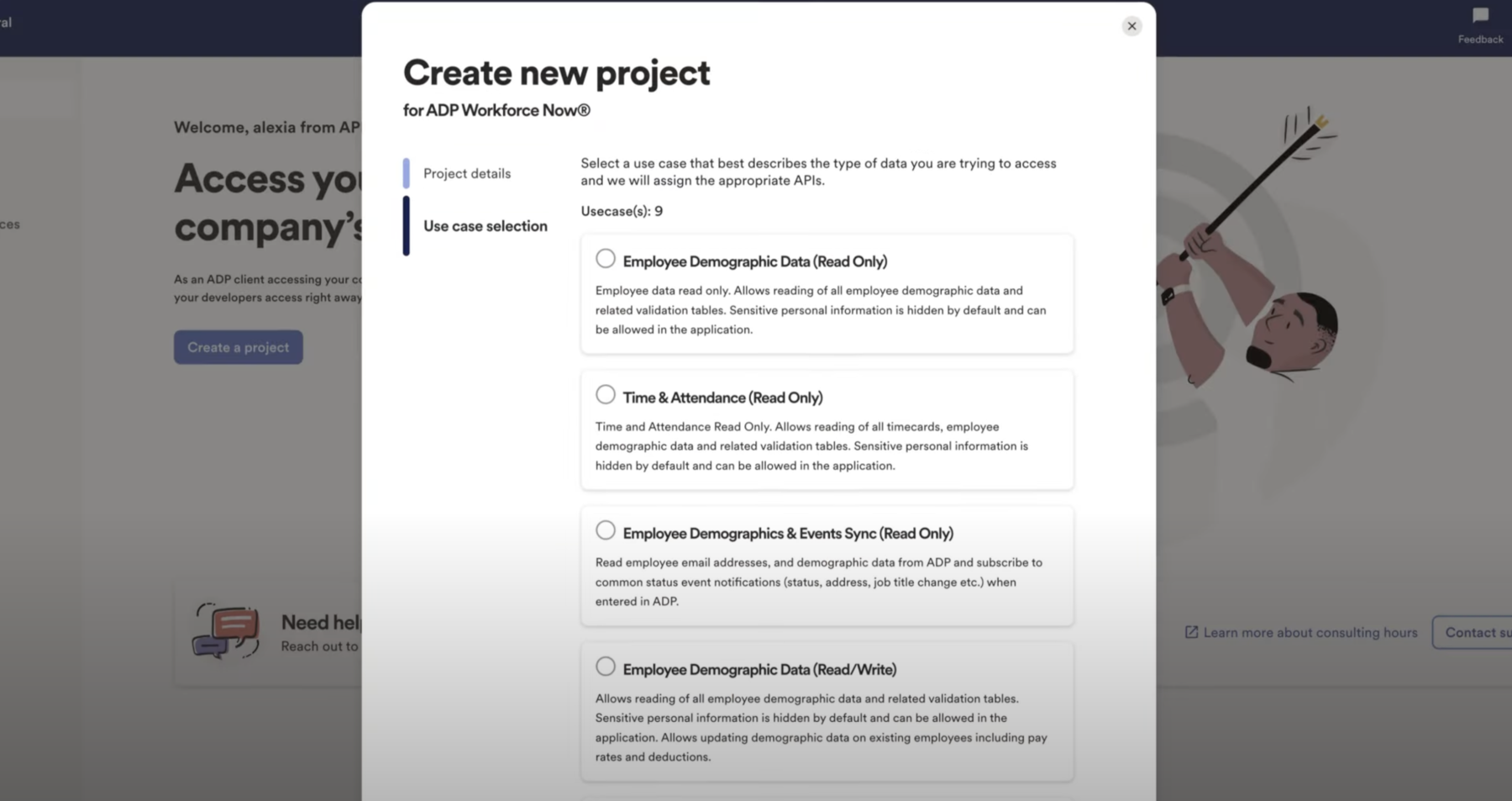
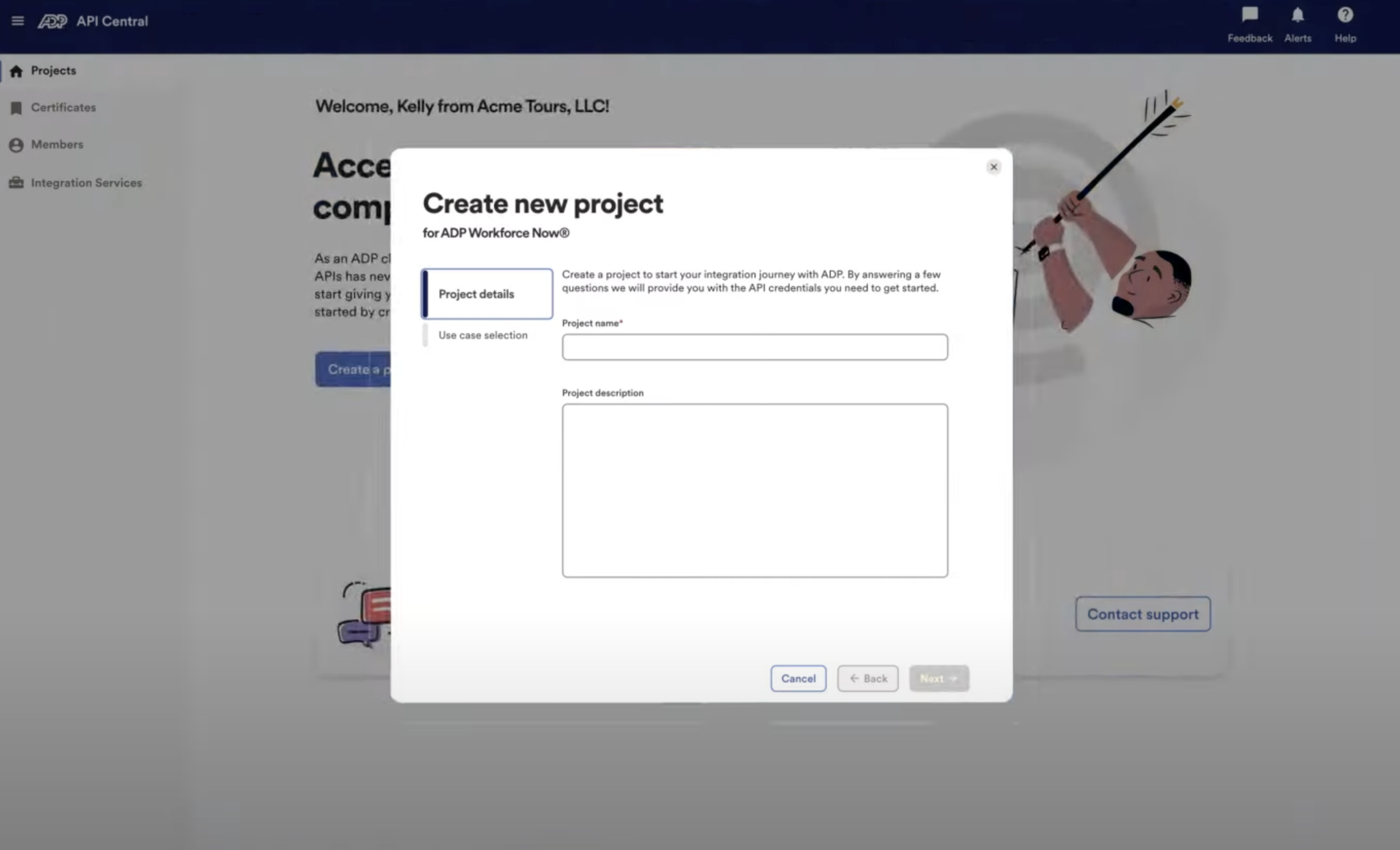
3. Create a new project and fill in all the required information.
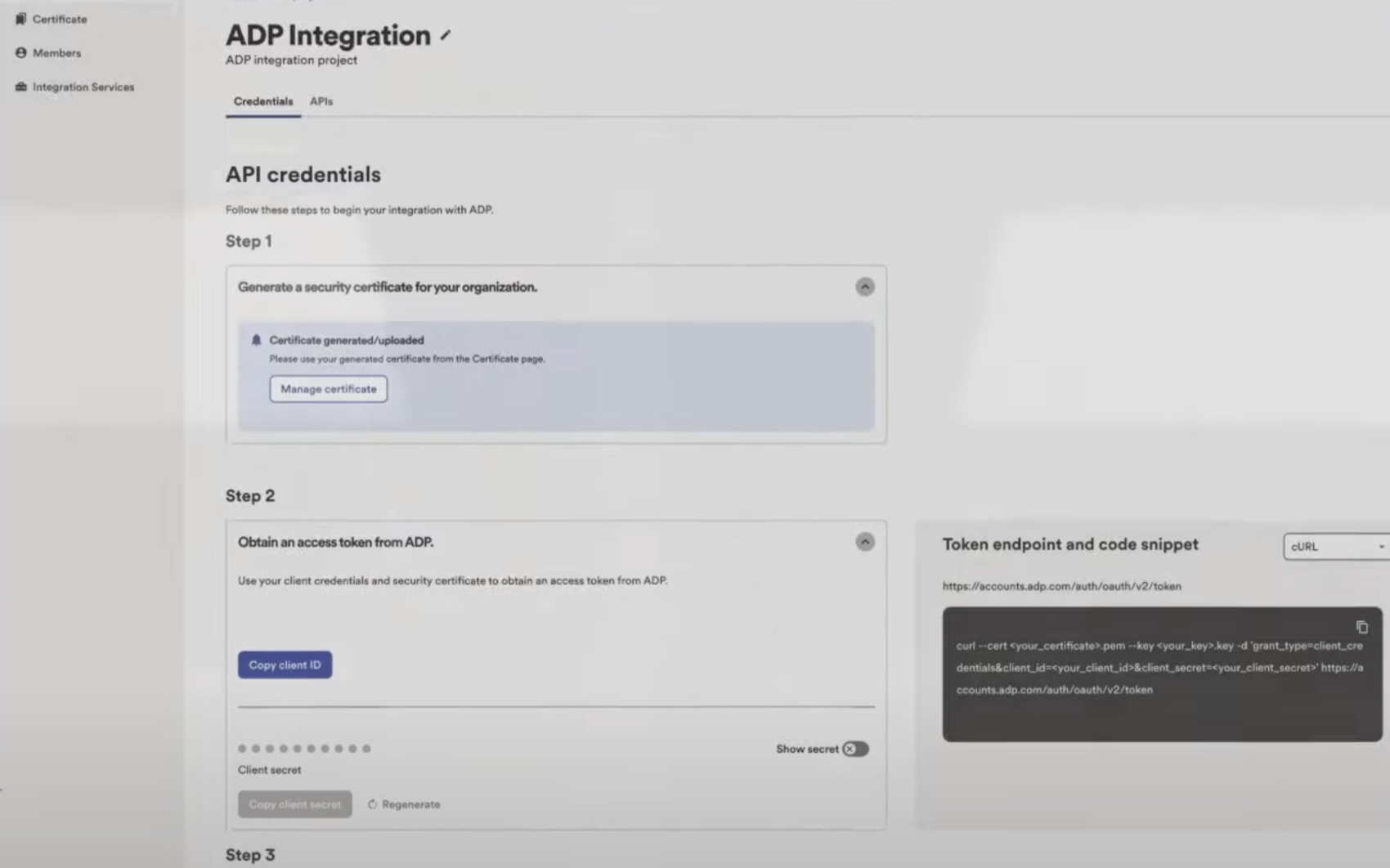
 4. After completing the registration process, navigate to the **Credentials** tab of your project to view your app’s **Client ID** and **Client Secret**.
 #### Step 2: Generating the Private Key and Certificate Signing Request
* To authenticate with ADP Lyric APIs using Mutual TLS (mTLS), you'll need to generate a **private key** and a **Certificate Signing Request (CSR)**. This allows ADP Lyric to issue a signed certificate used for secure communication.
Follow the steps below to complete this process:
1. Install OpenSSL
* **Windows**: Download and install OpenSSL Light from [http://slproweb.com/products/Win32OpenSSL.html](http://slproweb.com/products/Win32OpenSSL.html)
* **Mac**: OpenSSL is already included on macOS. You can skip to step 3 and use **Terminal**.
2. Open a Command Prompt and Navigate to OpenSSL
Open `cmd.exe` and navigate to the OpenSSL binary directory:
```bash theme={null}
# For 32-bit version
cd "C:\Program Files (x86)\OpenSSL-Win32\bin"
# For 64-bit version
cd "C:\Program Files\OpenSSL-Win64\bin"
```
3. Generate the Private Key
Run the following command to generate a 2048-bit RSA private key:
```bash theme={null}
openssl genrsa -out companyname_auth.key 2048
```
This creates a file named `companyname_auth.key`, your private key. Keep it safe and **do not share** this file.
4. Generate the Certificate Signing Request (CSR)
Using the private key, generate the CSR by running the following command:
```bash theme={null}
openssl req -new -key companyname_auth.key -out companyname_auth.csr
```
When prompted:
* Leave the **Country**, **State**, **Locality**, and **Challenge Password** fields **blank**
* Use the correct **Organization Name** that matches your ADP registration
* Set the **Common Name** as your company name followed by `MutualSSL` (e.g., `ExampleCorpMutualSSL`)
* **Avoid using special characters** in any of the fields
This generates `companyname_auth.csr`, which you'll submit to ADP.
5. Next you will need to submit the CSR to ADP. Open the **[ADP Certificate Signing Tool](https://cert-manager.com/customer/adp/device/adpwebservices/login)** (no login required)
6. Select **"Authentication and Transaction Signing"** for the certificate type
7. Paste the full contents of your `.csr` file, including the header and footer:
```
-----BEGIN CERTIFICATE REQUEST-----
...
-----END CERTIFICATE REQUEST-----
```
8. Provide your:
* Technical contact's **email address**, **name**, and a **group email** (for renewal notifications)
* **Company name**
* **ADP Lyric client ID**
9. Receive and Save the Signed Certificate
Once approved, ADP Lyric will return a signed certificate. Save it as:
```
companyname_auth.pem
```
Place this file in the same directory where you created the `.key` and `.csr`.
***
✅ Files You'll Use for Mutual TLS Authentication
For API authentication with ADP Lyric, you'll need the following two files:
* `**companyname_auth.key**` — the **Client Private Key**
* `**companyname_auth.pem**` — the **Client Public Certificate**
Make sure both files are stored securely and access is restricted to authorized systems and personnel.
#### Step 3: Enter credentials in the Connect UI
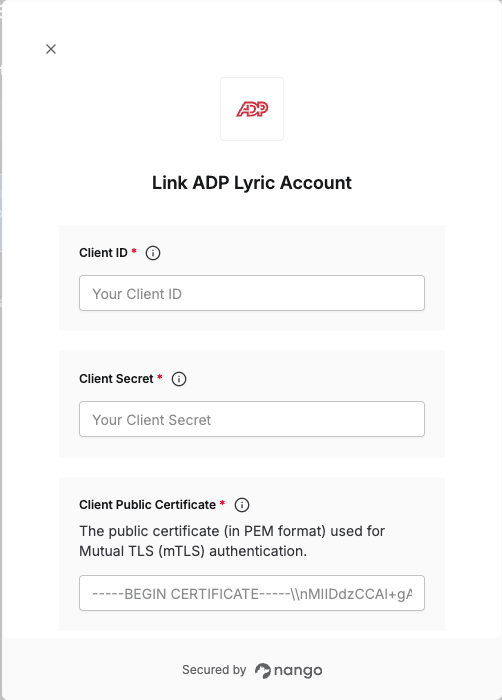
Once you have your **Client ID**, **Client Secret**, **Client Public Certificate** and **Client Private Key**:
1. Open the form where you need to authenticate with ADP Lyric.
2. Enter your credentials in their respective fields.
3. Submit the form, and you should be successfully authenticated.
#### Step 2: Generating the Private Key and Certificate Signing Request
* To authenticate with ADP Lyric APIs using Mutual TLS (mTLS), you'll need to generate a **private key** and a **Certificate Signing Request (CSR)**. This allows ADP Lyric to issue a signed certificate used for secure communication.
Follow the steps below to complete this process:
1. Install OpenSSL
* **Windows**: Download and install OpenSSL Light from [http://slproweb.com/products/Win32OpenSSL.html](http://slproweb.com/products/Win32OpenSSL.html)
* **Mac**: OpenSSL is already included on macOS. You can skip to step 3 and use **Terminal**.
2. Open a Command Prompt and Navigate to OpenSSL
Open `cmd.exe` and navigate to the OpenSSL binary directory:
```bash theme={null}
# For 32-bit version
cd "C:\Program Files (x86)\OpenSSL-Win32\bin"
# For 64-bit version
cd "C:\Program Files\OpenSSL-Win64\bin"
```
3. Generate the Private Key
Run the following command to generate a 2048-bit RSA private key:
```bash theme={null}
openssl genrsa -out companyname_auth.key 2048
```
This creates a file named `companyname_auth.key`, your private key. Keep it safe and **do not share** this file.
4. Generate the Certificate Signing Request (CSR)
Using the private key, generate the CSR by running the following command:
```bash theme={null}
openssl req -new -key companyname_auth.key -out companyname_auth.csr
```
When prompted:
* Leave the **Country**, **State**, **Locality**, and **Challenge Password** fields **blank**
* Use the correct **Organization Name** that matches your ADP registration
* Set the **Common Name** as your company name followed by `MutualSSL` (e.g., `ExampleCorpMutualSSL`)
* **Avoid using special characters** in any of the fields
This generates `companyname_auth.csr`, which you'll submit to ADP.
5. Next you will need to submit the CSR to ADP. Open the **[ADP Certificate Signing Tool](https://cert-manager.com/customer/adp/device/adpwebservices/login)** (no login required)
6. Select **"Authentication and Transaction Signing"** for the certificate type
7. Paste the full contents of your `.csr` file, including the header and footer:
```
-----BEGIN CERTIFICATE REQUEST-----
...
-----END CERTIFICATE REQUEST-----
```
8. Provide your:
* Technical contact's **email address**, **name**, and a **group email** (for renewal notifications)
* **Company name**
* **ADP Lyric client ID**
9. Receive and Save the Signed Certificate
Once approved, ADP Lyric will return a signed certificate. Save it as:
```
companyname_auth.pem
```
Place this file in the same directory where you created the `.key` and `.csr`.
***
✅ Files You'll Use for Mutual TLS Authentication
For API authentication with ADP Lyric, you'll need the following two files:
* `**companyname_auth.key**` — the **Client Private Key**
* `**companyname_auth.pem**` — the **Client Public Certificate**
Make sure both files are stored securely and access is restricted to authorized systems and personnel.
#### Step 3: Enter credentials in the Connect UI
Once you have your **Client ID**, **Client Secret**, **Client Public Certificate** and **Client Private Key**:
1. Open the form where you need to authenticate with ADP Lyric.
2. Enter your credentials in their respective fields.
3. Submit the form, and you should be successfully authenticated.
 You are now connected to ADP Lyric.