> ## Documentation Index
> Fetch the complete documentation index at: https://nango.dev/docs/llms.txt
> Use this file to discover all available pages before exploring further.
# Addepar (Basic Auth) - How do I link my account?
# Overview
To authenticate with Addepar (Basic Auth), you will need:
1. **Firm ID** – A unique identifier for your Addepar firm, found in the API URL.
2. **Firm Domain** – The subdomain of your Addepar instance (e.g., "myfirm" from myfirm.addepar.com).
3. **API Key** – A unique identifier assigned to your API user.
4. **API Secret** – A secret string paired with the API key, required to authenticate API requests.
This guide will walk you through finding your **Firm ID** and **Firm Domain**, enabling API access for your user, and generating an **API key and API secret** within Addepar.
### Prerequisites
* You must have an Addepar account with **Firm Administrator** permissions.
* Your user must be granted **API Access** permissions.
### Instructions
#### Step 1: Finding Your Firm Domain
1. Log in to your Addepar instance.
2. Look at the URL in your browser's address bar. Your **Firm Domain** is the text before `.addepar.com` and after `https://`.
* For example, if your URL is `https://myfirm.addepar.com`, then your **Firm Domain** is `myfirm`.
#### Step 2: Finding Your Firm ID
1. Open the Analysis Tool in Addepar.
2. Click Export above the table and select **Generate API URL**.
3. Look at the generated URL. Your **Firm ID** is the value of `addepar_firm=` in the query string.
* Example: [https://terrabella.addepar.com/api/v1?...addepar\_firm=12345](https://terrabella.addepar.com/api/v1?...addepar_firm=12345) → Firm ID is `12345`.
#### Step 3: Assigning API Permissions to the User
1. Log in to your Addepar tenant account.
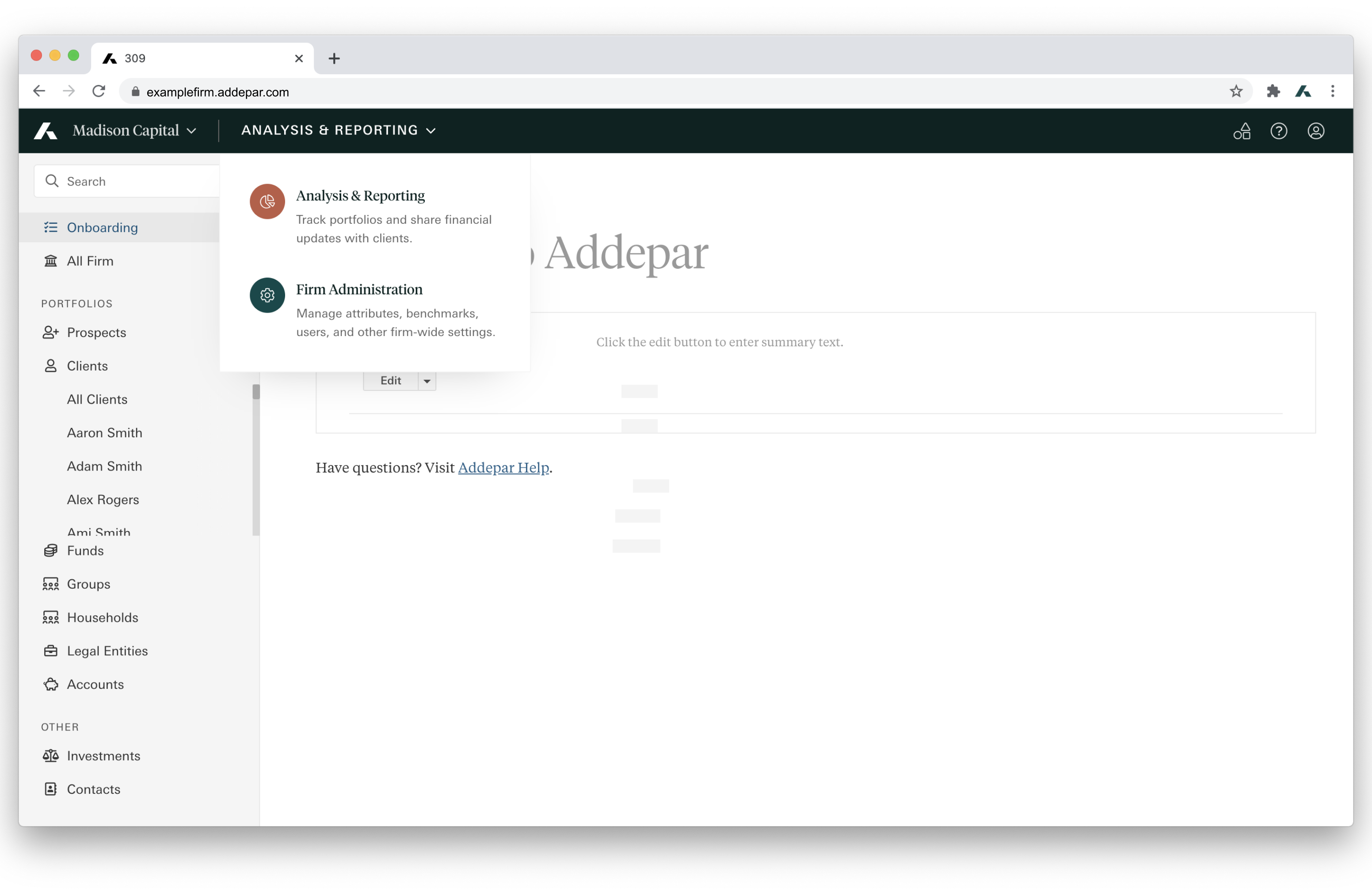
2. From the global navigation bar, go to **Firm Administration**.
3. In the left navigation menu, click **Users** under **User Permissions**.
4. Find the user who will own the API key.
5. Open the **Permissions** tab for that user.
6. Scroll down to **API Access** and select **Create, edit, and delete**.
This ensures the user is authorized to generate and use API credentials.
#### Step 4: Generating an API Key and Secret
1. In **Firm Administration**, select **Firm Settings**.
2. In the left navigation menu, click **API Access Key**.
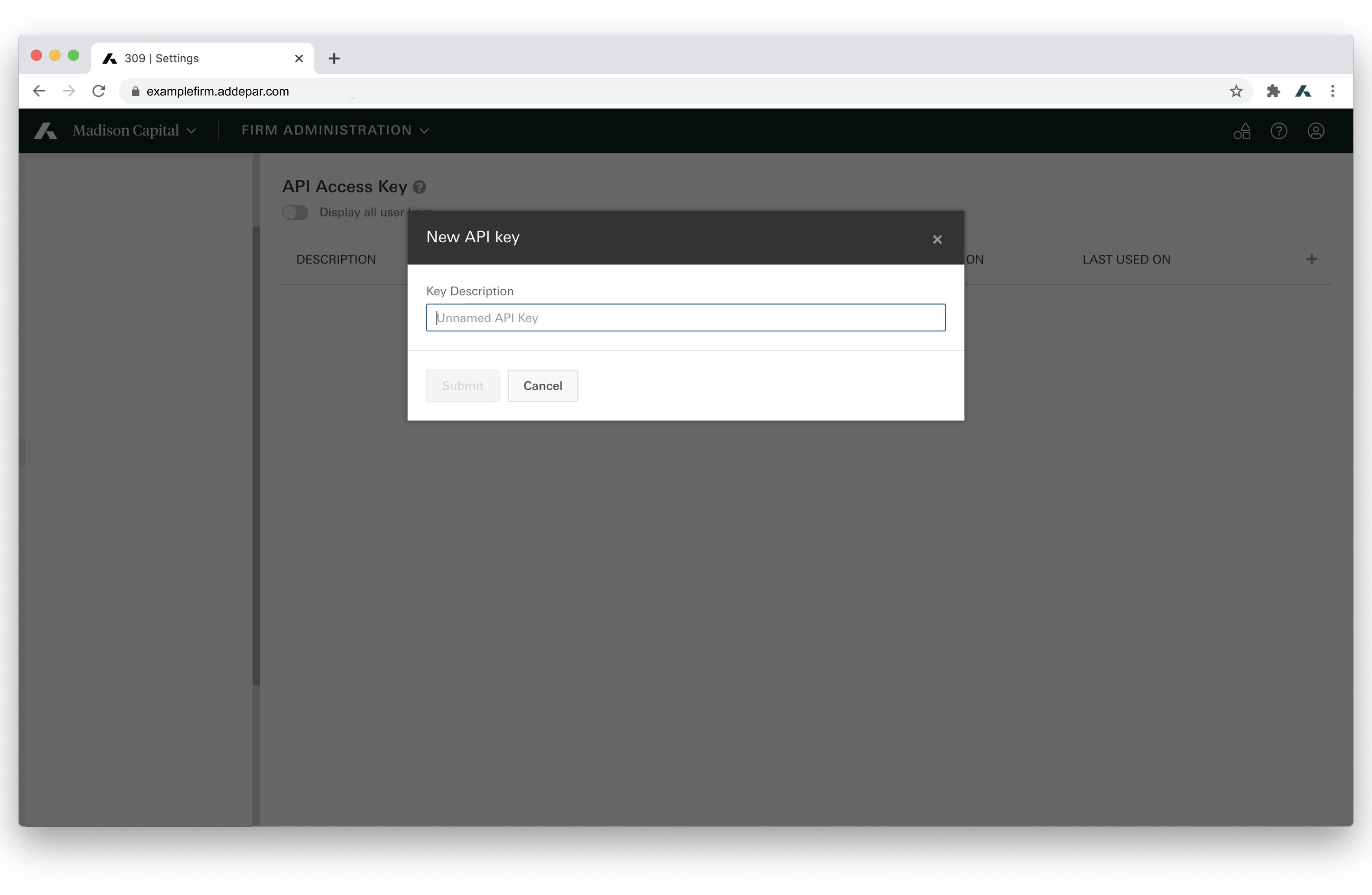
 3. Click the plus button in the top-right corner of the table header.
4. Enter a description for the key.
5. Click **Submit**.
3. Click the plus button in the top-right corner of the table header.
4. Enter a description for the key.
5. Click **Submit**.
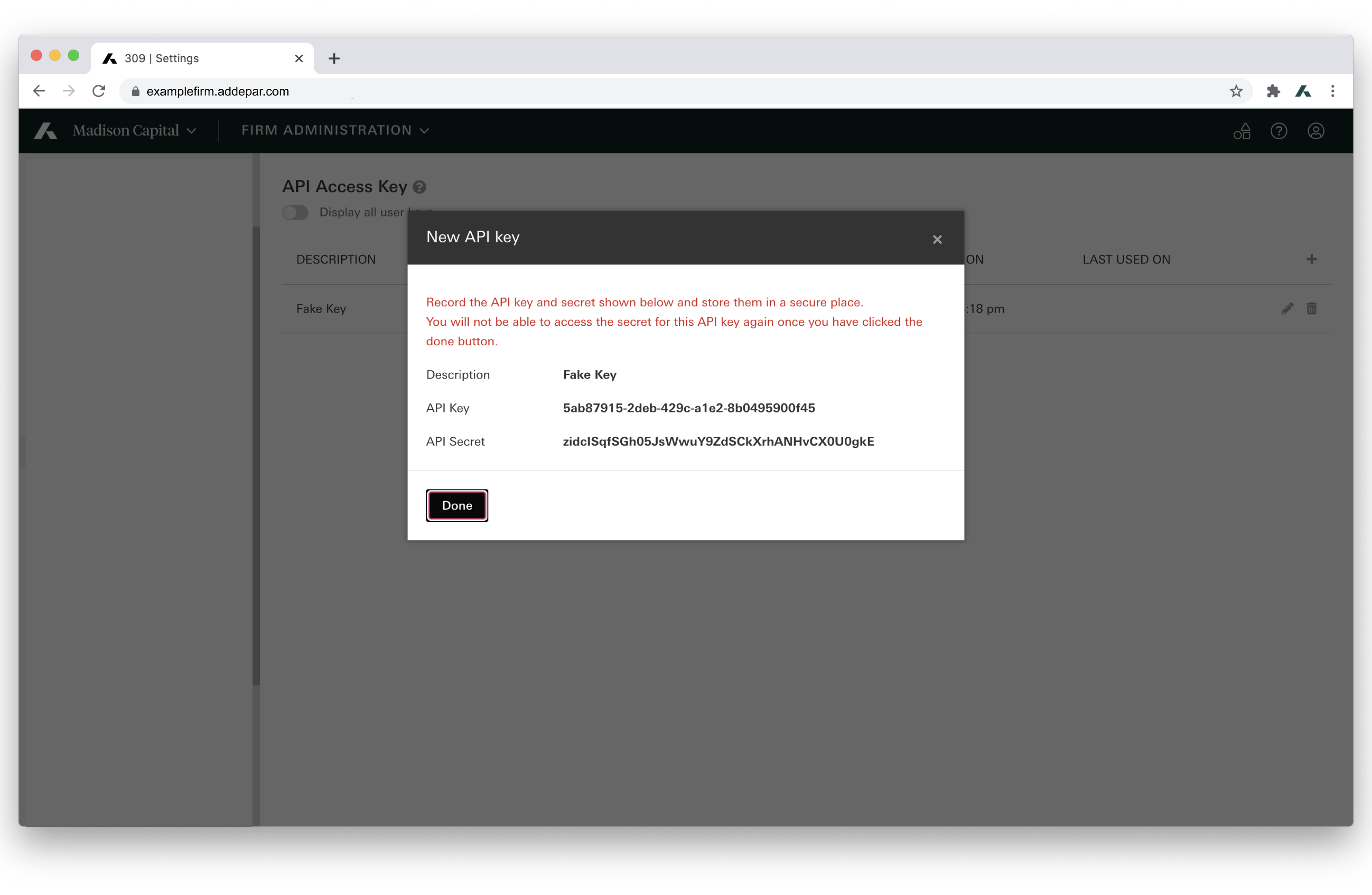
 6. Copy and securely store both the **API Key** and **API Secret**.
 #### Step 5: Enter credentials in the Connect UI
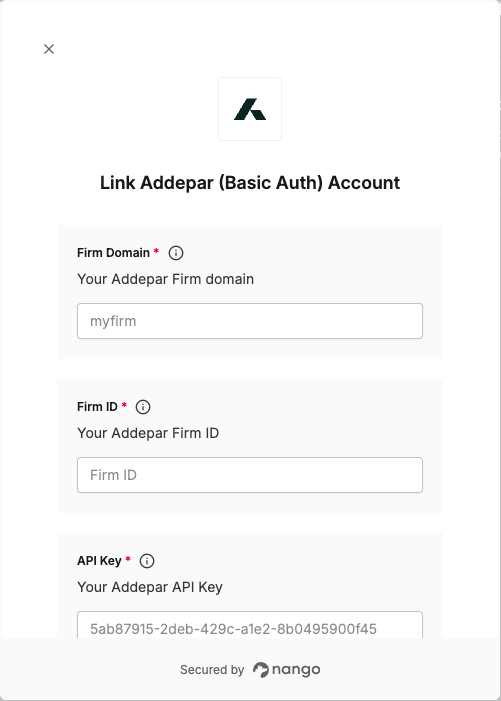
Once you have your **API Key**, **API Secret**, **Firm Domain**, and **Firm ID**:
1. Open the form where you need to authenticate with Addepar (Basic Auth).
2. Enter your credentials in their respective fields.
3. Submit the form, and you should be successfully authenticated.
#### Step 5: Enter credentials in the Connect UI
Once you have your **API Key**, **API Secret**, **Firm Domain**, and **Firm ID**:
1. Open the form where you need to authenticate with Addepar (Basic Auth).
2. Enter your credentials in their respective fields.
3. Submit the form, and you should be successfully authenticated.
 You are now connected to Addepar (Basic Auth).