> ## Documentation Index
> Fetch the complete documentation index at: https://nango.dev/docs/llms.txt
> Use this file to discover all available pages before exploring further.
# Zendesk (API token) - How do I link my account?
# Overview
To authenticate with Zendesk using an API token, you need:
1. **Subdomain** — the unique name of your Zendesk account
2. **Email address** — your Zendesk account email (e.g. `user@example.com`)
3. **API token** — a token generated in your Zendesk Admin Center
This guide will walk you through obtaining these credentials.
### Prerequisites:
* You must have a Zendesk account with API token access enabled.
### Instructions:
#### Step 1: Finding your subdomain
Your subdomain is the part of your Zendesk URL between `https://` and `.zendesk.com`. For example, if your Zendesk URL is `https://acme.zendesk.com`, your subdomain is `acme`.
#### Step 2: Enable API token access
If API token access is already enabled, skip to Step 3 below.
1. Log in to your Zendesk Admin Center.
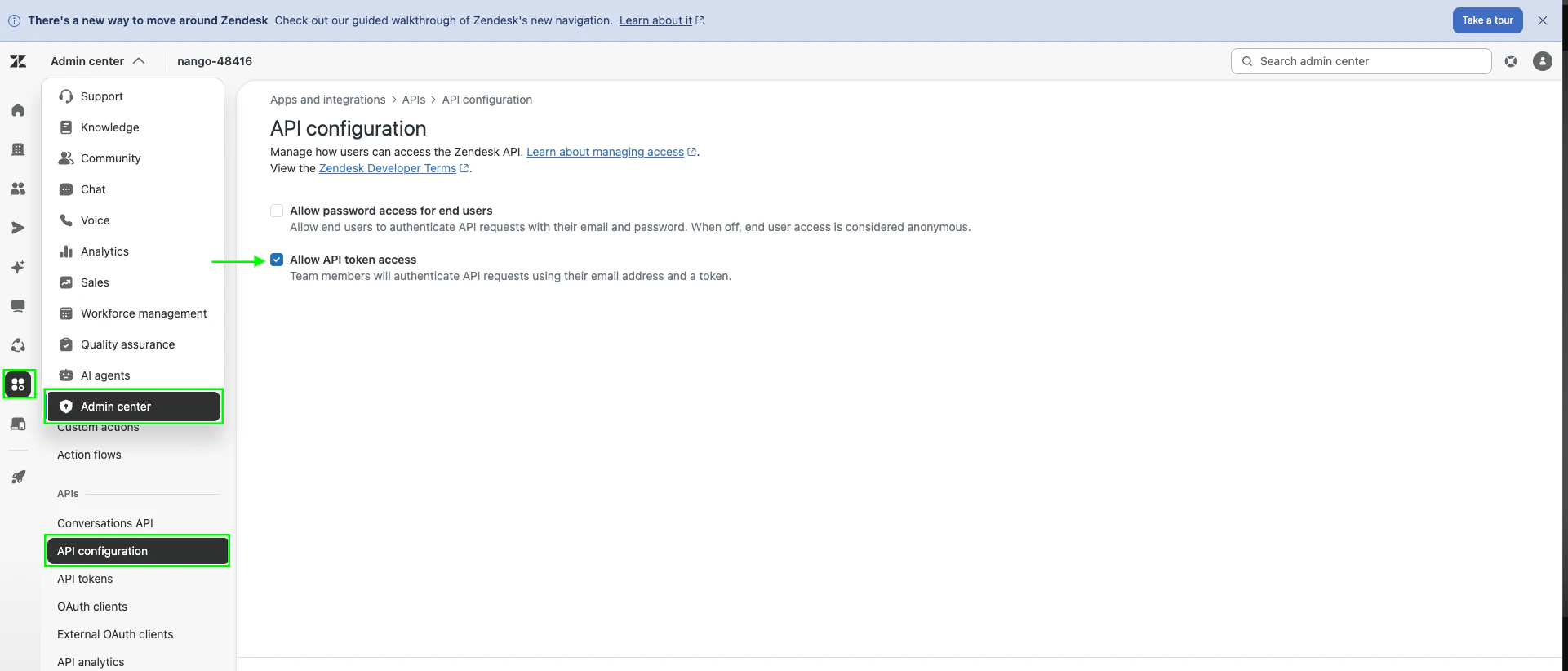
2. Navigate to **Apps and integrations** > **APIs** > **API configuration**.
3. Toggle **Allow API token access** to enabled.
 #### Step 3: Generate an API token
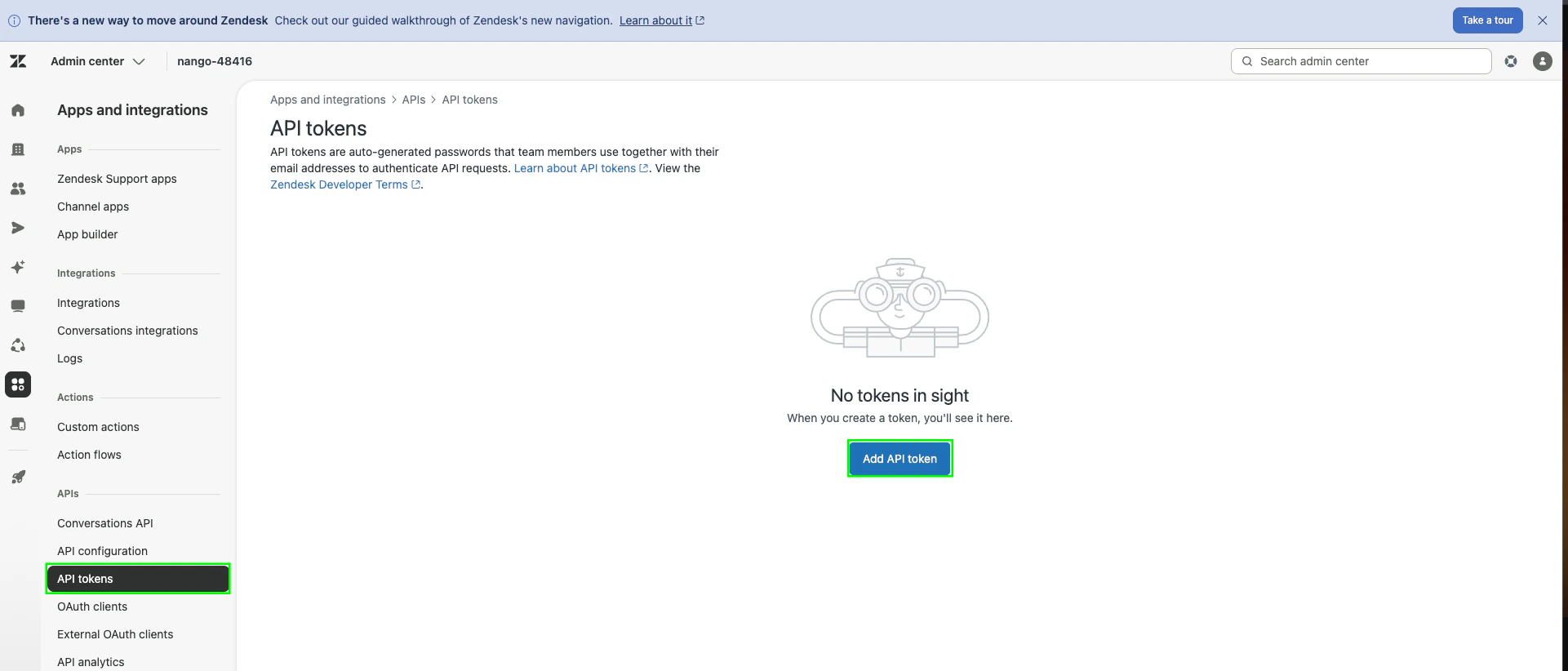
1. On the same **Apps and integrations** settings page, navigate to API Tokens, click **Add API token**.
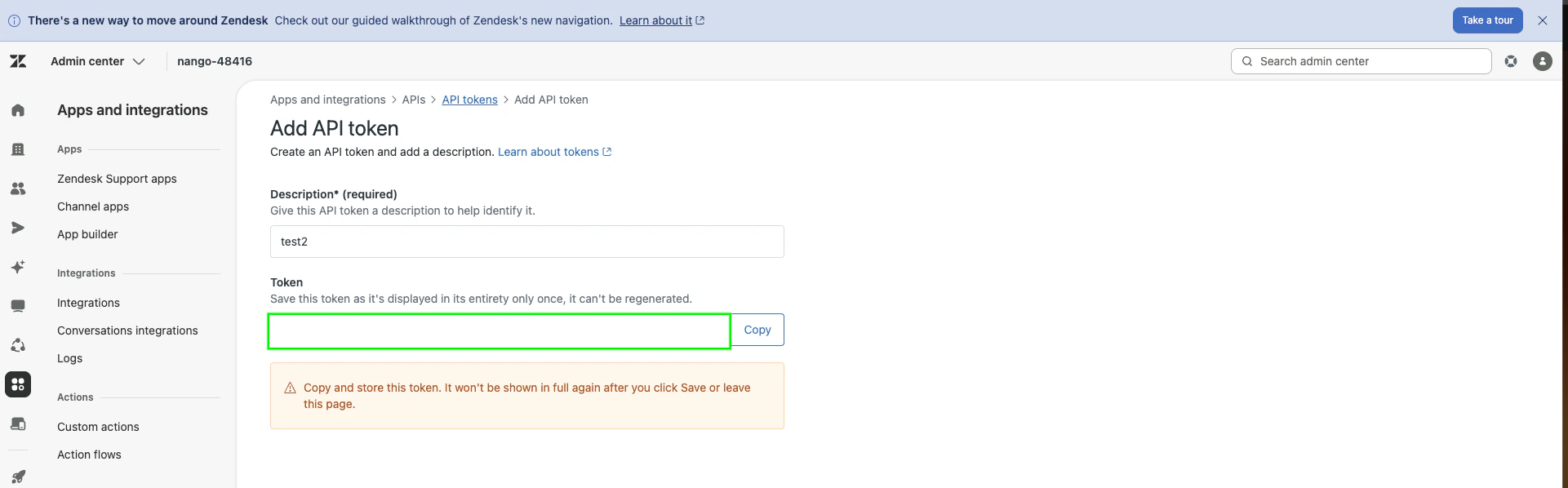
2. Give the token a description and click **Save**.
3. Copy the token — it will only be shown once.
#### Step 3: Generate an API token
1. On the same **Apps and integrations** settings page, navigate to API Tokens, click **Add API token**.
2. Give the token a description and click **Save**.
3. Copy the token — it will only be shown once.
 Note your **email address** (e.g. `user@example.com`) — the one you use to log in to Zendesk. You'll need it together with the API token to authenticate.
#### Step 4: Enter credentials in the Connect UI
Once you have your credentials:
1. Open the form where you need to authenticate with Zendesk.
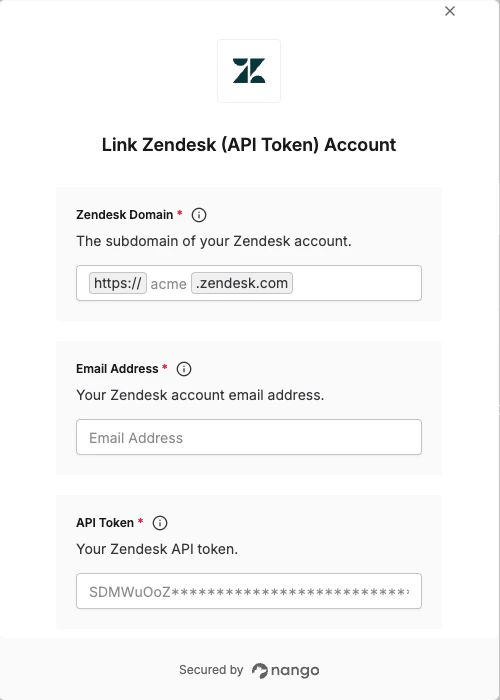
2. Enter your **Subdomain**, **Email Address**, and **API Token** in the respective fields.
3. Submit the form — you should be successfully authenticated.
Note your **email address** (e.g. `user@example.com`) — the one you use to log in to Zendesk. You'll need it together with the API token to authenticate.
#### Step 4: Enter credentials in the Connect UI
Once you have your credentials:
1. Open the form where you need to authenticate with Zendesk.
2. Enter your **Subdomain**, **Email Address**, and **API Token** in the respective fields.
3. Submit the form — you should be successfully authenticated.
 You are now connected to Zendesk.