> ## Documentation Index
> Fetch the complete documentation index at: https://nango.dev/docs/llms.txt
> Use this file to discover all available pages before exploring further.
# WorkRamp - How do I link my account?
# Overview
To authenticate with WorkRamp, you need:
1. **Hostname** - The WorkRamp hostname for your organization's region.
2. **API Key** - A key that grants secure access to the WorkRamp API, enabling authorized applications to interact with WorkRamp resources and services.
This guide will walk you through selecting your hostname and generating your **API Key** in WorkRamp.
### Prerequisites
* An active WorkRamp account with administrator access.
### Instructions
#### Step 1: Selecting your hostname
* If your organization is on WorkRamp's standard (US) infrastructure, use `app.workramp.com`.
* If your organization is an EU customer, use `app.eu.workramp.com` instead.
#### Step 2: Generating your API key
1. Log in to WorkRamp as an administrator, go to the **Integrations** page, and click the [API](https://workramp.app.workramp.com/admin/integrations/access-token) tab.
2. Generate a new key and choose the admin user it should be associated with.
API keys don't have their own separate permission or scope model — a key simply inherits the full permissions of the admin user it's associated with, and actions taken with the key are attributed to that user. If the owning user is deactivated (e.g. they leave the company), the key stops working. To avoid this, consider creating a dedicated service account (an admin account not tied to a specific person, e.g. "Automation Account") to own your API keys instead.
#### Step 3: Enter credentials in the Connect UI
Once you have your **Hostname** and **API Key**:
1. Open the form where you need to authenticate with WorkRamp.
2. Select your **Hostname**.
3. Enter your **API Key** in the field provided.
4. Submit the form, and you should be successfully authenticated.
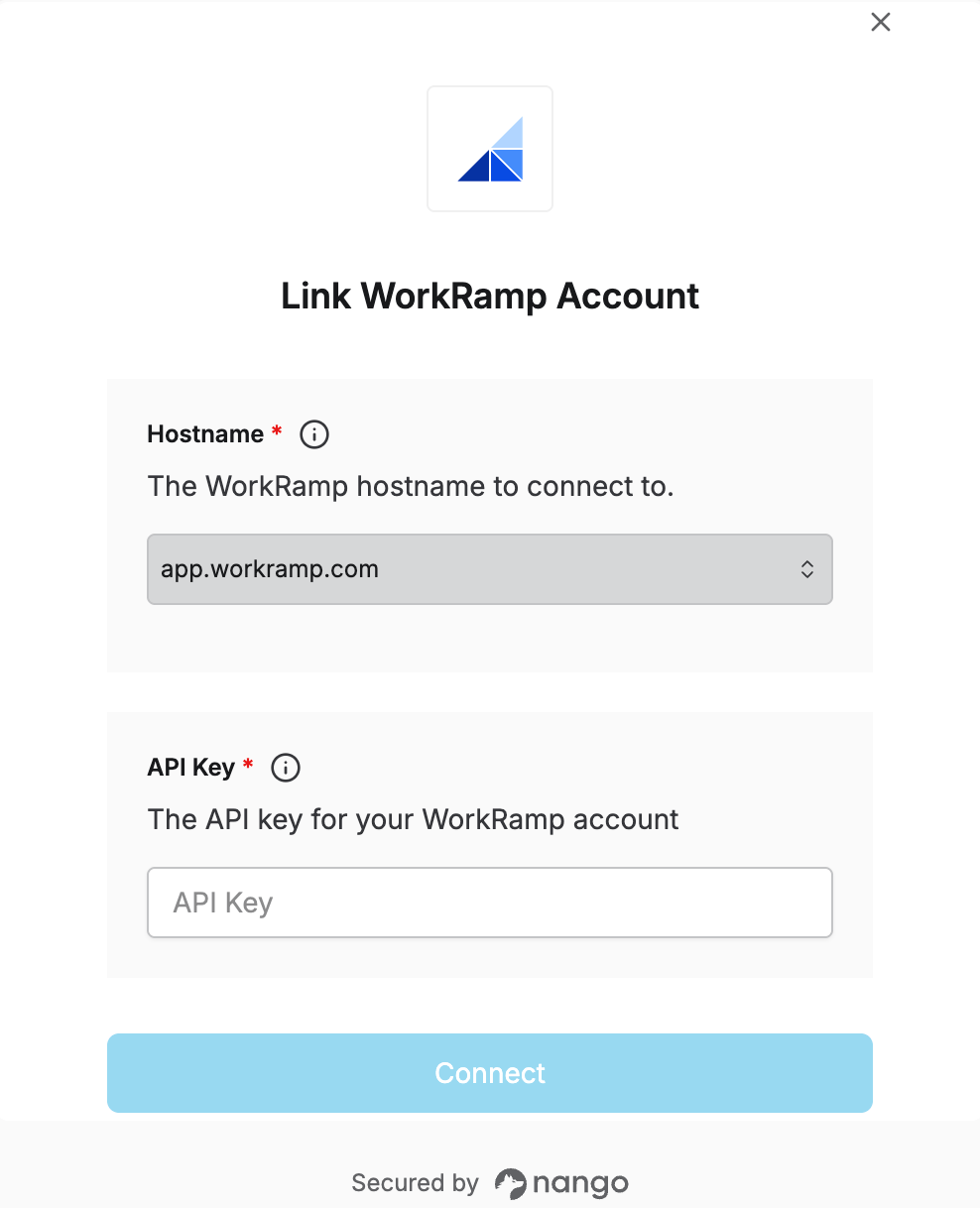 You are now connected to WorkRamp.