> ## Documentation Index
> Fetch the complete documentation index at: https://nango.dev/docs/llms.txt
> Use this file to discover all available pages before exploring further.
# Workday (OAuth) - How do I link my account?
# Overview
To authenticate with Workday (OAuth), you need:
1. **Authorization Domain** - The domain used to authorize your Workday account.
2. **Token Domain** - The domain used to obtain the token for your Workday account, which also serves as the base URL for REST API requests.
3. **Tenant** - The unique identifier for your Workday instance, often included in the homepage URL.
This guide will walk you through obtaining these connection configuration values within Workday.
### Prerequisites:
* You must have an account with Workday with administrative access.
### Instructions:
#### Step 1: Finding your Authorization Domain
1. Log in to your Workday instance.
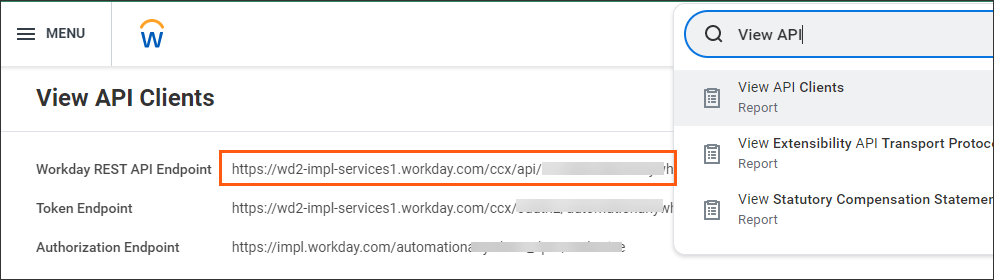
2. In your Workday homepage, go to the search bar and type **View API Clients** then select it.
3. Look for the **Authorization Endpoint** field.
4. The **Authorization Domain** is everything after `https://` and before `yourtenant`.
* Example: If the endpoint is `https://impl.workday.com/yourtenant_abc/authorize`, your **Authorization Domain** is `impl.workday.com`.
 #### Step 2: Finding your Token Domain
1. In the same page, you can locate your **Token Domain** within the **Token Endpoint** field.
2. The **Token Domain** is everything after `https://` and before `ccx`.
* Example: If the endpoint is ` https://wd2-impl-services1.workday.com/ccx/oauth2/yourtenant_abc/token`, your **Token Domain** is `wd2-impl-services1.workday.com`.
#### Step 3: Finding your Tenant
1. In the same **Token Endpoint** field from the **View API Clients** report, the **Tenant** is the final part of the URL after `/oauth2/` and before `/token`.
* Example: If the endpoint is `https://wd2-impl-services1.workday.com/ccx/oauth2/yourtenant_abc/token`, your **Tenant** is `yourtenant_abc`.
#### Step 4: Enter credentials in the Connect UI
Once you have your **Authorization Domain**, **Token Domain** and **Tenant**:
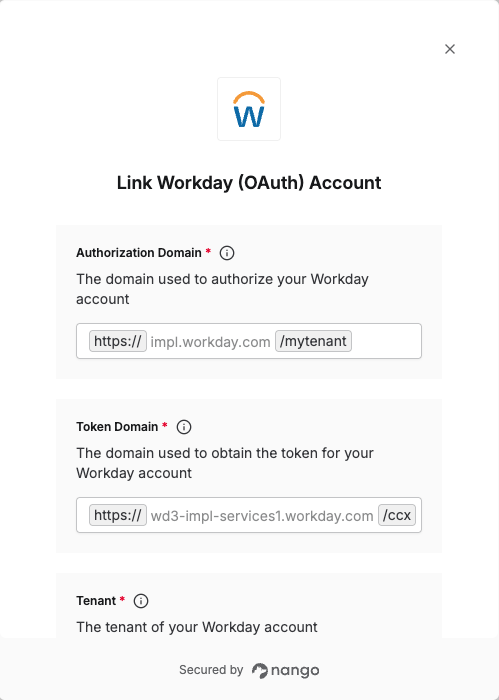
1. Open the form where you need to authenticate with Workday (OAuth).
2. Enter your **Authorization Domain**, **Token Domain** and **Tenant** in their designated fields.
3. Submit the form, and you should be successfully authenticated.
#### Step 2: Finding your Token Domain
1. In the same page, you can locate your **Token Domain** within the **Token Endpoint** field.
2. The **Token Domain** is everything after `https://` and before `ccx`.
* Example: If the endpoint is ` https://wd2-impl-services1.workday.com/ccx/oauth2/yourtenant_abc/token`, your **Token Domain** is `wd2-impl-services1.workday.com`.
#### Step 3: Finding your Tenant
1. In the same **Token Endpoint** field from the **View API Clients** report, the **Tenant** is the final part of the URL after `/oauth2/` and before `/token`.
* Example: If the endpoint is `https://wd2-impl-services1.workday.com/ccx/oauth2/yourtenant_abc/token`, your **Tenant** is `yourtenant_abc`.
#### Step 4: Enter credentials in the Connect UI
Once you have your **Authorization Domain**, **Token Domain** and **Tenant**:
1. Open the form where you need to authenticate with Workday (OAuth).
2. Enter your **Authorization Domain**, **Token Domain** and **Tenant** in their designated fields.
3. Submit the form, and you should be successfully authenticated.
 You are now connected to Workday (OAuth).