> ## Documentation Index
> Fetch the complete documentation index at: https://nango.dev/docs/llms.txt
> Use this file to discover all available pages before exploring further.
# Workday Adaptive Planning - How do I link my account?
# Overview
To authenticate with Workday Adaptive Planning, you need:
1. **Host** - The hostname of your Workday instance (used for API calls and token requests).
2. **Tenant** - The unique identifier for your Workday tenant.
3. **Client ID** - From your registered Workday API client (with JWT Bearer Grant and Adaptive Planning scope).
4. **ISU Username** - The Integration System User username (beginning with `PublicAPIISU_`).
5. **Private Key** - The RSA private key (PKCS8 PEM format) used to sign the JWT — generated alongside the certificate registered in your Workday API client.
This guide walks you through generating a certificate and private key, registering an API client, and finding each of these values.
### Prerequisites
* A Workday administrator account.
* OpenSSL installed on your machine.
### Instructions
#### Step 1: Generate a certificate and private key
JWT authentication requires an X.509 certificate and the private key used to sign it.
**You will create two files:**
* **privatekey\_workday.key** – Your private key (PKCS8 format). Use this as the **Private Key** in Nango.
* **cert\_workday.pem** – The self-signed certificate. Upload this to Workday as an X.509 Public Key.
**Steps:**
1. Open a terminal and change to a directory where you want to store the files (e.g. `mkdir ~/cert && cd ~/cert`).
2. Generate a self-signed certificate and RSA key:
```
openssl req -x509 -newkey rsa:2048 -keyout key.pem -out cert_workday.pem -days 3650
```
This creates `cert_workday.pem` (the certificate) and `key.pem` (an encrypted RSA key).
3. Convert the RSA key to PKCS8 format:
```
openssl pkcs8 -topk8 -inform PEM -outform PEM -nocrypt -in key.pem -out privatekey_workday.key
```
This creates `privatekey_workday.key` — the private key you will enter in Nango.
#### Step 2: Register the certificate in Workday
1. Log in to Workday using your administrator account.
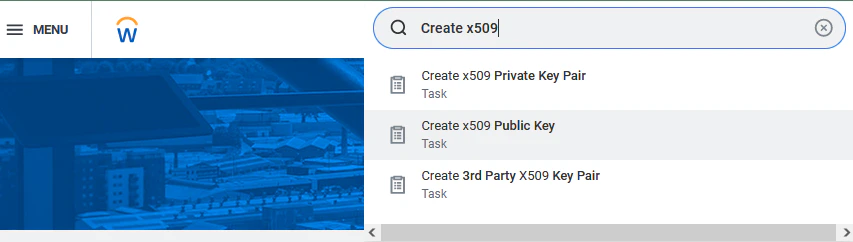
2. In the search bar, type **Create x509 Public Key** and select it from the results.
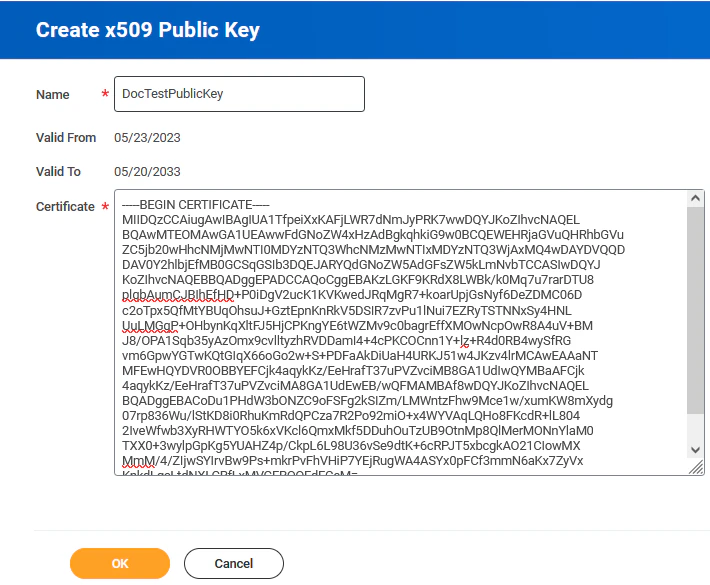
 3. Enter a name for the key in the **Name** field.
4. Copy the full contents of `cert_workday.pem` (including the `-----BEGIN CERTIFICATE-----` and `-----END CERTIFICATE-----` lines) and paste it into the **Certificate** field.
5. Click **OK**.
3. Enter a name for the key in the **Name** field.
4. Copy the full contents of `cert_workday.pem` (including the `-----BEGIN CERTIFICATE-----` and `-----END CERTIFICATE-----` lines) and paste it into the **Certificate** field.
5. Click **OK**.
 #### Step 3: Register an API client
1. In the search bar, type **Register API Client** and select it from the results.
#### Step 3: Register an API client
1. In the search bar, type **Register API Client** and select it from the results.
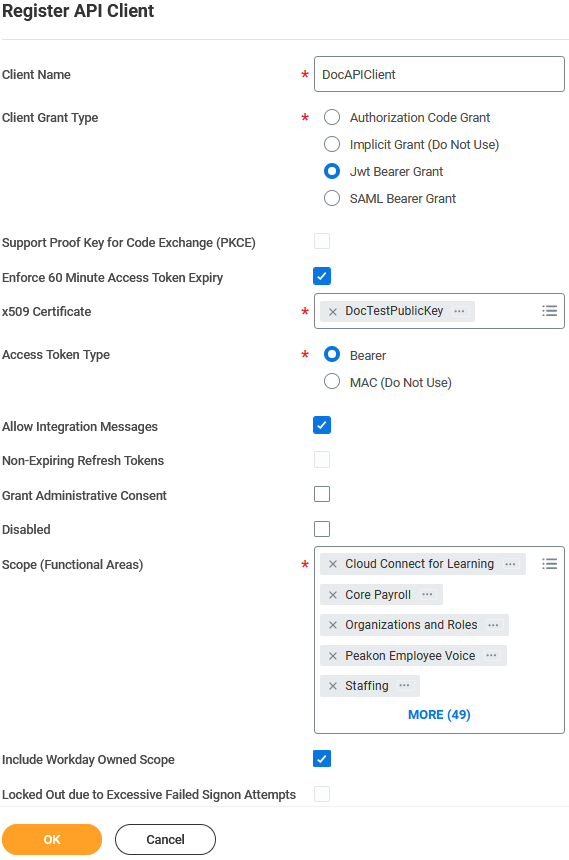 2. Fill in all required fields (marked with red stars).
3. Under grant type, select **JWT Bearer Grant**.
4. Under token type, select **Bearer**.
5. Under scope, select **Adaptive Planning**.
6. Associate the X.509 public key you created in Step 2 with this API client.
7. Click **OK**.
2. Fill in all required fields (marked with red stars).
3. Under grant type, select **JWT Bearer Grant**.
4. Under token type, select **Bearer**.
5. Under scope, select **Adaptive Planning**.
6. Associate the X.509 public key you created in Step 2 with this API client.
7. Click **OK**.
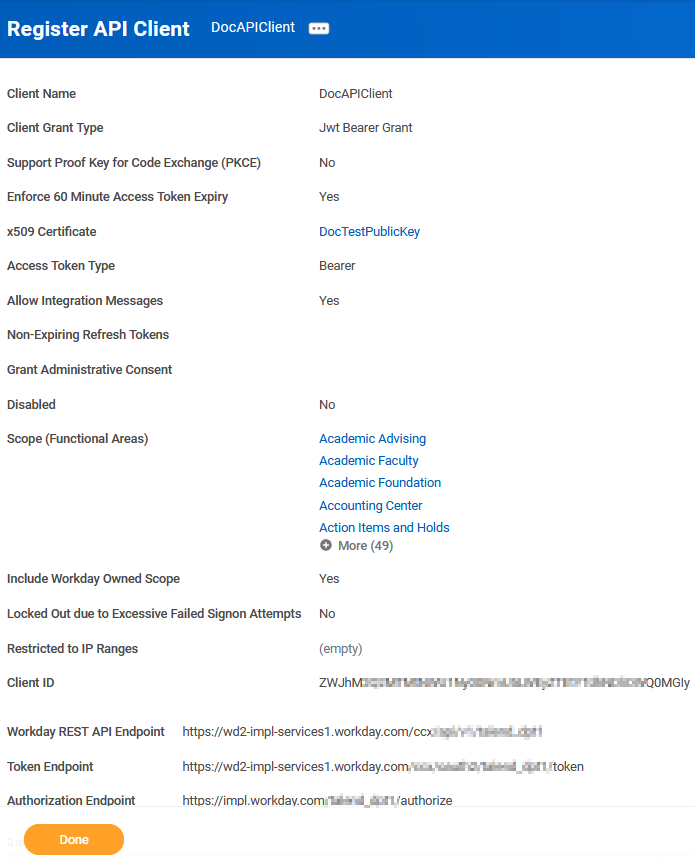 8. On the confirmation page, copy and save the following values for later:
* **Client ID**
* **Token Endpoint** (used to extract your Host and Tenant — see Step 5)
#### Step 4: Assign your ISU to a security group
1. In the search bar, type **Assign Users to User-Based Security Group** and select it.
2. Click in the **User-Based Security Group** field and select the appropriate security group for Adaptive Planning.
3. Add your Integration System User (ISU) to the group.
8. On the confirmation page, copy and save the following values for later:
* **Client ID**
* **Token Endpoint** (used to extract your Host and Tenant — see Step 5)
#### Step 4: Assign your ISU to a security group
1. In the search bar, type **Assign Users to User-Based Security Group** and select it.
2. Click in the **User-Based Security Group** field and select the appropriate security group for Adaptive Planning.
3. Add your Integration System User (ISU) to the group.
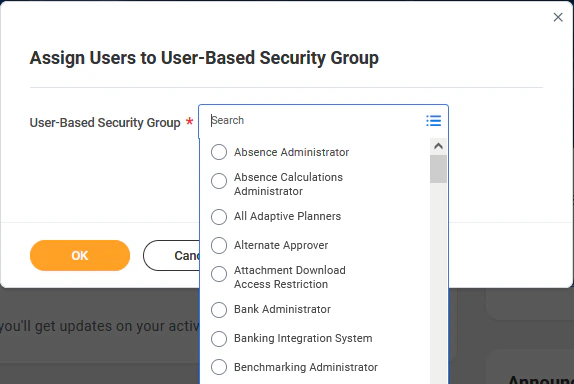 4. Click **OK**. Repeat for any additional security groups as needed.
#### Step 5: Find your Host and Tenant
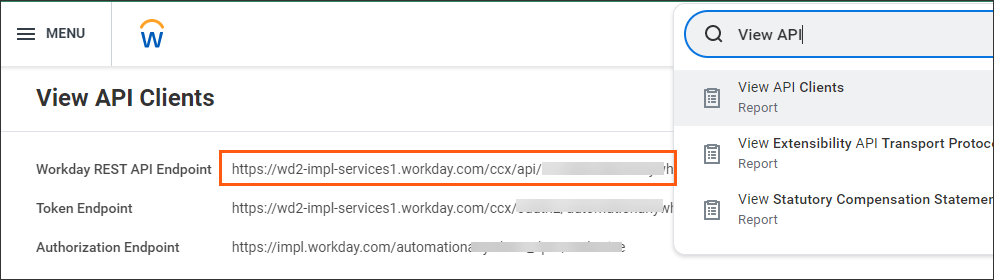
Look at the **Token Endpoint** you saved in Step 3. It follows this format:
```
https://{host}/ccx/oauth2/{tenant}/token
```
* **Host**: the segment after `https://` and before `/ccx` (e.g. `wd3-impl-services1.workday.com`)
* **Tenant**: the segment after `/oauth2/` and before `/token` (e.g. `mytenant_abc`)
4. Click **OK**. Repeat for any additional security groups as needed.
#### Step 5: Find your Host and Tenant
Look at the **Token Endpoint** you saved in Step 3. It follows this format:
```
https://{host}/ccx/oauth2/{tenant}/token
```
* **Host**: the segment after `https://` and before `/ccx` (e.g. `wd3-impl-services1.workday.com`)
* **Tenant**: the segment after `/oauth2/` and before `/token` (e.g. `mytenant_abc`)
 #### Step 6: Find your ISU Username
1. In Workday, search for **Integration System Users**.
2. The ISU username used for Adaptive Planning starts with `PublicAPIISU_`.
3. You can also verify this in **Adaptive Planning** under the users list — the ISU should appear there with the same `PublicAPIISU_` prefix.
#### Step 7: Enter credentials in the Connect UI
Once you have all five values:
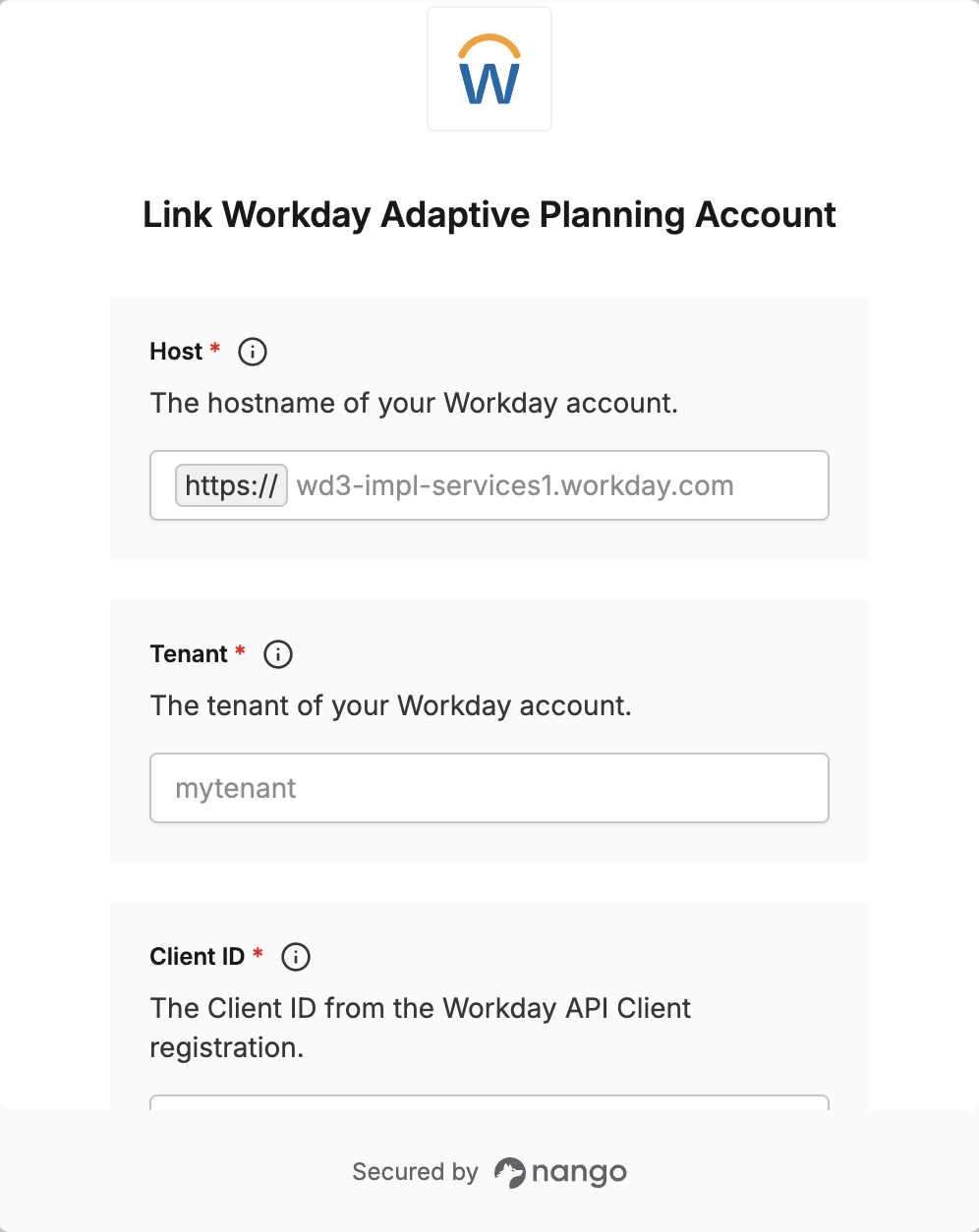
1. Open the form where you need to authenticate with Workday Adaptive Planning.
2. Enter your **Host**, **Tenant**, **Client ID**, **ISU Username**, and **Private Key** in their designated fields.
3. Submit the form, and you should be successfully authenticated.
#### Step 6: Find your ISU Username
1. In Workday, search for **Integration System Users**.
2. The ISU username used for Adaptive Planning starts with `PublicAPIISU_`.
3. You can also verify this in **Adaptive Planning** under the users list — the ISU should appear there with the same `PublicAPIISU_` prefix.
#### Step 7: Enter credentials in the Connect UI
Once you have all five values:
1. Open the form where you need to authenticate with Workday Adaptive Planning.
2. Enter your **Host**, **Tenant**, **Client ID**, **ISU Username**, and **Private Key** in their designated fields.
3. Submit the form, and you should be successfully authenticated.
 You are now connected to Workday Adaptive Planning.