> ## Documentation Index
> Fetch the complete documentation index at: https://nango.dev/docs/llms.txt
> Use this file to discover all available pages before exploring further.
# Transporeon Appointment Scheduling - How do I link my account?
# Overview
To authenticate with the Transporeon Appointment Scheduling API, you need:
1. **Client ID** - Issued by the Trimble team, in the format `username@companyId`.
2. **Client Secret** - Issued alongside your Client ID.
Access to this API is restricted. You must contact the Trimble team to request credentials before you can connect.
### Instructions:
#### Step 1: Obtaining Your Client Credentials
1. Contact the Trimble team to request access to the Appointment Scheduling API.
2. Trimble provisions a **Client ID** (in the format `username@companyId`, where `username` uniquely identifies your API client and `companyId` identifies the carrier within the Trimble ecosystem) and a **Client Secret**.
Store your Client Secret securely.
#### Step 2: Enter credentials in the Connect UI
Once you have your **Client ID** and **Client Secret**:
1. Open the form where you need to authenticate with Transporeon.
2. Enter your **Client ID** in its designated field.
3. Enter your **Client Secret** in its designated field.
4. Submit the form, and you should be successfully authenticated.
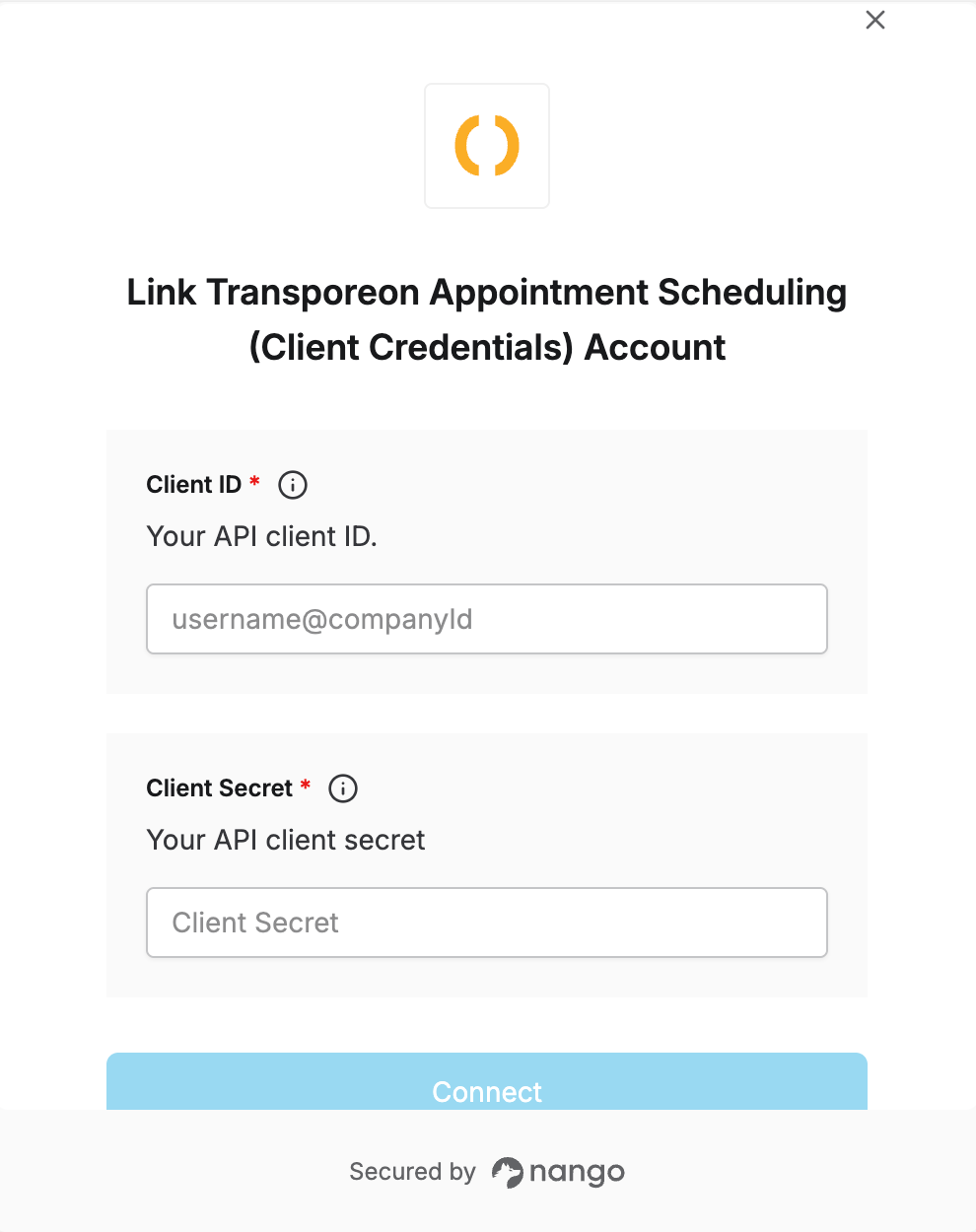 You are now connected to Transporeon Appointment Scheduling.