> ## Documentation Index
> Fetch the complete documentation index at: https://nango.dev/docs/llms.txt
> Use this file to discover all available pages before exploring further.
# Toast - How do I link my account?
# Overview
To authenticate with Toast, you need:
1. **Client ID** - Your Toast API client identifier.
2. **Client Secret** - Your Toast API client secret.
3. **API Subdomain** - The subdomain of your Toast API environment
4. **Restaurant External ID** (optional) - The Toast GUID for the restaurant you want to access.
This guide will walk you through obtaining your API credentials and locating your restaurant details.
### Prerequisites
* An active Toast account with API access. Credentials are issued by the Toast integrations team (for partner and custom integrations) or created by you through Toast Web (for standard and analytics API access).
### Step 1: Obtain your API credentials
How you obtain credentials depends on your integration type:
| Integration type | How to get credentials |
| -------------------- | ------------------------------------------------------------------------------------------------------------------------------- |
| Partner integration | [Issued](https://doc.toasttab.com/doc/devguide/integrationDevProcess.html) by the Toast integrations team after app review |
| Custom integration | [Issued](https://doc.toasttab.com/doc/devguide/apiCustomIntegrationOverview.html) by the Toast integrations team after approval |
| Standard API access | Created by you in Toast Web (see below) |
| Analytics API access | Created by you in Toast Web (see below) |
**To create credentials in Toast Web:**
1. Log in to your Toast admin account.
2. Navigate to [Manage credentials](https://www.toasttab.com/restaurants/admin/api-access) page.
3. Select the API type that matches your use case:
| API type | What it covers | What you configure |
| ----------------- | ----------------------------------------------------------- | ------------------------------------------------------- |
| **Standard API** | Restaurant operations data — orders, menus, employees, etc. | Name and the specific API scopes your integration needs |
| **Analytics API** | Reporting and analytics data | Name only (scopes are fixed) |
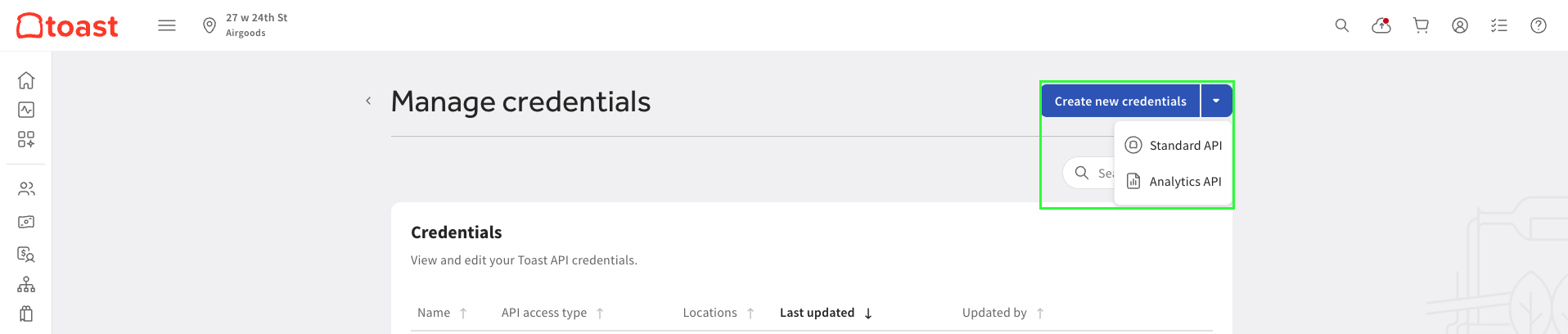 4. Fill in the required fields per API type and submit. Toast generates your credentials immediately.
5. Copy your **API Subdomain**, **Client ID**, and **Client Secret** — the secret is only shown once. The subdomain is the part before `.toasttab.com` and after `https://` in your API hostname.
4. Fill in the required fields per API type and submit. Toast generates your credentials immediately.
5. Copy your **API Subdomain**, **Client ID**, and **Client Secret** — the secret is only shown once. The subdomain is the part before `.toasttab.com` and after `https://` in your API hostname.
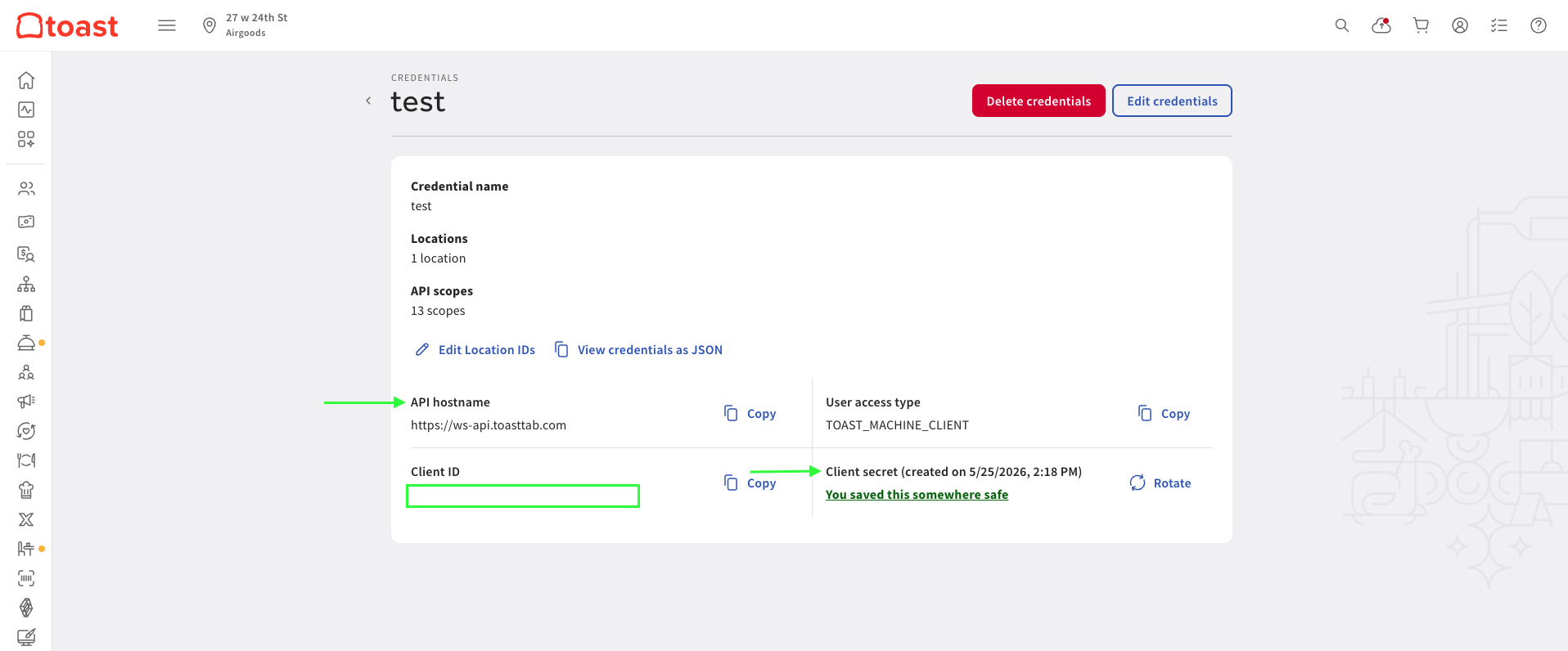 Store these securely — never commit them to source control or share them in plain text.
### Step 2: Find your Restaurant External ID (optional)
The Restaurant External ID is the Toast GUID for the restaurant you want to access. This field is optional.
After standard API credentials are activated, you receive a confirmation email listing the names and GUIDs of your locations.
The GUID follows the format: `xxxxxxxx-xxxx-xxxx-xxxx-xxxxxxxxxxxx`
### Step 3: Enter credentials in the Connect UI
Once you have your credentials:
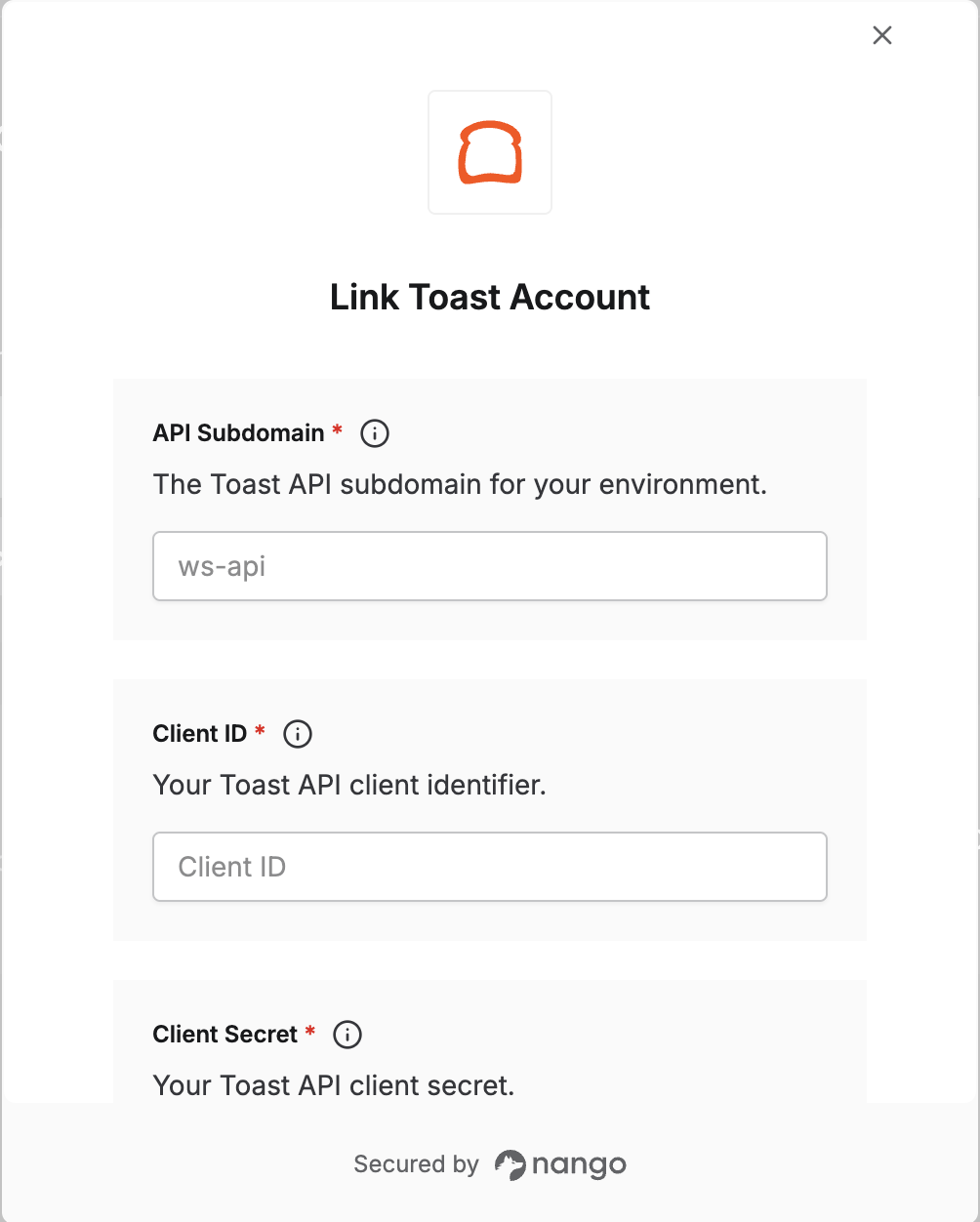
1. Open the form where you need to authenticate with Toast.
2. Enter your **Client ID** and **Client Secret**.
3. Enter your **API Subdomain**.
4. Enter the **Restaurant External ID** for the restaurant you want to access.
5. Submit the form to complete authentication.
Store these securely — never commit them to source control or share them in plain text.
### Step 2: Find your Restaurant External ID (optional)
The Restaurant External ID is the Toast GUID for the restaurant you want to access. This field is optional.
After standard API credentials are activated, you receive a confirmation email listing the names and GUIDs of your locations.
The GUID follows the format: `xxxxxxxx-xxxx-xxxx-xxxx-xxxxxxxxxxxx`
### Step 3: Enter credentials in the Connect UI
Once you have your credentials:
1. Open the form where you need to authenticate with Toast.
2. Enter your **Client ID** and **Client Secret**.
3. Enter your **API Subdomain**.
4. Enter the **Restaurant External ID** for the restaurant you want to access.
5. Submit the form to complete authentication.
 You are now connected to Toast.