> ## Documentation Index
> Fetch the complete documentation index at: https://nango.dev/docs/llms.txt
> Use this file to discover all available pages before exploring further.
# Streamline AI - How do I link my account?
# Overview
To connect Streamline AI, you need:
1. **An Ed25519 Auth Key** registered in your Streamline AI instance.
2. **Your Streamline AI customer subdomain and environment** (production or demo/sandbox).
### Prerequisites
* Admin access to your organization's Streamline AI instance.
### Instructions
#### Step 1: Generate and register an auth key
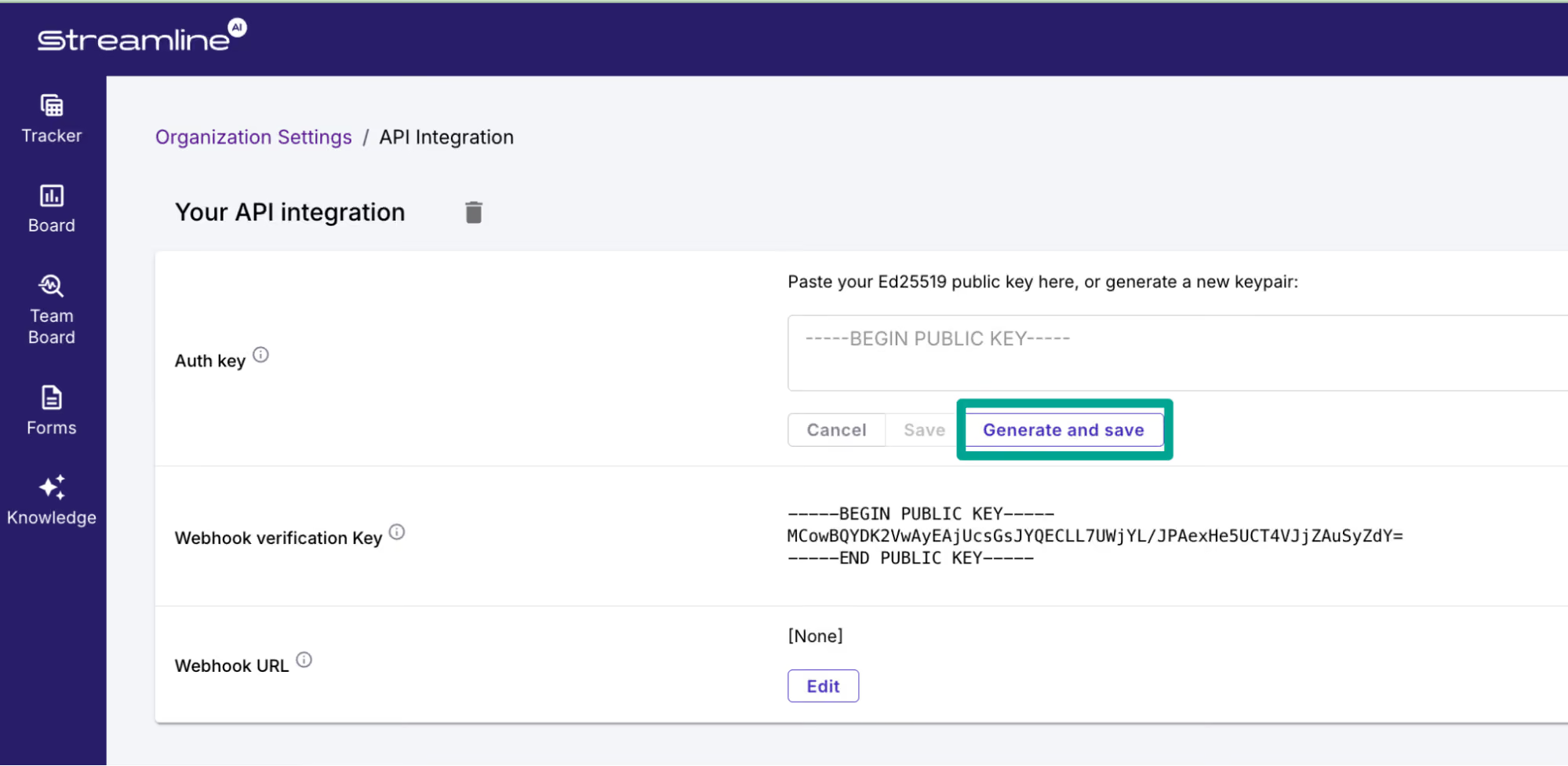
1. In Streamline AI, go to **Settings → Integrations → API**.
2. Either generate a new Ed25519 keypair in the browser — you'll be prompted to download the private key — or paste a public key you generated elsewhere.
3. Copy the **Auth Key ID** Streamline AI shows you afterwards, and keep the private key file handy.
 #### Step 2: Find your customer subdomain
Your customer subdomain is the part of your Streamline AI URL before the environment domain. If you access Streamline AI at `https://acme.streamline.ai`, your customer subdomain is `acme` and your environment is **production** (`streamline.ai`). If you access a demo/sandbox workspace at `https://acme.demo.streamline.ai`, your subdomain is still `acme` and your environment is **demo** (`demo.streamline.ai`).
#### Step 3: Enter connection details
1. Open the Connect form.
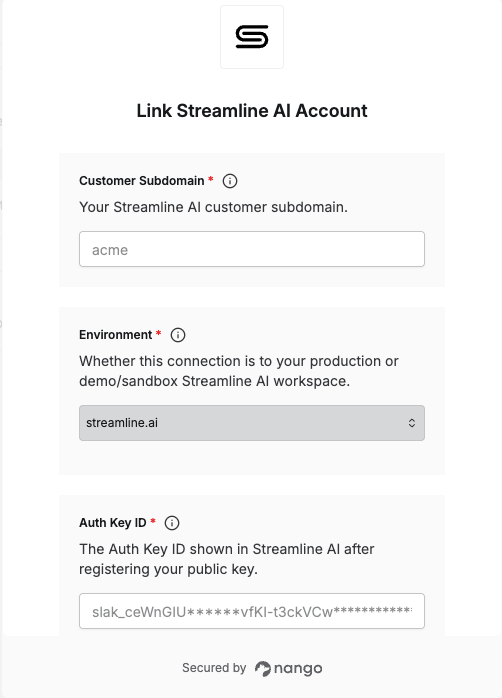
2. Enter your **Customer Subdomain**, **Environment**, **Auth Key ID** and **Private Key** in their respective fields.
3. Submit the form, and you should be successfully authenticated.
#### Step 2: Find your customer subdomain
Your customer subdomain is the part of your Streamline AI URL before the environment domain. If you access Streamline AI at `https://acme.streamline.ai`, your customer subdomain is `acme` and your environment is **production** (`streamline.ai`). If you access a demo/sandbox workspace at `https://acme.demo.streamline.ai`, your subdomain is still `acme` and your environment is **demo** (`demo.streamline.ai`).
#### Step 3: Enter connection details
1. Open the Connect form.
2. Enter your **Customer Subdomain**, **Environment**, **Auth Key ID** and **Private Key** in their respective fields.
3. Submit the form, and you should be successfully authenticated.
 You are now connected to the Streamline AI integration.