> ## Documentation Index
> Fetch the complete documentation index at: https://nango.dev/docs/llms.txt
> Use this file to discover all available pages before exploring further.
# Simpplr - How do I link my account?
## Overview
To authenticate with Simpplr, you will need:
1. **Client ID** - The Client ID of a Simpplr client application.
2. **Client Secret** - The Client Secret issued with that Client ID.
3. **Region** - The region your Simpplr tenant is hosted in.
The client application is created inside Simpplr by an app manager. It is not your Simpplr login, and it is separate from any Salesforce connected app used by older Simpplr deployments.
### Prerequisites
* You must have the app manager role in your Simpplr tenant.
* Your tenant must run on Simpplr's own platform. Deployments that run as a managed package inside Salesforce authenticate through Salesforce instead; use Nango's `salesforce` integration for those.
### Instructions
#### Step 1: Create a client application
1. Log in to your Simpplr tenant as an app manager.
2. Click your profile image in the top right corner.
3. Go to **Manage** > **Application** > **Integrations** > **Client application** and click **Add**.
4. Fill in the registration form:
* **Application name** and **description** - Notes to help you identify the application.
* **Client application ID** - Any random UUID you generate.
* **Grant type** - Select **Client credentials**. This is the grant the Simpplr B2B API uses. Do not select Authorization code, which is for the User API and is not supported here.
5. Save the form, then copy the **Client ID** and **Client Secret**.
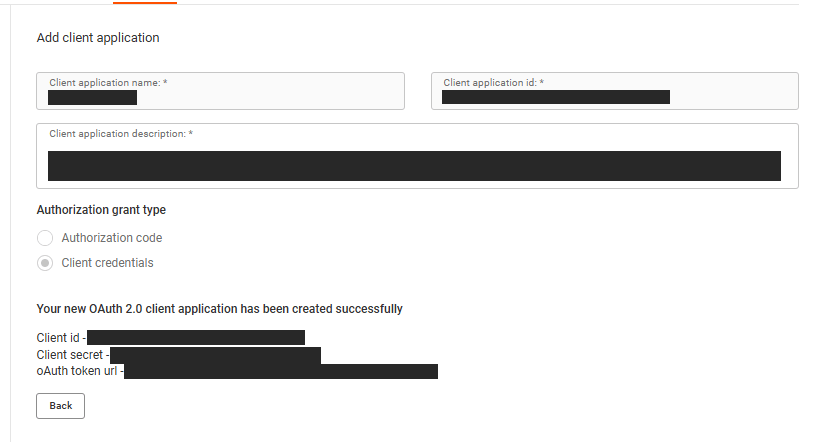 The same page shows the **OAuth token URL** for your tenant. Keep it open for the next step.
#### Step 2: Find your region
Read the region from the host in your tenant's OAuth token URL:
| Token URL host | Region value |
| -------------------------- | --------------------- |
| `platform.app.simpplr.com` | `app` (United States) |
| `platform.eu.simpplr.com` | `eu` |
| `platform.au.simpplr.com` | `au` |
| `platform.ca.simpplr.com` | `ca` |
Nango sends both the token request and all API calls to the host for the region you pick, so a wrong value points the connection at another region's tenant and authentication fails.
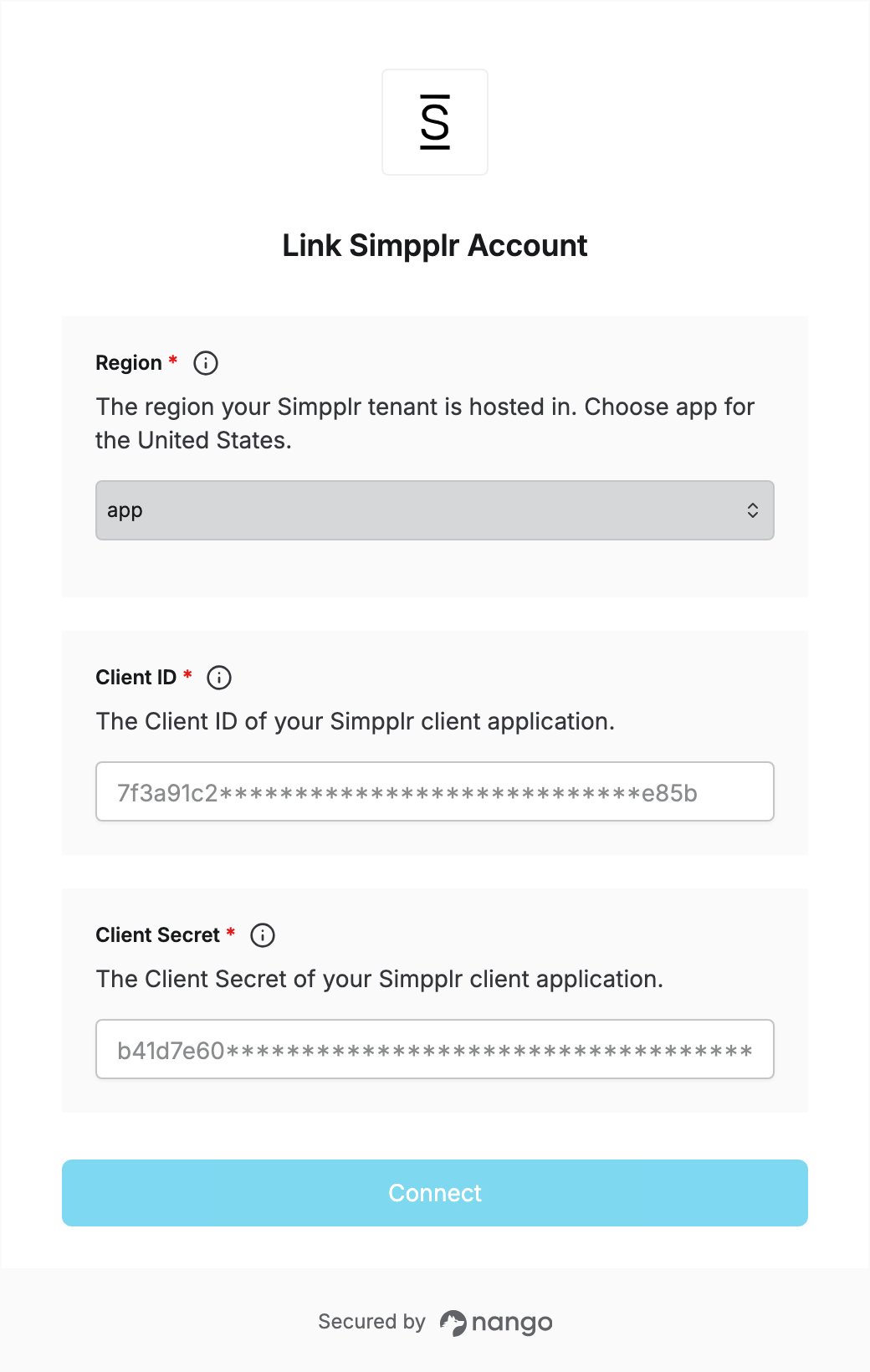
#### Step 3: Enter credentials in the Connect UI
Once you have your **Client ID**, **Client Secret**, and **Region**:
1. Open the form where you need to authenticate with Simpplr.
2. Select your **Region** from Step 2.
3. Enter your **Client ID** in the **Client ID** field.
4. Enter your **Client Secret** in the **Client Secret** field.
5. Submit the form, and you should be successfully authenticated.
The same page shows the **OAuth token URL** for your tenant. Keep it open for the next step.
#### Step 2: Find your region
Read the region from the host in your tenant's OAuth token URL:
| Token URL host | Region value |
| -------------------------- | --------------------- |
| `platform.app.simpplr.com` | `app` (United States) |
| `platform.eu.simpplr.com` | `eu` |
| `platform.au.simpplr.com` | `au` |
| `platform.ca.simpplr.com` | `ca` |
Nango sends both the token request and all API calls to the host for the region you pick, so a wrong value points the connection at another region's tenant and authentication fails.
#### Step 3: Enter credentials in the Connect UI
Once you have your **Client ID**, **Client Secret**, and **Region**:
1. Open the form where you need to authenticate with Simpplr.
2. Select your **Region** from Step 2.
3. Enter your **Client ID** in the **Client ID** field.
4. Enter your **Client Secret** in the **Client Secret** field.
5. Submit the form, and you should be successfully authenticated.
 You are now connected to Simpplr.