> ## Documentation Index
> Fetch the complete documentation index at: https://nango.dev/docs/llms.txt
> Use this file to discover all available pages before exploring further.
# Semble - How do I link my account?
# Overview
To authenticate with Semble, you need the **email** and **password** of the Semble user account to authenticate as.
Nango exchanges these credentials for a short-lived token via Semble's `signIn` mutation (valid for 12 hours), and re-authenticates automatically before it expires — you don't need to manage tokens yourself.
Semble also supports a static API token method (generated in the Semble app's Settings section) for cases where individual users don't need to authenticate themselves — Nango's Semble integration uses email/password authentication instead, since it lets each connection authenticate as its own Semble user.
### Prerequisites
* A Semble user account (email and password) with access to the data your integration needs.
### Instructions
#### Step 1: Authenticating with email and password
Use the email and password you sign in to the Semble application with.
Access is scoped to whatever permissions that Semble user account has. If a request fails with a permission error, check the account's role and permissions in Semble.
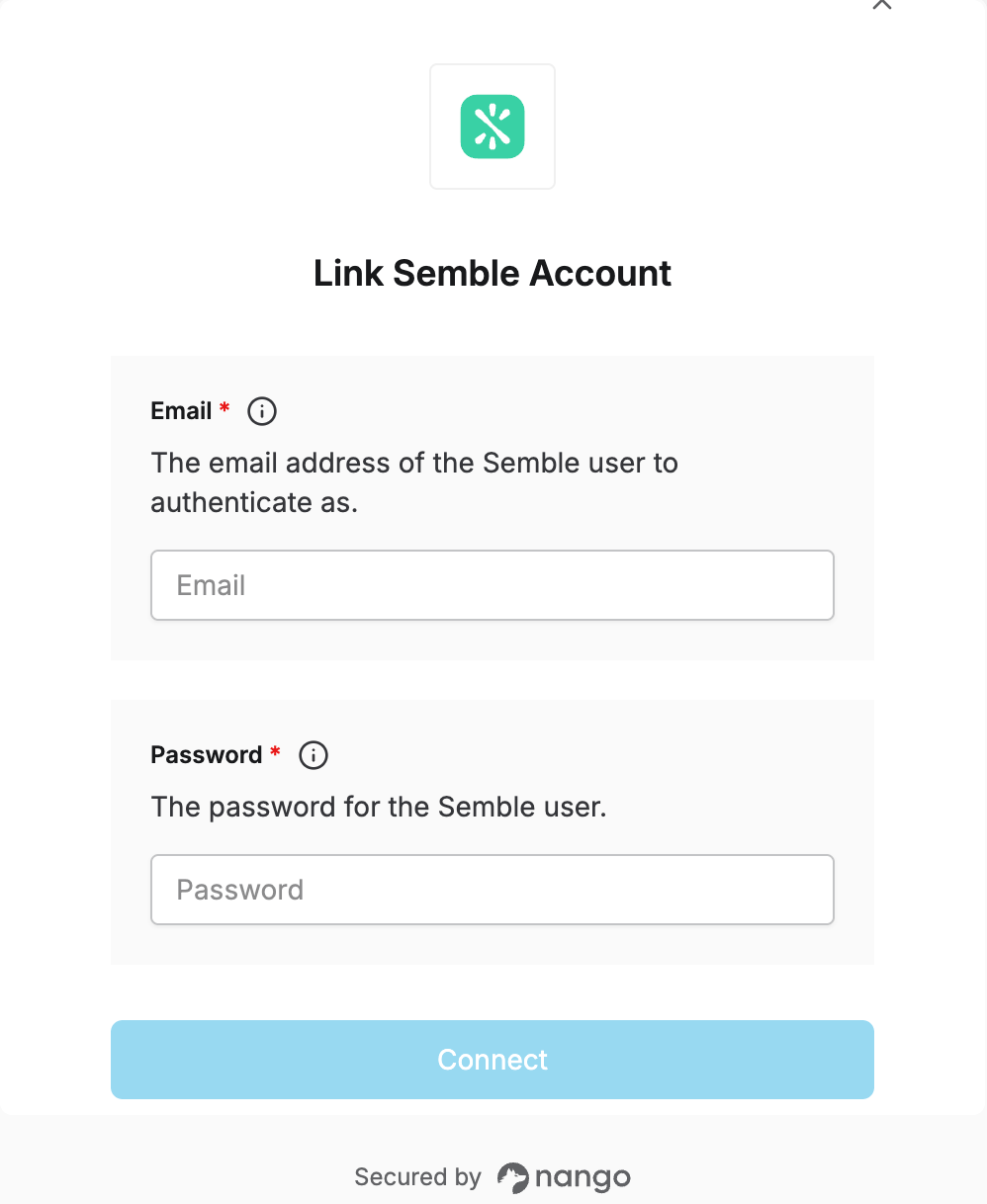
#### Step 2: Enter credentials in the Connect UI
Once you have your **email** and **password**:
1. Open the form where you need to authenticate with Semble.
2. Enter your **email** and **password** in the fields provided.
3. Submit the form, and you should be successfully authenticated.
 You are now connected to Semble.