> ## Documentation Index
> Fetch the complete documentation index at: https://nango.dev/docs/llms.txt
> Use this file to discover all available pages before exploring further.
# Sellercloud - How do I link my account?
# Overview
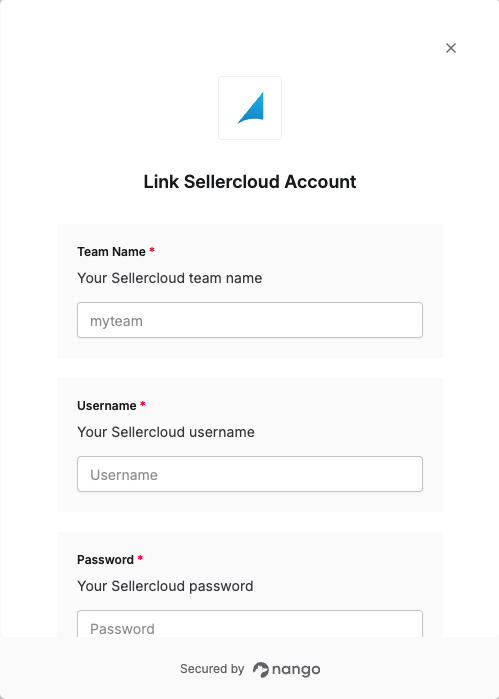
To authenticate with Sellercloud, you need:
1. **Team Name** - Your Sellercloud team name.
2. **Username** - Your Sellercloud username.
3. **Password** - Your Sellercloud password.
This guide will walk you through finding your team name, username, and password.
### Prerequisites:
* You must have a Sellercloud account.
### Instructions:
#### Step 1: Finding your Team Name
1. Log in to your Sellercloud account.
2. Your **Team Name** can be found under your username in the top right corner.
#### Step 2: Identifying your credentials
1. The **Username** and **Password** are the same credentials you use to log in to Sellercloud.
Sellercloud recommends creating a separate user (employee) account for integration purposes. Use different user accounts for different integrations to improve security and manage API access more granularly.
#### Step 3: Enter credentials in the Connect UI
Once you have your **Team Name**, **Username**, and **Password**:
1. Open the form where you need to authenticate with Sellercloud.
2. Enter your **Team Name**, **Username**, and **Password** in their respective fields.
3. Submit the form, and you should be successfully authenticated.
 You are now connected to Sellercloud.