> ## Documentation Index
> Fetch the complete documentation index at: https://nango.dev/docs/llms.txt
> Use this file to discover all available pages before exploring further.
# Scavio - How do I link my account?
## Overview
To authenticate with Scavio, you need:
1. **API Key** — A key that grants Nango permission to call Scavio's API on your behalf.
This guide will walk you through finding this within Scavio.
### Prerequisites
* An account with Scavio. Signing up is free and does not require a credit card.
### Step 1: Finding your API key
1. Log in to the [Scavio dashboard](https://dashboard.scavio.dev/sign-in), or [create an account](https://dashboard.scavio.dev/sign-up) if you do not have one yet.
2. Open the **API Keys** section from the sidebar.
3. Copy the key shown there, or click **Create key** to generate a new one.
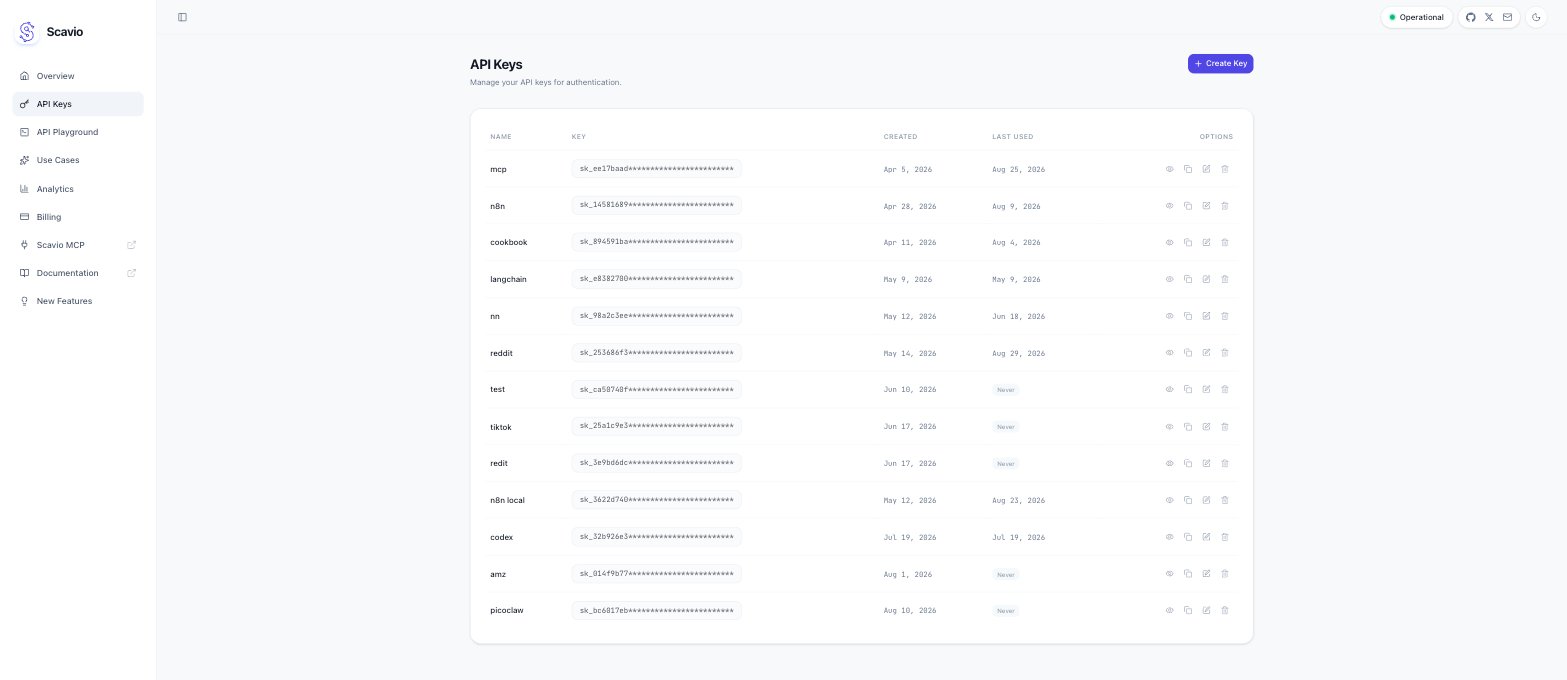 Your key starts with `sk_` followed by 64 hexadecimal characters. Treat it like a password:
it carries your full account credit balance, and Scavio only displays a newly created key once.
### Step 2: Enter credentials in the Connect UI
Once you have your **API Key**:
1. Open the form where you need to authenticate with Scavio.
2. Enter your **API Key** in its respective field.
3. Submit the form, and you should be successfully authenticated.
Your key starts with `sk_` followed by 64 hexadecimal characters. Treat it like a password:
it carries your full account credit balance, and Scavio only displays a newly created key once.
### Step 2: Enter credentials in the Connect UI
Once you have your **API Key**:
1. Open the form where you need to authenticate with Scavio.
2. Enter your **API Key** in its respective field.
3. Submit the form, and you should be successfully authenticated.
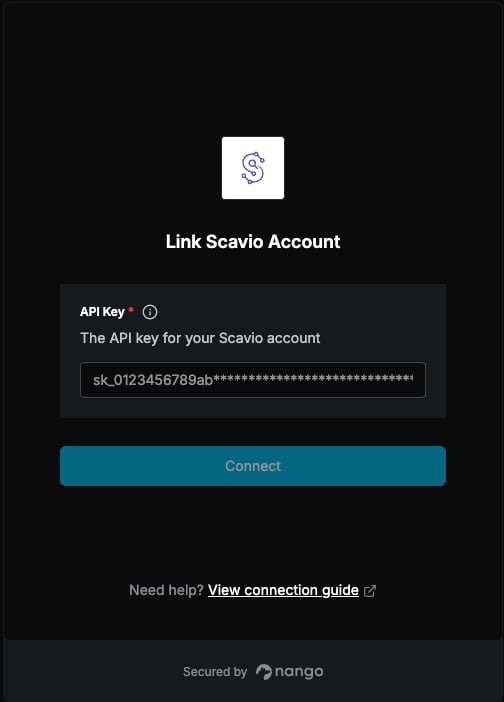 You are now connected to Scavio.