> ## Documentation Index
> Fetch the complete documentation index at: https://nango.dev/docs/llms.txt
> Use this file to discover all available pages before exploring further.
# SAP SuccessFactors - How do I link my account?
# Overview
To authenticate with SAP SuccessFactors, you need:
1. **API Server** - The base URL of your SAP SuccessFactors OData API instance.
2. **Company ID** - Your company's unique identifier in SAP SuccessFactors.
3. **API Key** - The API Key (Client ID) generated during the OAuth client application registration process in SAP SuccessFactors.
4. **Private Key** - The private key extracted from the X.509 certificate downloaded from SAP SuccessFactors.
5. **Username** - Your SAP SuccessFactors username.
Nango will automatically generate the SAML Assertion using these credentials during the authentication process.
This guide will walk you through obtaining these credentials within SAP SuccessFactors.
### Prerequisites:
* You must have an account with SAP SuccessFactors.
### Instructions:
#### Step 1: Finding your API Server
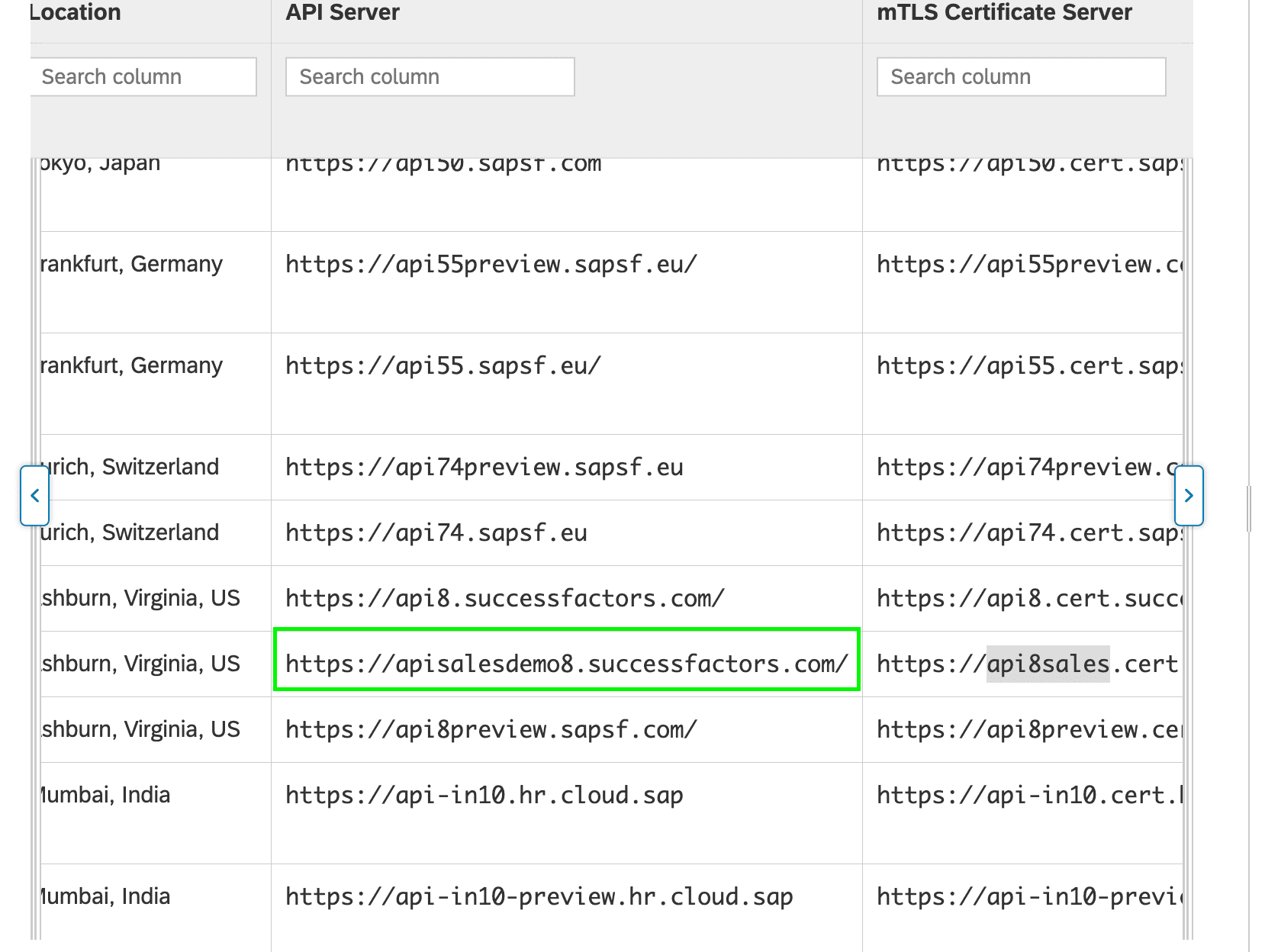
1. Please visit the following [API Server URLs](https://help.sap.com/docs/SAP_SUCCESSFACTORS_PLATFORM/93f95815070049ebaaff042d8322d518/af2b8d5437494b12be88fe374eba75b6.html)
2. In the listed API Server URLs, search for the environment that matches your subdomain.
* For example, if your domain was https\://**salesdemo4**.successfactors.com, search for **salesdemo4**.
 #### Step 2: Finding your Company ID
1. Log in to your **SAP SuccessFactors** account. Go to the upper right hand side and click on your profile image to view your username.
#### Step 2: Finding your Company ID
1. Log in to your **SAP SuccessFactors** account. Go to the upper right hand side and click on your profile image to view your username.
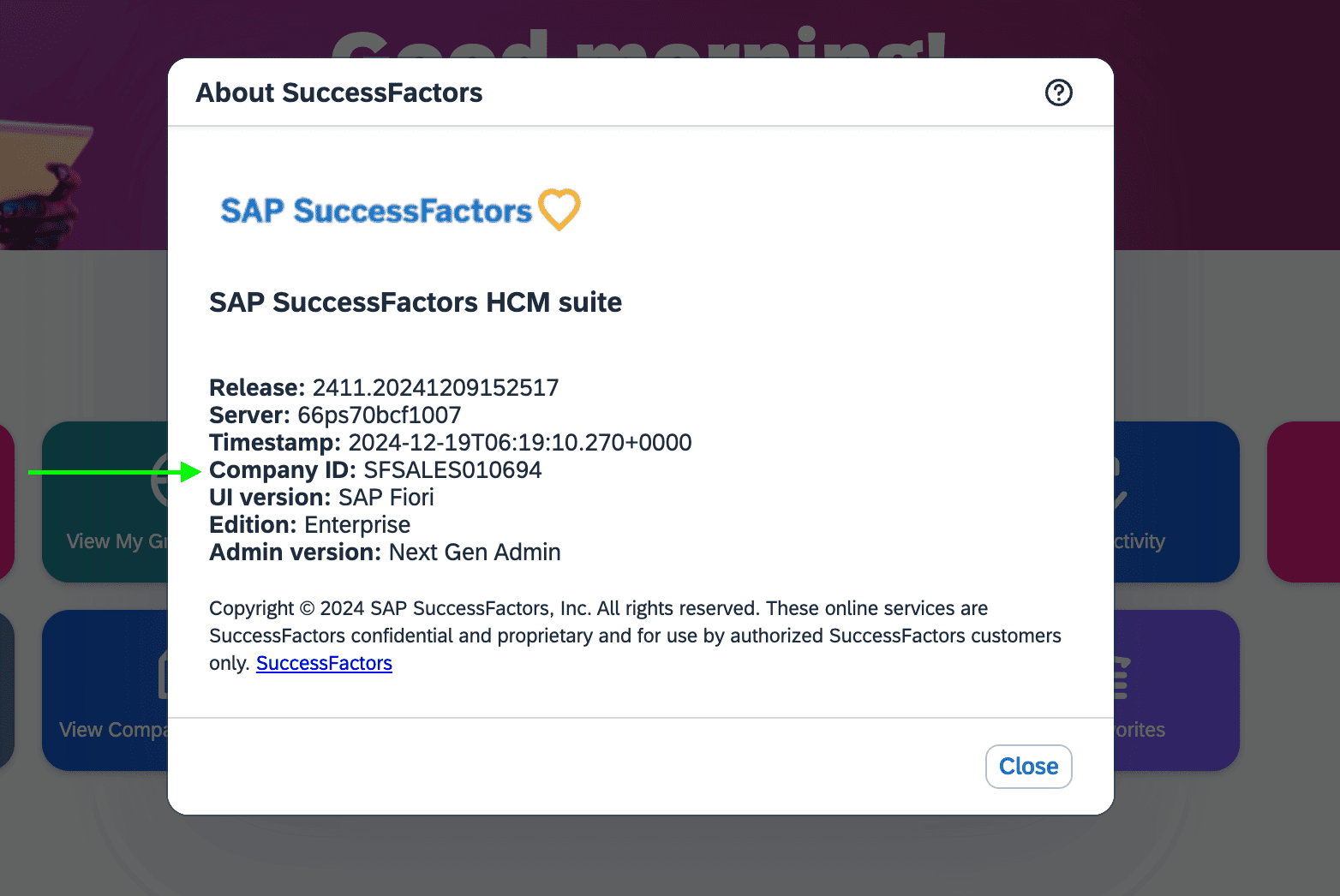
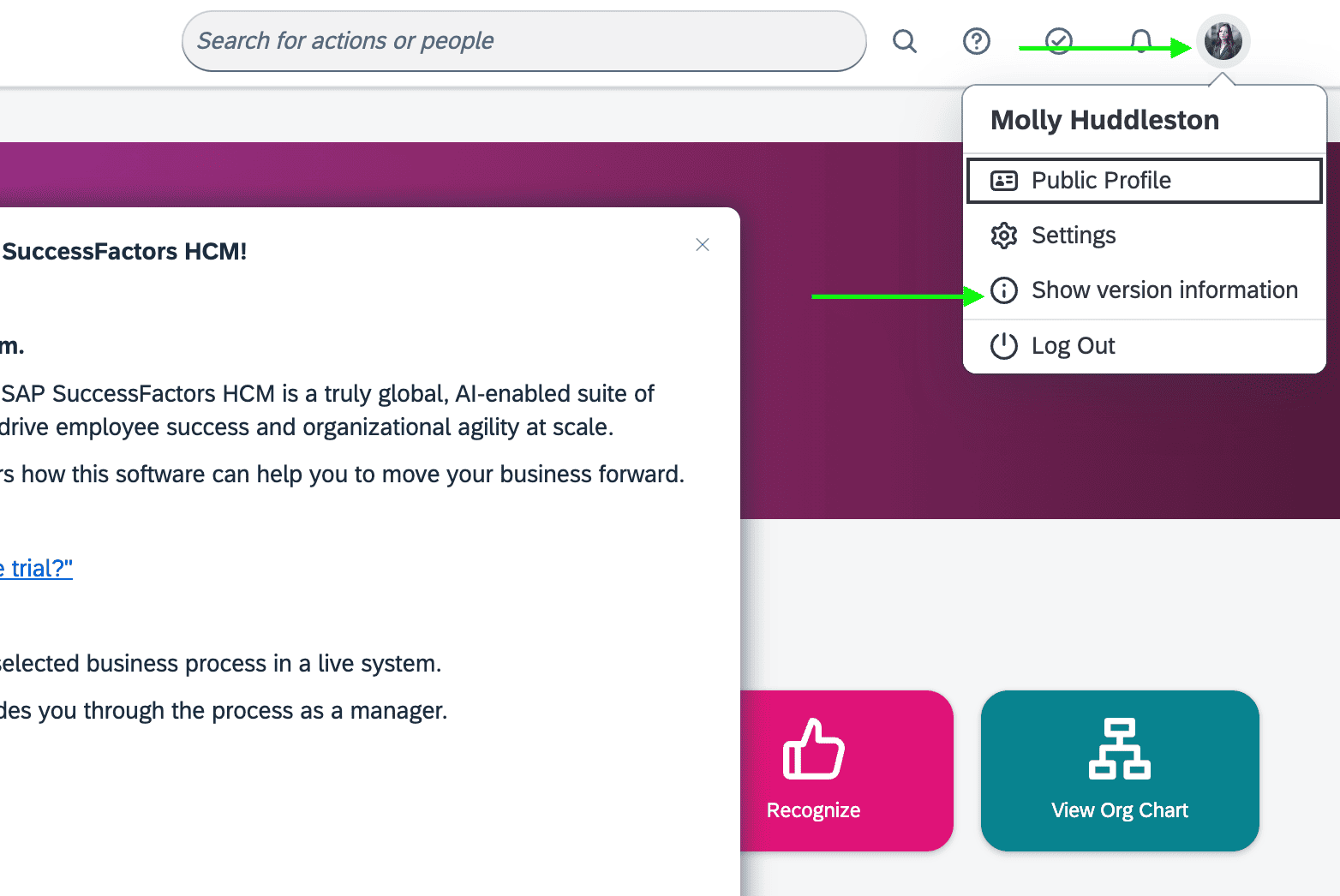 2. To find your SAP SuccessFactors **Company ID**, in the same dropdown menu, click **Show version information**. Locate **Company ID** in the modal that pops up:
 #### Step 3: Finding your API Key and Private Key
1. In your **Admin Center**, go to Tools, and search **Manage OAuth2 Client Applications**.
2. Click **Register Client Application**.
#### Step 3: Finding your API Key and Private Key
1. In your **Admin Center**, go to Tools, and search **Manage OAuth2 Client Applications**.
2. Click **Register Client Application**.
 3. Fill out **Application Name** & **Application URL** (what actually goes in these fields is not important, except that the URL has to begin with **https\://**). You can also have a look at this [guide](https://help.sap.com/docs/SAP_SUCCESSFACTORS_PLATFORM/d599f15995d348a1b45ba5603e2aba9b/6b3c741483de47b290d075d798163bc1.html#procedure) on how to fill this form.
4. Click **Generate X.509 Certificate**. Fill out this form and hit **Generate**.
3. Fill out **Application Name** & **Application URL** (what actually goes in these fields is not important, except that the URL has to begin with **https\://**). You can also have a look at this [guide](https://help.sap.com/docs/SAP_SUCCESSFACTORS_PLATFORM/d599f15995d348a1b45ba5603e2aba9b/6b3c741483de47b290d075d798163bc1.html#procedure) on how to fill this form.
4. Click **Generate X.509 Certificate**. Fill out this form and hit **Generate**.
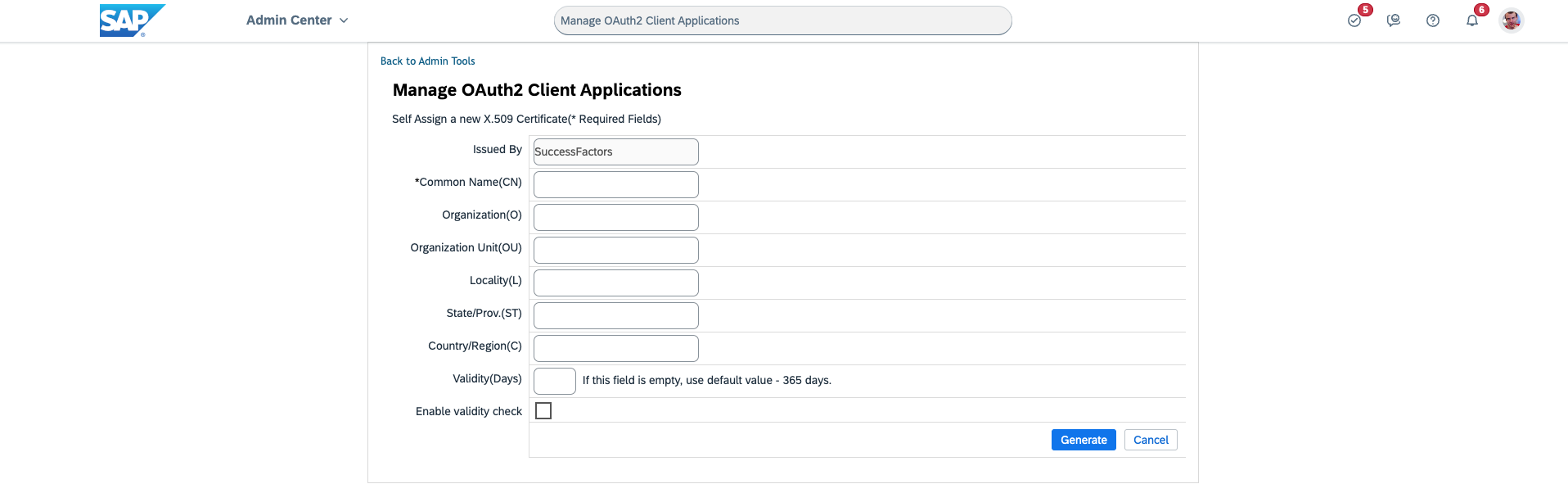 5. Once the certificate populates, click **Download** and save it. You will have downloaded a file called **Certificate.pem**.
6. Click **Register**.
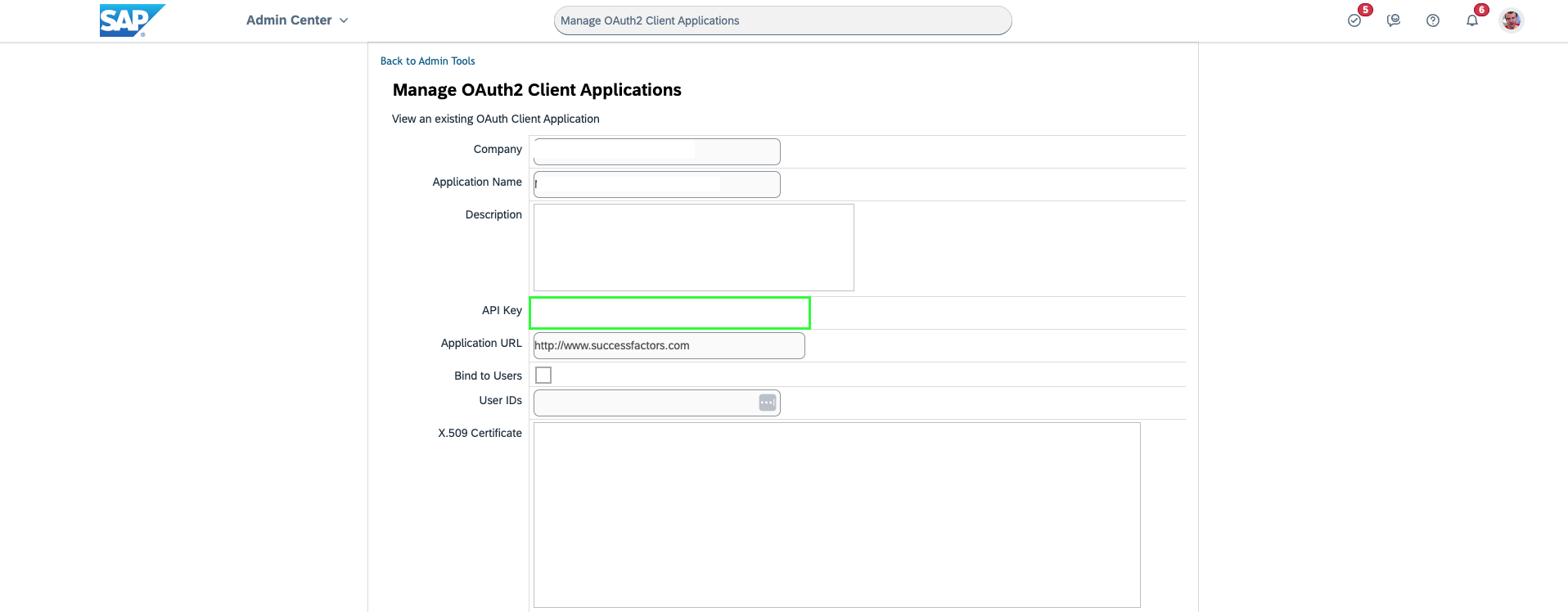
7. Back on your **Manage OAuth2 Client Applications**, go to the application you just created and click **View**.
8. You will now see an **API key** listed. Copy and save this Key.
5. Once the certificate populates, click **Download** and save it. You will have downloaded a file called **Certificate.pem**.
6. Click **Register**.
7. Back on your **Manage OAuth2 Client Applications**, go to the application you just created and click **View**.
8. You will now see an **API key** listed. Copy and save this Key.
 9. Open up the **Certificate.pem** file that you downloaded previously in a text editor. The string between `-----BEGIN ENCRYPTED PRIVATE KEY-----` and `-----END ENCRYPTED PRIVATE KEY-----` is your **Private Key**.
#### Step 4: Finding your Username
1. Login to your **SAP SuccessFactors** account. Go to the upper right hand side and click on your profile image to view your username.
2. Your **Username** is displayed in the dropdown menu. Copy and save this value.
#### Step 5: Enter credentials in the Connect UI
Once you have all the required credentials:
1. Open the form where you need to authenticate with SAP SuccessFactors.
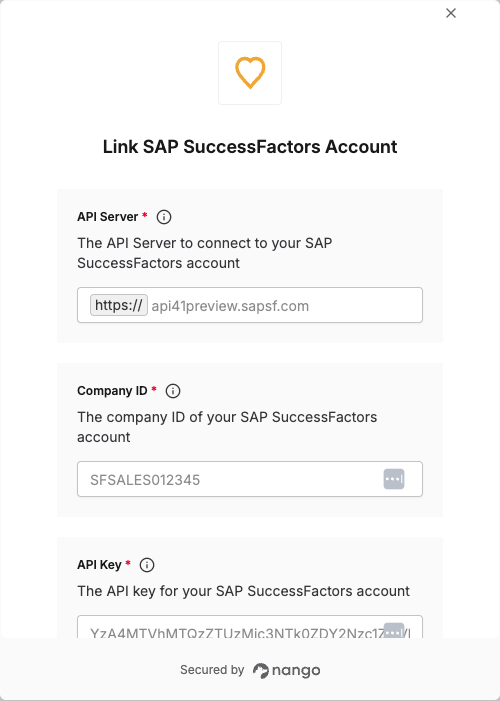
2. Enter your **API Server**, **Company ID**, **API Key**, **Username** and **Private Key** in their respective fields.
3. Submit the form, and you should be successfully authenticated.
9. Open up the **Certificate.pem** file that you downloaded previously in a text editor. The string between `-----BEGIN ENCRYPTED PRIVATE KEY-----` and `-----END ENCRYPTED PRIVATE KEY-----` is your **Private Key**.
#### Step 4: Finding your Username
1. Login to your **SAP SuccessFactors** account. Go to the upper right hand side and click on your profile image to view your username.
2. Your **Username** is displayed in the dropdown menu. Copy and save this value.
#### Step 5: Enter credentials in the Connect UI
Once you have all the required credentials:
1. Open the form where you need to authenticate with SAP SuccessFactors.
2. Enter your **API Server**, **Company ID**, **API Key**, **Username** and **Private Key** in their respective fields.
3. Submit the form, and you should be successfully authenticated.
 You are now connected to SAP SuccessFactors.