> ## Documentation Index
> Fetch the complete documentation index at: https://nango.dev/docs/llms.txt
> Use this file to discover all available pages before exploring further.
# SAP S/4HANA Cloud (Basic Auth) - How to Connect Your Account
# Overview
To authenticate with SAP S/4HANA using Basic Authentication, you will need the following:
1. **API Server**: The base URL of the SAP S/4HANA Cloud API service you want to connect to.
2. **Username**: The Communication User's username for API access using Basic Authentication.
3. **Password**: The Communication User's password for API access using Basic Authentication.
This guide will walk you through setting up OData services and obtaining these credentials for SAP S/4HANA Cloud.
### Prerequisites
* Admin access to your SAP S/4HANA system.
## Step 1: Generating your Basic Authentication Credentials
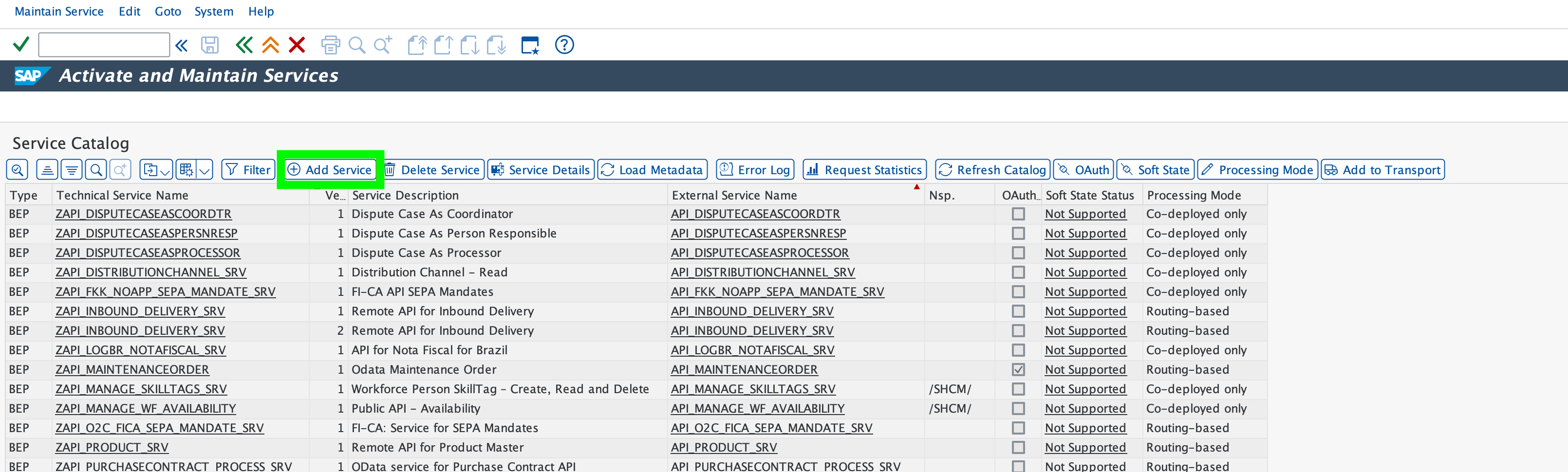
1. Log in to your SAP system and navigate to transaction code `/n/iwfnd/maint_service`.
2. Click **Add Service**, enter `LOCAL` in the **System Alias** field, and press Enter.
 3. Select the service you plan to use and click **Add Selected Services**.
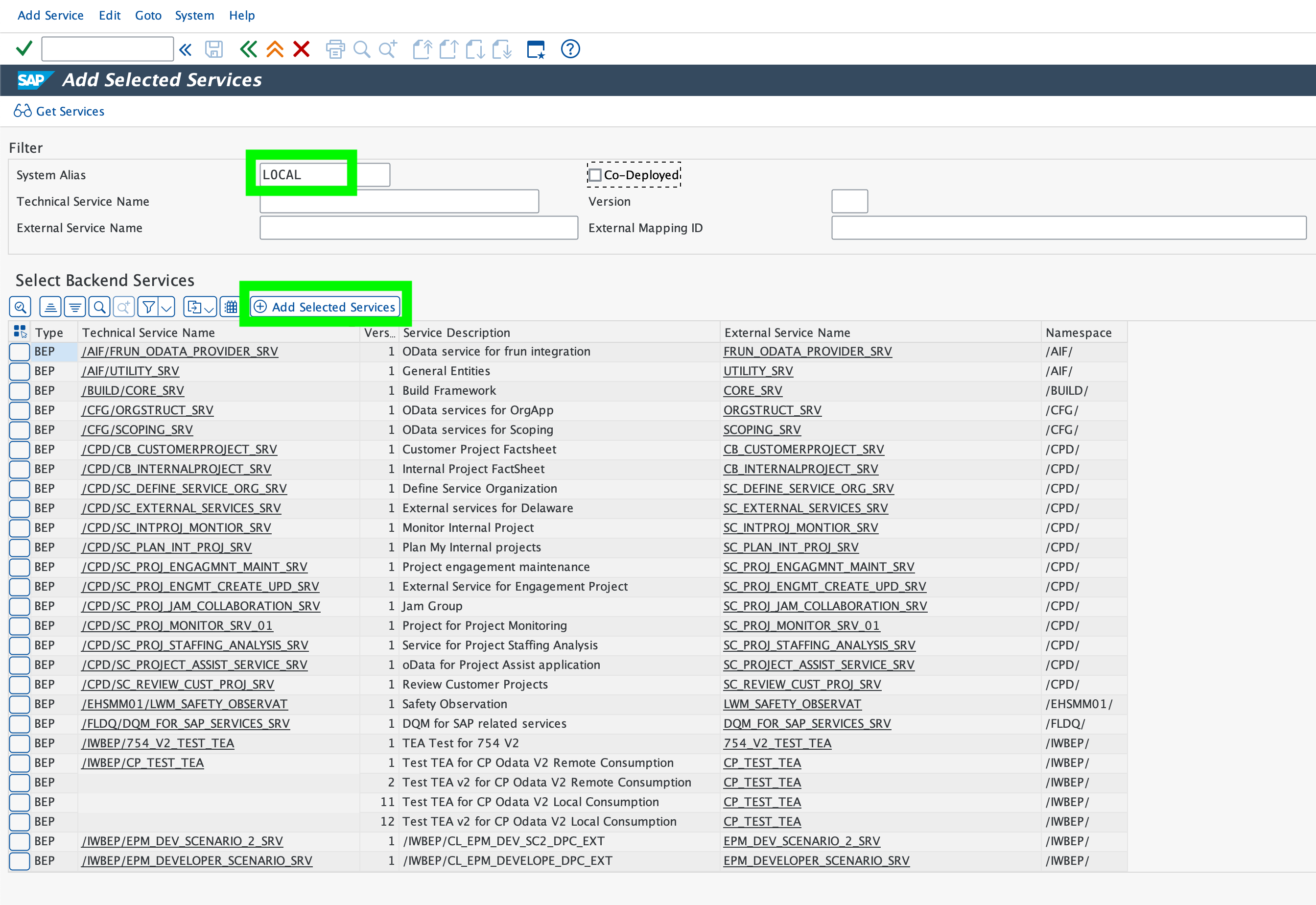 4. Provide a custom name for the technical service, then click **Local Object** to save the service in the local package.
5. Select the **Communication Management** group from your main menu.
4. Provide a custom name for the technical service, then click **Local Object** to save the service in the local package.
5. Select the **Communication Management** group from your main menu.
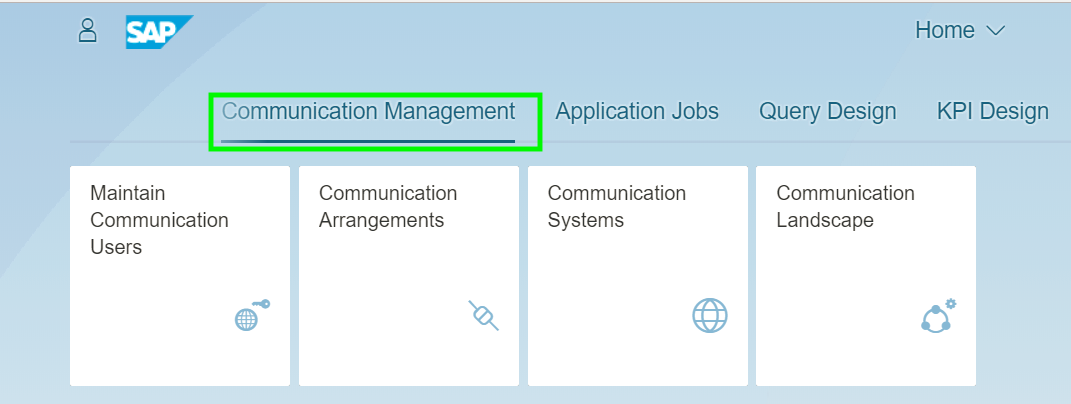 6. Select the **Maintain Communication Users** app and click **New**.
7. Enter a **User Name**, **Description**, and **Password** for the communication user.
8. Click **Create**. The Password Status will become **Productive**. Click **Save**.
6. Select the **Maintain Communication Users** app and click **New**.
7. Enter a **User Name**, **Description**, and **Password** for the communication user.
8. Click **Create**. The Password Status will become **Productive**. Click **Save**.
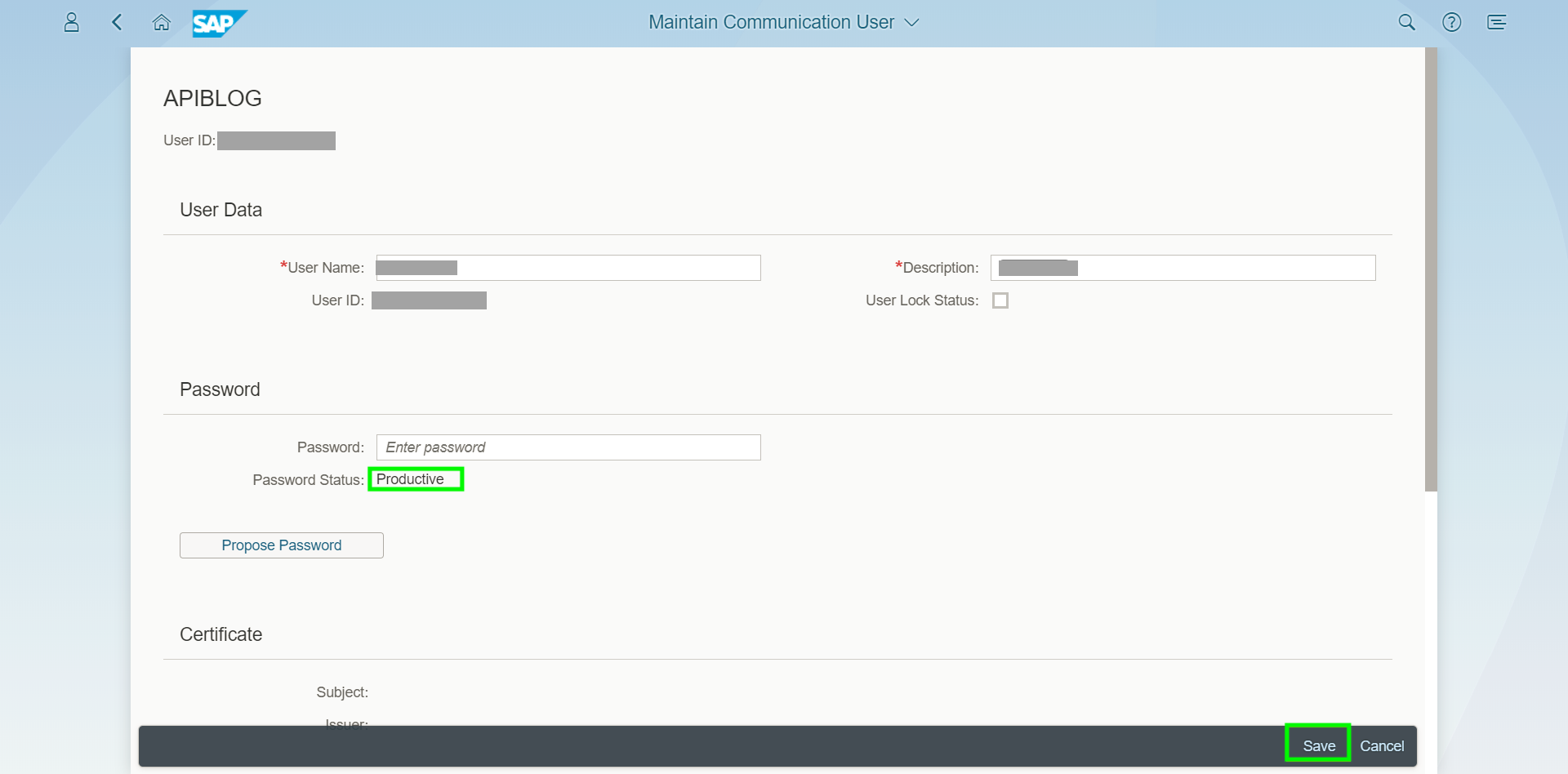 The Communication User is now successfully created. The credentials obtained here (Username and Password) are what you will use to authenticate.
9. From the **Communication Management** group, click the **Communication Systems** app.
10. You will see a list of existing Communication Systems (if any). Click **New** to create a new Communication System.
11. Enter a **System ID** and **System Name**, then click **Create**.
12. Enter the **Host Name** and **HTTPS Port** of the system you want to connect to.
The Communication User is now successfully created. The credentials obtained here (Username and Password) are what you will use to authenticate.
9. From the **Communication Management** group, click the **Communication Systems** app.
10. You will see a list of existing Communication Systems (if any). Click **New** to create a new Communication System.
11. Enter a **System ID** and **System Name**, then click **Create**.
12. Enter the **Host Name** and **HTTPS Port** of the system you want to connect to.
 If you are testing APIs directly from SAP API Business Hub, you can use placeholder values. For production, use your actual system details.
13. Click **Add** under **Inbound Communication** to add the user for authenticating inbound requests.
The **Logical System** field is optional for inbound services but mandatory for outbound services.
14. Select the Communication User you created in step 7 from the value help and click **OK**.
If you are testing APIs directly from SAP API Business Hub, you can use placeholder values. For production, use your actual system details.
13. Click **Add** under **Inbound Communication** to add the user for authenticating inbound requests.
The **Logical System** field is optional for inbound services but mandatory for outbound services.
14. Select the Communication User you created in step 7 from the value help and click **OK**.
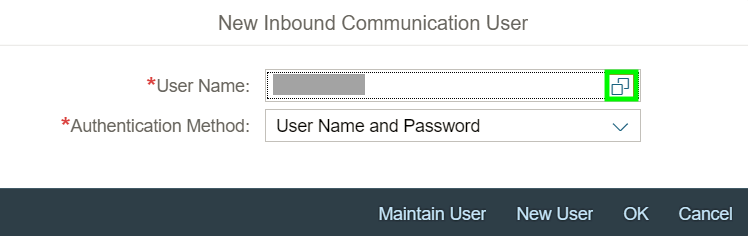 15. Click **Save**.
The Communication System with an assigned Communication User is now created.
16. From the **Communication Management** group, click the **Communication Arrangements** app.
17. You will see existing Communication Arrangements (if any). Click **New**.
18. Select the relevant **Communication Scenario** from the value help based on the API you want to access.
* **Example**: For the Process Purchase Order API, select `SAP_COM_0053`.
19. Click **Create**.
You can find the relevant Communication Scenario in the API documentation on [SAP API Business Hub](https://api.sap.com/content-type/API/apis/ODATA).
20. Select the **Communication System** you created in step 11 from the value help. The assigned Communication User will automatically appear in the **User Name** field.
21. Click **Save**.
15. Click **Save**.
The Communication System with an assigned Communication User is now created.
16. From the **Communication Management** group, click the **Communication Arrangements** app.
17. You will see existing Communication Arrangements (if any). Click **New**.
18. Select the relevant **Communication Scenario** from the value help based on the API you want to access.
* **Example**: For the Process Purchase Order API, select `SAP_COM_0053`.
19. Click **Create**.
You can find the relevant Communication Scenario in the API documentation on [SAP API Business Hub](https://api.sap.com/content-type/API/apis/ODATA).
20. Select the **Communication System** you created in step 11 from the value help. The assigned Communication User will automatically appear in the **User Name** field.
21. Click **Save**.
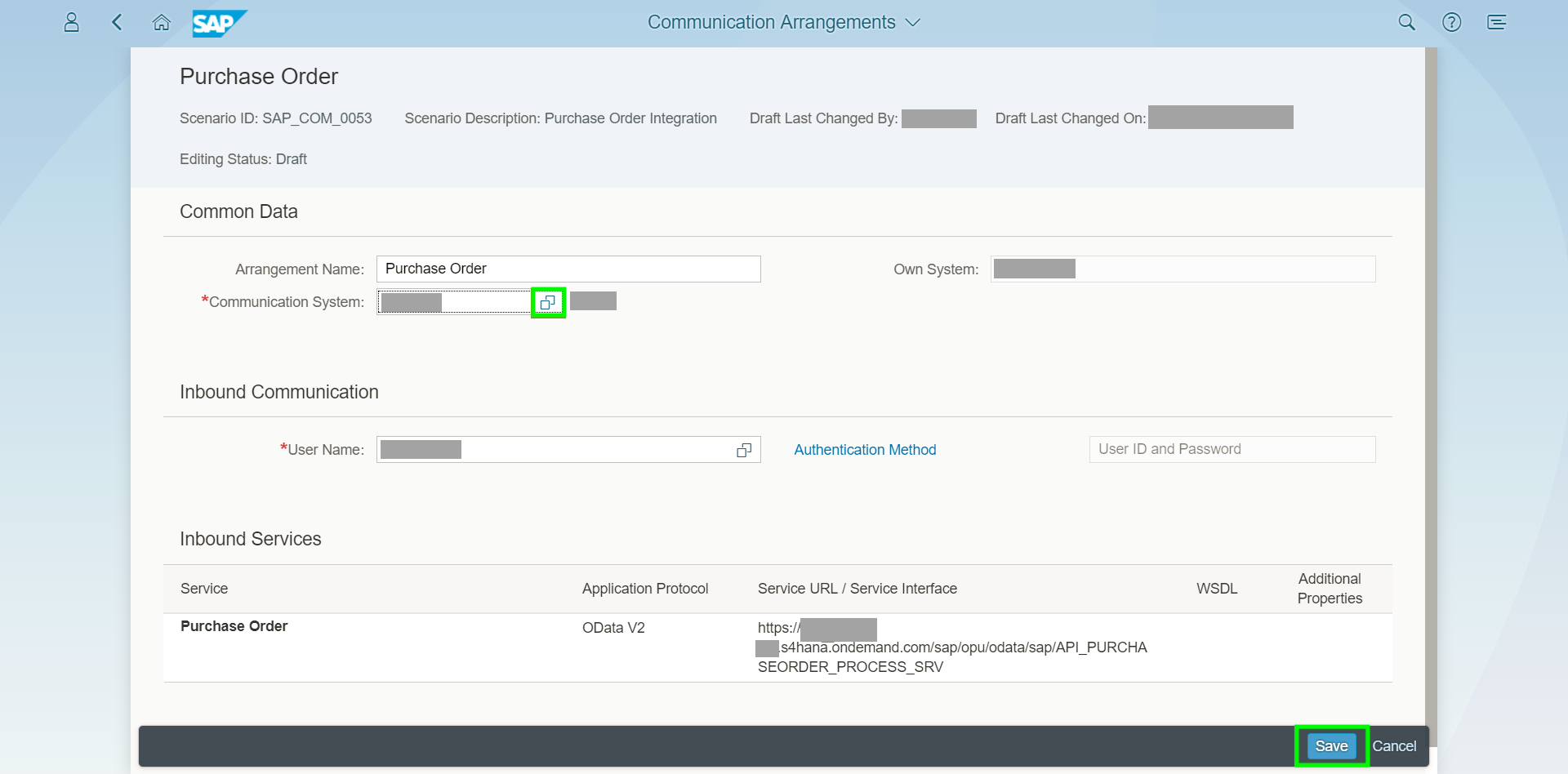 The Communication Arrangement is now successfully created, and your API is ready for use with Basic Authentication.
## Step 2: Finding your API Server
1. Navigate to the SAP Gateway Client or [Service Catalog](https://api.sap.com/content-type/API/apis/ODATAV4) to find the base URL.
2. **Example**: For the [Measurement Concept Class API](https://api.sap.com/api/MeasurementConceptClassAPI/overview), the API Server would be `c4u-foundation-mcm-service.cfapps.eu10.hana.ondemand.com`.
## Step 3: Enter Credentials in the Connect UI
Once you have all the required information:
1. Open the form where you need to authenticate with SAP S/4HANA Cloud (Basic Auth).
2. Enter your **API Server**, **Username**, and **Password** in their respective fields.
3. Submit the form, and you should be successfully authenticated.
The Communication Arrangement is now successfully created, and your API is ready for use with Basic Authentication.
## Step 2: Finding your API Server
1. Navigate to the SAP Gateway Client or [Service Catalog](https://api.sap.com/content-type/API/apis/ODATAV4) to find the base URL.
2. **Example**: For the [Measurement Concept Class API](https://api.sap.com/api/MeasurementConceptClassAPI/overview), the API Server would be `c4u-foundation-mcm-service.cfapps.eu10.hana.ondemand.com`.
## Step 3: Enter Credentials in the Connect UI
Once you have all the required information:
1. Open the form where you need to authenticate with SAP S/4HANA Cloud (Basic Auth).
2. Enter your **API Server**, **Username**, and **Password** in their respective fields.
3. Submit the form, and you should be successfully authenticated.
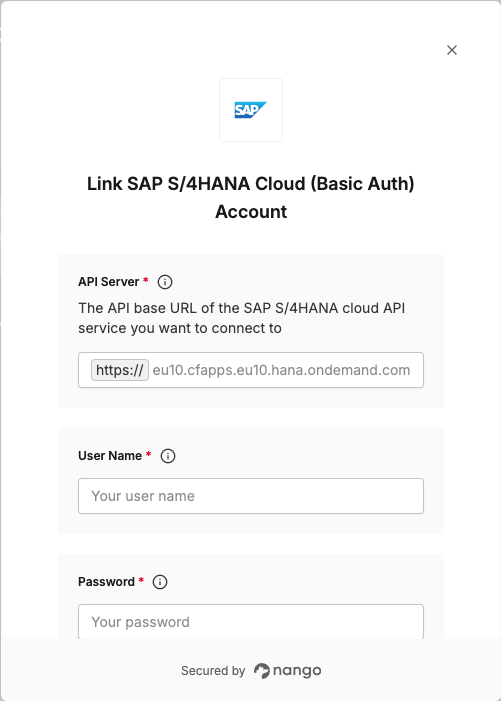 You are now connected to SAP S/4HANA Cloud (Basic Auth).