> ## Documentation Index
> Fetch the complete documentation index at: https://nango.dev/docs/llms.txt
> Use this file to discover all available pages before exploring further.
# SAP Concur (Password Grant) - How do I link my account?
# Overview
To connect to SAP Concur using the password grant, you'll need:
1. **Client ID** - Unique identifier for your OAuth 2.0 application
2. **Client Secret** - Secret key paired with your Client ID
3. **Username** - Your SAP Concur username or userId
4. **Password** - Your SAP Concur account password
5. **Region** - Data center region based on your account's geolocation
This guide walks through obtaining these credentials in the SAP Concur platform.
### Prerequisites:
* Administrator access to SAP Concur
* Registered company account with SAP Concur
***
## Instructions
### Step 1: Get your client credentials
1. Log in to your [SAP Concur App Management portal](https://www.concursolutions.com/nui/ocstool)
2. Navigate to **Administration** > **OAuth 2.0 Application Management**
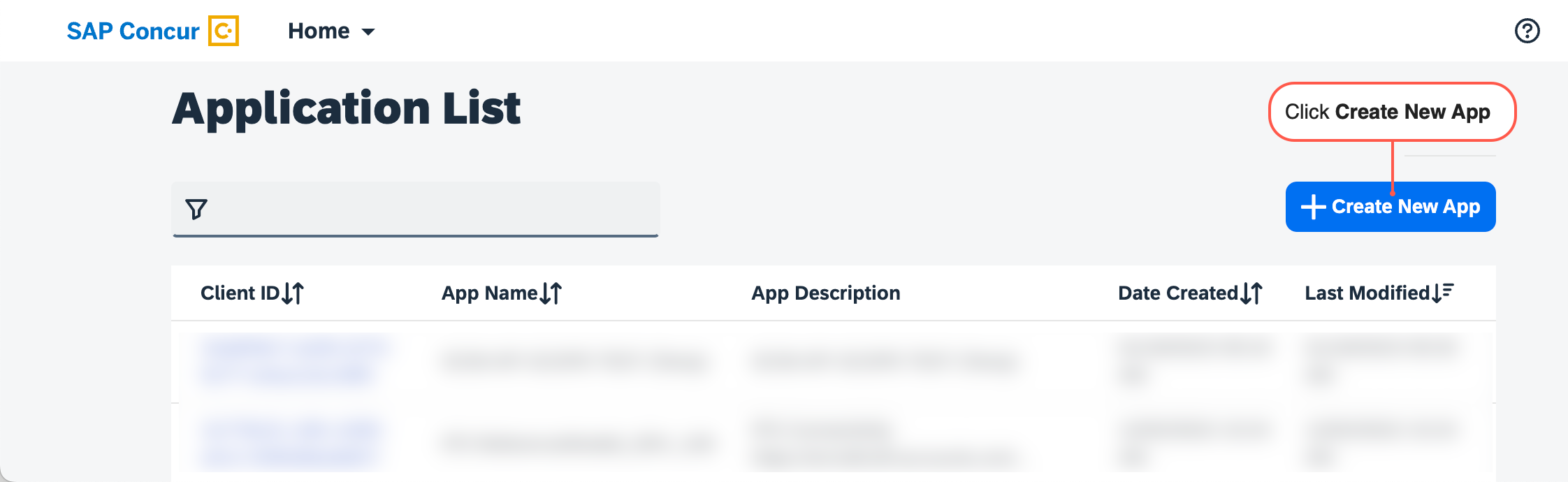
3. Click **Create New App**
4. Fill in the required fields:
* Application Name
* Grant Types — enable **Password**
* Required API Scopes (add all scopes your integration needs)
5. Click **Submit**
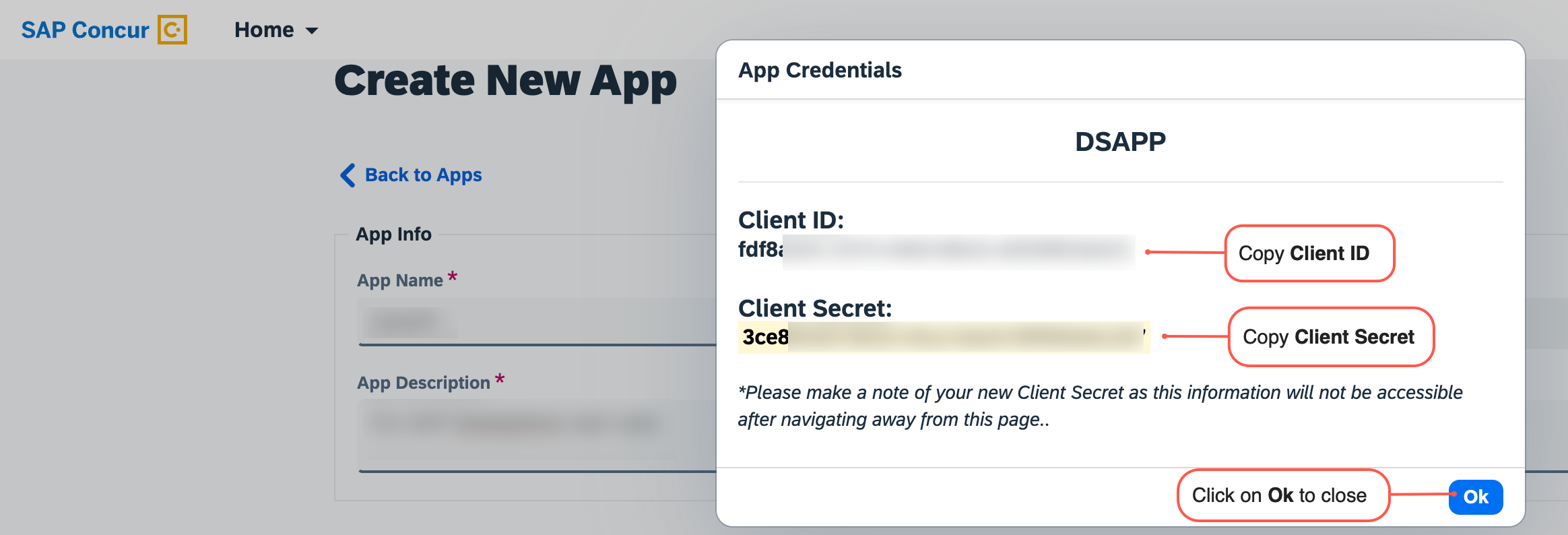
 6. Copy and save the generated **Client ID** and **Client Secret**
 ### Step 2: Get your user credentials
* Use the **username** (or userId) and **password** of the SAP Concur user account you want to connect. These are the same credentials used to log in to the SAP Concur web UI.
### Step 3: Determine your region
* Use the region that matches your company's account geolocation. The region is visible in your browser's address bar when logged into SAP Concur — it is the subdomain before `.api.concursolutions.com`.
### Step 4: Enter credentials in the Connect UI
Once you have your **Client ID**, **Client Secret**, **Username**, **Password**, and **Region**:
1. Open the Nango connection form to authenticate with SAP Concur.
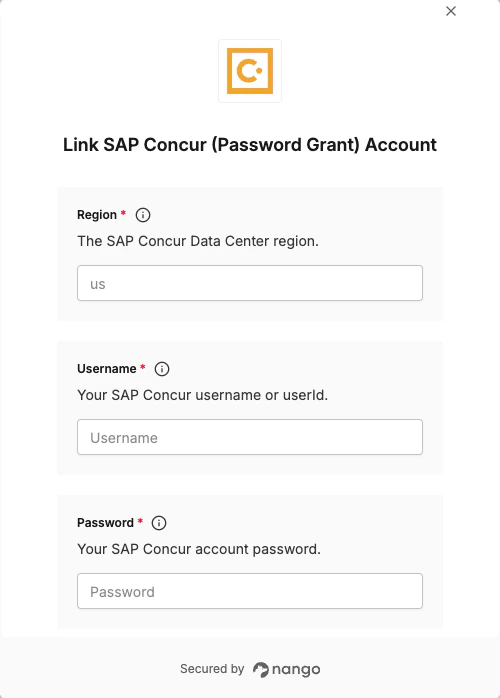
2. Enter your **Client ID**, **Client Secret**, **Username**, **Password**, and **Region** in their respective fields.
3. Submit the form to complete authentication.
### Step 2: Get your user credentials
* Use the **username** (or userId) and **password** of the SAP Concur user account you want to connect. These are the same credentials used to log in to the SAP Concur web UI.
### Step 3: Determine your region
* Use the region that matches your company's account geolocation. The region is visible in your browser's address bar when logged into SAP Concur — it is the subdomain before `.api.concursolutions.com`.
### Step 4: Enter credentials in the Connect UI
Once you have your **Client ID**, **Client Secret**, **Username**, **Password**, and **Region**:
1. Open the Nango connection form to authenticate with SAP Concur.
2. Enter your **Client ID**, **Client Secret**, **Username**, **Password**, and **Region** in their respective fields.
3. Submit the form to complete authentication.
 You are now connected to SAP Concur (Password Grant).