> ## Documentation Index
> Fetch the complete documentation index at: https://nango.dev/docs/llms.txt
> Use this file to discover all available pages before exploring further.
# Render (MCP) - How do I link my account?
# Overview
To authenticate with Render (MCP), you will need:
1. **API key** – A key that grants access to your Render account, including all workspaces and services.
This guide walks you through obtaining your API key from Render.
### Prerequisites
* You must have a Render account. [Sign up here](https://dashboard.render.com/register) if you don't have one.
### Instructions
#### Step 1: Create a Render API key
1. Log in to Render and go to [Account Settings](https://dashboard.render.com/u/settings).
2. Scroll to the **API Keys** section and click **Create API Key**.
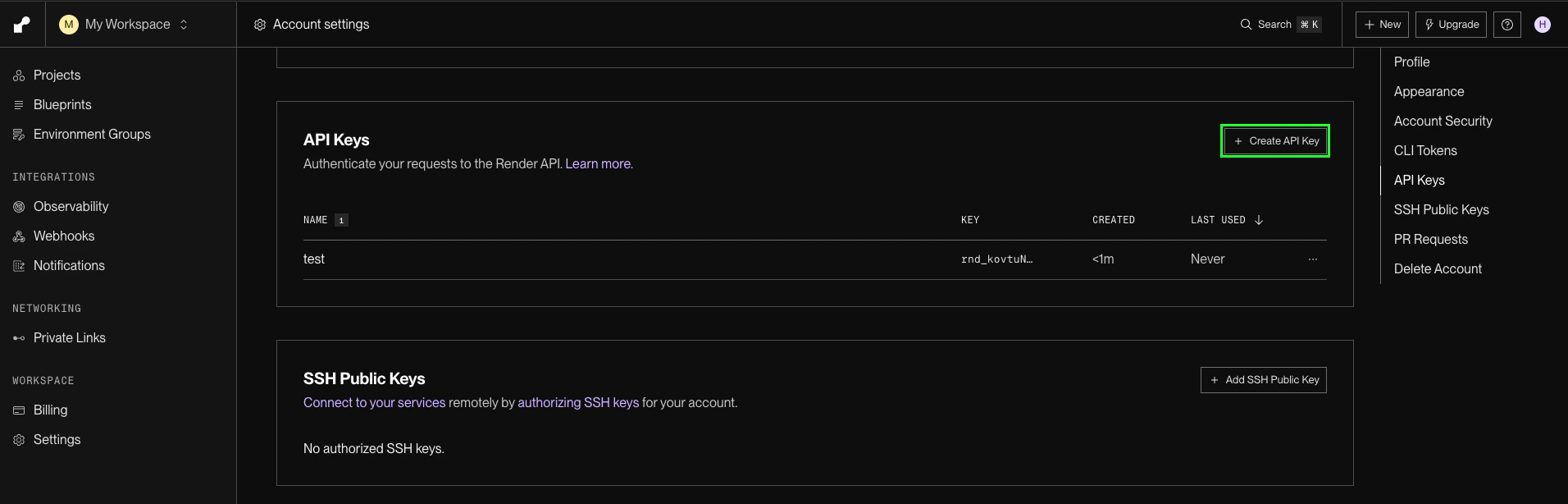 3. Give the key a name and click **Create**.
4. Copy the key, it will only be shown once.
Render API keys grant broad access to all workspaces and services on your account. Store them securely and do not share them.
#### Step 2: Enter credentials in the Connect UI
Once you have your **API key**:
1. Open the form where you need to authenticate with Render (MCP).
2. Paste your **API key** in the field provided.
3. Submit the form — you should then be successfully authenticated.
3. Give the key a name and click **Create**.
4. Copy the key, it will only be shown once.
Render API keys grant broad access to all workspaces and services on your account. Store them securely and do not share them.
#### Step 2: Enter credentials in the Connect UI
Once you have your **API key**:
1. Open the form where you need to authenticate with Render (MCP).
2. Paste your **API key** in the field provided.
3. Submit the form — you should then be successfully authenticated.
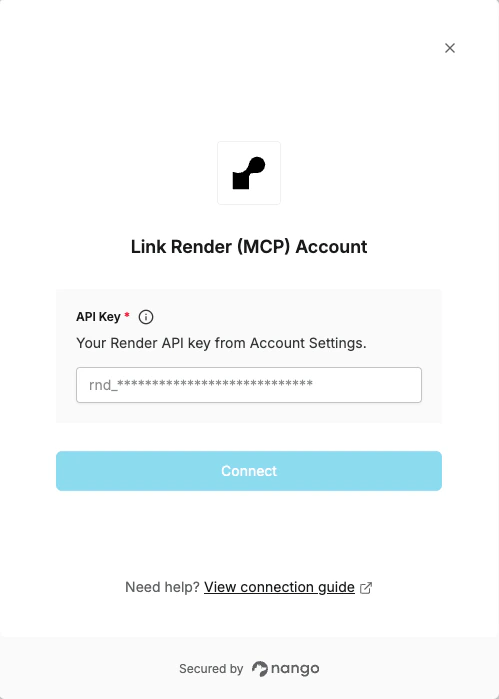 You are now connected to Render (MCP).