> ## Documentation Index
> Fetch the complete documentation index at: https://nango.dev/docs/llms.txt
> Use this file to discover all available pages before exploring further.
# pVerify - How do I link my account?
# Overview
To authenticate with pVerify, you will need:
1. **Client ID** - Your pVerify API Client ID (UUID format).
2. **Client Secret** - Your pVerify API Client Secret.
3. **API Host** - The pVerify API hostname (`api.pverify.com` for production or `testapi.pverify.com` for the test environment).
This guide will walk you through retrieving your credentials from the pVerify API Management portal.
### Prerequisites:
* You must have a pVerify account with API access.
### Instructions:
#### Step 1: Getting your credentials
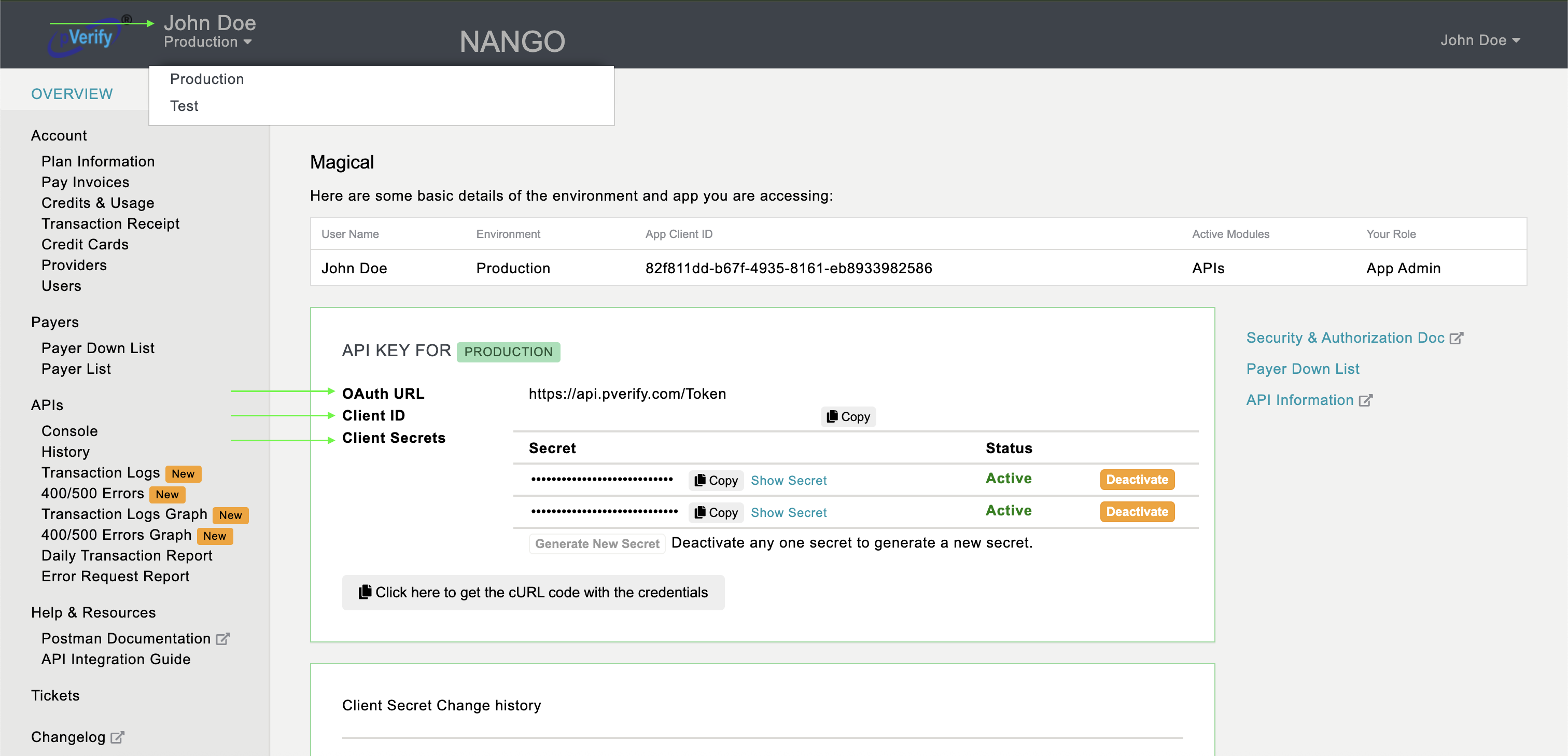
1. Navigate to [https://apimgmt.pverify.com](https://apimgmt.pverify.com) and sign in with your pVerify account.
2. Click your **profile name** in the top-right corner and toggle between **Test** and **Production** to select your environment.
* Use **Test** for development — API calls go to `testapi.pverify.com`.
* Use **Production** when going live — API calls go to `api.pverify.com`.
3. Your **Client ID** and **Client Secret** are displayed on the dashboard. Copy both values. The **API Host** is the hostname matching your chosen environment (e.g. `api.pverify.com`).
 #### Step 2: Enter credentials in the Connect UI
1. Open the form where you need to authenticate with pVerify.
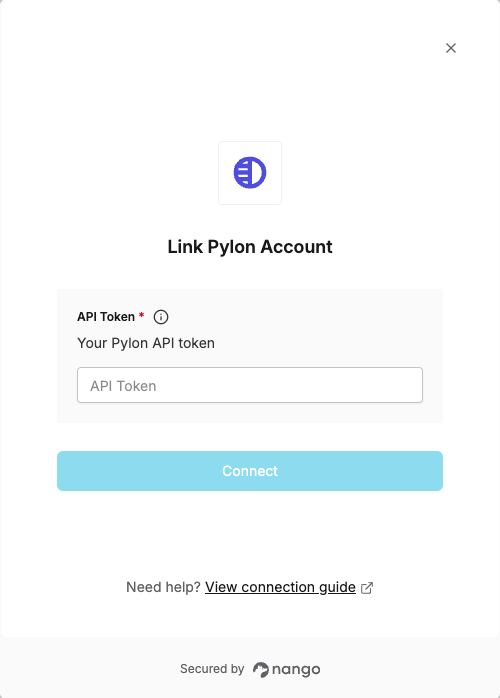
2. Enter your **Client ID**, **Client Secret**, and **API Host** in their designated fields.
3. Submit the form, and you should be successfully authenticated.
#### Step 2: Enter credentials in the Connect UI
1. Open the form where you need to authenticate with pVerify.
2. Enter your **Client ID**, **Client Secret**, and **API Host** in their designated fields.
3. Submit the form, and you should be successfully authenticated.
 You are now connected to pVerify.