> ## Documentation Index
> Fetch the complete documentation index at: https://nango.dev/docs/llms.txt
> Use this file to discover all available pages before exploring further.
# Procore - How do I link my account?
# Overview
To authenticate with Procore, you will need:
1. **Company ID** (optional) - The ID of the Procore company you want to connect to.
This guide will walk you through finding your **Company ID** within Procore.
### Prerequisites:
* You must have a Procore account
### Instructions:
#### Step 1: Finding your Company ID
1. Log in to Procore at [app.procore.com](https://app.procore.com).
2. Navigate to any Company level tool (e.g., Project Directory, Company Directory, etc.).
3. View the URL in your browser's address bar to find the company ID.
The company ID appears in the URL after `/companies/` or as a parameter in the URL. For example:
* `https://app.procore.com/companies/598134325779301/projects`
* The company ID in this example is `598134325779301`
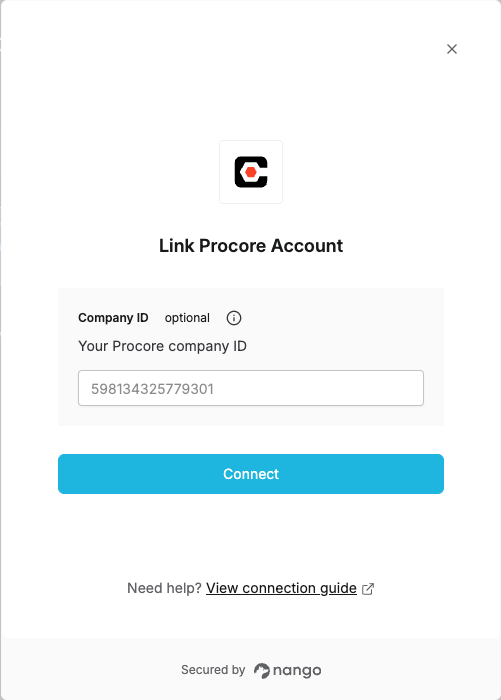
 #### Step 2: Enter credentials in the Connect UI
Once you have your **Company ID**:
1. Open the form where you need to authenticate with Procore.
2. Enter your **Company ID** in the **Company ID** field (optional).
3. Submit the form, and you should be successfully authenticated.
#### Step 2: Enter credentials in the Connect UI
Once you have your **Company ID**:
1. Open the form where you need to authenticate with Procore.
2. Enter your **Company ID** in the **Company ID** field (optional).
3. Submit the form, and you should be successfully authenticated.
 You are now connected to Procore.