> ## Documentation Index
> Fetch the complete documentation index at: https://nango.dev/docs/llms.txt
> Use this file to discover all available pages before exploring further.
# PostHog - How do I link my account?
# Overview
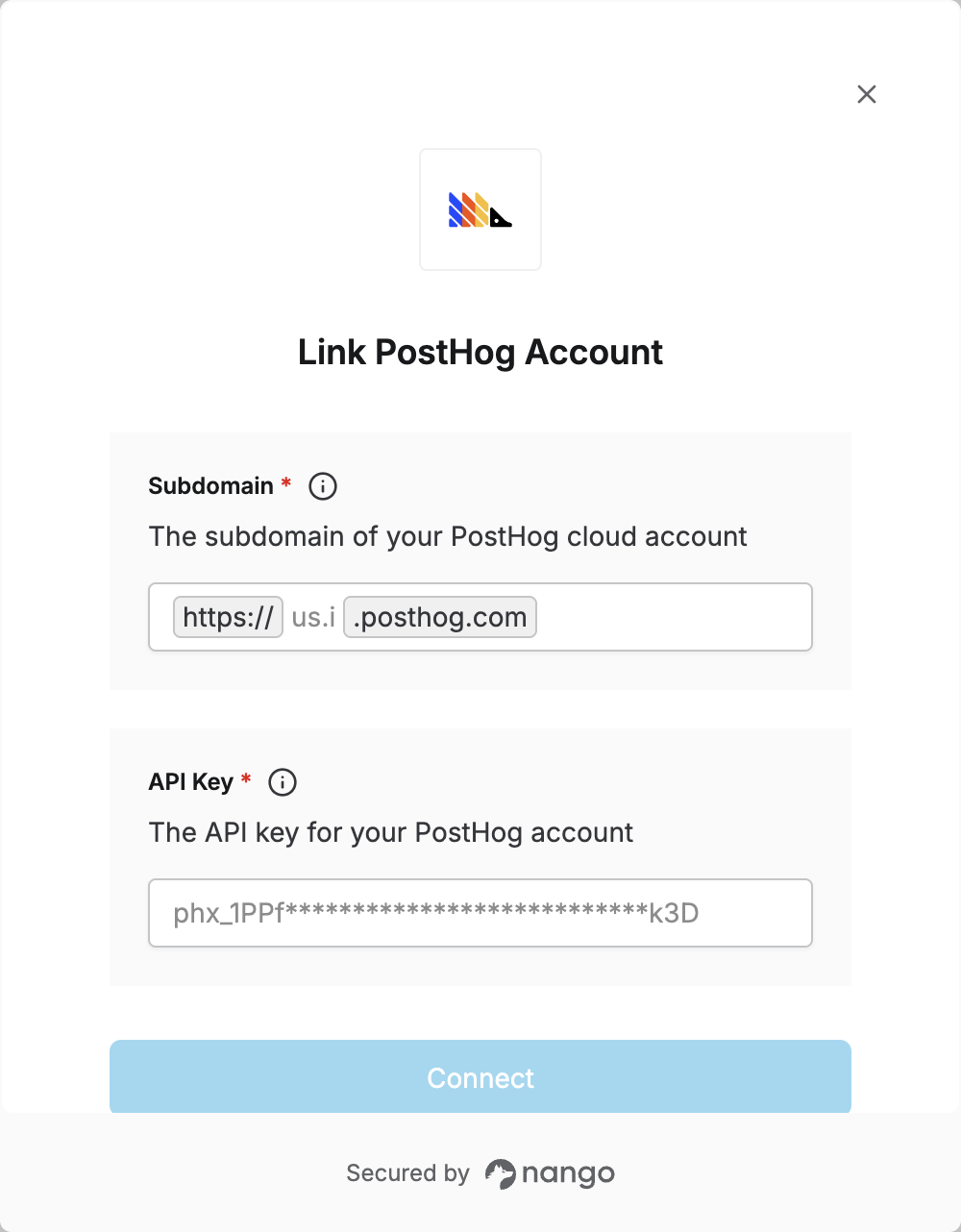
To authenticate with PostHog, you need two things:
1. **Subdomain** - The part of your PostHog URL after `https://` and before `.posthog.com`
2. **API Key** - A key that grants Nango permission to interact with PostHog's APIs and services
This guide will walk you through finding and creating those credentials within PostHog.
### Prerequisites:
* You must set up an account with PostHog.
#### Step 1: Finding your subdomain
1. Log in to your PostHog account and check the URL in the address bar. Your **subdomain** is the part after `https://` and before `.posthog.com`. For example, if the URL is `https://us.posthog.com`, your subdomain is `us`.
2. For reference: US Cloud typically uses `us` or `us.i`; EU Cloud uses `eu` or `eu.i`.
#### Step 2: Finding your API Key
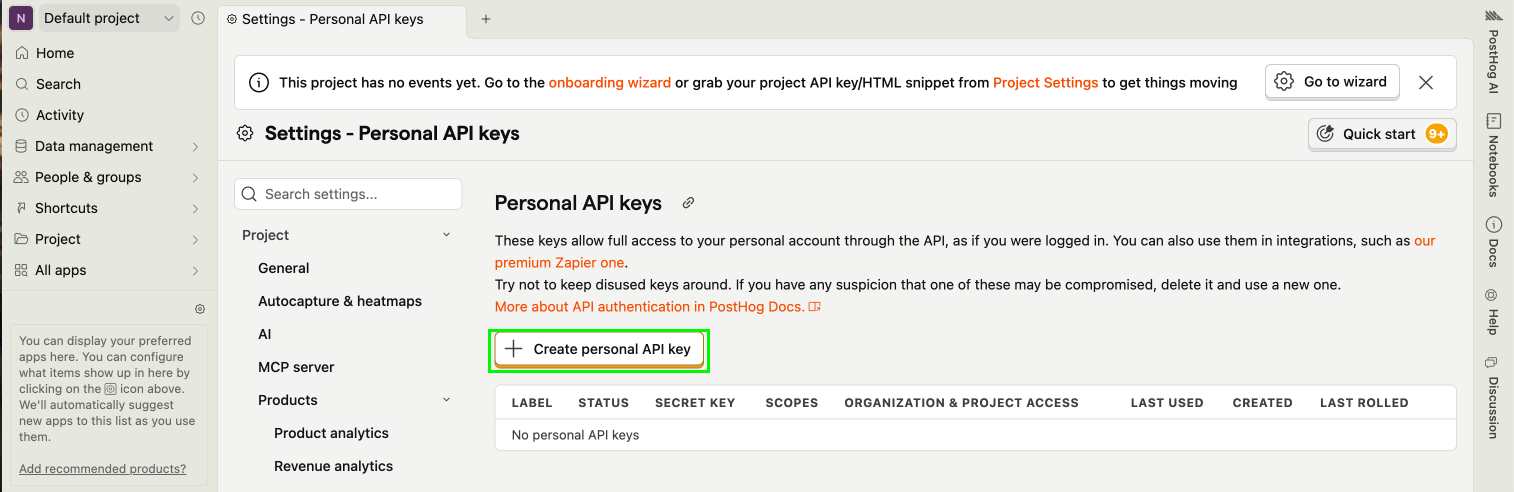
1. Go to the [Personal API keys](https://us.posthog.com/settings/user-api-keys) section in your account settings.
2. Click `+ Create a personal API Key`.
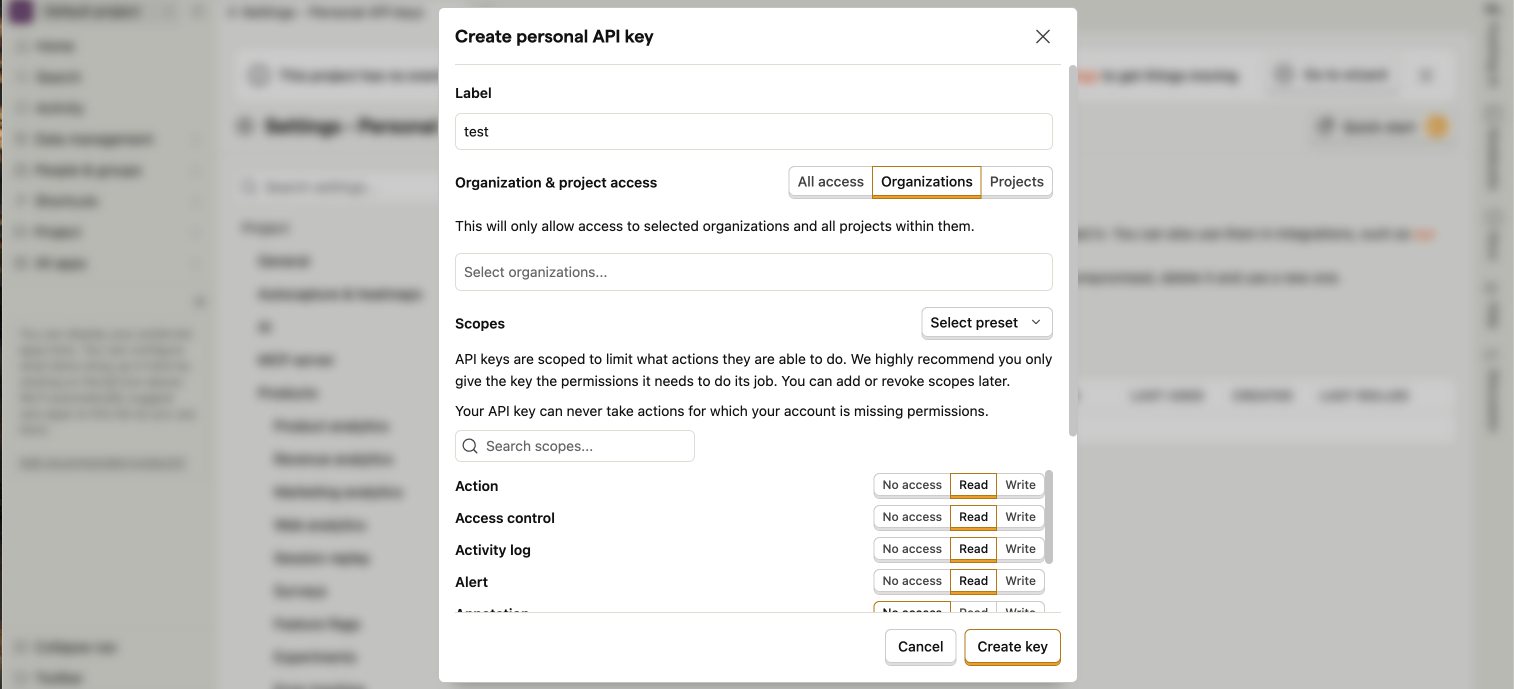
 3. Give your key a label—this is just for you, usually to describe the key's purpose.
4. Choose the scopes and access level for your key. We recommend selecting only the scopes and access level required for the API endpoints you really need. You can always modify the scopes later if you need to.
3. Give your key a label—this is just for you, usually to describe the key's purpose.
4. Choose the scopes and access level for your key. We recommend selecting only the scopes and access level required for the API endpoints you really need. You can always modify the scopes later if you need to.
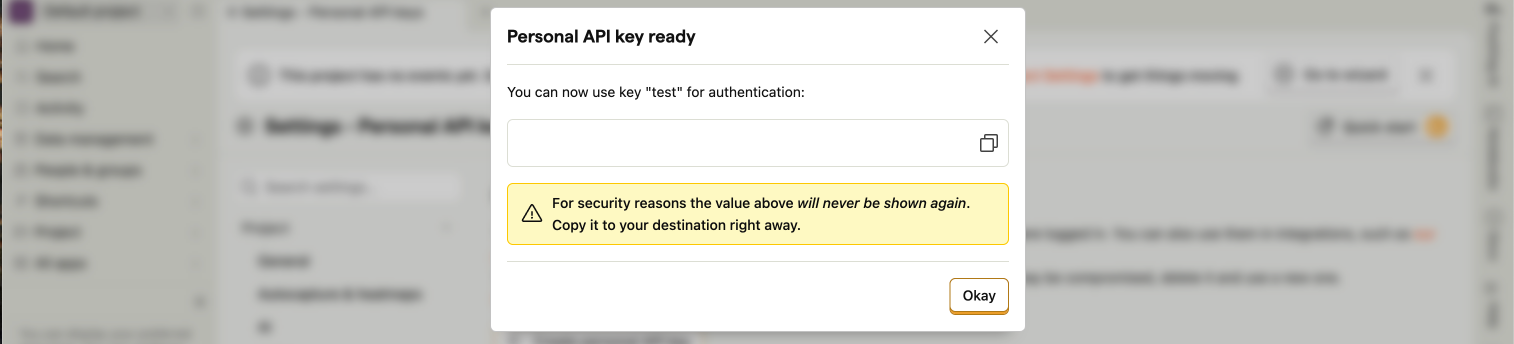
 5. Click **Save key** to submit the form and generate your **API Key**.
6. Copy your **API Key** securely—you won't see it again after you leave the page.
5. Click **Save key** to submit the form and generate your **API Key**.
6. Copy your **API Key** securely—you won't see it again after you leave the page.
 #### Step 3: Enter credentials in the Connect UI
Once you have your **Subdomain** and **API Key**:
1. Open the form where you need to authenticate with PostHog.
2. Enter your **Subdomain** and **API Key** in their respective fields.
3. Submit the form, and you should be successfully authenticated.
#### Step 3: Enter credentials in the Connect UI
Once you have your **Subdomain** and **API Key**:
1. Open the form where you need to authenticate with PostHog.
2. Enter your **Subdomain** and **API Key** in their respective fields.
3. Submit the form, and you should be successfully authenticated.
 You are now connected to PostHog.