> ## Documentation Index
> Fetch the complete documentation index at: https://nango.dev/docs/llms.txt
> Use this file to discover all available pages before exploring further.
# Paylocity (Weblink) - How do I link my account?
# Overview
To authenticate with Paylocity, you will need:
1. **Environment** - Your Paylocity environment (testing or production).
2. **Company ID** - The unique identifier for your Paylocity company.
3. **Client ID** - A key that is used to identify your Paylocity application.
4. **Client Secret** - A secret key used in conjunction with the Client ID to grant Nango permission to access Paylocity's API resources and services.
This guide will walk you through finding these within Paylocity.
### Prerequisites:
* You must have a registered Paylocity account.
### Instructions:
### Step 1: Select the Correct Paylocity Environment
Paylocity offers **two environments** for API access. Choose the one that matches your use case:
| Environment | Base URL | Purpose |
| -------------- | --------------------------------- | ---------------------------------------- |
| **Testing** | `https://dc1demogw.paylocity.com` | Safe testing environment with test data. |
| **Production** | `https://api.paylocity.com` | Live data for real-world use. |
**Note:** Use `dc1demogw` for testing and development, and `api` for production environments.
### Step 2: Find Your Company ID
1. Log in to your Paylocity portal.
2. Locate your **Company ID** in the upper left-hand corner of the dashboard.
 ### Step 3: Obtain Your Client Credentials
To get your **Client ID** and **Client Secret**, you need to request API access from Paylocity:
1. Download and fill out the [Paylocity Web Services Access Request Form](https://docs.paylocity.com/Knowledge/Partner%20Integration/Paylocity_Web_Services_Access_Request.pdf).
2. Select all the permissions you want to use for your integration.
3. Email your completed form to **[webservices@paylocity.com](mailto:webservices@paylocity.com)**.
**Email Template:**
**Subject:** Requesting Client ID and Client Secret
**Email Body:**
```
Hi Paylocity team, can we get access to a Client ID and Client Secret for API access? (https://www.paylocity.com/our-products/integrations/api-library/) We have attached the form specifying relevant permissions.
```
There may be a cost associated with the API setup & gathering of credentials from Paylocity. Secrets are required to be rotated once every 365 days. An email notification of your secret expiring is sent to the identified contact 10 days and 5 days prior to the expiration.
4. Once Paylocity processes your request, you will receive your credentials.
### Step 4: Connect Your Paylocity Account
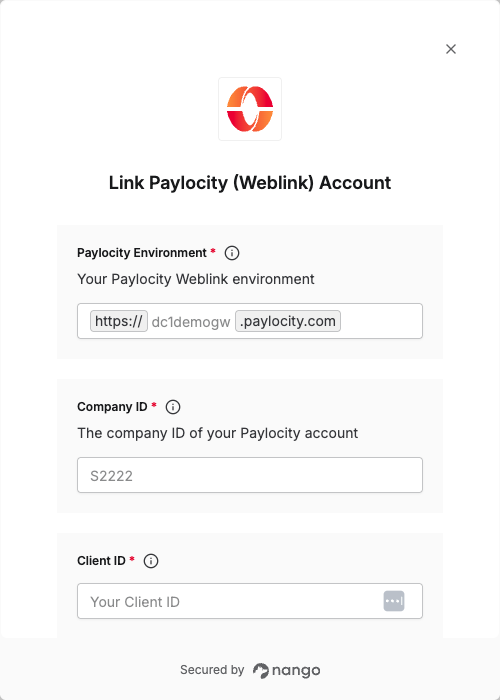
Once you have your **Environment**, **Company ID**, **Client ID**, and **Client Secret**:
1. Open the form where you need to authenticate with Paylocity.
2. Enter your **Environment** (either `dc1demogw` or `api`).
3. Enter your **Company ID**.
4. Enter your `Weblink` **Client ID** and **Client Secret** in their respective fields.
5. Submit the form, and you should be successfully authenticated.
### Step 3: Obtain Your Client Credentials
To get your **Client ID** and **Client Secret**, you need to request API access from Paylocity:
1. Download and fill out the [Paylocity Web Services Access Request Form](https://docs.paylocity.com/Knowledge/Partner%20Integration/Paylocity_Web_Services_Access_Request.pdf).
2. Select all the permissions you want to use for your integration.
3. Email your completed form to **[webservices@paylocity.com](mailto:webservices@paylocity.com)**.
**Email Template:**
**Subject:** Requesting Client ID and Client Secret
**Email Body:**
```
Hi Paylocity team, can we get access to a Client ID and Client Secret for API access? (https://www.paylocity.com/our-products/integrations/api-library/) We have attached the form specifying relevant permissions.
```
There may be a cost associated with the API setup & gathering of credentials from Paylocity. Secrets are required to be rotated once every 365 days. An email notification of your secret expiring is sent to the identified contact 10 days and 5 days prior to the expiration.
4. Once Paylocity processes your request, you will receive your credentials.
### Step 4: Connect Your Paylocity Account
Once you have your **Environment**, **Company ID**, **Client ID**, and **Client Secret**:
1. Open the form where you need to authenticate with Paylocity.
2. Enter your **Environment** (either `dc1demogw` or `api`).
3. Enter your **Company ID**.
4. Enter your `Weblink` **Client ID** and **Client Secret** in their respective fields.
5. Submit the form, and you should be successfully authenticated.
 You are now connected to Paylocity (Weblink).