> ## Documentation Index
> Fetch the complete documentation index at: https://nango.dev/docs/llms.txt
> Use this file to discover all available pages before exploring further.
# Pave - How do I link my account?
# Overview
To authenticate with Pave, you need:
1. **API Key** - A key that grants secure access to the Pave API, enabling authorized applications to interact with Pave resources and services.
This guide will walk you through generating your **API Key** in Pave.
### Prerequisites
* A Pave account with API access enabled and permission to generate API keys. An administrator can grant this under **Settings** > **Roles & Permissions**.
### Instructions
#### Step 1: Generating your API key
1. Log in to your Pave account.
2. Navigate to **Settings** > **Connections**.
3. Click **Generate API Key**.
Copy and save your key immediately — Pave only shows it once and it can't be retrieved again afterward.
#### Step 2: Enter credentials in the Connect UI
Once you have your **API Key**:
1. Open the form where you need to authenticate with Pave.
2. Enter your **API Key** in the field provided.
3. Submit the form, and you should be successfully authenticated.
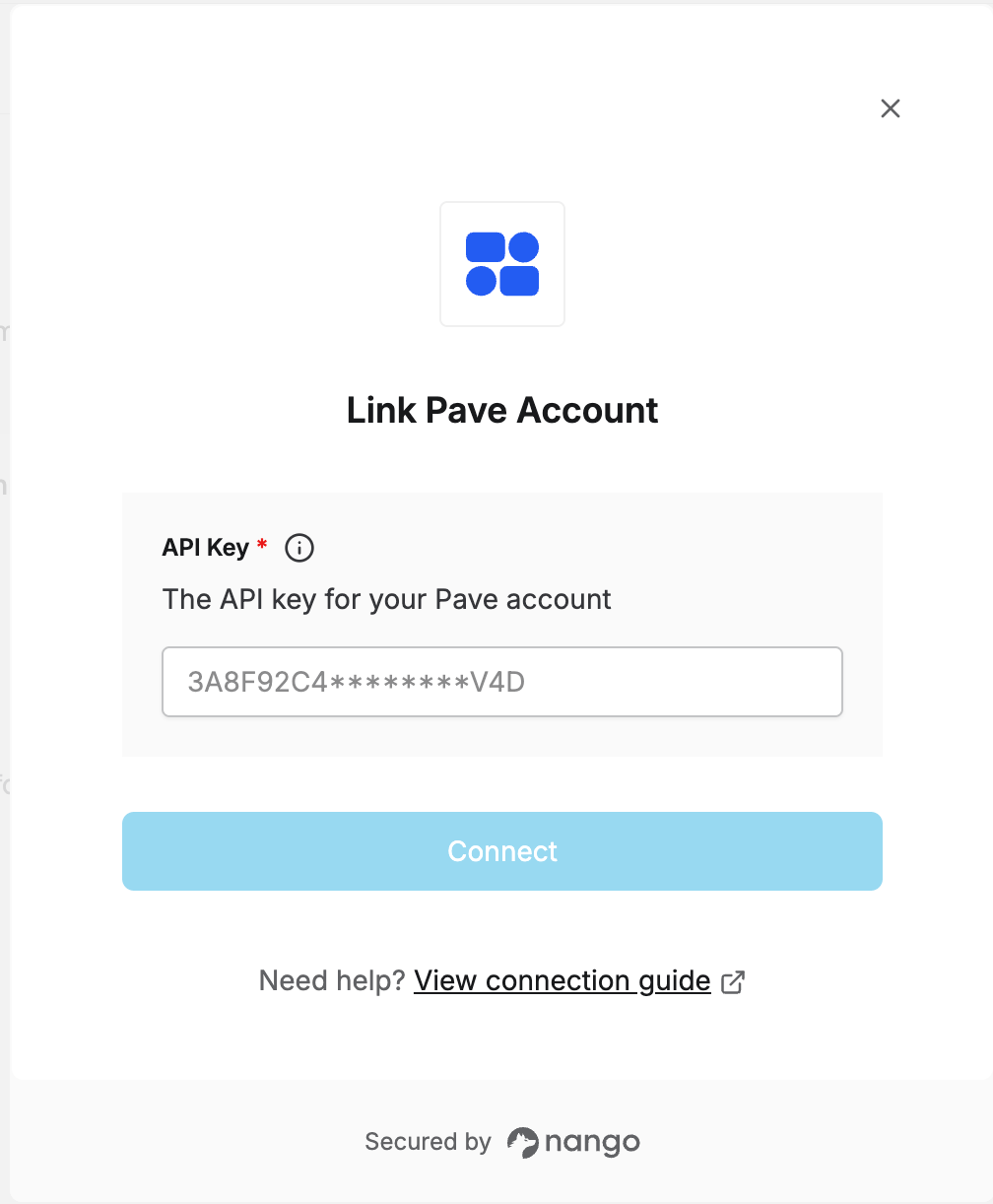 You are now connected to Pave.