> ## Documentation Index
> Fetch the complete documentation index at: https://nango.dev/docs/llms.txt
> Use this file to discover all available pages before exploring further.
# Oracle Cloud Identity - How do I link my account?
# Overview
To authenticate with Oracle Cloud Identity, you will need:
1. **IDCS Service Instance** - Your Oracle Identity Cloud Service instance identifier.
2. **Client ID** - A key that is used to identify your Oracle Cloud Identity application.
3. **Client Secret** - A secret key used in conjunction with the Client ID to grant Nango permission to access Oracle Cloud Identity's API resources and services.
This guide will walk you through finding these within Oracle Cloud Identity.
### Prerequisites:
* You must have an Oracle Cloud Identity account with administrative access.
* You must have the ability to access Oracle Cloud Services in your IDCS console.
### Instructions:
### Step 1: Finding Your Service Instance
1. Log in to your Oracle Identity Cloud Service (IDCS).
2. Access the IDCS Admin console.
 3. Select **About** from the options.
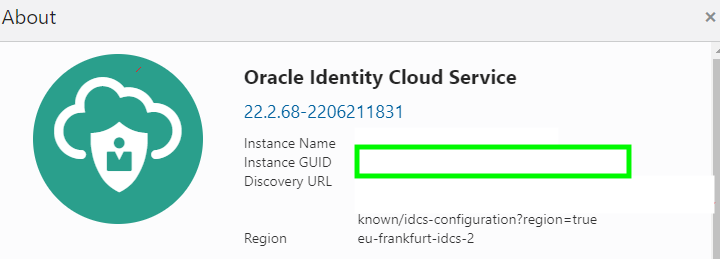 You can locate your **IDCS Service Instance** in the **Instance GUID** field.
### Step 2: Get the OAuth Client ID and Client Secret
1. From your account, select the **Navigation** icon (☰) to view a list of available functions.
2. Select **Oracle Cloud Services**.
3. From the Oracle Cloud Services window, select the required **FCCM Internal Application Service** (in `AMLCS ` format) from the list.
If you are retrieving the ERP ESS Job Details API, select the required **AMLCS Application Service** (in `AMLCS ` format) from the list. Ensure you use the same `AMLCS ` when creating a connection in Nango.
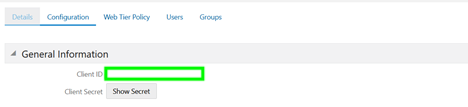
4. Click the **Configuration** tab.
5. The **Client ID** and **Client Secret** details are displayed in the **General Information** section.
You can locate your **IDCS Service Instance** in the **Instance GUID** field.
### Step 2: Get the OAuth Client ID and Client Secret
1. From your account, select the **Navigation** icon (☰) to view a list of available functions.
2. Select **Oracle Cloud Services**.
3. From the Oracle Cloud Services window, select the required **FCCM Internal Application Service** (in `AMLCS ` format) from the list.
If you are retrieving the ERP ESS Job Details API, select the required **AMLCS Application Service** (in `AMLCS ` format) from the list. Ensure you use the same `AMLCS ` when creating a connection in Nango.
4. Click the **Configuration** tab.
5. The **Client ID** and **Client Secret** details are displayed in the **General Information** section.
 ### Step 3: Connect Your Oracle Cloud Identity Account
Once you have your **Service Instance**, **Client ID**, and **Client Secret**:
1. Open the form where you need to authenticate with Oracle Cloud Identity.
2. Enter your **IDCS Service Instance**, **Client ID**, and **Client Secret** in their respective fields.
3. Submit the form, and you should be successfully authenticated.
### Step 3: Connect Your Oracle Cloud Identity Account
Once you have your **Service Instance**, **Client ID**, and **Client Secret**:
1. Open the form where you need to authenticate with Oracle Cloud Identity.
2. Enter your **IDCS Service Instance**, **Client ID**, and **Client Secret** in their respective fields.
3. Submit the form, and you should be successfully authenticated.
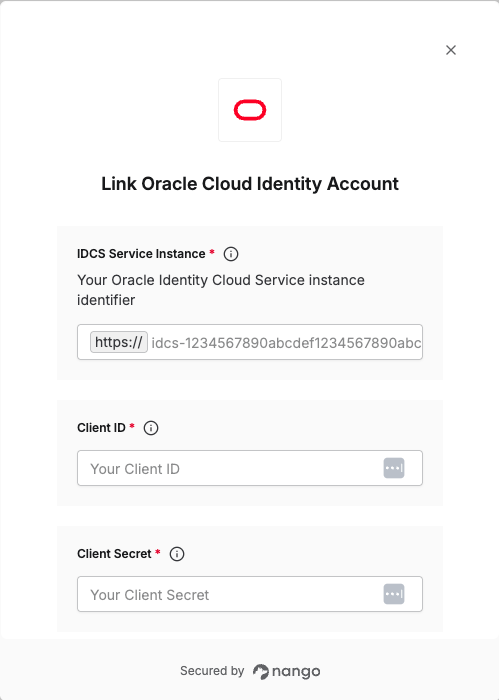 You are now connected to Oracle Cloud Identity.