> ## Documentation Index
> Fetch the complete documentation index at: https://nango.dev/docs/llms.txt
> Use this file to discover all available pages before exploring further.
# Optum Real - How do I link my account?
# Overview
To authenticate with Optum Real, you need:
1. **Environment** — whether to connect to Optum Real's sandbox or production API.
2. **Client ID** — issued via the Optum AI Marketplace for that environment.
3. **Client Secret** — issued alongside your Client ID.
Optum Real uses OAuth 2.0 client credentials. Nango exchanges your Client ID and Client Secret for a bearer token automatically, and refreshes it before it expires (tokens last 3600 seconds / 1 hour) — you don't need to manage tokens yourself.
### Prerequisites
* An Optum AI Marketplace account. Sandbox credentials can be requested without a subscription; production credentials require one.
* Your organization's Tax ID Numbers (TINs) associated via the Optum Real File Manager tool (see Step 3) — required before API calls return real data.
### Step 1: Choose your environment
Optum Real exposes two separate API hosts, each with its own credentials:
* **Sandbox** — `sandbox-apigw.optum.com` — use this to test requests before going live.
* **Production** — `apigw.optum.com` — use this once your integration is ready to go live.
Pick the one that matches the credentials you're connecting.
### Step 2: Get your credentials
1. For sandbox, request access via the [Optum AI Marketplace sandbox request form](https://marketplace.optum.com/apiservices/api-sandbox-access). For production, subscribe to the Optum Real API(s) you need via the [Optum AI Marketplace](https://marketplace.optum.com).
2. Optum issues your **Client ID** and **Client Secret** for that environment — sandbox credentials arrive by email, production credentials appear in your Marketplace account or by email once your subscription is processed.
Credentials are unique to your organization and environment — a sandbox Client ID/Secret will not work against the production host, and vice versa. If you don't have credentials yet, contact your Optum account manager or API consultant.
### Step 3: Associate your TINs
Before API calls return real data, associate your organization's Tax ID Numbers (TINs) using the Optum Real File Manager tool, for each environment you use:
1. Open the Starter Guide included with any Optum Real API order.
2. Follow the link to the Optum Real File Manager tool (step 2 of the Starter Guide).
3. Download the submission template, fill it in, and upload it through the file wizard.
4. Confirm the upload status, and check the Associated TINs tab once processing completes.
This is a one-time setup step per environment on Optum's side — Nango doesn't need any TIN information to authenticate.
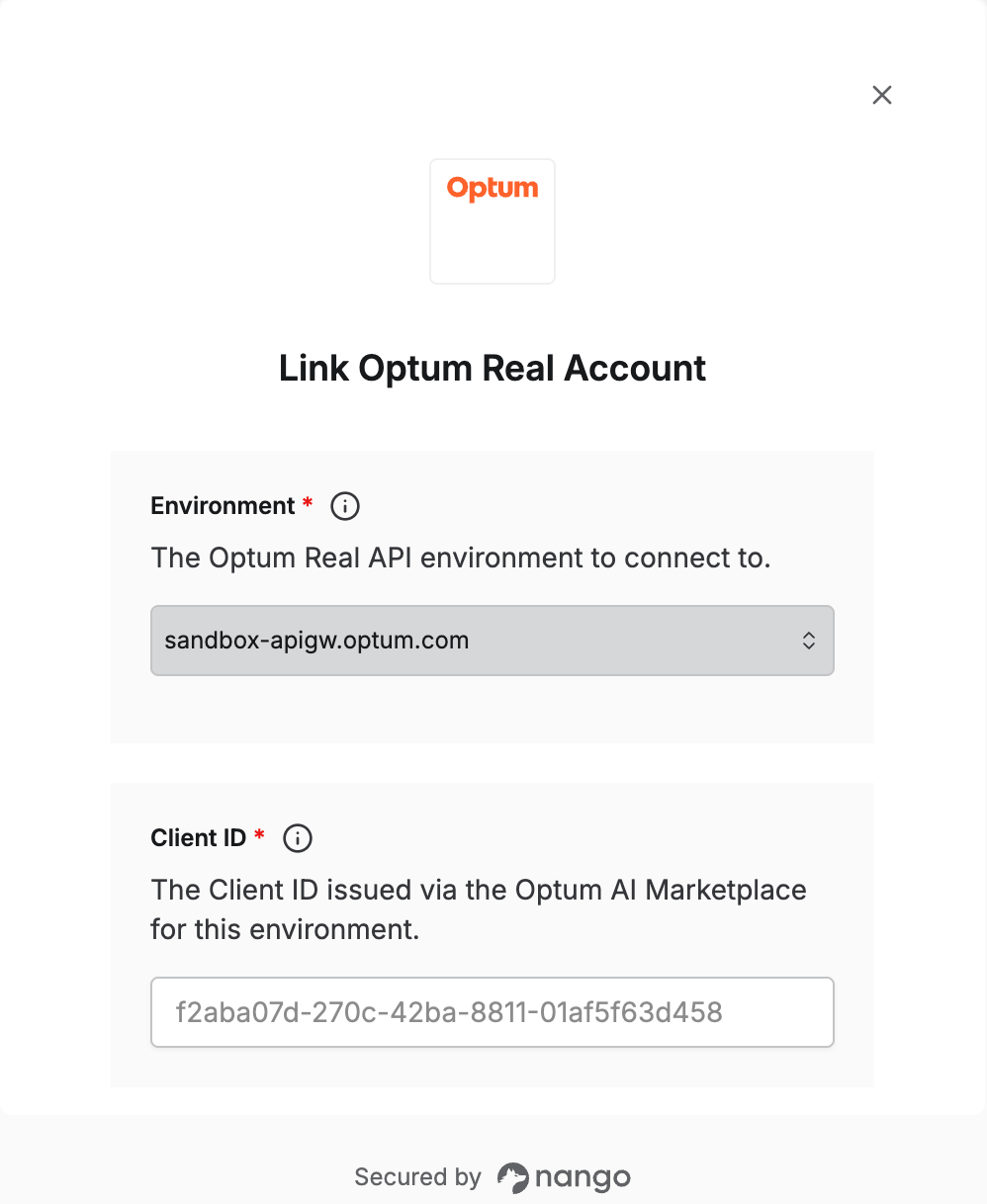
### Step 4: Enter credentials in the Connect UI
Once you have your **Client ID** and **Client Secret**:
1. Open the form where you need to authenticate with Optum Real.
2. Select the **Environment** (sandbox or production).
3. Enter your **Client ID** and **Client Secret** for that environment.
4. Submit the form, and you should be successfully authenticated.
 You are now connected to Optum Real.