> ## Documentation Index
> Fetch the complete documentation index at: https://nango.dev/docs/llms.txt
> Use this file to discover all available pages before exploring further.
# Omnisend - How do I link my account?
## Overview
To authenticate with Omnisend, you need an API key generated in your Omnisend account.
### Prerequisites
* An Omnisend account with permission to create API keys.
### Instructions
#### Step 1: Open the API keys section
1. Sign in to Omnisend.
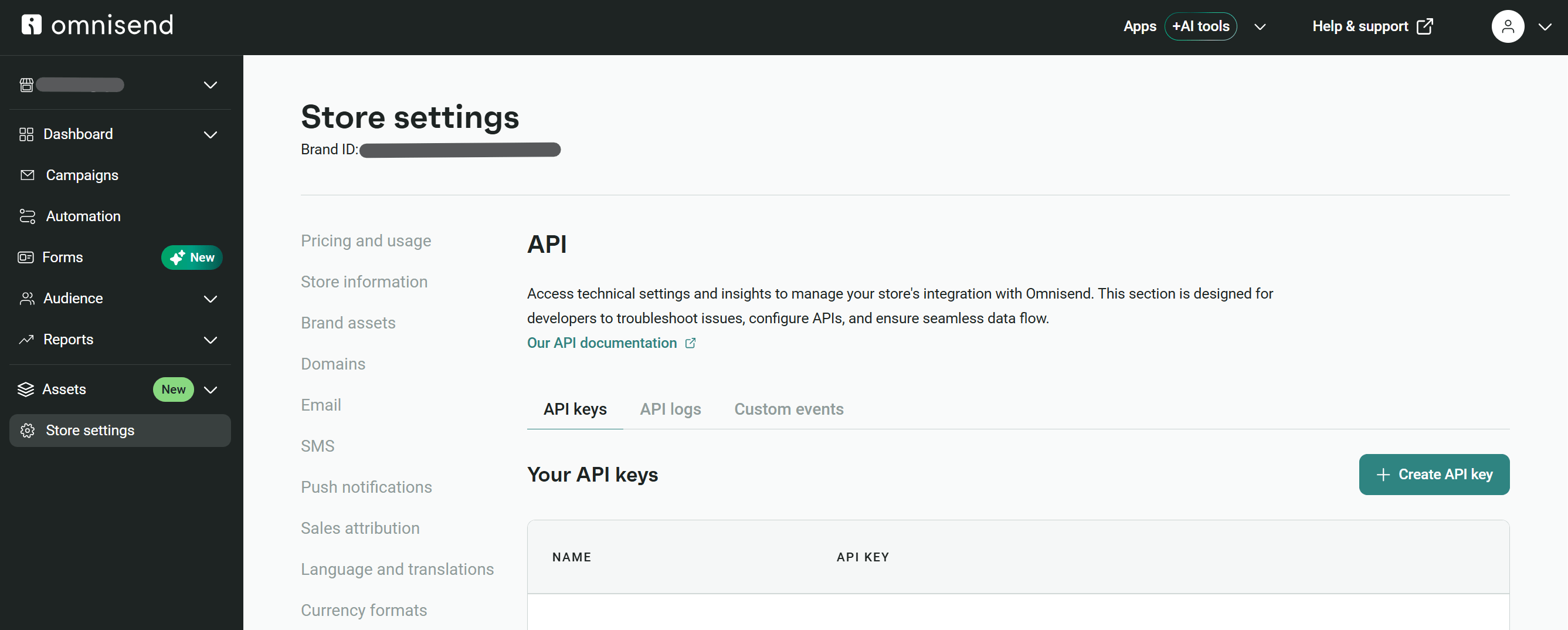
2. Go to **Store settings**, select **API**, then select the **API keys** tab.
 #### Step 2: Create an Omnisend API key
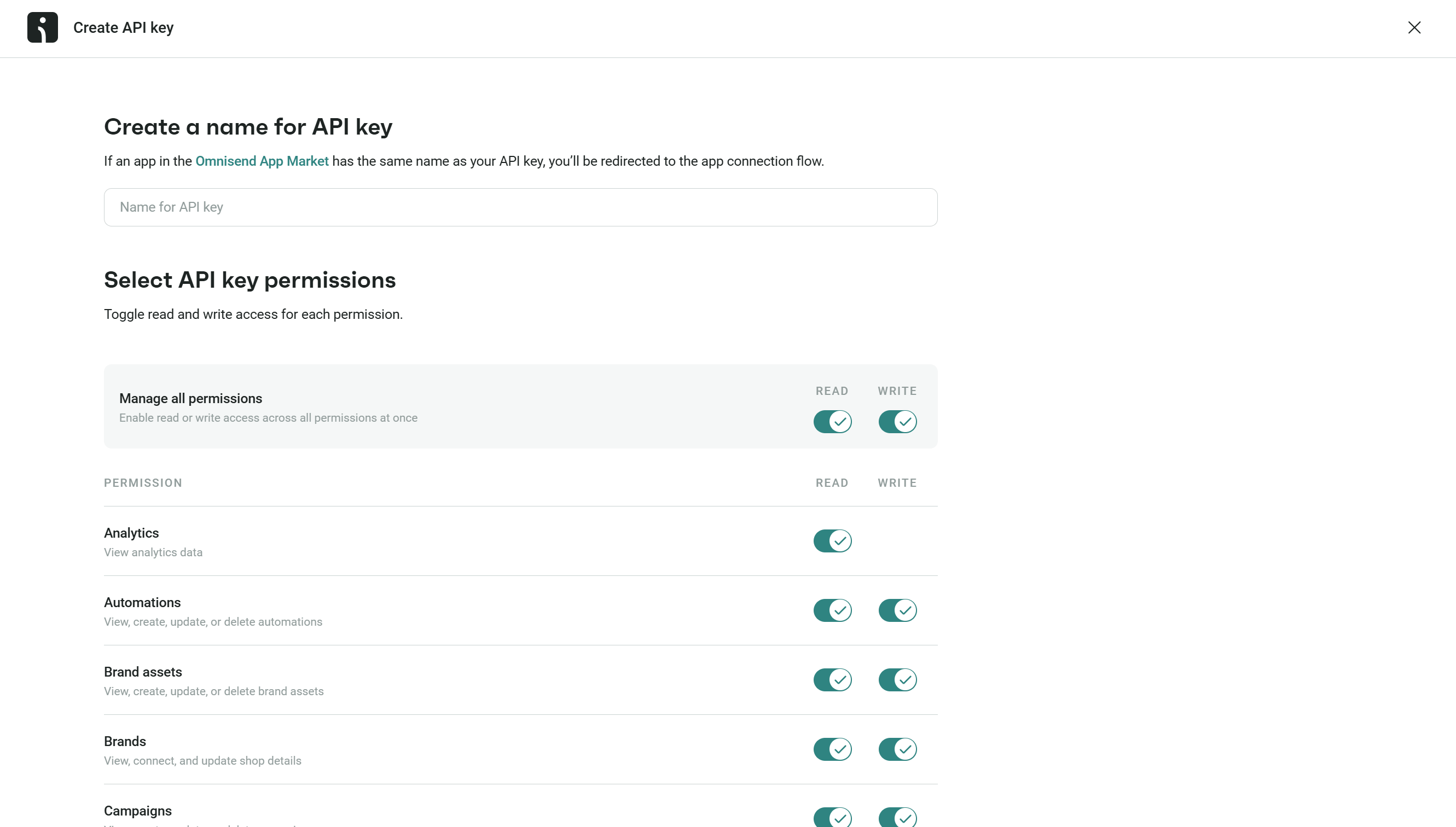
1. Select **Create API key**.
2. Enter a descriptive name. Do not use the name of an Omnisend App Market app, as Omnisend will redirect you to that app's connection flow.
3. Enable only the read and write permissions required by your application, then create the key.
#### Step 2: Create an Omnisend API key
1. Select **Create API key**.
2. Enter a descriptive name. Do not use the name of an Omnisend App Market app, as Omnisend will redirect you to that app's connection flow.
3. Enable only the read and write permissions required by your application, then create the key.
 #### Step 3: Copy the API key
Copy the key immediately when Omnisend displays it. Omnisend does not show it again after you leave this screen.
#### Step 3: Copy the API key
Copy the key immediately when Omnisend displays it. Omnisend does not show it again after you leave this screen.
 #### Step 4: Enter the API key in the Connect UI
1. Open the form where you need to authenticate with Omnisend.
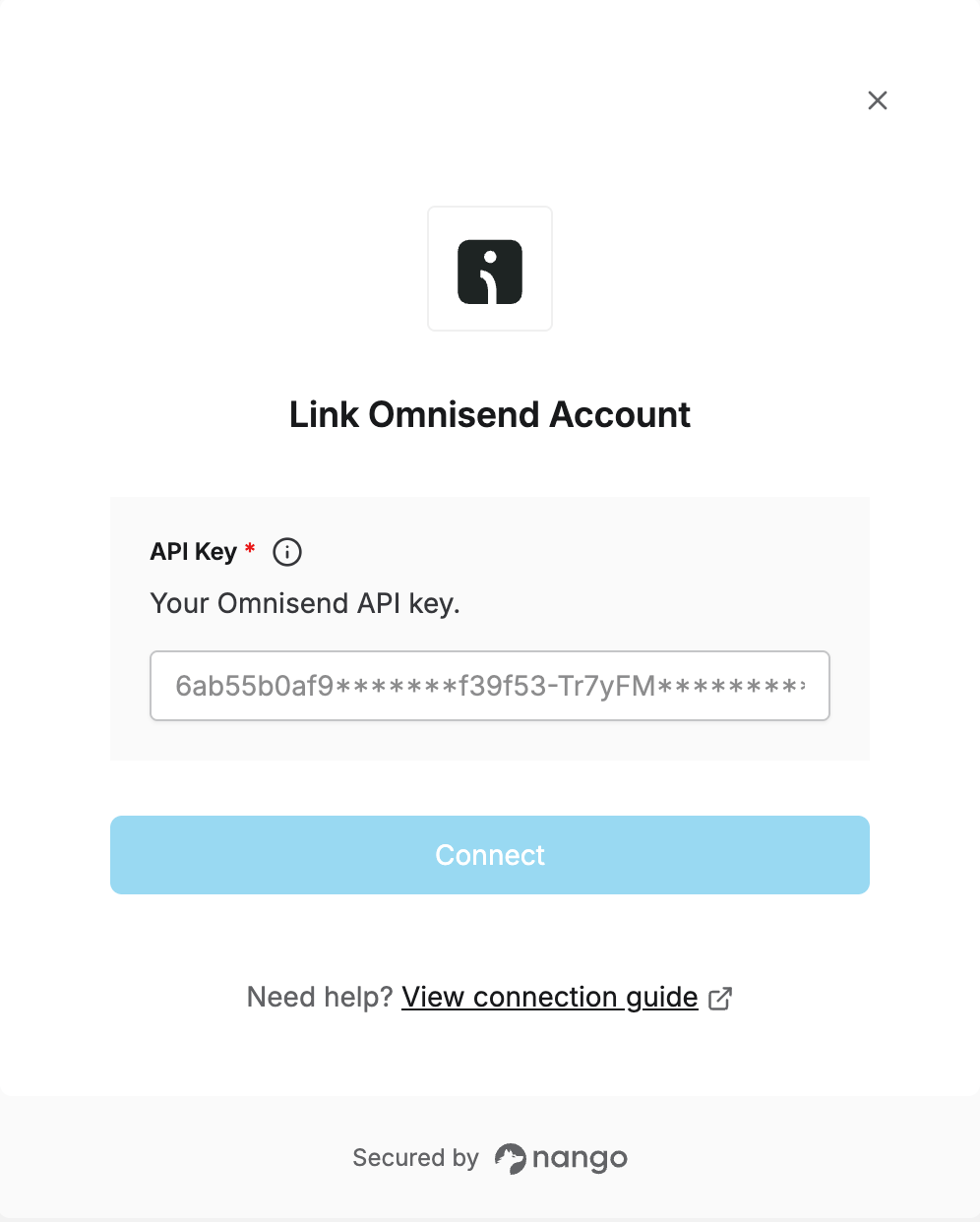
2. Enter your Omnisend API key.
3. Submit the form.
#### Step 4: Enter the API key in the Connect UI
1. Open the form where you need to authenticate with Omnisend.
2. Enter your Omnisend API key.
3. Submit the form.
 You are now connected to Omnisend.
Never expose the API key in browser code or commit it to source control.
***
You are now connected to Omnisend.
Never expose the API key in browser code or commit it to source control.
***