> ## Documentation Index
> Fetch the complete documentation index at: https://nango.dev/docs/llms.txt
> Use this file to discover all available pages before exploring further.
# Omni Analytics - How do I link my account?
# Overview
To authenticate with Omni, you will need:
1. **Instance Subdomain** – the subdomain of your Omni instance, e.g. `acme` if your Omni URL is `https://acme.omniapp.co`.
2. **API Key** – an Organization API key or a Personal Access Token (PAT).
This guide will walk you through finding your **Instance Subdomain** and creating your **API Key**.
### Prerequisites:
* An Omni account. Creating an Organization API key requires Organization Admin permissions; creating a PAT requires the Restricted Querier role or higher.
* To create a PAT, an Organization Admin must first enable **Settings > API access > Personal tokens** for the instance — until that's enabled, individual users can't generate their own PATs.
### Instructions:
#### Step 1: Finding your instance subdomain
Your instance subdomain is the first part of the URL you use to access Omni, before `.omniapp.co`. For example, if you access Omni at `https://acme.omniapp.co`, your subdomain is `acme`.
#### Step 2: Creating an API key
To create an **Organization API key** (requires Organization Admin permissions):
1. Navigate to **Settings** → **API access** → **Organization keys**.
2. Click **Generate new key**.
3. Enter a descriptive name for the key — Omni recommends including something that identifies you as the creator (e.g. your initials), since the key inherits your user attributes and this helps with troubleshooting later.
4. Click **Generate**.
5. Copy the key immediately — Organization API keys are only displayed once.
To create a **Personal Access Token** instead:
1. Go to your **Profile** → **Manage account**.
2. Click **Generate token**.
3. Copy the token immediately — it's only displayed once.
A Personal Access Token inherits the creating user's own permissions and can't be used with the document export, document import, mail-only user creation, bulk mail-only user creation, or SCIM endpoints. If you need those endpoints, use an Organization API key instead.
Neither token type expires automatically. Organization API keys can be disabled, re-enabled, or revoked from **Settings > API access > Organization keys**. For a PAT, the token owner can rotate or revoke their own token from **Profile > Manage account**; an Organization Admin can separately disable or re-enable any individual PAT from **Settings > API access > Personal tokens**.
#### Step 3: Enter credentials in the Connect UI
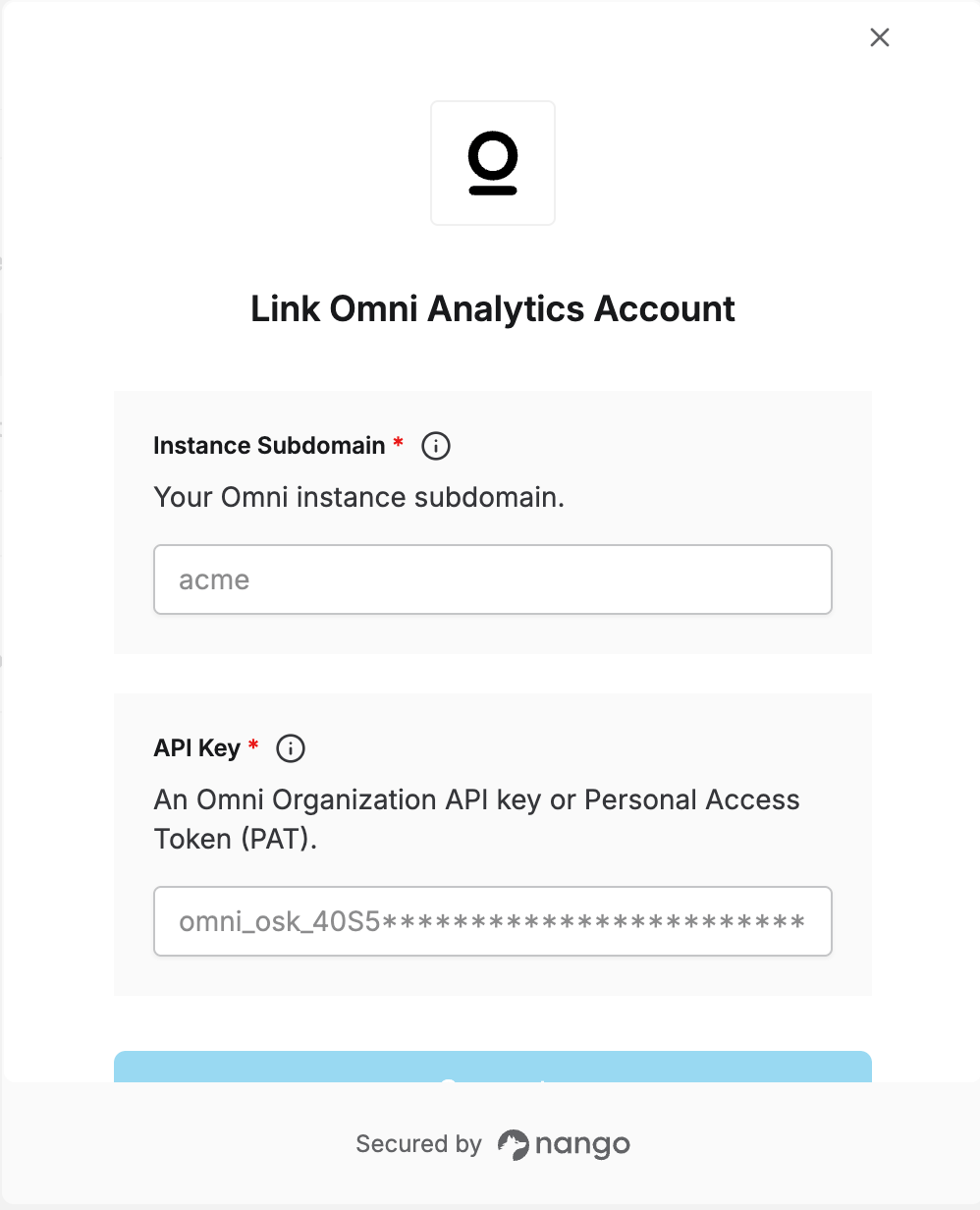
Once you have your **Instance Subdomain** and **API Key**:
1. Open the form where you need to authenticate with Omni
2. Enter your **Instance Subdomain** and **API Key** in their respective fields
3. Submit the form, and you should be successfully authenticated
 You are now connected to Omni.
***
You are now connected to Omni.
***