> ## Documentation Index
> Fetch the complete documentation index at: https://nango.dev/docs/llms.txt
> Use this file to discover all available pages before exploring further.
# Odoo (API Key) - How do I link my account?
# Overview
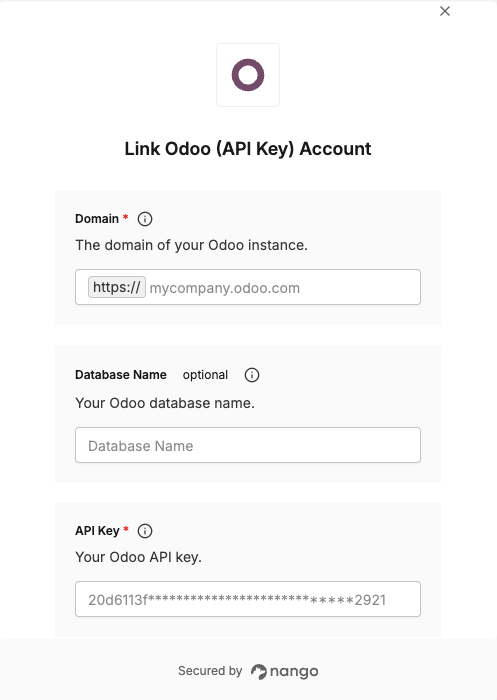
To authenticate with Odoo's JSON-2 API, you will need:
1. **Domain** - The domain of your Odoo instance.
2. **Database Name** (optional) - Only needed if your server hosts multiple databases.
3. **API Key** - A personal API key generated from your Odoo account.
This guide walks you through finding these values.
### Prerequisites:
* You must have an Odoo account with access to Preferences > Account Security.
### Instructions:
#### Step 1: Finding your Odoo domain
1. Log in to your Odoo instance.
2. Check the URL in your browser's address bar — for Odoo Online this typically looks like `https://mycompany.odoo.com`; for a self-hosted instance it's whatever domain you access Odoo through (e.g. `mycompany.example.com`).
3. Your **Domain** is that hostname, without the `https://` prefix.
#### Step 2: Finding your database name (if applicable)
Most Odoo Online instances only host a single database and don't need this. If your server hosts multiple databases (common for self-hosted or multi-tenant deployments), find the database name shown in the Odoo database selection screen, or ask your Odoo administrator.
#### Step 3: Generating an API key
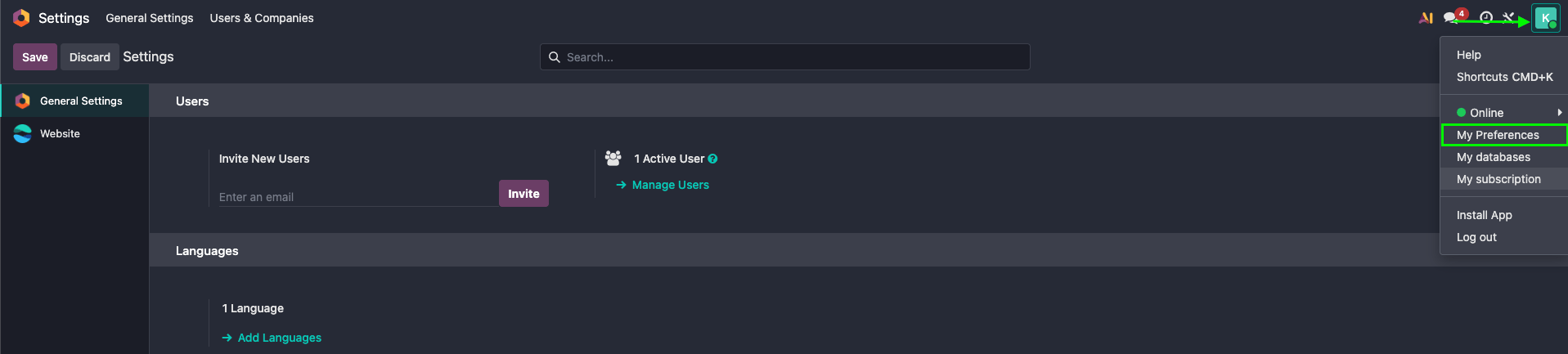
1. In Odoo, click your profile picture in the top right, go to **My Preferences**, then open the **Security** tab.
 2. Click **Add API Key**.
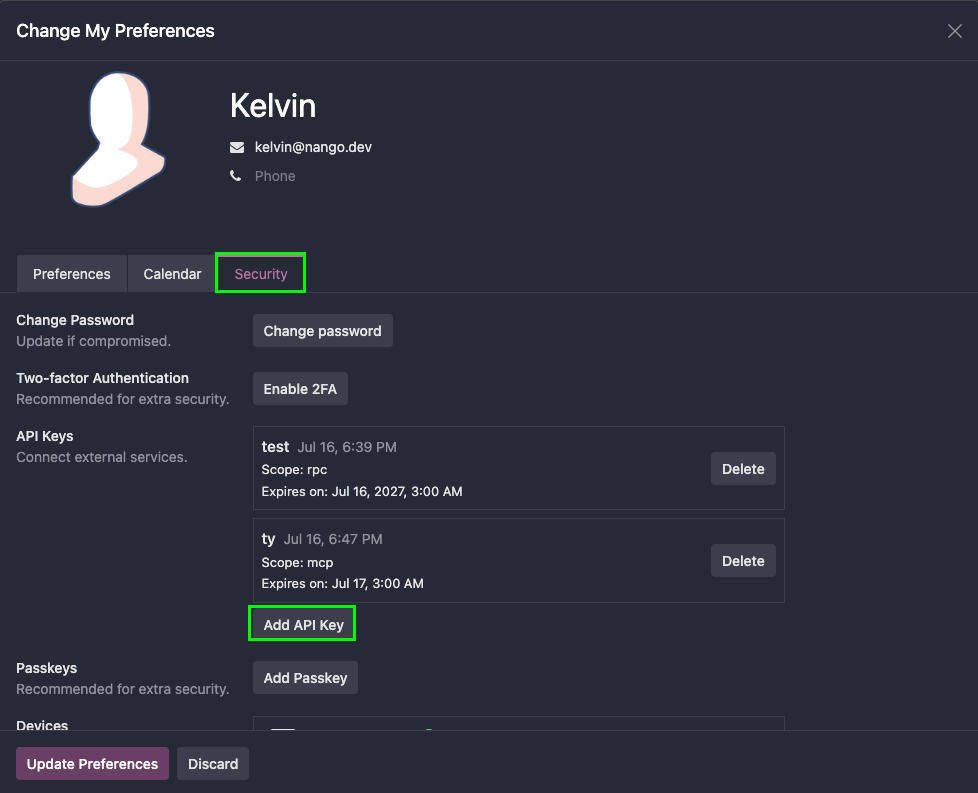 3. Enter a **Name**, leave the scope as **RPC**, and select a longer **duration** so the key doesn't expire too frequently.
4. Click **Generate Key**. Your key is generated and shown once — copy it now, since you won't be able to see it again.
For automated integrations, Odoo recommends using a dedicated bot user with the minimum required permissions rather than a personal account, so a compromised key has limited impact and login/password access can be disabled entirely. See [Odoo's Access Rights documentation](https://www.odoo.com/documentation/latest/developer/reference/external_api.html#access-rights) for details.
#### Step 4: Enter credentials in the Connect UI
Once you have your **Domain**, **Database Name** (if applicable), and **API Key**:
1. Open the Odoo (API Key) connection form in Nango.
2. Enter each value in its respective field.
3. Submit the form, and you should be successfully authenticated.
3. Enter a **Name**, leave the scope as **RPC**, and select a longer **duration** so the key doesn't expire too frequently.
4. Click **Generate Key**. Your key is generated and shown once — copy it now, since you won't be able to see it again.
For automated integrations, Odoo recommends using a dedicated bot user with the minimum required permissions rather than a personal account, so a compromised key has limited impact and login/password access can be disabled entirely. See [Odoo's Access Rights documentation](https://www.odoo.com/documentation/latest/developer/reference/external_api.html#access-rights) for details.
#### Step 4: Enter credentials in the Connect UI
Once you have your **Domain**, **Database Name** (if applicable), and **API Key**:
1. Open the Odoo (API Key) connection form in Nango.
2. Enter each value in its respective field.
3. Submit the form, and you should be successfully authenticated.
 You are now connected to Odoo.