> ## Documentation Index
> Fetch the complete documentation index at: https://nango.dev/docs/llms.txt
> Use this file to discover all available pages before exploring further.
# nocrm.io - How do I link my account?
# Overview
To authenticate with nocrm.io, you will need:
1. **Account subdomain** – Your nocrm.io subdomain (e.g. `mycompany` for `https://mycompany.nocrm.io`).
2. **API Key** – A private key generated by an administrator from the admin section of your nocrm.io account.
This guide walks you through finding your subdomain and generating an API key.
### Prerequisites
* You must have a nocrm.io account with admin access to generate API keys.
### Instructions
#### Step 1: Finding your subdomain
Your account address is of the form `https://YOUR_SUBDOMAIN.nocrm.io`. The subdomain is the part before `.nocrm.io` (e.g. if your URL is `https://acme.nocrm.io`, your subdomain is `acme`). You can see it in the browser when you are logged in to nocrm.io.
#### Step 2: Obtaining your API key
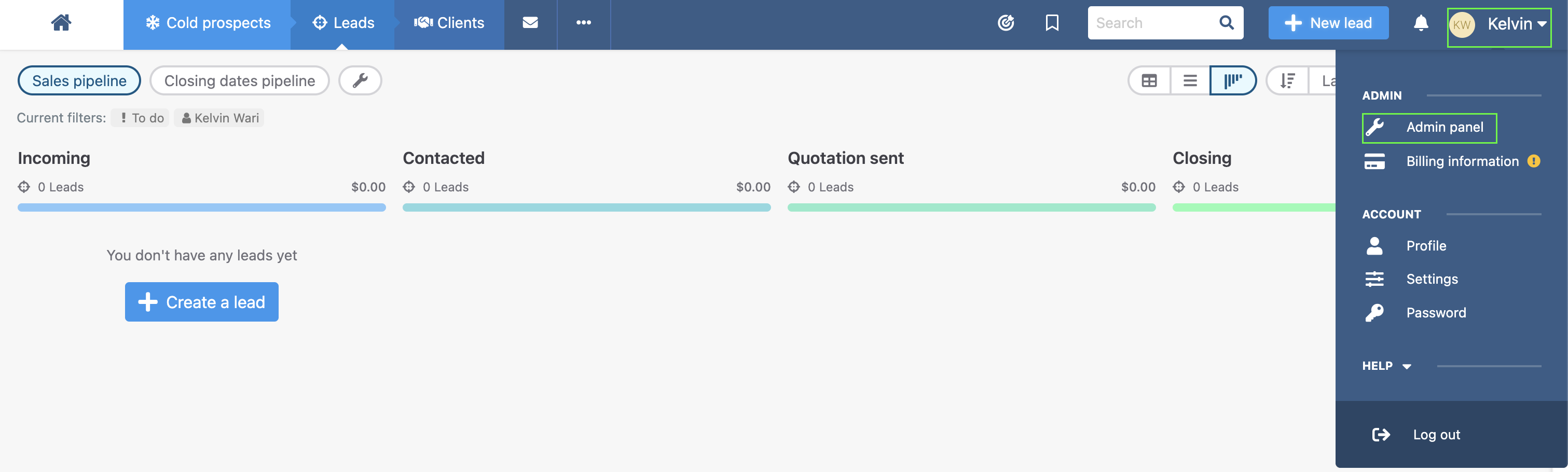
1. From your account, click on your profile.
2. From the dropdown that is displayed, click **Admin Panel**.
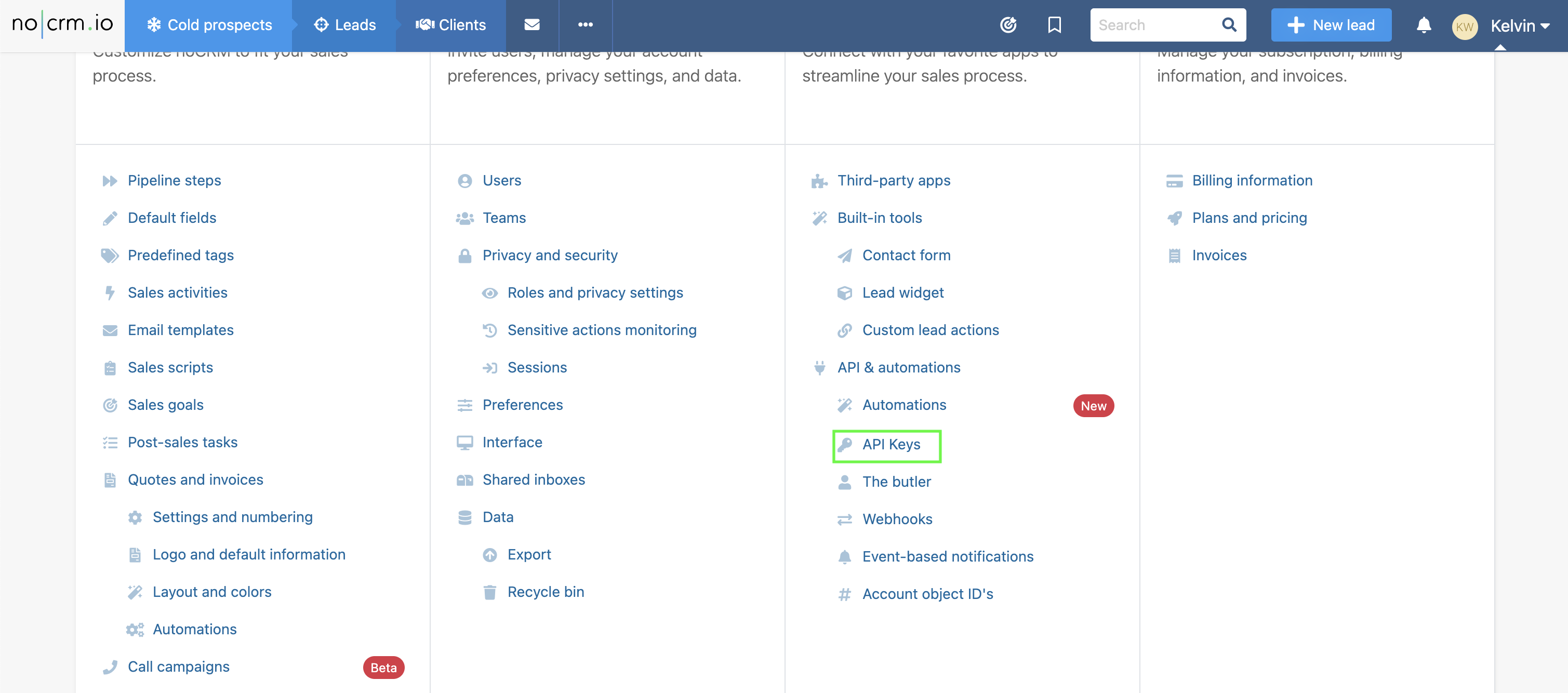
 3. In the Integration column, scroll down and click the **API Keys** button.
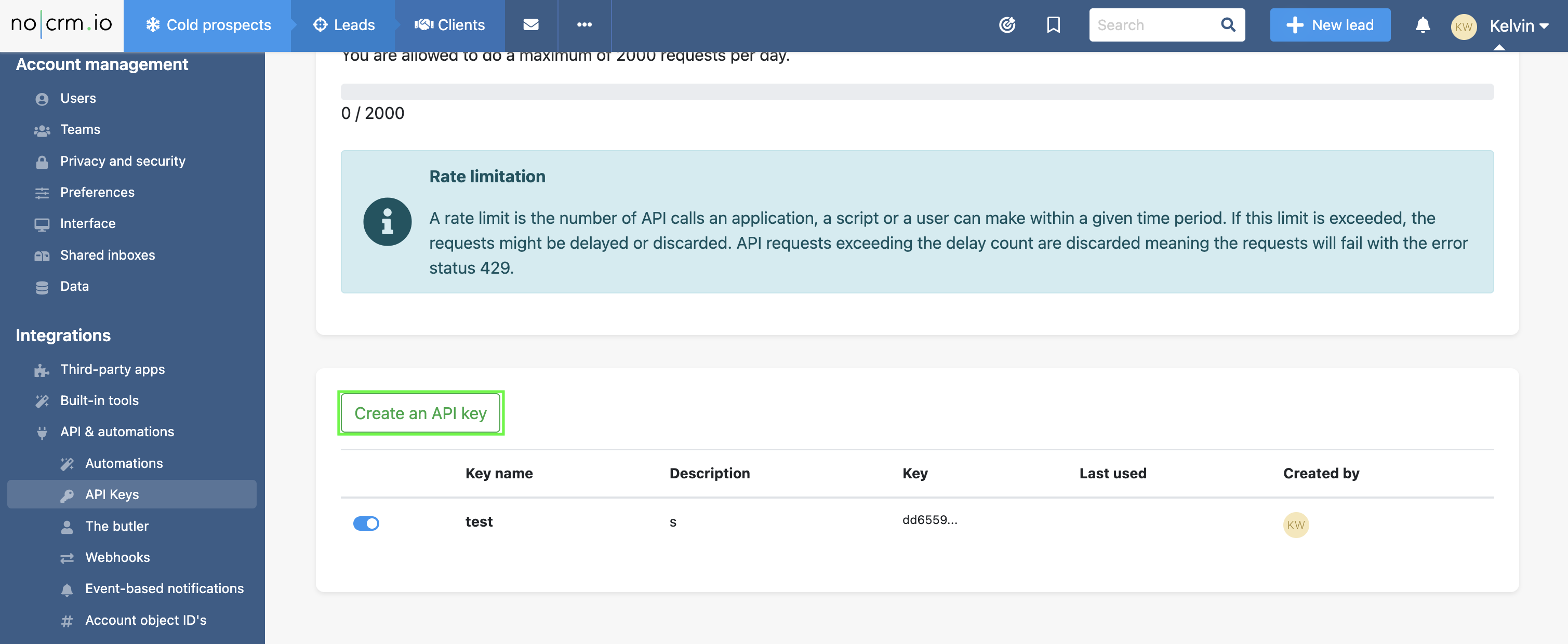
 4. Click **Create an API Key**, enter a name (and optional description), then save.
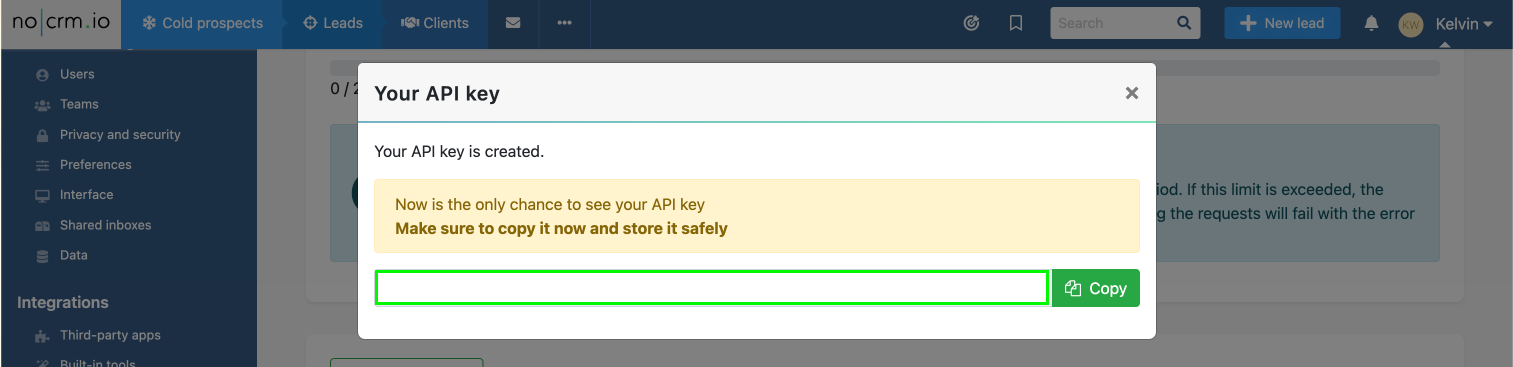
 5. Copy the key from the popup right away, as it will not be shown again.
 #### Step 3: Enter credentials in the Connect UI
Once you have your **subdomain** and **API key**:
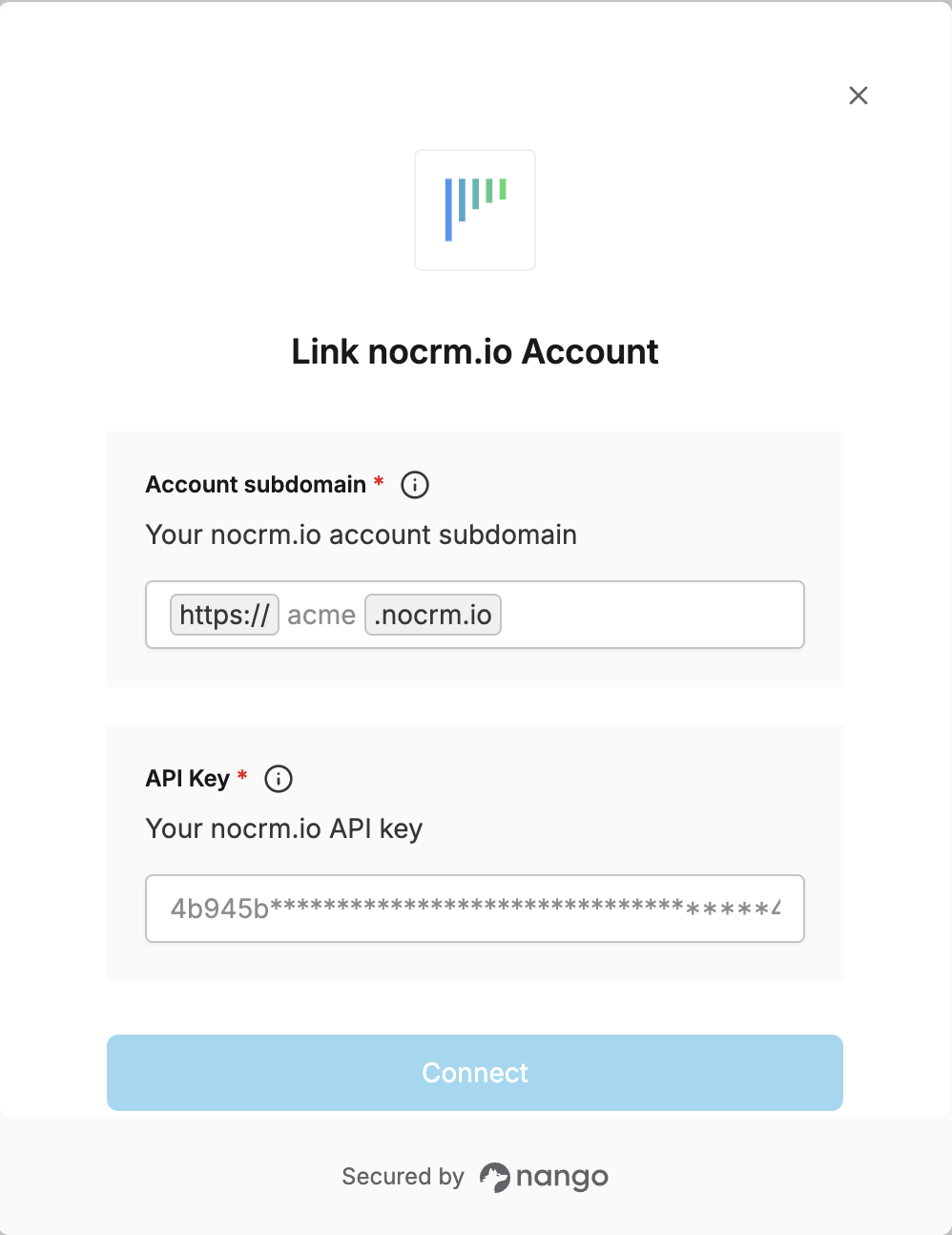
1. Open the form where you need to authenticate with nocrm.io.
2. Enter your **subdomain** (e.g. `mycompany`) in the account subdomain field.
3. Enter your **API key** in the API key field.
4. Submit the form, and you should be successfully authenticated.
#### Step 3: Enter credentials in the Connect UI
Once you have your **subdomain** and **API key**:
1. Open the form where you need to authenticate with nocrm.io.
2. Enter your **subdomain** (e.g. `mycompany`) in the account subdomain field.
3. Enter your **API key** in the API key field.
4. Submit the form, and you should be successfully authenticated.
 You are now connected to nocrm.io.