> ## Documentation Index
> Fetch the complete documentation index at: https://nango.dev/docs/llms.txt
> Use this file to discover all available pages before exploring further.
# How to connect to ModMed
> Connect your ModMed account to Nango
# Overview
To authenticate with ModMed, you will need:
1. **Environment** - The environment you're connecting to (sandbox or production)
2. **Firm URL Prefix** - The firm URL prefix for your practice
3. **Username** - Your ModMed API username
4. **Password** - Your ModMed API password
5. **API Key** - Your ModMed API key
This guide will walk you through finding these credentials within ModMed.
### Prerequisites:
* You must have a ModMed account with API access.
### Instructions:
#### Step 1: Request access to ModMed sandbox
1. Request access to the ModMed sandbox by visiting [https://www.modmed.com/become-a-partner/](https://www.modmed.com/become-a-partner/) and submitting the partner request form.
2. Once approved, ModMed will provide you with:
* **Username**: Your ModMed API username
* **Password**: Your ModMed API password
* **API Key**: Your ModMed API key
To use a production key, you must complete a review process with ModMed. Once the demo and technical discussion are successfully completed and your desired resources are provisioned, you will receive a production key and instructions on how to take practices live with your application. For more details, see the [ModMed documentation on requesting resources](https://portal.api.modmed.com/reference/development-basics#requesting-resources).
#### Step 2: Finding your Firm URL Prefix
The **Firm URL Prefix** is the practice’s unique identifier for the specific firm (practice) you'll be working with.
#### Step 3: Selecting your Environment
Choose the appropriate environment based on your needs. Use the following table to select the correct environment value:
| Environment Name | Value |
| ------------------ | -------------------------------- |
| Generic Sandboxes | `stage.ema-api.com/ema-dev` |
| Practice Sandboxes | `stage.ema-api.com/ema-training` |
| Production | `mmapi.ema-api.com/ema-prod` |
#### Step 4: Enter credentials in the Connect UI
Once you have your ModMed credentials:
1. Open the form where you need to authenticate with ModMed.
2. Enter your **Environment**, **Firm URL Prefix**, **Username**, **Password**, and **API Key** in their designated fields.
3. Submit the form, and you should be successfully authenticated.
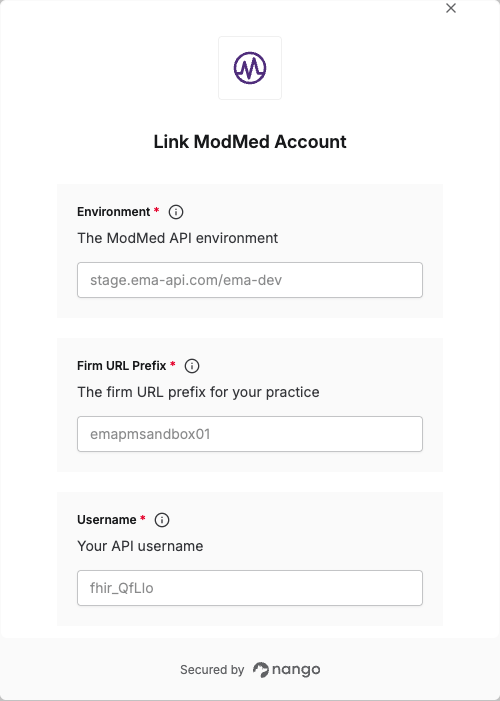 You are now connected to ModMed.