> ## Documentation Index
> Fetch the complete documentation index at: https://nango.dev/docs/llms.txt
> Use this file to discover all available pages before exploring further.
# Microsoft Teams Bot - How do I link my account?
# Overview
To connect Microsoft Teams Bot in Nango, you need to provide:
1. **Tenant ID** — The unique identifier for your Microsoft Entra ID tenant with an active MS Teams subscription.
This guide explains where to find your Tenant ID and how to enter it in the Connect UI.
### Step 1: Finding your Tenant ID
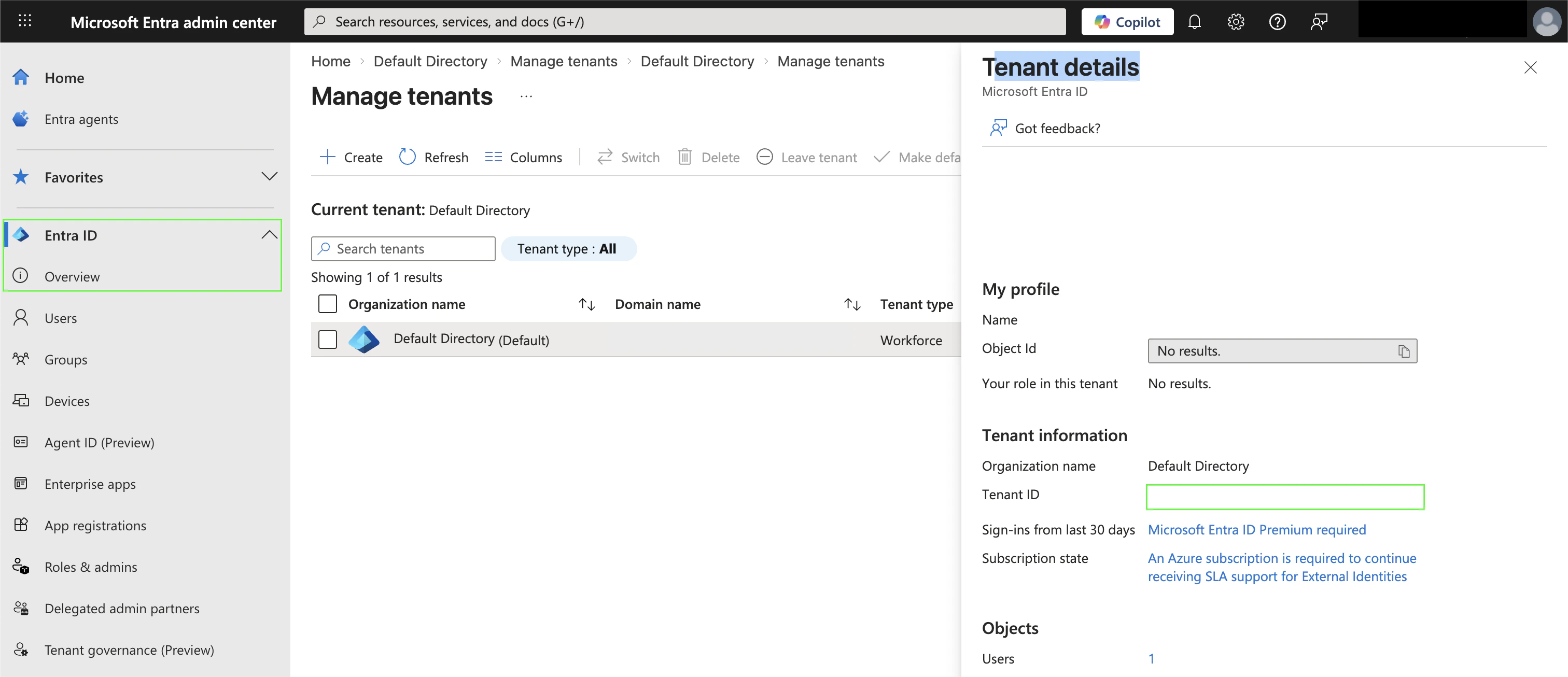
1. Sign in to your [Microsoft Entra admin center](https://entra.microsoft.com/#home).
2. If you have multiple tenants, go to **Entra ID** > **Overview** in the left menu, click **Manage tenants**, and switch to the tenant with an active Microsoft Teams subscription.
3. Your **Tenant ID** (a GUID such as `a1b2c3d4-e5f6-47a8-9b0c-d1234567890f`) is displayed under **Tenant details**.
 ### Step 2: Enter values in the Connect UI
Once you have your **Tenant ID**:
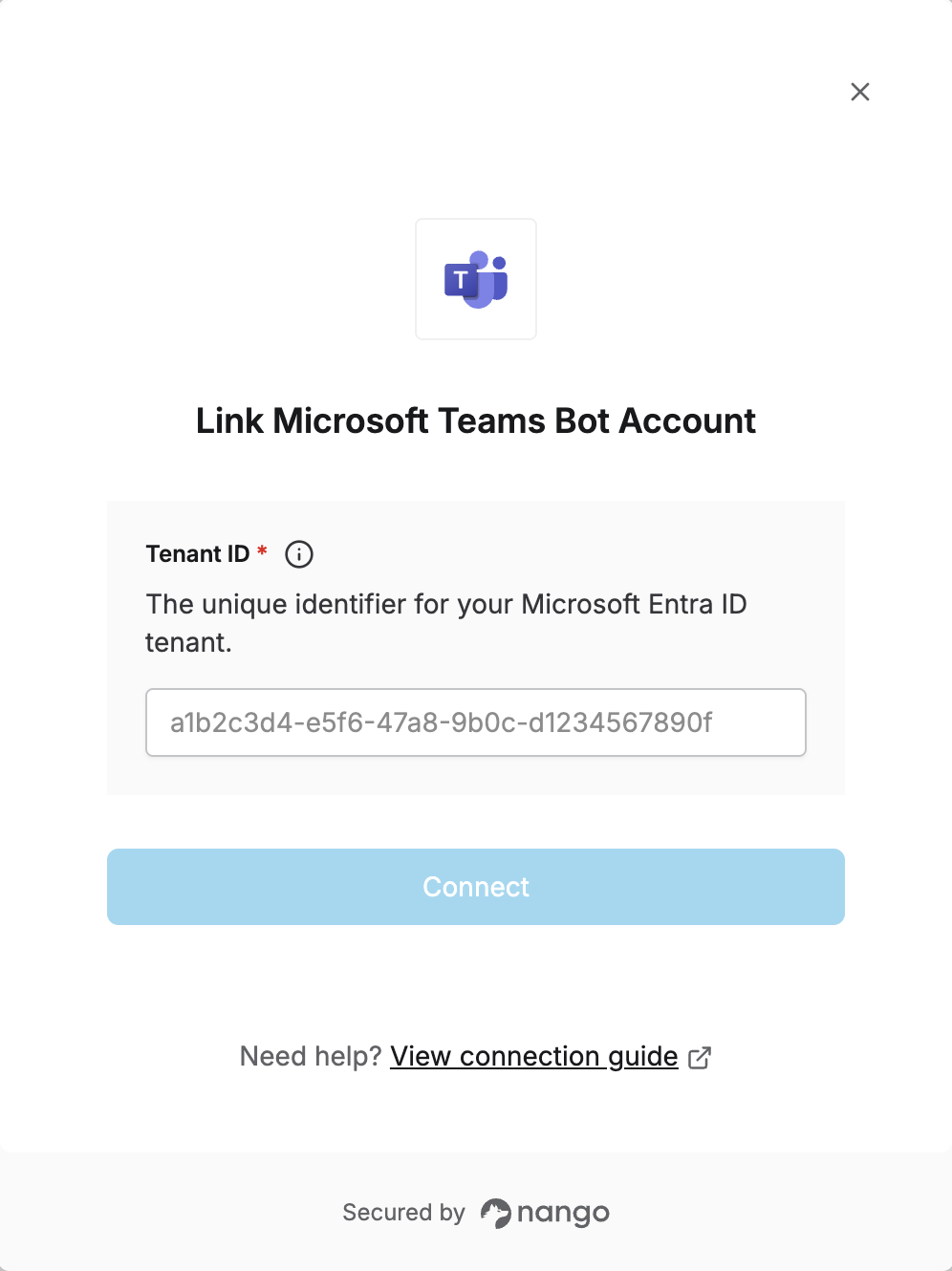
1. Open the form where you need to authenticate with Microsoft Teams Bot.
2. Enter your **Tenant ID** in its designated field.
3. Submit the form, and you should be successfully authenticated.
### Step 2: Enter values in the Connect UI
Once you have your **Tenant ID**:
1. Open the form where you need to authenticate with Microsoft Teams Bot.
2. Enter your **Tenant ID** in its designated field.
3. Submit the form, and you should be successfully authenticated.
 You are now connected to Microsoft Teams Bot.