> ## Documentation Index
> Fetch the complete documentation index at: https://nango.dev/docs/llms.txt
> Use this file to discover all available pages before exploring further.
# Microsoft Defender (Client Credentials) - How do I link my account?
## Overview
To authenticate with Microsoft Defender (Client Credentials), you need:
1. **Tenant ID** — the ID of the Microsoft Entra tenant where your app is registered.
2. **Client ID** — the ID Microsoft Entra ID assigns to your app.
3. **Client Secret** — a secret that lets your app access Defender for Endpoint without a signed-in user.
This guide will show you how to get them.
### Prerequisites
* A Microsoft Defender for Endpoint (Plan 1 or 2) or Microsoft Defender for Business subscription.
* A Microsoft Entra role that can register apps, such as **Application Administrator**, and an admin who can grant tenant-wide consent.
### Step 1: Register an app in Microsoft Entra ID
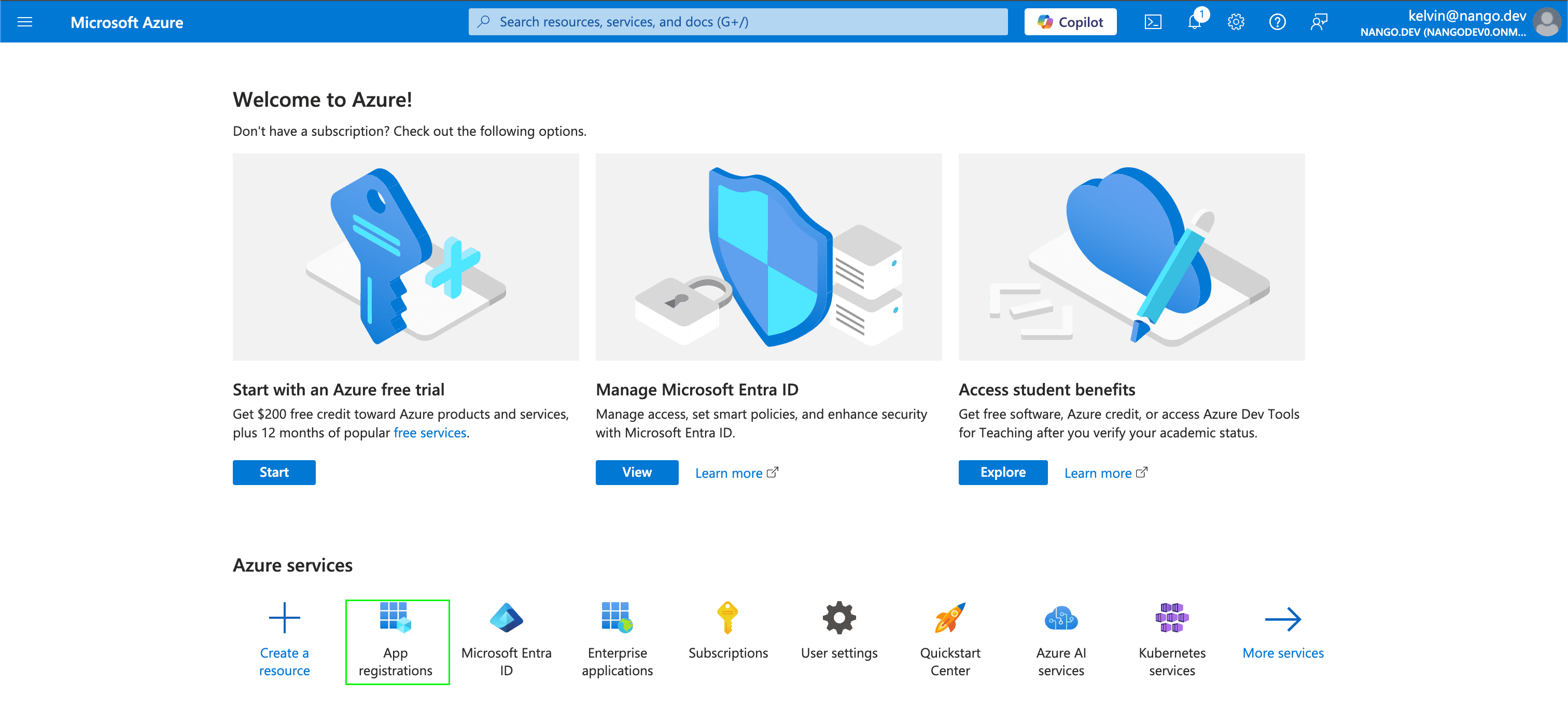
1. Sign in to the [Azure portal](https://portal.azure.com) and open **App registrations**.
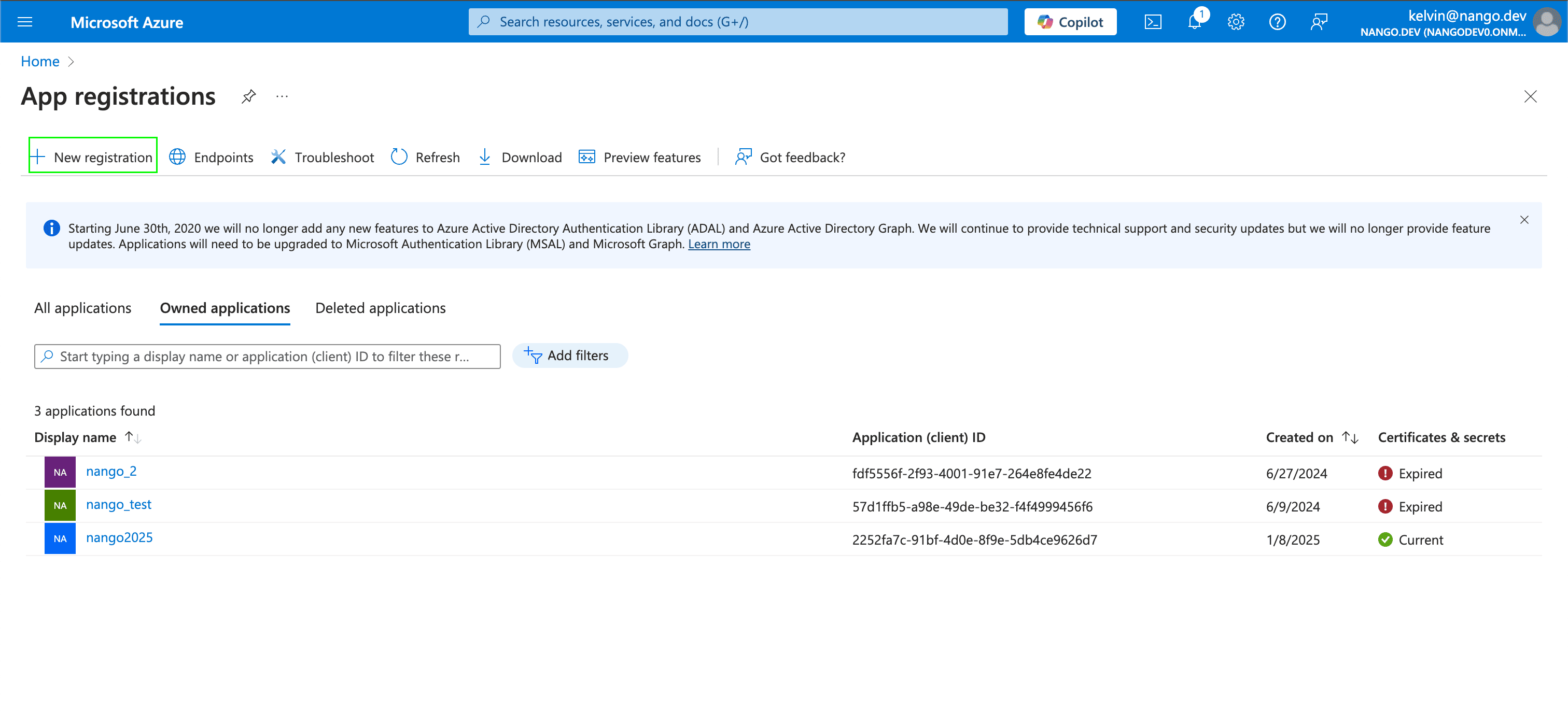
 2. Select **New registration**.
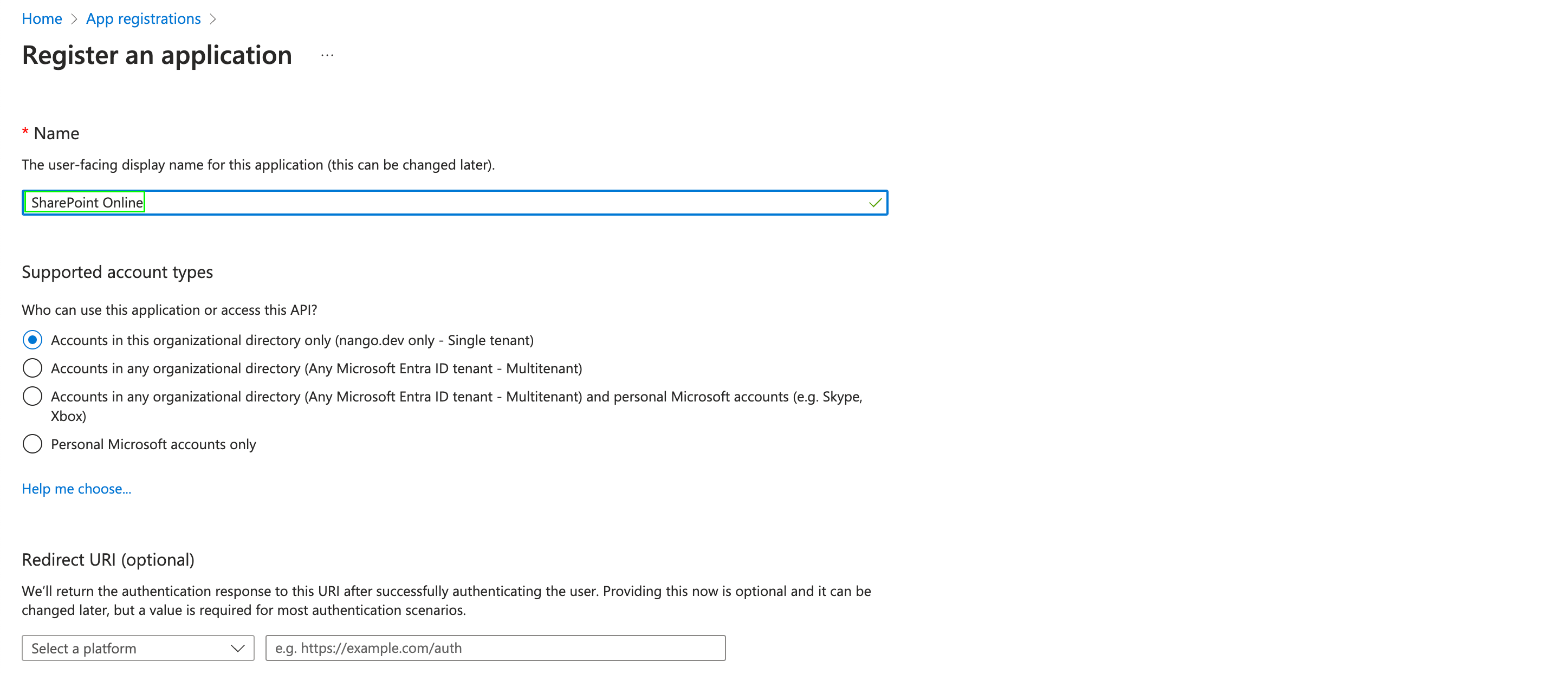
 3. Enter a name for your app and select **Register**.
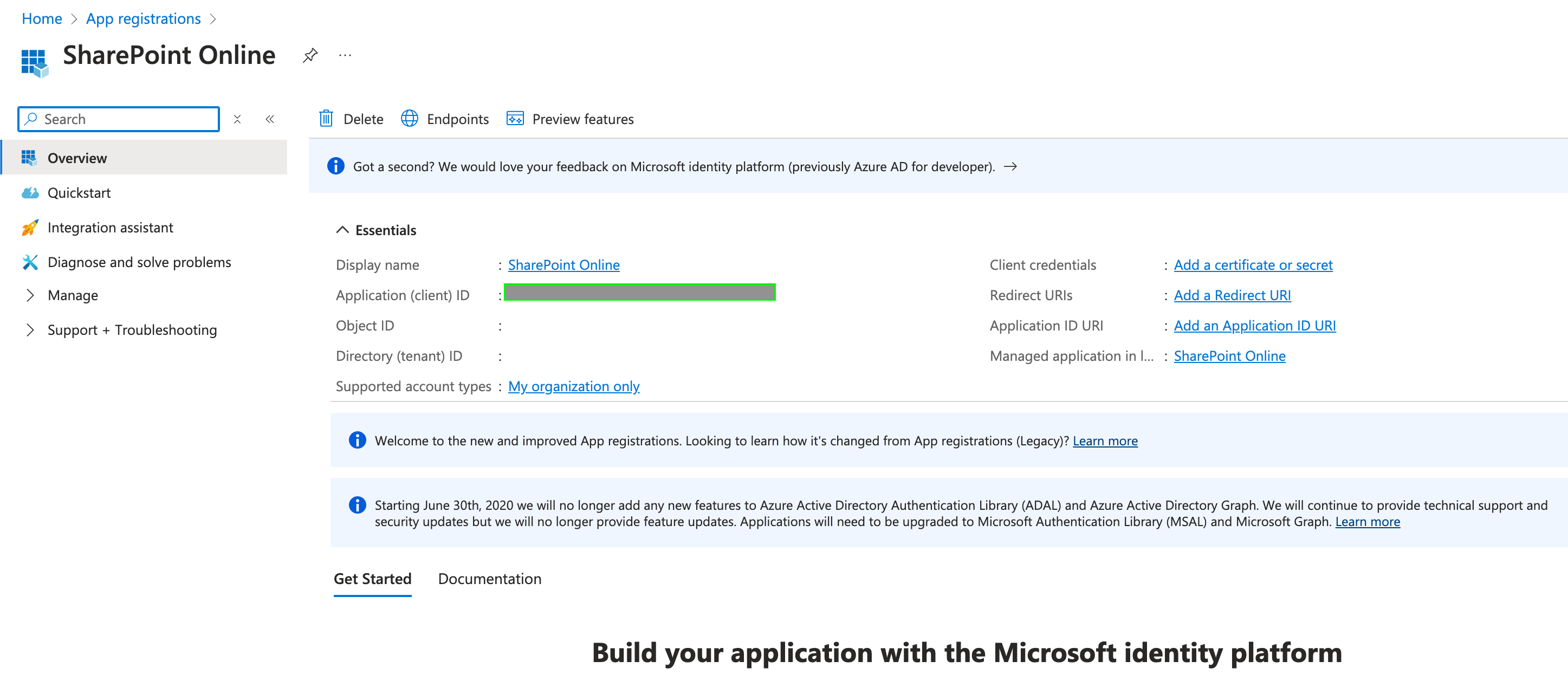
 4. On the app's **Overview** page, copy the **Application (client) ID** and the **Directory (tenant) ID**. These are your **Client ID** and **Tenant ID**.
 ### Step 2: Add API permissions
1. In your app, go to **API permissions** > **Add a permission** > **APIs my organization uses**.
2. Search for **WindowsDefenderATP** and select it.
3. Select **Application permissions**, choose the permissions your integration needs (for example, `Alert.Read.All` to read alerts or `Machine.Read.All` to read devices), then select **Add permissions**.
4. Select **Grant admin consent for \[your tenant]**.
Each Defender for Endpoint API lists the permission it needs in the **Permissions** section of its [reference page](https://learn.microsoft.com/en-us/defender-endpoint/api/exposed-apis-list). Without it, requests return `403 Forbidden`.
### Step 3: Create a client secret
1. In your app, go to **Certificates & secrets** > **New client secret**.
2. Enter a description and an expiry, then select **Add**.
### Step 2: Add API permissions
1. In your app, go to **API permissions** > **Add a permission** > **APIs my organization uses**.
2. Search for **WindowsDefenderATP** and select it.
3. Select **Application permissions**, choose the permissions your integration needs (for example, `Alert.Read.All` to read alerts or `Machine.Read.All` to read devices), then select **Add permissions**.
4. Select **Grant admin consent for \[your tenant]**.
Each Defender for Endpoint API lists the permission it needs in the **Permissions** section of its [reference page](https://learn.microsoft.com/en-us/defender-endpoint/api/exposed-apis-list). Without it, requests return `403 Forbidden`.
### Step 3: Create a client secret
1. In your app, go to **Certificates & secrets** > **New client secret**.
2. Enter a description and an expiry, then select **Add**.
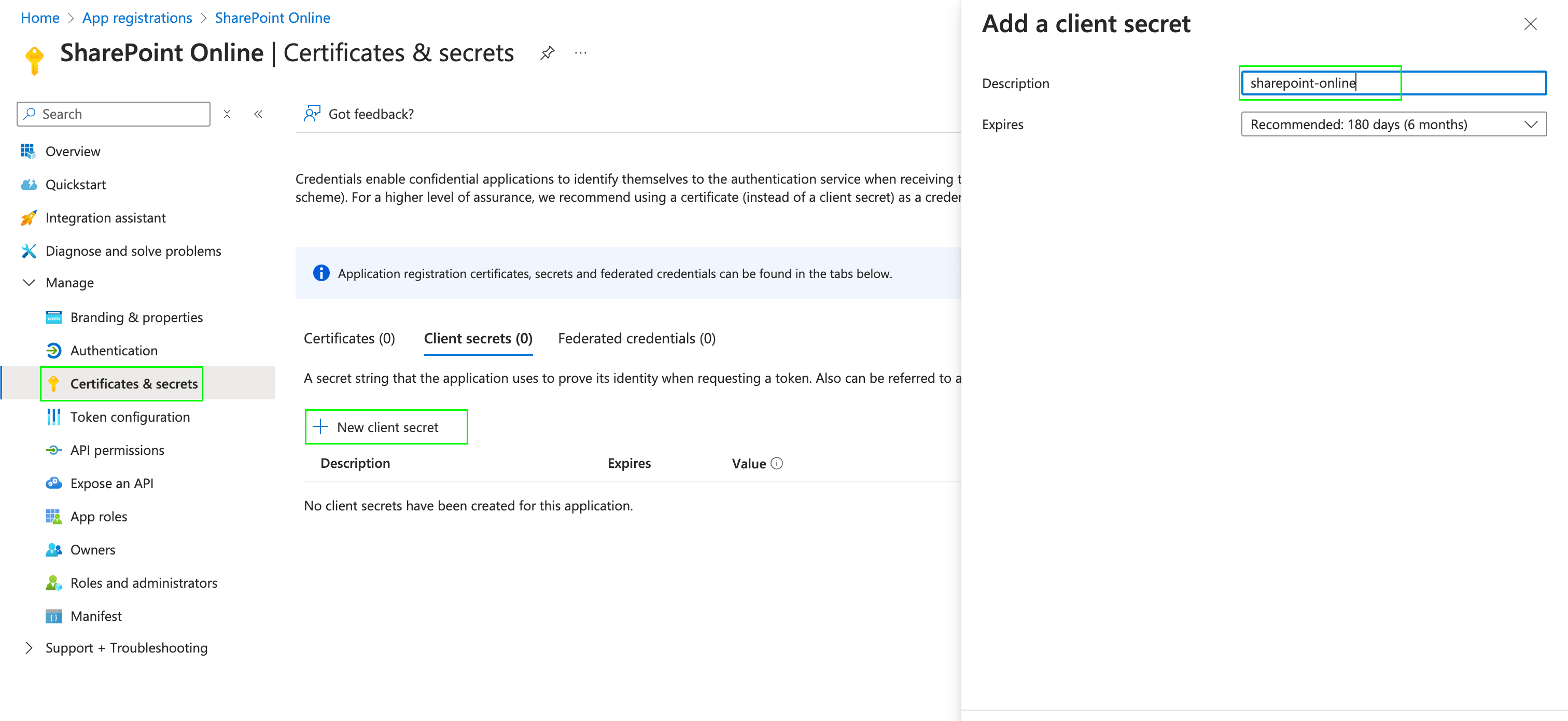 3. Copy the secret's **Value**. This is your **Client Secret**.
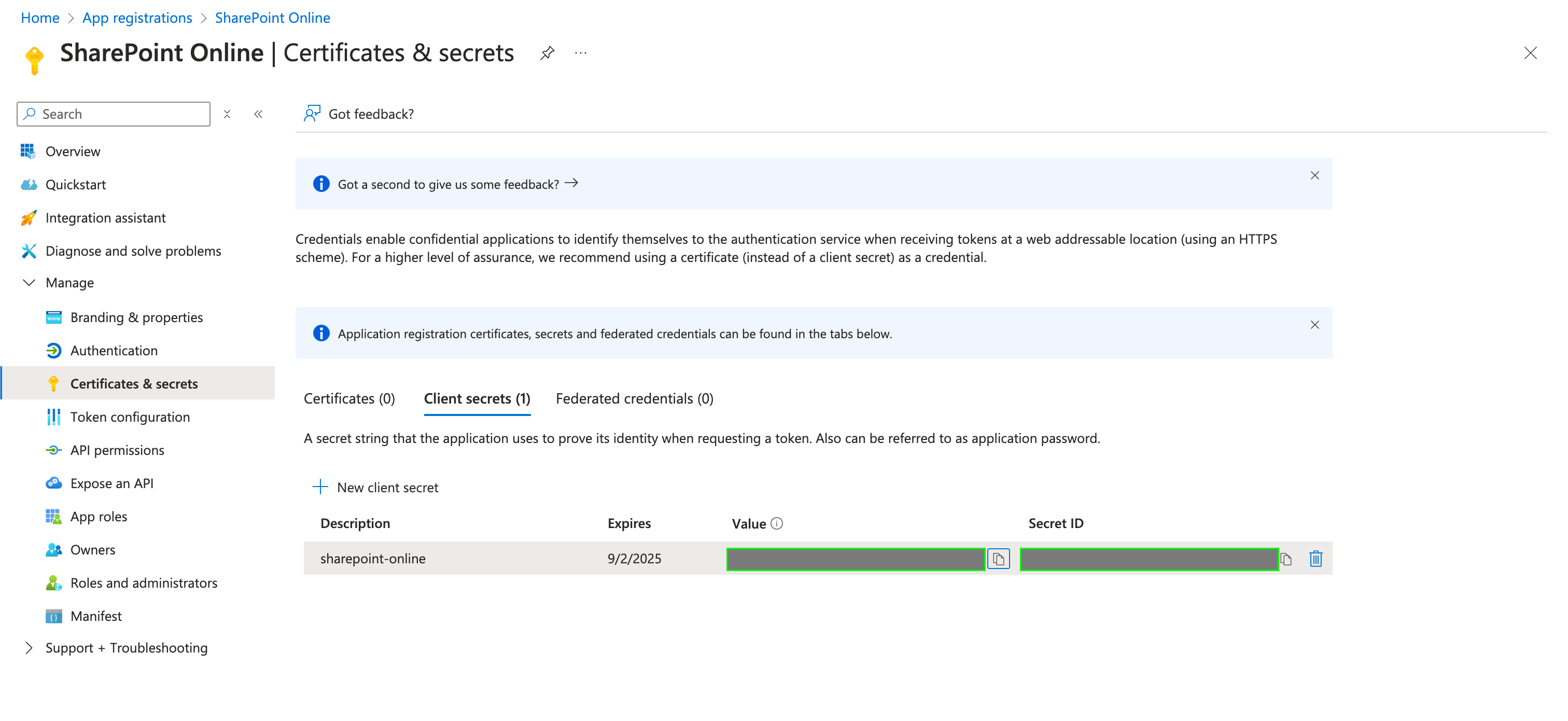 Microsoft only shows the secret value once. Save it somewhere secure before leaving the page. When the secret expires, create a new one and update it in Nango.
### Step 4: Enter your credentials in the Connect UI
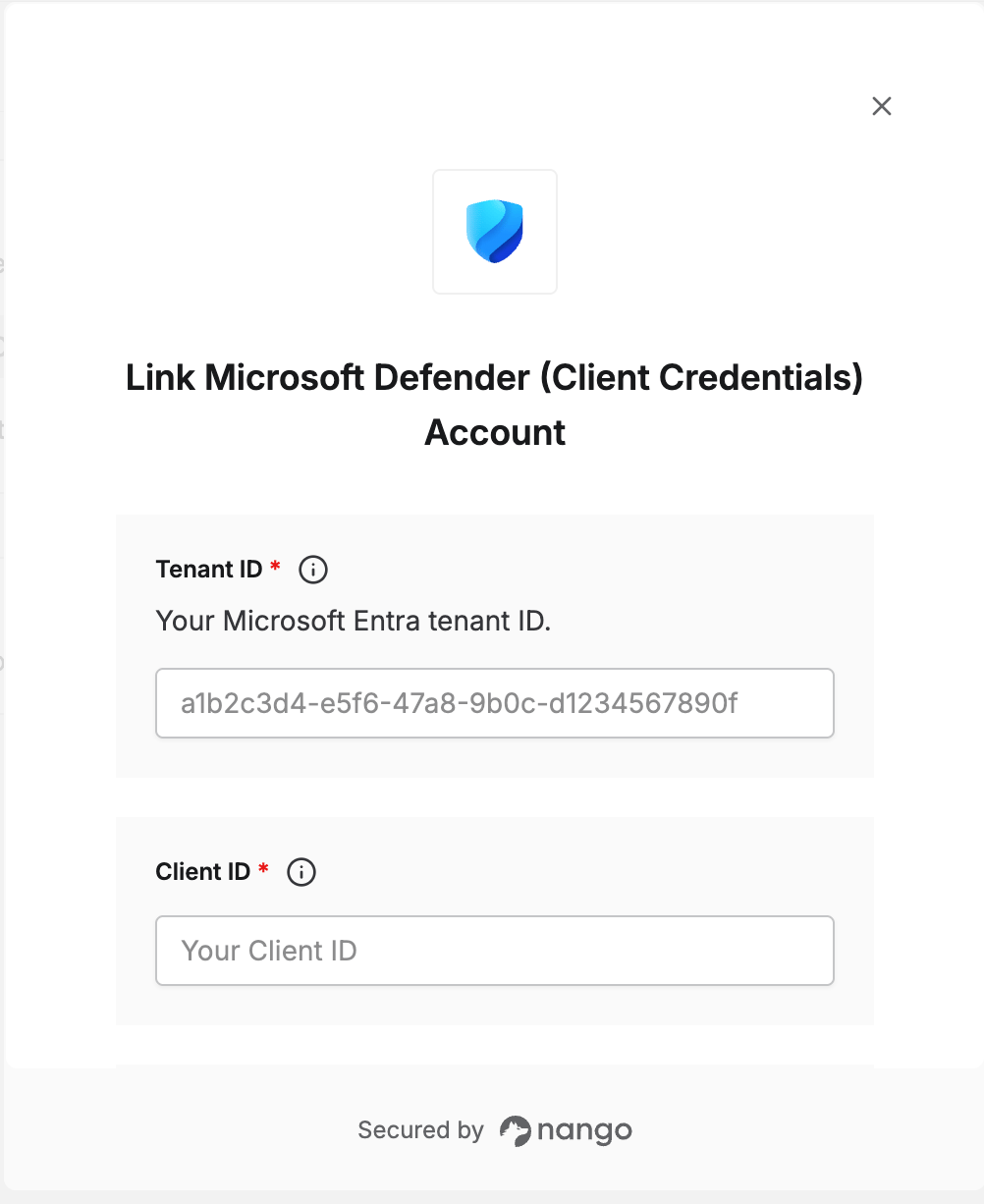
1. Open the form where you need to authenticate with Microsoft Defender (Client Credentials).
2. Enter your **Tenant ID**, **Client ID**, and **Client Secret** in the designated fields.
3. Submit the form, and you should be successfully authenticated.
Microsoft only shows the secret value once. Save it somewhere secure before leaving the page. When the secret expires, create a new one and update it in Nango.
### Step 4: Enter your credentials in the Connect UI
1. Open the form where you need to authenticate with Microsoft Defender (Client Credentials).
2. Enter your **Tenant ID**, **Client ID**, and **Client Secret** in the designated fields.
3. Submit the form, and you should be successfully authenticated.
 You are now connected to Microsoft Defender (Client Credentials).
This documentation is built and hosted on [Mintlify](https://mintlify.com), a developer documentation platform.
You are now connected to Microsoft Defender (Client Credentials).
This documentation is built and hosted on [Mintlify](https://mintlify.com), a developer documentation platform.