> ## Documentation Index
> Fetch the complete documentation index at: https://nango.dev/docs/llms.txt
> Use this file to discover all available pages before exploring further.
# Mattermost - How do I connect my account?
> Generate a Mattermost personal access token and connect it to Nango
# Overview
To authenticate with Mattermost, you need:
1. **Server URL** - The hostname of your Mattermost instance (e.g. `mattermost.example.com`).
2. **Personal Access Token** - A token that grants API access to your Mattermost account.
This guide walks you through generating your Mattermost personal access token and connecting it to Nango.
### Prerequisites
* A Mattermost account with personal access token permissions enabled. Only System Admins can enable personal access tokens, check with your administrator if the option is unavailable.
### Instructions
#### Step 1: Find your Mattermost server URL
Your Mattermost server URL is the hostname visible in your browser when logged in to Mattermost. For example, if your browser shows:
```
https://mattermost.example.com
```
Your server URL is **`mattermost.example.com`**.
#### Step 2: Generate a personal access token
1. Sign in to your Mattermost account.
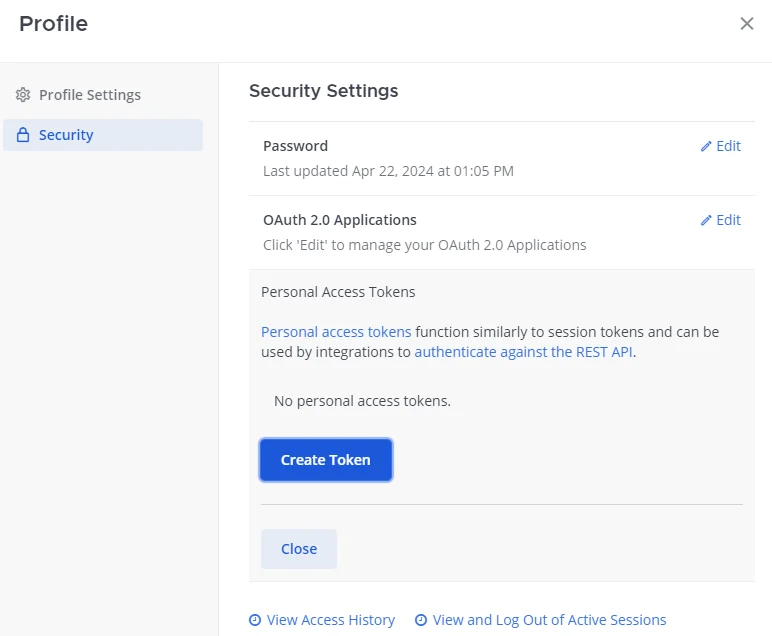
2. Click your **profile picture** in the top-left corner, then select **Profile**.
3. Navigate to the **Security** tab.
4. Scroll to the **Personal Access Tokens** section and click **Create Token**.
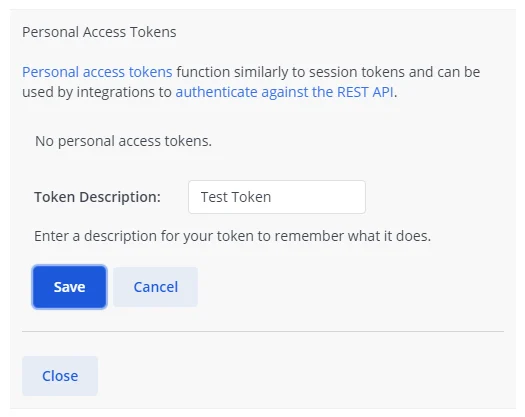
 5. Enter a **description** for the token (e.g. "Nango integration") and click **Save**.
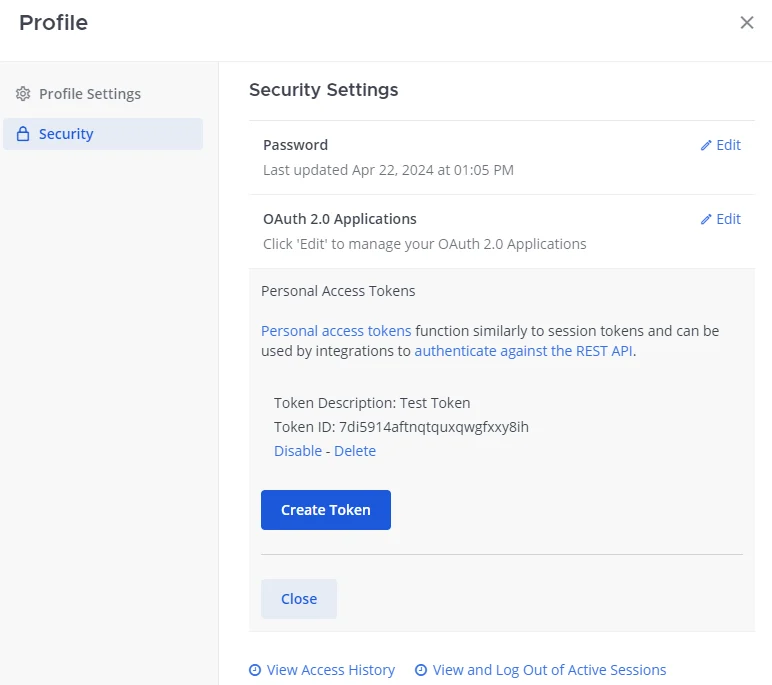
 6. **Copy the token immediately** — Mattermost will not show it again.
 > **Note:** If the **Personal Access Tokens** section is not visible, ask your System Admin to enable personal access tokens under **System Console** > **Integrations** > **Integration Management**, and to grant your account the "Allow this account to generate personal access tokens" permission under **System Console** > **User Management** > **Users**.
#### Step 3: Enter credentials in the Connect UI
Once you have your server URL and personal access token:
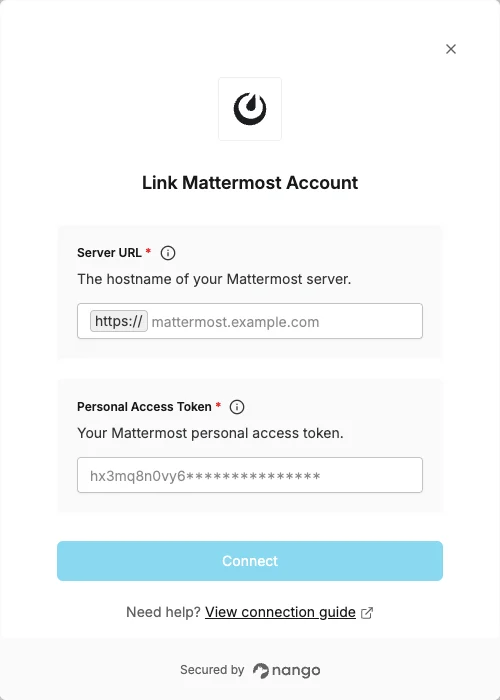
1. Open the form where you need to authenticate with Mattermost.
2. Enter your **Server URL** and **Personal Access Token** in their respective fields.
3. Submit the form, and you should be successfully authenticated.
> **Note:** If the **Personal Access Tokens** section is not visible, ask your System Admin to enable personal access tokens under **System Console** > **Integrations** > **Integration Management**, and to grant your account the "Allow this account to generate personal access tokens" permission under **System Console** > **User Management** > **Users**.
#### Step 3: Enter credentials in the Connect UI
Once you have your server URL and personal access token:
1. Open the form where you need to authenticate with Mattermost.
2. Enter your **Server URL** and **Personal Access Token** in their respective fields.
3. Submit the form, and you should be successfully authenticated.
 You are now connected to Mattermost.