> ## Documentation Index
> Fetch the complete documentation index at: https://nango.dev/docs/llms.txt
> Use this file to discover all available pages before exploring further.
# Looker (OAuth) - How do I link my account?
# Overview
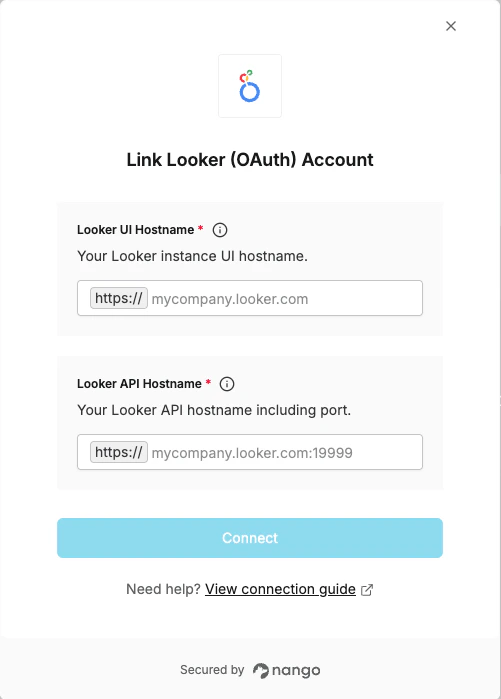
To authenticate with Looker via OAuth, you need:
1. **Looker UI Hostname** — the base URL of your Looker instance, used for the OAuth authorization redirect.
2. **Looker API Hostname** — the API endpoint of your Looker instance (including port).
This guide will walk you through finding both hostnames.
### Prerequisites
* An active Looker account with admin access.
### Instructions
#### Step 1: Finding your Looker UI hostname
Your UI hostname is the domain you use to access Looker in the browser, without the `https://` prefix.
For example, if you access Looker at `https://mycompany.looker.com`, your UI hostname is `mycompany.looker.com`.
#### Step 2: Finding your Looker API hostname
The API hostname may differ from the UI hostname and typically includes a port number.
1. Log in to your Looker instance with admin access.
2. Navigate to **Admin** > **API**.
3. Check the **API Host URL** field.
* If a value is configured, use that value (without the `https://` prefix) as your API hostname.
* If the field is empty, your API hostname is typically your UI hostname on port `19999` (e.g., `mycompany.looker.com:19999`).
For Looker-hosted (Google Cloud) instances, the API hostname is usually the same domain as the UI hostname without a custom port.
#### Step 3: Enter credentials in the Connect UI
Once you have both hostnames:
1. Open the form where you need to authenticate with Looker.
2. Enter your **Looker UI Hostname** (e.g., `mycompany.looker.com`).
3. Enter your **Looker API Hostname** (e.g., `mycompany.looker.com:19999`).
4. Submit the form, and you should be successfully authenticated.
 You are now connected to Looker (OAuth).